
CHEREEKI STK-4006L
CHEREEKI Wireless Gamepad for PS-4
Model: STK-4006L
User Manual
Introduction
Thank you for choosing the CHEREEKI Wireless Gamepad for PS-4. This controller is designed to enhance your gaming experience on PS-4, PS4 Slim, and PS4 Pro consoles, offering precise control, immersive feedback, and comfortable design. This manual provides detailed instructions on setting up, operating, maintaining, and troubleshooting your new gamepad.

Image: The CHEREEKI Wireless Gamepad in white, showcasing its ergonomic design.
Product Overview
Familiarize yourself with the various components and buttons of your CHEREEKI Wireless Gamepad.
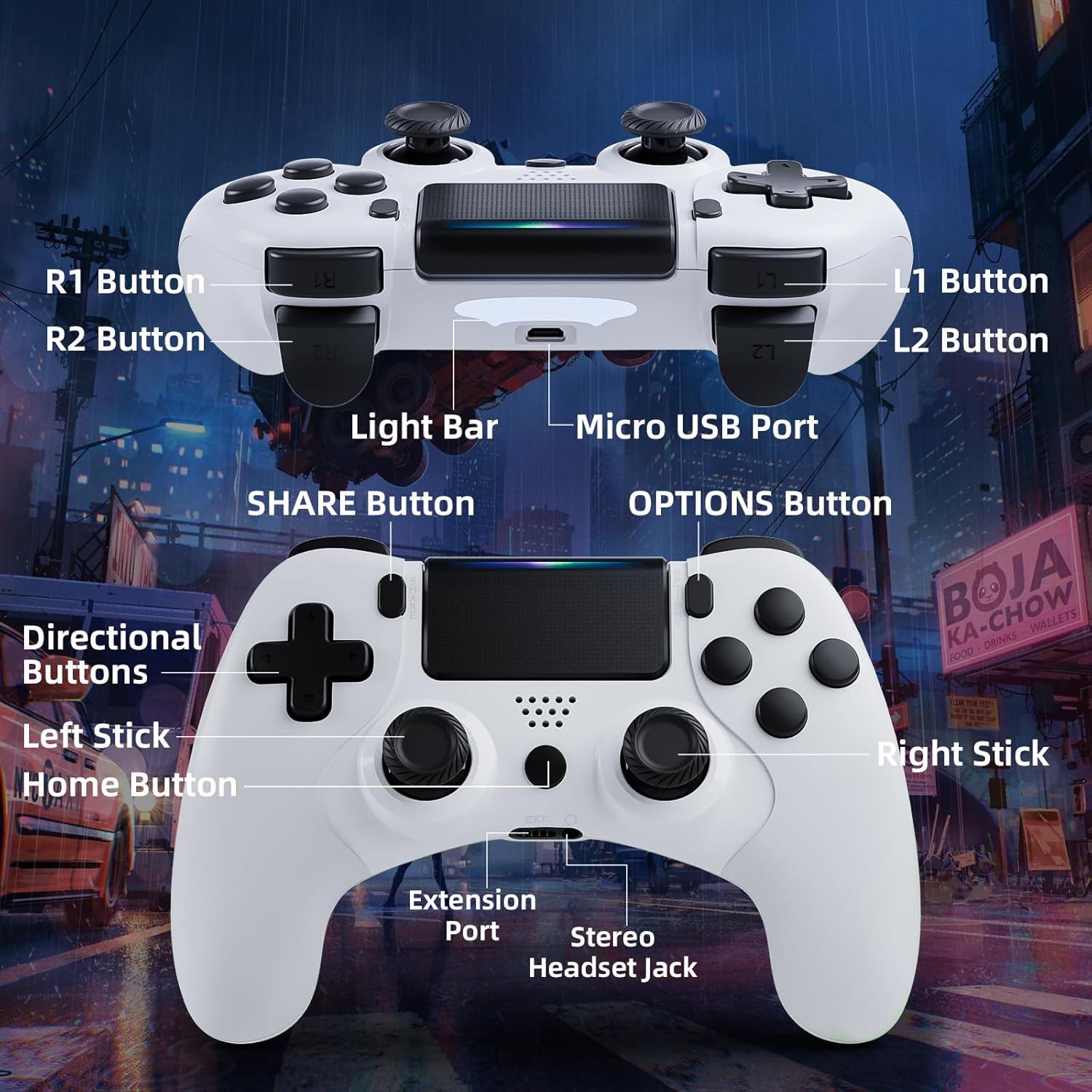
Image: Detailed diagram of the CHEREEKI Wireless Gamepad, highlighting its various buttons and ports for easy identification.
Controller Components:
- R1 Button: Right shoulder button.
- R2 Button: Right trigger button.
- L1 Button: Left shoulder button.
- L2 Button: Left trigger button.
- Light Bar: Indicates controller status and player number.
- Micro USB Port: For charging and initial wired connection.
- SHARE Button: For sharing gameplay videos and screenshots.
- OPTIONS Button: Access in-game menus and options.
- Directional Buttons (D-Pad): For directional input.
- Left Stick: Analog stick for movement.
- Home Button: PS button, for turning on/off the console and accessing the PS menu.
- Right Stick: Analog stick for camera control or aiming.
- Extension Port: For compatible accessories.
- Stereo Headset Jack: For connecting a headset.
Setup
1. Initial Connection and Pairing
The controller must be connected via USB cable for the first time to pair with your PS-4 console. This establishes the connection for future wireless use.
- Ensure your PS-4 console is powered on.
- Connect the Micro USB cable to the controller's Micro USB Port and the other end to a USB port on your PS-4 console.
- Press the Home Button (PS button) on the controller. The light bar will flash and then glow steadily, indicating successful pairing.
- Once paired, you can disconnect the USB cable to use the controller wirelessly.
2. Charging the Gamepad
The CHEREEKI Wireless Gamepad features a built-in 600 mAh rechargeable battery.
- Connect the controller to your PS-4 console or a standard USB charger using the Micro USB cable.
- The light bar will slowly pulse orange while charging.
- Charging typically takes 2-3 hours for a full charge.
- Once fully charged, the light bar will turn off.
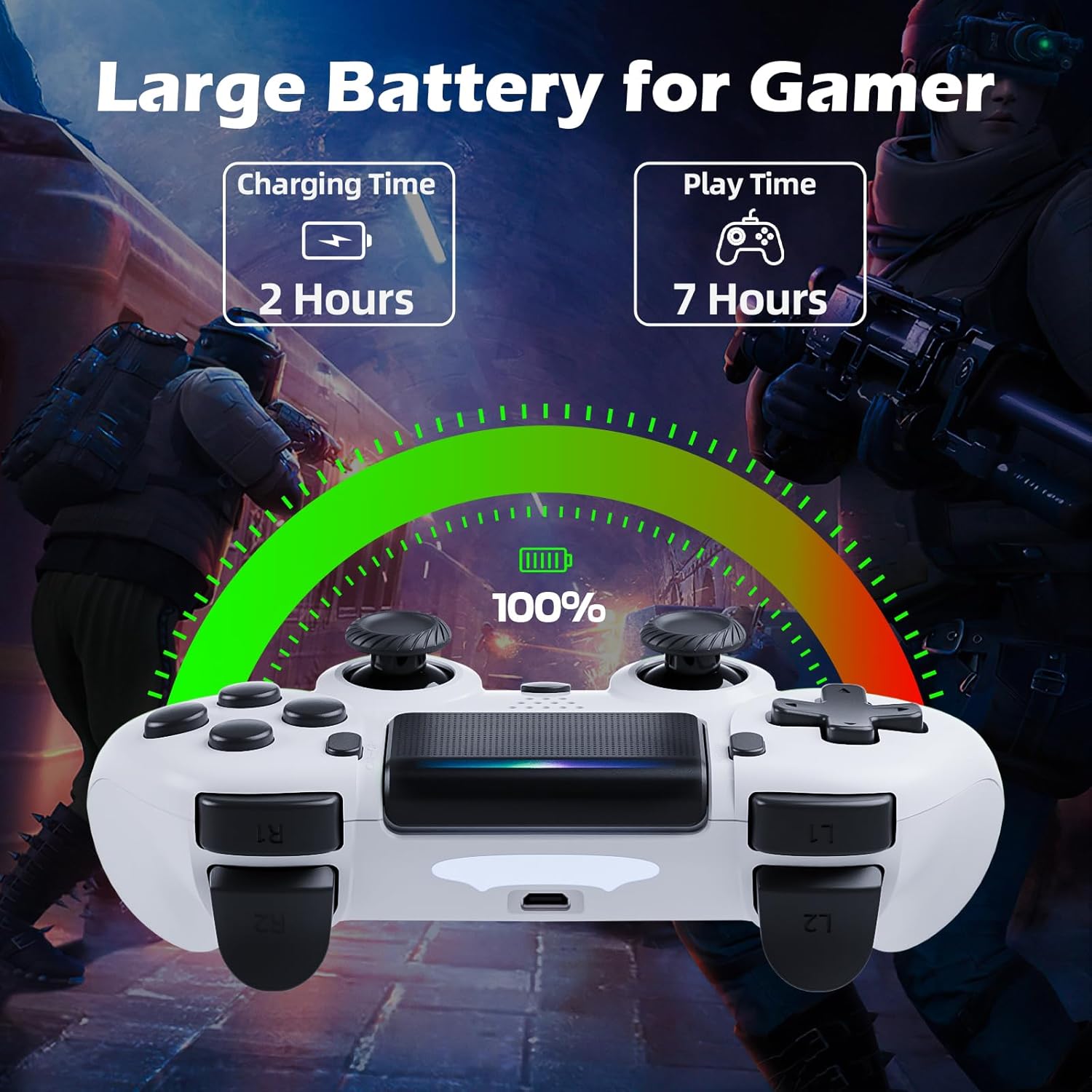
Image: Illustration showing the controller's charging time of 2 hours and play time of 7 hours on a full charge.
3. Compatibility
This controller is compatible with PS-4, PS4 Slim, and PS4 Pro consoles.

Image: Visual representation of the controller's wide compatibility with PS4, PS4 Slim, and PS4 Pro consoles.
Operating Instructions
1. Basic Controls
The gamepad features standard PS-4 button layouts for intuitive gameplay.
- Analog Sticks: Use the Left Stick for character movement and the Right Stick for camera control or aiming.
- Directional Buttons (D-Pad): For precise directional input in menus or specific game actions.
- Action Buttons (Triangle, Circle, Cross, Square): Perform in-game actions as defined by the game.
- Shoulder and Trigger Buttons (L1, L2, R1, R2): Used for various actions like shooting, aiming, or interacting.
2. Motion Sensor (Gyro) Control
The built-in 6-axis motion sensor allows for intuitive control by tilting and rotating the controller.
- In supported games, you can use motion control for actions like steering, aiming, or adjusting viewing angles.
- Experiment with tilting the controller to achieve faster turns, adjust viewing angles, or aim more accurately.

Image: Illustration demonstrating the Gyro Motion Control feature, allowing for faster turning, viewing angle adjustment, and accurate aiming.
3. Double Vibration Feedback
Experience immersive gameplay with the dual motor vibration feature, providing tactile feedback for in-game events.
- The controller will vibrate to simulate impacts, explosions, and other in-game sensations.
- Vibration intensity may vary based on game design.

Image: Illustration of the Double Motor Vibration feature, showing the internal motors that provide immersive haptic feedback during gameplay.
4. Touchpad Functionality
The integrated touchpad allows for new ways to interact with games and navigate menus.
- Tap, swipe, or click the touchpad as required by specific games or system functions.
5. SHARE Button
The SHARE button allows you to easily share your gameplay moments.
- Press the SHARE Button to access the Share menu, where you can upload screenshots or video clips to social media, or start a broadcast.
6. Stereo Headset Jack
Connect your compatible 3.5mm headset to the Stereo Headset Jack for in-game audio and voice chat.
- Plug your headset into the port located at the bottom of the controller.
- Adjust audio settings via the PS-4 system menu.
7. Ergonomic Design
The controller is designed for comfort during extended gaming sessions.

Image: Depiction of the controller's ergonomic design, showing how it comfortably fits the shape of the hand for prolonged use.
Maintenance
Proper care will extend the life of your CHEREEKI Wireless Gamepad.
- Cleaning: Use a soft, dry cloth to wipe down the controller. For stubborn dirt, slightly dampen the cloth with water. Avoid harsh chemicals or abrasive cleaners.
- Storage: Store the controller in a cool, dry place away from direct sunlight and extreme temperatures.
- Battery Care: To maintain battery health, avoid fully discharging the controller frequently. If storing for a long period, charge the battery to about 50% every few months.
- Handling: Avoid dropping the controller or exposing it to excessive force, which can damage internal components.
Troubleshooting
If you encounter issues with your gamepad, refer to the following common problems and solutions.
| Problem | Possible Cause | Solution |
|---|---|---|
| Controller does not connect wirelessly or connection is unstable. | Not properly paired; too far from console; interference. |
|
| Controller does not charge or holds charge for a short time. | Faulty cable; power source issue; battery degradation. |
|
| Buttons are unresponsive or sticky. | Debris under buttons; physical damage. |
|
| No vibration feedback. | Vibration disabled in game/system settings; game does not support vibration. |
|
Specifications
| Feature | Detail |
|---|---|
| Model Number | STK-4006L |
| Compatibility | PS-4, PS4 Slim, PS4 Pro |
| Connectivity | Wireless (Bluetooth), Wired (Micro USB) |
| Wireless Range | Up to 8 meters |
| Battery Type | Built-in Lithium-ion |
| Battery Capacity | 600 mAh |
| Charging Time | Approx. 2-3 hours |
| Play Time | Up to 7 hours |
| Dimensions (L x W x H) | 17.4 x 13 x 7.6 cm (approx. 6.85 x 5.12 x 2.99 inches) |
| Weight | 210 grams (approx. 0.46 lbs) |
| Sensors | 6-axis motion sensor (gyroscope, accelerometer) |
| Vibration | Dual motor vibration |
| Input/Output | Touchpad, Stereo Headset Jack, Extension Port |
Warranty and Support
For warranty information, please refer to the documentation included with your purchase or visit the official CHEREEKI website. Warranty terms and conditions may vary by region and retailer.
If you require technical support or have questions not covered in this manual, please contact the seller or CHEREEKI customer service through their official channels. Provide your model number (STK-4006L) and a detailed description of your issue for faster assistance.
Ask a question about this manual
Ask about setup, troubleshooting, compatibility, parts, safety, or missing instructions. Manuals+ will review the question and use this page’s manual context to help answer it.