1. Introduction
This manual provides comprehensive instructions for the installation, operation, and maintenance of your Yealink MP58-WH-TEAMS-PSU-E2 IP Phone. This device is designed to enhance communication and collaboration, featuring an Android 13.0 OS, a 7-inch capacitive touch screen, and dedicated Microsoft Teams integration. Please read this manual thoroughly before using the phone to ensure proper functionality and safety.
2. Package Contents
Verify that all items listed below are present in your package. If any item is missing or damaged, contact your vendor.
- Yealink MP58-WH-TEAMS-PSU-E2 IP Phone
- Handset
- Handset Cord
- Ethernet Cable (Network Cable)
- Power Adapter
3. Product Overview
The Yealink MP58-WH-TEAMS-PSU-E2 IP Phone combines advanced hardware with the Android 13 operating system to deliver a robust communication experience. Key features include a large adjustable touch screen, a magnetic handset, and dedicated Microsoft Teams functionality.

Figure 3.1: Front view of the Yealink MP58-WH-TEAMS-PSU-E2 IP Phone, showcasing the main unit, handset, and the included power adapter. The 7-inch touch screen is visible, along with the physical keypad and function buttons.
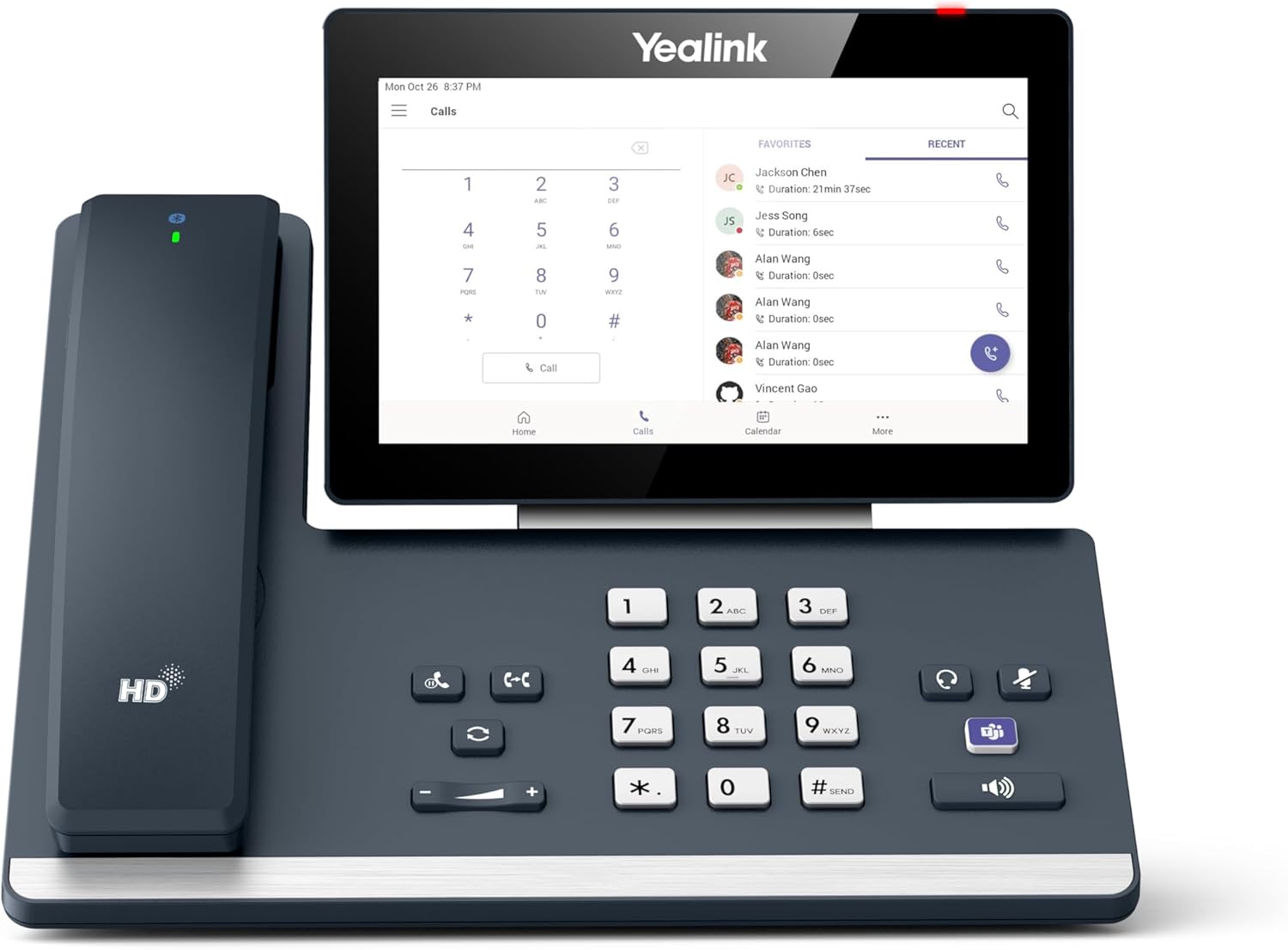
Figure 3.2: The IP Phone displaying the Microsoft Teams 'Calls' interface. This view shows recent calls, favorites, and the dial pad on the touchscreen, indicating its user-friendly interface for managing communications.

Figure 3.3: A direct front view of the IP Phone with the screen displaying an active Microsoft Teams video call. This image highlights the clear display and the layout of the physical buttons below the screen.

Figure 3.4: An angled view of the IP Phone, again showing the Microsoft Teams 'Calls' interface. This perspective emphasizes the phone's ergonomic design and the visibility of the touchscreen from various angles.

Figure 3.5: The phone's screen showing the notifications panel, with a missed call alert from "Jess Song" and options to call back or clear notifications. This demonstrates the phone's ability to keep users informed of important events.
4. Setup
Follow these steps to set up your Yealink MP58-WH-TEAMS-PSU-E2 IP Phone.
- Connect the Handset: Plug one end of the handset cord into the handset port on the phone base and the other end into the handset.
- Connect the Network:
- Power over Ethernet (PoE): If your network supports PoE, connect one end of the Ethernet cable to the Internet port on the phone and the other end to a PoE-enabled switch or hub. The phone will power on automatically.
- Without PoE: If PoE is not available, connect one end of the Ethernet cable to the Internet port on the phone and the other end to your network router/switch. Then, connect the power adapter to the DC 48V port on the phone and plug the adapter into a power outlet.
- Initial Boot-up: The phone will power on and begin the boot-up sequence. Follow the on-screen prompts to complete the initial setup, including network configuration and Microsoft Teams account login.
- Adjust Screen Angle: The 7-inch touch screen is adjustable. Gently tilt the screen to your preferred viewing angle for optimal comfort.
5. Operating Instructions
5.1 Basic Call Functions
- Making a Call:
- Pick up the handset or press the Speakerphone button.
- Dial the number using the physical keypad or the on-screen dialer.
- Press the Call button on the screen or the physical dial button.
- Answering a Call: Pick up the handset, press the Speakerphone button, or tap the Answer button on the screen.
- Ending a Call: Hang up the handset or press the End Call button on the screen.
- Mute/Unmute: Press the Mute button on the physical keypad during a call.
- Volume Adjustment: Use the physical volume buttons (+ / -) to adjust the handset, speaker, or headset volume.
5.2 Microsoft Teams Integration
The MP58-WH-TEAMS-PSU-E2 is optimized for Microsoft Teams, featuring a dedicated Teams button and a tailored user interface.
- Dedicated Teams Button: Press the physical Teams button to quickly access your Teams dashboard, including calls, calendar, and voicemail.
- Teams Calls: Initiate or join Teams calls directly from the phone's interface. The 7-inch screen provides a clear view of participants and call controls.
- Calendar: View your Microsoft Teams calendar and join scheduled meetings with a single touch.
- Voicemail: Access and manage your Teams voicemail messages.
5.3 Bluetooth and Wi-Fi Connectivity
- Bluetooth: The phone supports Bluetooth 5.2. To pair a Bluetooth headset or the optional Bluetooth wireless handset, navigate to Settings > Bluetooth on the touchscreen and follow the pairing instructions.
- Wi-Fi: The phone includes dual-band 2.4G/5G Wi-Fi. To connect to a wireless network, go to Settings > Wi-Fi, select your network, and enter the password if required.
6. Maintenance
- Cleaning: Use a soft, dry cloth to clean the phone's surface and screen. Avoid using abrasive cleaners or solvents.
- Handset Care: Keep the handset and cord free from tangles and excessive pulling to prevent damage.
- Environmental Conditions: Operate the phone within recommended temperature and humidity ranges. Avoid direct sunlight, excessive heat, or moisture.
- Software Updates: Regularly check for and install software updates to ensure optimal performance and security. These are typically managed by your IT administrator.
7. Troubleshooting
If you encounter issues with your IP Phone, refer to the following common problems and solutions.
- No Power:
- Ensure the power adapter is securely connected to the phone and a working power outlet.
- If using PoE, verify that the Ethernet cable is connected to a PoE-enabled port and the PoE switch is operational.
- No Network Connection:
- Check that the Ethernet cable is firmly connected to both the phone's Internet port and the network device (router/switch).
- If using Wi-Fi, ensure the phone is connected to the correct network and the signal strength is adequate.
- Contact your network administrator to verify network settings and connectivity.
- Cannot Make/Receive Calls:
- Verify that your Microsoft Teams account is logged in and active.
- Check network connectivity as described above.
- Ensure the handset or speakerphone is properly engaged.
- Touch Screen Unresponsive:
- Try restarting the phone by disconnecting and reconnecting the power.
- Ensure the screen is clean and free of debris.
For further assistance, please contact your IT support or Yealink customer service.
8. Specifications
| Feature | Detail |
|---|---|
| Model | MP58-WH-TEAMS-PSU-E2 |
| Operating System | Android 13 OS |
| Display | 7-inch (1024 x 600) Capacitive Adjustable Touch Screen |
| Audio Features | Optimal HD audio, Yealink Noise Proof Technology |
| Handset Type | Magnet Handset |
| Microsoft Teams Integration | Dedicated Microsoft Teams Button, Teams-tailored User Interface |
| Wireless Connectivity | Built-in Bluetooth 5.2 and Dual Band 2.4G/5G Wi-Fi |
| USB Port | 1 USB Type A port, supports USB headset |
| Ethernet | Dual-port Gigabit Ethernet, PoE support |
| Power Source | Power Adapter Included (also supports PoE) |
| Product Dimensions | 12 x 12 x 5 inches |
| Item Weight | 5 pounds |
| Color | Gray |
| Material | Plastic |
| Manufacturer | Yealink |
9. Warranty and Support
The Yealink MP58-WH-TEAMS-PSU-E2 IP Phone comes with a standard manufacturer's warranty. For specific warranty terms and conditions, please refer to the warranty card included with your product or visit the official Yealink website.
For technical support, troubleshooting assistance beyond this manual, or service inquiries, please contact your authorized Yealink reseller or Yealink customer support directly. Contact information can typically be found on the Yealink official website or in your product documentation.