
Introduction
The Rapoo 9320M is a versatile multi-mode wireless keyboard and mouse combo designed for seamless connectivity across various devices. This combo supports Bluetooth 4.0, Bluetooth 5.0, and 2.4G wireless connections, allowing you to switch between up to four devices with ease. Featuring an ultra-slim design with an aluminum alloy base, accurate scissor keys for comfortable typing, and a mouse with 5 adjustable DPI modes, this set is engineered for efficiency and comfort. This manual provides detailed instructions for setup, operation, maintenance, and troubleshooting to ensure optimal performance of your Rapoo 9320M combo.
Package Contents
- Rapoo 9320M Wireless Keyboard
- Rapoo 9320M Wireless Mouse
- USB Receiver (stored inside the mouse battery compartment)
- 3 AAA Batteries (pre-installed or included)
- Quick Start Guide
Setup and Connectivity
1. Battery Installation
The keyboard requires 3 AAA batteries. The mouse also requires batteries, typically 1 AA battery. Ensure batteries are inserted with correct polarity. The USB receiver for 2.4G wireless connection is located inside the mouse battery compartment.
2. Connecting via 2.4G Wireless
- Remove the USB receiver from the mouse battery compartment.
- Plug the USB receiver into an available USB port on your computer.
- Turn on the keyboard and mouse using their respective power switches.
- The devices should automatically connect to your computer via 2.4G wireless.
3. Connecting via Bluetooth
The Rapoo 9320M supports Bluetooth 4.0 and 5.0. The keyboard can connect to up to 3 Bluetooth devices, and the mouse to 1 Bluetooth device.
- Keyboard Bluetooth Pairing:
a. Turn on the keyboard. Press and hold one of the Bluetooth keys (F10, F11, or F12) for 3 seconds until the corresponding LED indicator starts blinking slowly. This indicates the keyboard is in pairing mode.
b. On your device (computer, tablet, smartphone), go to Bluetooth settings and search for new devices. Select "Rapoo Keyboard" from the list.
c. Follow any on-screen prompts to complete the pairing. The LED will stop blinking once connected. - Mouse Bluetooth Pairing:
a. Turn on the mouse. Press and hold the Bluetooth pairing button (usually on the underside) for 3 seconds until the LED indicator starts blinking slowly.
b. On your device, go to Bluetooth settings and search for new devices. Select "Rapoo Mouse" from the list.
c. Follow any on-screen prompts to complete the pairing. The LED will stop blinking once connected.
Image: Multi-device connectivity diagram illustrating how the Rapoo 9320M keyboard and mouse can connect to various devices (laptop, smartphone, tablet) using Bluetooth 4.0, Bluetooth 5.0, and 2.4G wireless technologies.
Video: Official product video demonstrating the Rapoo 9320M Keyboard and Mouse Combo's features, including multi-device connectivity, ergonomic design, and silent click mouse.
Operating Instructions
1. Switching Between Devices
The keyboard can be paired with up to 4 devices (1 via 2.4G, 3 via Bluetooth). The mouse can be paired with up to 2 devices (1 via 2.4G, 1 via Bluetooth).
- Keyboard: Press the dedicated Bluetooth keys (F10, F11, F12) or the 2.4G key (F9) to switch between connected devices. The corresponding LED indicator will light up.
- Mouse: Use the mode switch button on the underside of the mouse to toggle between 2.4G and Bluetooth connections.
2. DPI Adjustment (Mouse)
The mouse features 5 adjustable DPI levels: 800, 1000, 1200, 1600, and 2400. You can switch between these levels with a single click of the DPI button, usually located near the scroll wheel. This allows for precise control tailored to your needs.
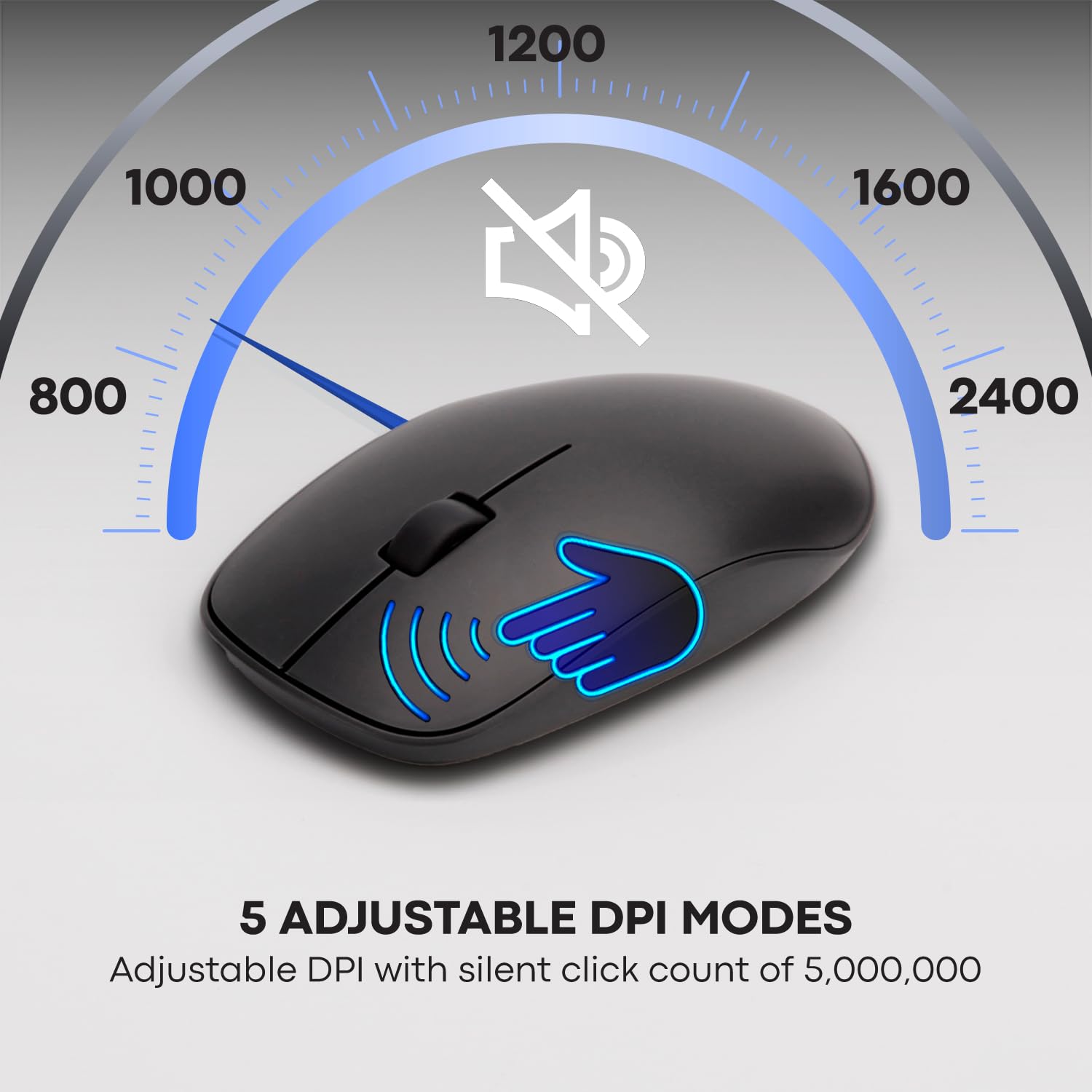
Image: Close-up of the Rapoo 9320M mouse, highlighting its 5 adjustable DPI modes (800-2400) for customized cursor sensitivity.
3. Multimedia Shortcut Keys
The keyboard includes dedicated multimedia hotkeys (F1-F8) for quick access to functions like volume control, play/pause, and track skipping. These keys are designed for smooth navigation through your media.

Image: The Rapoo 9320M keyboard showcasing its multimedia shortcut keys (F1-F8) for convenient control of audio and video playback.
4. Windows and Mac Compatibility
The keyboard supports both Windows and Mac operating systems. It features dedicated keys that adapt to the system, allowing users to switch between operating systems with a single click for optimal functionality.
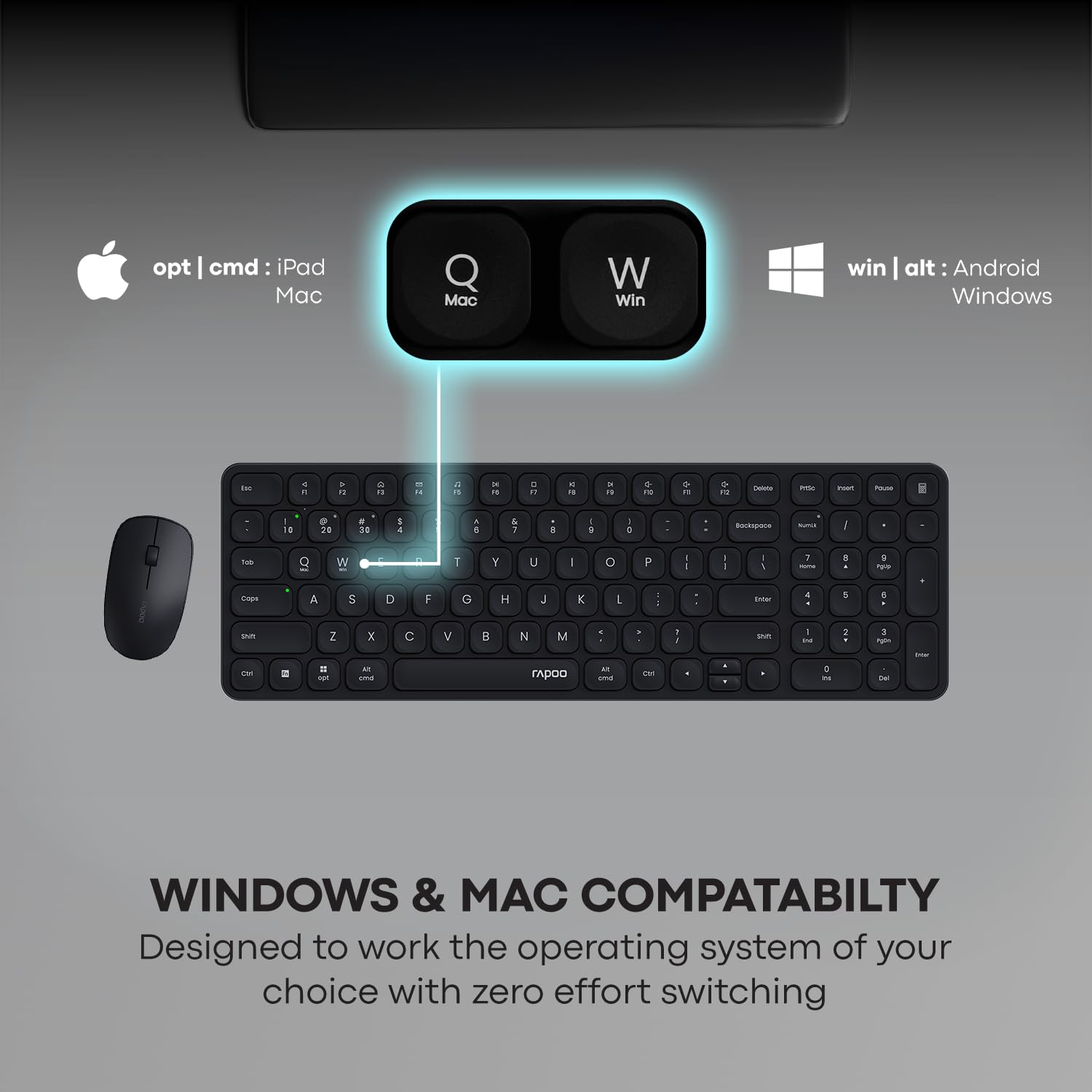
Image: The Rapoo 9320M keyboard highlighting its compatibility with both Windows and Mac operating systems, indicated by specific key labels.
5. LED Indicators
The keyboard features LED indicators to show the active device connection (1, 2, 3 for Bluetooth, 2.4G for wireless dongle) and Caps Lock status. A low battery indicator will also alert you when batteries need replacement.

Image: Close-up of the Rapoo 9320M keyboard showing the LED indicators for device connection and Caps Lock status.
Maintenance
- Cleaning: Use a soft, dry cloth to clean the keyboard and mouse. For stubborn dirt, a slightly damp cloth can be used, ensuring no liquid enters the device.
- Battery Replacement: Replace batteries when the low battery indicator illuminates or when performance degrades. Ensure to use the correct battery type (AAA for keyboard, AA for mouse).
- Storage: When not in use for extended periods, turn off the devices to conserve battery life. Store in a cool, dry place.
Troubleshooting
- No Connection:
a. Ensure the devices are turned on and batteries are correctly installed.
b. For 2.4G, ensure the USB receiver is securely plugged into a working USB port.
c. For Bluetooth, ensure Bluetooth is enabled on your device and re-attempt the pairing process. - Intermittent Connection:
a. Check battery levels and replace if low.
b. Ensure the devices are within the 10-meter operating range and there are no significant obstructions.
c. Avoid using the devices near strong interference sources (e.g., other wireless devices, microwaves). - Mouse Cursor Jumps or is Inaccurate:
a. Adjust the DPI settings using the DPI button on the mouse.
b. Ensure the mouse is used on a clean, non-reflective surface. - Keys Not Responding:
a. Check battery levels.
b. Ensure the keyboard is connected to the correct device channel.
Specifications
| Feature | Description |
|---|---|
| Brand | Rapoo |
| Model | 9320M |
| Connectivity Technology | Bluetooth 4.0, Bluetooth 5.0, 2.4G Wireless |
| Keyboard Layout | QWERTY, 104 Keys |
| Keyboard Special Features | Ultra-slim, Aluminum Alloy Base, Scissor Key Structure, Multimedia Hotkeys, Spillproof, Ergonomic |
| Mouse DPI | 800/1000/1200/1600/2400 (Adjustable) |
| Mouse Movement Detection | Optical |
| Compatible Devices | Laptop, Smartphone, Tablet, Television |
| Operating System Compatibility | Windows, Mac OS |
| Wireless Range | Up to 10 meters (30 feet) |
| Power Source | Battery Powered (3 AAA for keyboard, 1 AA for mouse) |
| Country of Origin | China |
Warranty and Support
The Rapoo 9320M Keyboard and Mouse Combo comes with a 3-year warranty. For technical support, warranty claims, or further assistance, please contact Rapoo customer service or visit the official Rapoo website. You may also refer to the contact information provided by the manufacturer or importer:
- Manufacturer: Shenzhen Rapoo Technology Co., Ltd., 22, Jinxiu Road East, Pingshan District, Shenzhen, China
- Importer: Supertron Electronics Pvt Ltd