
1. Introduction
Welcome to the world of digital photography and videography with your new eKids Spidey and His Amazing Friends Kids Camera! This camera is designed for young photographers to capture their favorite moments, record fun videos, and express their creativity with built-in digital stickers and games. Please read this manual carefully to ensure proper use and care of your device.
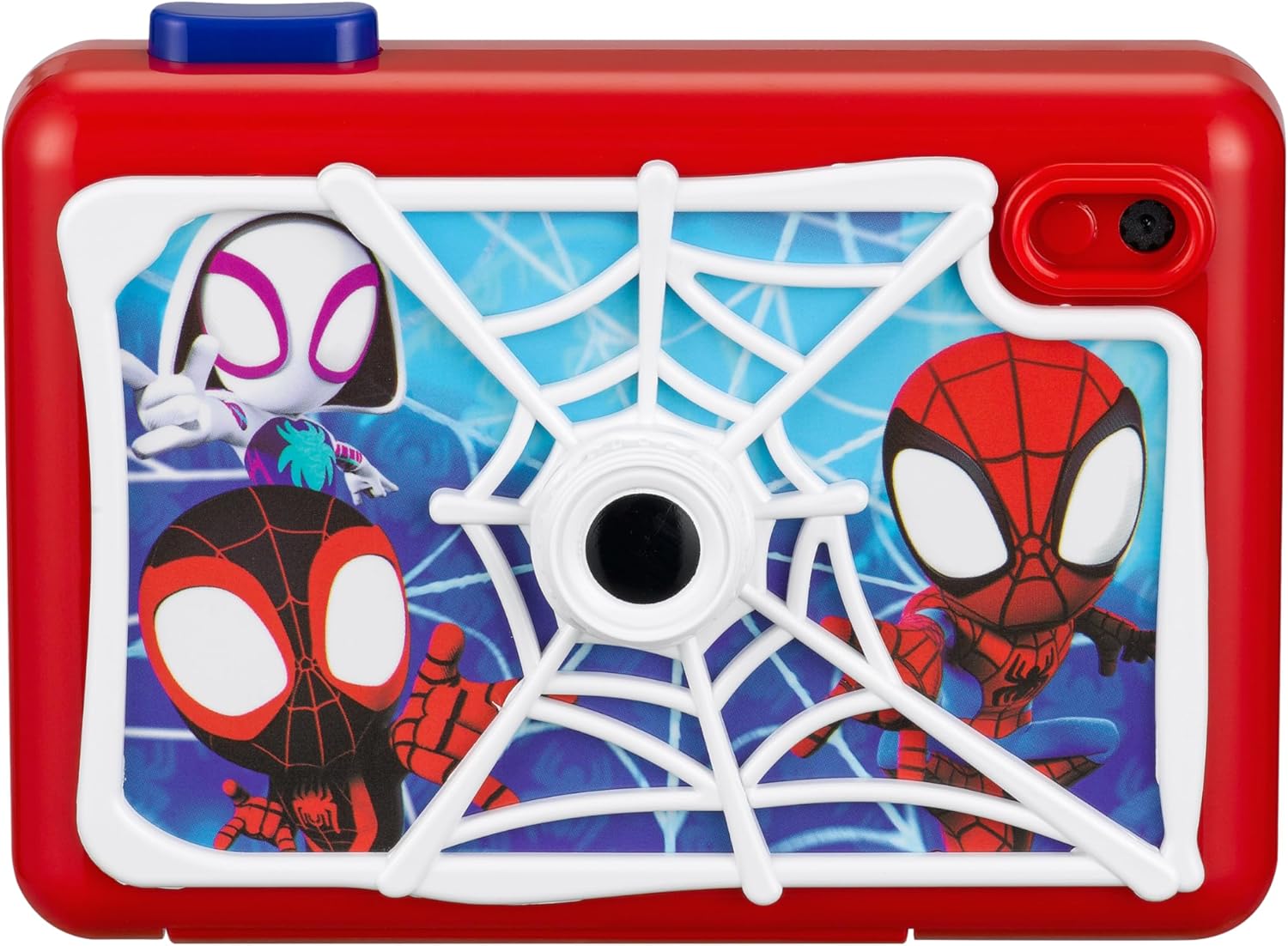
Figure 1: Front view of the Spidey and His Amazing Friends Kids Camera.
2. What's in the Box
Your eKids Spidey and His Amazing Friends Kids Camera package includes the following items:
- eKids Spidey and His Amazing Friends Kids Camera
- 512MB SD Card
- Wrist Strap
- Micro USB Cable (for data transfer)

Figure 2: Included accessories with the camera.
3. Product Features
- Digital Camera Functionality: Capture photos with easy-to-use, kid-friendly controls.
- Video Recording: Record and save videos, with options for filters and slow motion.
- Internal Storage & Expandable Memory: Comes with an included 512MB SD card, capable of storing up to 1200 photos. Memory is expandable with your own SD card.
- 2-inch Full Color Screen: View your photos and videos directly on the camera.
- Digital Decoration: Enhance images with over 25 built-in photo frames and stickers inspired by Spidey and His Amazing Friends.
- Built-in Games: Enjoy 5 pre-loaded games for added entertainment.
- File Transfer: Easily connect to a computer via the Micro USB cable to transfer and share content.

Figure 3: Key features of the camera.
4. Setup
4.1 Battery Installation
The camera requires 3 AA batteries (not included). To install the batteries:
- Locate the battery compartment on the back of the camera.
- Using a small Phillips head screwdriver, unscrew the battery compartment cover.
- Insert 3 new AA batteries, ensuring correct polarity (+/-) as indicated inside the compartment.
- Replace the cover and secure it with the screw.
Note: The Micro USB cable is for data transfer only and does not charge the batteries. Ensure fresh batteries are used for optimal performance.
4.2 SD Card Insertion
Your camera comes with a 512MB SD card. To insert it:
- Locate the SD card slot on the side of the camera.
- Gently push the SD card into the slot until it clicks into place. Ensure the card is oriented correctly.
- To remove, gently push the card in again until it pops out slightly, then pull it out.

Figure 4: Back view of the camera with controls and compartments.
5. Operating Instructions
Familiarize yourself with the camera's controls (refer to Figure 6 in the Specifications section for a detailed diagram).
5.1 Powering On/Off
Press and hold the Power button (usually marked with a power symbol) to turn the camera on or off.
5.2 Taking Photos
- Point the camera lens at your subject.
- Press the Camera Shutter / OK button (often located on top or near the power button) to take a picture.
- The photo will automatically save to the SD card.

Figure 5: Child using the camera to take a photo.
5.3 Recording Videos
- Navigate to the video recording mode using the directional buttons.
- Press the Camera Shutter / OK button to start recording.
- Press the button again to stop recording.
- Videos can be enhanced with built-in filters or slow-motion effects (refer to on-screen prompts for selection).
5.4 Decorating Images
After taking a photo, you can digitally decorate it:
- Go to the photo viewing mode.
- Select a photo you wish to decorate.
- Use the directional buttons to browse through over 25 different built-in photo frames and Spidey-themed stickers.
- Press the OK button to apply your chosen decoration.
5.5 Playing Games
Your camera includes 5 built-in games for entertainment:
- Navigate to the Games menu from the main screen.
- Select a game using the directional buttons and press OK to start.
5.6 Transferring Files to a Computer
To transfer your photos and videos:
- Ensure the camera is powered on.
- Connect the camera to your computer using the provided Micro USB cable.
- The camera should appear as a removable drive on your computer.
- Open the drive to access and copy your files.
Video: Official product video demonstrating camera features, including taking photos, recording videos, decorating images, and transferring files to a computer. This video highlights the creative possibilities and ease of use for children.
6. Maintenance and Care
- Keep the camera clean by wiping it with a soft, dry cloth.
- Avoid exposing the camera to extreme temperatures, direct sunlight, or moisture.
- Do not drop the camera or subject it to strong impacts.
- Remove batteries if the camera will not be used for an extended period to prevent leakage.
7. Troubleshooting
| Problem | Possible Cause | Solution |
|---|---|---|
| Camera does not turn on. | Batteries are dead or incorrectly installed. | Replace with fresh AA batteries, ensuring correct polarity. |
| Camera freezes or becomes unresponsive. | Temporary software glitch or memory issue. | Locate the small "Reset" button (often a pinhole) on the back of the camera (refer to Figure 4 or 6). Use a paperclip to gently press and hold the reset button for a few seconds. This will restart the camera without losing saved data. |
| Cannot save photos/videos. | SD card is full or not inserted correctly. | Check if the SD card is properly inserted. Transfer files to a computer to free up space, or replace the SD card with a new one. |
| Poor image/video quality. | Low light conditions, dirty lens, or inherent toy camera limitations. | Ensure adequate lighting. Gently clean the camera lens with a soft, lint-free cloth. Note that this is a toy camera designed for children, and image quality may not match professional cameras. |
| USB connection not recognized by computer. | Faulty cable, incorrect port, or driver issue. | Try a different USB port on your computer or a different Micro USB cable. Ensure the camera is powered on when connecting. |
8. Specifications

Figure 6: Camera overview with labeled parts and specifications.
| Feature | Detail |
|---|---|
| Brand | eKids |
| Model Name | SA-533 |
| Product Dimensions | 4.49 x 1.46 x 3.3 inches |
| Item Weight | 5 ounces |
| Batteries Required | 3 AA batteries (not included) |
| Memory | 512MB SD Card included (expandable) |
| Display | 2-inch Full Color Screen |
| Maximum Webcam Image Resolution | 5 MP |
| Photo Sensor Technology | CCD |
| Supported File Format | JPEG |
| Optical Zoom | 3 x |
| Image Stabilization | Digital |
| Manufacturer | KIDdesigns |
9. Warranty and Support
For warranty information and customer support, please refer to the product packaging or visit the official eKids website. Keep your purchase receipt as proof of purchase for any warranty claims.
You can also visit the eKids Store on Amazon for more information: eKids Store


