
1. Product Overview
The Rapoo E9350L is an ultra-thin, ergonomic Bluetooth wireless multi-device keyboard designed for seamless connectivity across up to four devices. It features a full-size layout with a numpad, LED indicators for device connection and Caps Lock, and is compatible with Windows, iOS, Android, tablets, and smartphones. Its durable aluminum alloy base and accurate scissor key structure provide a comfortable and reliable typing experience.

Image: The Rapoo E9350L Bluetooth Wireless Multi-Device Keyboard in white, showcasing its ultra-thin design and full key layout.

Image: The Rapoo E9350L keyboard on a desk, highlighting its intelligent, compact, and comfortable design.
2. Setup and Initial Use
2.1 Charging the Keyboard
Before first use, fully charge the keyboard using the provided Type-C cable. The keyboard features a 500mAh lithium battery, which takes approximately 1 hour and 15 minutes to reach full charge, providing up to 240 hours of working time.

Image: Close-up of the keyboard's Type-C charging port, indicating fast charging capability.
2.2 Power On/Off
Locate the power switch on the keyboard, typically on the side or back. Slide it to the 'ON' position to power on the device. Slide it to 'OFF' when not in use to conserve battery.
2.3 Multi-Device Connectivity and Pairing
The Rapoo E9350L supports connection to up to four devices via Bluetooth 4.0, Bluetooth 5.0, and 2.4G wireless technology. The keyboard automatically pairs with the active device and allows for easy switching.
- Bluetooth Pairing: Turn on the keyboard. Press and hold one of the device keys (e.g., F1, F2, F3, F4) until the corresponding LED indicator blinks rapidly. On your device (computer, tablet, smartphone), enable Bluetooth and search for 'Rapoo E9350L'. Select it to pair. The LED will become solid once connected.
- 2.4G Wireless Connection: For devices supporting 2.4G, plug the USB receiver (if included, typically stored in the keyboard's battery compartment) into your device's USB port. The keyboard should automatically connect.
- Switching Devices: Once paired with multiple devices, simply press the corresponding device key (F1, F2, F3, or F4) to switch between them. The LED indicator will show which device is currently active.

Image: Diagram illustrating the multi-device connectivity of the Rapoo E9350L keyboard, showing connections to a laptop, desktop, tablet, and smartphone.
2.4 Windows & Mac Compatibility
The E9350L supports both Windows and Mac OS dual system key functions, allowing you to adapt the keyboard layout to your operating system with a single click.
- To switch to Mac OS mode, press the Fn + Q keys. The 'Q' key will function as the Mac 'cmd' key.
- To switch to Windows OS mode, press the Fn + W keys. The 'W' key will function as the Windows 'Win' key.

Image: Visual representation of the keyboard's Windows and Mac compatibility, showing the 'Q' (Mac) and 'W' (Win) keys for switching operating systems.
3. Operating Instructions
3.1 Basic Keyboard Functions
The keyboard operates like a standard full-size keyboard. All alphanumeric keys, punctuation, and modifier keys (Shift, Ctrl, Alt) function as expected based on your selected operating system mode.
3.2 Function Keys and Multimedia Controls
The top row of keys (F1-F12) also serves as multimedia and shortcut keys. To activate their secondary functions, press the Fn key simultaneously with the desired function key.
- Fn + F1: Home
- Fn + F2: Email
- Fn + F3: Music
- Fn + F4: Play/Pause
- Fn + F5: Previous Track
- Fn + F6: Next Track
- Fn + F7: Mute
- Fn + F8: Volume Down
- Fn + F9: Volume Up
- Fn + F10: Search
- Fn + F11: My Computer
- Fn + F12: Calculator

Image: Close-up of the keyboard's function keys, highlighting their multimedia and shortcut icons.
3.3 Numpad Usage
The integrated numpad on the right side of the keyboard functions as a standard numeric keypad. Ensure Num Lock is enabled if numbers are not registering.

Image: The numpad section of the keyboard highlighted, indicating its functionality.
3.4 LED Indicators
The keyboard features LED indicators to provide real-time status updates:
- Device Light: Indicates which of the four connected devices is currently active. It also blinks during pairing mode.
- Battery Light: Illuminates to indicate low battery or charging status.
- Caps Lock Indicator: Shows when Caps Lock is active.

Image: Overhead view of the keyboard highlighting the locations of the Device Light, Battery Light, and Caps Lock LED indicators.
4. Maintenance
4.1 Cleaning
To clean your Rapoo E9350L keyboard, use a soft, lint-free cloth. For stubborn dirt, slightly dampen the cloth with water or a mild, non-abrasive cleaning solution. Avoid spraying liquids directly onto the keyboard or using harsh chemicals.
4.2 Battery Care
To prolong battery life, avoid fully discharging the keyboard frequently. Recharge the keyboard when the battery indicator light suggests low power. Store the keyboard in a cool, dry place when not in use for extended periods.
4.3 Storage
When storing the keyboard, especially for long durations, ensure it is powered off. Keep it away from extreme temperatures, direct sunlight, and high humidity to prevent damage.
5. Troubleshooting
| Problem | Possible Cause | Solution |
|---|---|---|
| Keyboard not connecting/pairing. | Low battery, out of range, incorrect pairing mode, interference, device Bluetooth off. | Ensure keyboard is charged. Move closer to the device (within 30ft range). Re-enter pairing mode. Check device's Bluetooth settings. Turn off other wireless devices causing interference. |
| Keys not responding. | Keyboard off, low battery, connection lost, software issue. | Turn keyboard off and on again. Recharge the keyboard. Re-establish connection. Restart your computer/device. |
| LED indicators not working. | Keyboard off, battery fully drained, malfunction. | Ensure keyboard is powered on. Charge the keyboard. If issue persists, contact support. |
| Incorrect key output (e.g., Mac keys on Windows). | Wrong operating system mode selected. | Press Fn + W for Windows mode or Fn + Q for Mac mode. |
6. Product Specifications
| Feature | Detail |
|---|---|
| Brand | Rapoo |
| Model Number | E9350L White |
| Colour | White |
| Connectivity Technology | Bluetooth (4.0, 5.0), RF (2.4G) |
| Compatible Devices | Laptop, Smart TV, Smartphone, Tablet |
| Keyboard Description | Membrane (Scissor Key Structure) |
| Product Dimensions | 11.9 x 2.9 x 36.3 cm |
| Item Weight | 366 g |
| Batteries | 1 Lithium Ion battery (included) |
| Lithium Battery Energy Content | 500 Milliamp Hours (mAh) |
| Power Source | Battery Powered |
| Operating System Compatibility | Windows, iOS, Android, Mac OS |
| Manufacturer | Shenzhen Rapoo Technology Co., Ltd. |
| Country of Origin | India |
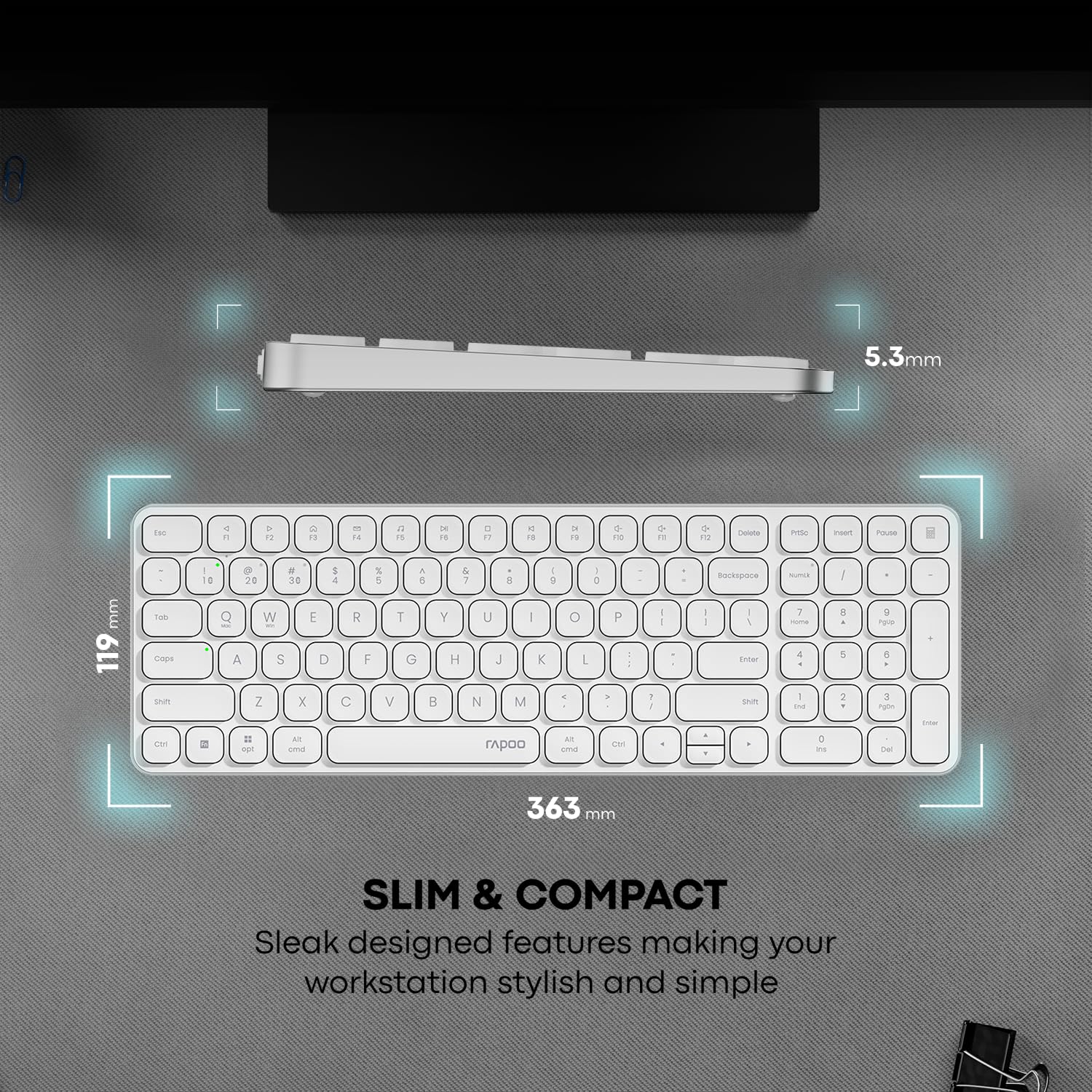
Image: Diagram showing the slim and compact dimensions of the Rapoo E9350L keyboard (363mm x 119mm x 5.3mm).
7. Warranty and Support
7.1 Warranty Information
The Rapoo E9350L Bluetooth Wireless Multi-Device Keyboard comes with a 3-Year Warranty from the date of purchase. Please retain your proof of purchase for warranty claims. The warranty covers manufacturing defects and malfunctions under normal use conditions.
7.2 Manufacturer and Importer
- Manufacturer: Shenzhen Rapoo Technology Co., Ltd., 22, Jinxiu Road East, Pingshan District, Shenzhen, China
- Importer: Supertron Electronics Pvt Ltd
7.3 Customer Support
For technical assistance, troubleshooting beyond this manual, or warranty claims, please contact Rapoo customer support through their official website or the retailer where the product was purchased. Always provide your product model number (E9350L White) and purchase details when seeking support.


