Introduction
This manual provides comprehensive instructions for the installation, operation, and maintenance of your Inefala Car Radio. This advanced multimedia system is designed to enhance your driving experience with a range of features including wireless CarPlay, Android Auto, GPS navigation, and a high-definition touch screen. Please read this manual thoroughly before use to ensure proper functionality and safety.
Compatible Vehicles
This car radio is specifically designed for the following Ford models:
- Ford Transit from 2005
- Ford Fiesta from 2005
- Ford Focus/Focus 2 (2005-2007)
- Ford Galaxy (2005-2007)
- Ford Mondeo (2003-2007)
- Ford Fusion (2006-2011)
- Ford Kuga (2008-2011)
- Ford C-Max (2007-2009)
- Ford S-Max (2007-2009)
- Ford Connect (2007-2009)
Important: Ensure your vehicle's dashboard matches the compatible configurations shown below. Some dashboard designs may not allow for proper installation.

This image illustrates various Ford vehicle dashboards compatible with the Inefala car radio. It shows examples for Transit, Fiesta, Focus/Focus 2, Galaxy, Mondeo, S-Max, Connect, and C-Max models. The bottom section highlights a compatible dashboard with a green checkmark and an incompatible one with a red cross, indicating that certain button layouts may prevent installation.
Key Features
The Inefala Car Radio offers a robust set of features for an enhanced in-car experience:
- 7-inch HD 2.5D Touch Screen: High-definition display with 1024x600 resolution for clear visuals.
- Android 13 Operating System: Latest Android OS for smooth performance and app compatibility.
- 2GB RAM + 64GB ROM: Ample memory for app downloads and data storage.
- Wireless & Wired CarPlay/Android Auto: Seamless integration with your smartphone for navigation, calls, and music.
- Built-in GPS Navigation: Supports online and offline maps.
- Integrated WiFi: Connect to mobile hotspots for internet access.
- Rear Camera Input: Supports AHD/CVBS cameras for safe reversing.
- Steering Wheel Control Function: Compatible with existing steering wheel controls.
- Bluetooth 4.0: For hands-free calling, A2DP audio streaming, and phonebook synchronization.
- Dual USB Adapter Input: Multiple USB ports for connectivity.
- FM/RDS Radio: With 30 preset stations and automatic channel search.
- External Microphone Support: For improved call quality.
- Split Screen Function: Multitask with two applications simultaneously.

This image demonstrates the wireless CarPlay and Android Auto functionality, showing a smartphone connected to the car radio for seamless access to navigation, music, and communication apps.

This diagram highlights the internal specifications of the car radio, including the Android 13 operating system, 2GB RAM, 64GB ROM for storage, and the TDA7388 power amplifier chip, emphasizing its performance capabilities.

This image showcases the 7-inch HD capacitive touch screen with 1080P resolution, along with the mirror link feature that allows mirroring your phone's display onto the car radio screen.

This image displays a multi-panel view of the car radio's core functionalities: GPS navigation with map applications, WiFi connection for internet browsing, the Bluetooth interface for calls and music, and the FM/RDS radio tuner.
Setup Instructions
- Unpacking: Carefully remove all components from the packaging. Verify that all items listed in the "Package Contents" section are present.
- Pre-installation Check: Before permanent installation, connect the power cables and test the unit's basic functions (power on/off, touch screen response, radio).
- Dashboard Removal: Refer to your vehicle's specific service manual for instructions on safely removing the factory radio and dashboard trim.
- Wiring Connections: Connect the provided ISO adapters to your vehicle's wiring harness. Ensure all connections (power, speakers, antenna, GPS antenna, USB cables, external microphone, and reverse camera input) are secure.
- Mounting: Secure the car radio into the dashboard opening using the provided brackets.
- Reassembly: Reinstall the dashboard trim and other components removed during the process.
- Initial Power On: Turn on your vehicle's ignition. The car radio should power on. Follow any on-screen prompts for initial setup, such as language selection and time zone.
Note: Professional installation is recommended if you are unfamiliar with car audio wiring or dashboard disassembly.
Operating Instructions
Basic Operation
- Power On/Off: Press and hold the power button (usually a physical knob or on-screen icon) to turn the unit on or off. A short press may mute/unmute audio.
- Volume Control: Use the volume knob or on-screen controls to adjust the audio level.
- Touch Screen: Navigate the interface by tapping, swiping, and pinching on the 7-inch touch screen.
- Home Button: Tap the home icon to return to the main menu.
Wireless CarPlay / Android Auto
- Enable Bluetooth & Wi-Fi: On your smartphone, ensure Bluetooth and Wi-Fi are enabled.
- Connect Bluetooth: On the car radio, go to the Bluetooth settings. Search for your phone and pair them. Confirm the pairing code on both devices.
- Initiate CarPlay/Android Auto: Once paired via Bluetooth, the car radio should automatically prompt you to start CarPlay or Android Auto. Follow the on-screen instructions on both your phone and the car radio.
- Wired Connection (Optional): If wireless connection fails or is not preferred, connect your smartphone to one of the car radio's USB ports using a high-quality USB cable.
- Using Features: Access navigation, music, calls, and messages directly from the car radio's screen. Use voice commands (e.g., "Hey Siri" or "Hey Google") for hands-free operation.
GPS Navigation
- GPS Antenna: Ensure the GPS antenna is properly installed and positioned for optimal signal reception.
- Map Applications: The unit comes with pre-installed map applications. You can also download other navigation apps from the Google Play Store (requires WiFi connection).
- Online/Offline Maps: For offline maps, download map data via WiFi before driving. For online maps, ensure the unit is connected to a mobile hotspot.
- Route Planning: Enter your destination and follow the voice-guided directions and on-screen map.
WiFi Connection
- Access WiFi Settings: Go to the system settings menu and select "Wi-Fi".
- Scan for Networks: The unit will scan for available Wi-Fi networks.
- Connect: Select your desired network (e.g., your phone's mobile hotspot) and enter the password if required.
- Internet Access: Once connected, you can browse the internet, download apps, and use online services.
Bluetooth Functions
- Pairing: Enable Bluetooth on your phone and the car radio. Search for devices on the car radio and select your phone. Confirm the pairing.
- Hands-Free Calling: Once paired, you can make and receive calls directly from the car radio. Your phonebook may sync automatically.
- Audio Streaming (A2DP): Play music from your phone through the car radio speakers. Control playback (play/pause, skip) from the car radio.
FM/RDS Radio
- Select Radio Mode: Tap the "Radio" icon on the main menu.
- Automatic Scan: Use the auto-scan function to find and save available FM stations.
- Manual Tuning: Manually tune to specific frequencies.
- RDS (Radio Data System): If available, RDS will display station information, song titles, and traffic announcements.
- Preset Stations: Save your favorite stations to the preset buttons for quick access.
Rear Camera
The unit supports AHD/CVBS rear cameras. When the vehicle is shifted into reverse gear, the car radio will automatically display the rear camera feed, providing a clear view of the area behind your vehicle.
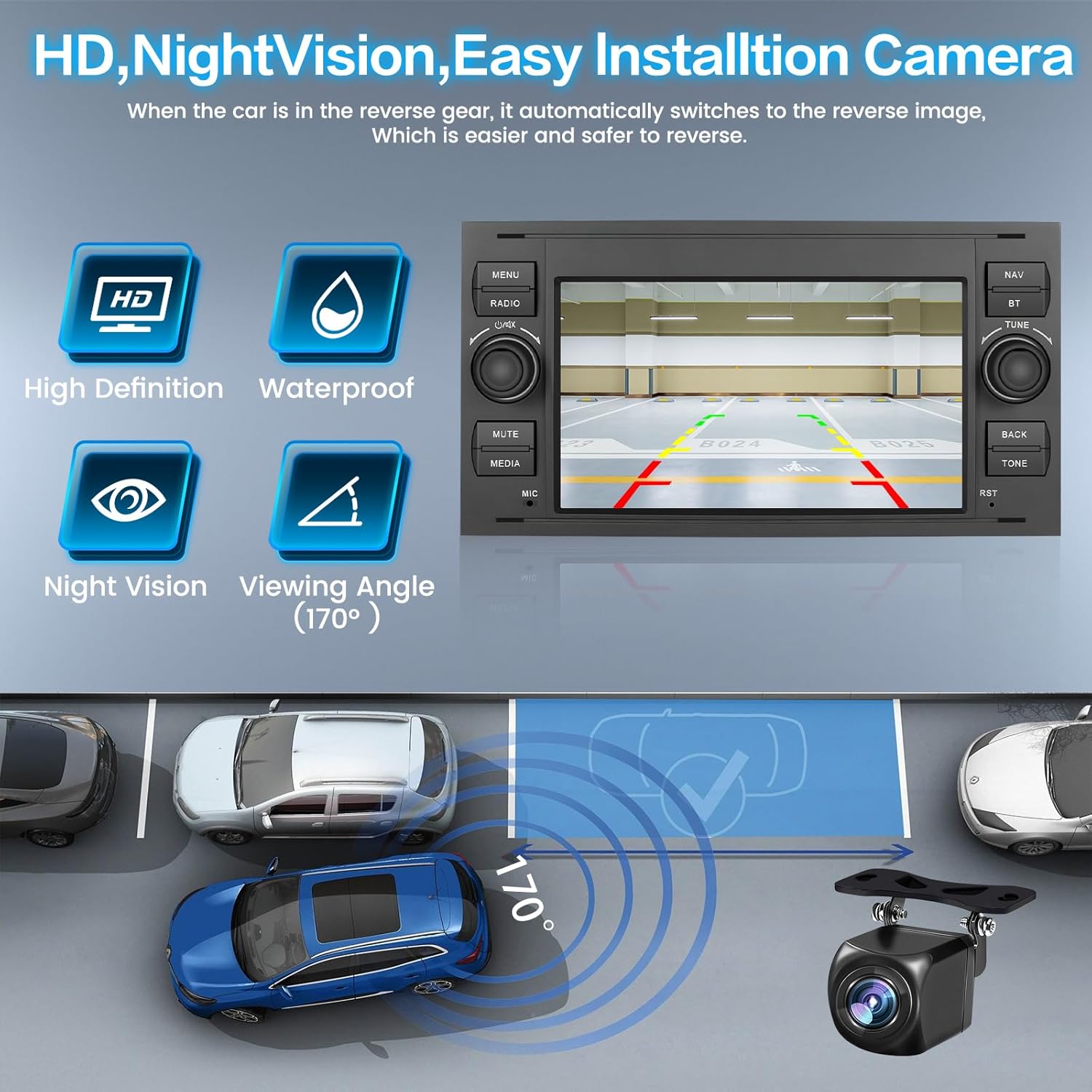
This image illustrates the features of the compatible rear camera, including high definition, waterproof design, night vision, and a 170-degree viewing angle. It also shows how the camera feed is displayed on the car radio screen when reversing.
Specifications
| Feature | Detail |
|---|---|
| Brand | Inefala |
| Model Number | Inefala-A3718BKA4MI2-EU60 |
| System | Android 13 |
| Chipset | 8227L |
| Screen Size | 7 inches |
| Memory (RAM) | 2 GB |
| Storage (ROM) | 64 GB |
| Screen Resolution | 1024x600 |
| Radio Chip | MTK |
| Output Power | 4x45 W |
| Working Temperature | -20℃ to 75℃ |
| Power Amplifier Chip | TDA7388 |
| Radio Band | FM/RDS |
| Video Output | Supported |
| Reverse Input | AHD/CVBS |
| External Microphone | Supported |
| Split Screen | Supported |
| WiFi | Supported |
| USB Interface | Dual USB |
| Audio Formats | APE/FLAC/WAV/MP3/WMA, etc. |
| Video Formats | MKV/RMVB/AVI/MP4/MDV, etc. |
| Image Formats | PNG/JPEG/JPG/GIF/WBMP/BNP, etc. |
| Factory Setting Keyword | 1234 |
| Supported Languages | Chinese/English/French/Italian/Korean/Japanese/Arabic/Spanish/Portuguese/Russian/Turkish/Vietnamese/Hebrew/Polish/German |
| Product Dimensions (L x W x H) | 22.9 x 10.8 x 12 cm |
| Weight | 1.5 kilograms |
| Total USB Ports | 2 |
Maintenance
To ensure the longevity and optimal performance of your Inefala Car Radio, follow these maintenance guidelines:
- Cleaning the Screen: Use a soft, lint-free cloth to gently wipe the touch screen. For stubborn smudges, slightly dampen the cloth with water or a screen-cleaning solution. Avoid abrasive cleaners or harsh chemicals.
- General Cleaning: Keep the unit free from dust and debris. Use a soft brush or compressed air to clean vents and button areas.
- Software Updates: Periodically check for software updates provided by Inefala to ensure you have the latest features and bug fixes. Updates can usually be performed via WiFi.
- Avoid Extreme Temperatures: Do not expose the unit to extreme heat or cold for extended periods, as this can affect its electronic components.
- Cable Management: Ensure all cables are properly routed and secured to prevent damage from vibration or snagging.
Troubleshooting
If you encounter issues with your Inefala Car Radio, refer to the following common problems and solutions:
| Problem | Possible Solution |
|---|---|
| Unit does not power on. | Check power connections and vehicle's fuse box. Ensure the ignition is on. |
| No sound. | Verify speaker connections. Check volume level and mute settings. Ensure correct audio source is selected. |
| Touch screen unresponsive. | Restart the unit. If problem persists, perform a factory reset (keyword: 1234). |
| CarPlay/Android Auto not connecting. | Ensure Bluetooth and Wi-Fi are enabled on your phone and the car radio. Try re-pairing the devices. Use a different USB cable for wired connection. Update phone OS. |
| GPS signal weak or inaccurate. | Ensure the GPS antenna is installed correctly and has a clear view of the sky. Update map data. |
| Rear camera not displaying. | Check camera power and video signal connections. Ensure the vehicle is in reverse gear. |
| Bluetooth pairing issues. | Ensure both devices are in pairing mode. Delete previous pairings and try again. |
If these solutions do not resolve the issue, please contact Inefala customer support.
Warranty and Support
Your Inefala Car Radio comes with a manufacturer's warranty of 24 months. For any warranty claims or technical assistance, please contact Inefala customer support. Online consultation is available, with responses typically provided within 24 hours.
For further support, refer to the official Inefala website or contact details provided with your purchase.

This image highlights Inefala's commitment to customer satisfaction, featuring a futuristic car on a digital highway and text promoting 24 months quality assurance, 30 days free return, and online support with replies within 24 hours.
Package Contents
The following items are included in your Inefala Car Radio package:
- 1 x Ford Car Radio Unit
- 2 x Power Cable
- 1 x GPS Antenna
- 1 x Reverse Camera Input Cable
- 2 x USB Cable
- 1 x RCA Cable
- 4 x Mounting Brackets
- 1 x Antenna Adapter
- 1 x User Manual
- 1 x External Microphone
- 1 x Rear Camera


