1. Introduction
This manual provides detailed instructions for the installation, operation, and maintenance of your Aublinto Android 13 Car Stereo. Please read this manual thoroughly before installation and use to ensure proper function and safety. This unit is designed as an upgrade replacement for Chrysler 200, 200C, and 200S models from 2015-2019.
2. Safety Information
- Ensure the vehicle's ignition is off and the battery is disconnected before starting installation.
- Professional installation is recommended to avoid damage to the unit or vehicle.
- Do not operate the unit in a way that distracts you from driving. Always prioritize road safety.
- Avoid exposing the unit to extreme temperatures, direct sunlight for prolonged periods, or excessive moisture.
- Use only specified power cables and accessories.
3. Package Contents
Verify that all items are present in the package:
- Aublinto Android 13 Car Stereo Unit
- Power Harness
- GPS Antenna
- USB Cables
- RCA Cables (including external microphone jack)
- AHD Backup Camera (if included in package)
- User Manual (this document)
4. Setup and Installation
4.1 Vehicle Compatibility
This unit is specifically designed for Chrysler 200, 200C, and 200S models manufactured between 2015 and 2019. Ensure your vehicle's dashboard matches the compatible configurations shown below.

Image: Dashboard compatibility examples. Verify your vehicle's dashboard matches the "FIT" examples for proper installation.
If you are uncertain about compatibility or require additional wiring harnesses, please contact customer support with a clear picture of your vehicle's center console and the existing head unit's rear plugs.

Image: Important note regarding connector verification. A detailed view of various connectors is shown, emphasizing the need to check existing plugs.
4.2 Wiring Diagram
Refer to the following diagram for proper connection of the power harness, GPS antenna, USB cables, and other accessories. Incorrect wiring can cause damage to the unit or vehicle electrical system.

Image: Rear view of the car stereo with all wiring connections. This diagram illustrates where each cable (power, USB, GPS, RCA, camera) should be connected.
4.3 Physical Installation
After disconnecting the vehicle battery and removing the original head unit, carefully mount the new Aublinto Android 13 Car Stereo into the dashboard opening. Connect all necessary wiring according to the diagram. Secure the unit using the provided mounting hardware. Reconnect the battery and test the unit.

Image: Before and after installation view. The top image shows the original dashboard and the upgraded dashboard with the new stereo. The bottom image shows the Aublinto Android 13 unit itself.
5. Operating Instructions
5.1 Wireless CarPlay & Android Auto
The unit supports both wireless and wired CarPlay and Android Auto. Connect your smartphone via Bluetooth for wireless connection or a USB cable for wired connection. This allows access to phone functions like navigation, calls, messages, and music directly from the stereo's display.
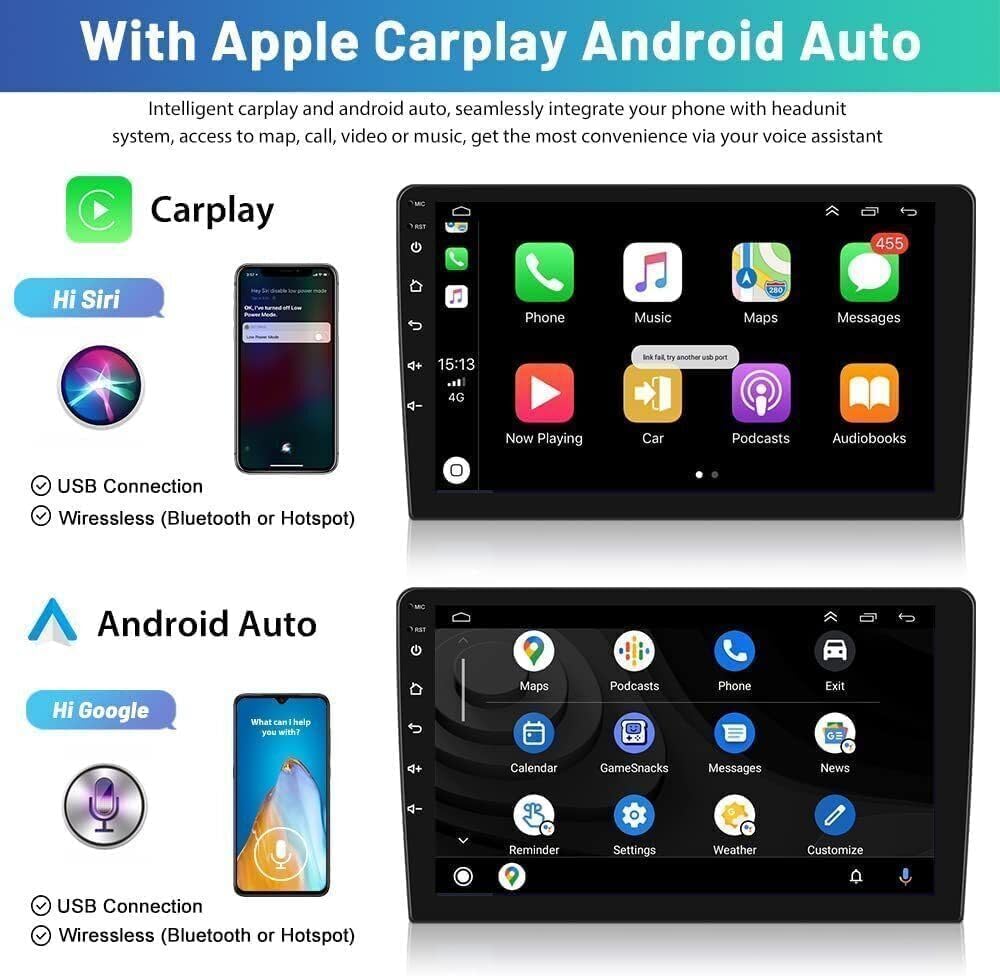
Image: CarPlay and Android Auto interfaces. This image displays the user interface for both Apple CarPlay and Android Auto, highlighting their integration with the head unit.

Image: CarPlay, Android Auto, and Mirror Link functionality. This graphic illustrates how these features connect your smartphone to the car stereo, showing various app displays.
5.2 Bluetooth Hands-Free Calling and Audio Streaming
Pair your phone with the stereo via Bluetooth for hands-free calling and wireless audio streaming. The unit includes a built-in microphone and supports an external microphone for clear communication.

Image: Bluetooth calling screen. This image shows the Bluetooth call interface on the stereo, along with the steering wheel control learning menu.
5.3 GPS Navigation
The built-in GPS module allows for accurate navigation. Connect to Wi-Fi to download offline maps or use online navigation services. The unit supports various navigation applications.

Image: GPS Navigation and Wi-Fi Hotspot. This graphic illustrates the GPS map interface and the capability to use Wi-Fi for online services and app downloads.
5.4 FM/RDS Radio
Tune into your favorite radio stations using the integrated FM/RDS tuner. The RDS function provides additional information such as station name and song title where available.

Image: FM/RDS Radio interface. This image shows the radio tuning screen and options for sound adjustments.
5.5 Steering Wheel Controls (SWC)
The unit supports your vehicle's original steering wheel controls. After correct wiring, access the "Steering Learn" function in the settings menu to map your steering wheel buttons to the stereo's functions for convenient operation.

Image: Steering Wheel Control learning menu. This image also shows the rear view camera display and split-screen feature.
5.6 AHD Backup Camera
When connected, the unit automatically displays the rear view camera feed when the vehicle is shifted into reverse. The AHD camera provides a clear, wide-angle view for improved safety during parking and reversing maneuvers.
Image: Rear view camera display. This image also shows the steering wheel control learning menu and split-screen feature.
5.7 Split Screen Functionality
The split-screen feature allows you to run two applications simultaneously on the 9-inch display, such as navigation and music playback, enhancing multitasking capabilities.
Image: Split-screen display. This image also shows the rear view camera display and steering wheel control learning menu.
5.8 Wi-Fi and App Downloads
Connect the unit to a Wi-Fi hotspot to access online content, download applications from the app store, and update software. This enables features like online video streaming and additional navigation apps.
Image: Wi-Fi Hotspot and App Download. This graphic illustrates the capability to connect to Wi-Fi for online services and app downloads, alongside GPS navigation.
5.9 Mirror Link
The Mirror Link function allows you to mirror your smartphone's screen onto the car stereo display, providing access to your phone's content and applications directly on the larger screen.
Image: Mirror Link functionality. This graphic illustrates how Mirror Link connects your smartphone to the car stereo, showing various app displays alongside CarPlay and Android Auto.
6. Maintenance
- Cleaning the Screen: Use a soft, lint-free cloth to gently wipe the touchscreen. For stubborn smudges, slightly dampen the cloth with water or a screen-safe cleaner. Avoid harsh chemicals or abrasive materials.
- Software Updates: Periodically check for software updates via the unit's settings menu or the manufacturer's website to ensure optimal performance and access to new features.
- General Care: Keep the unit free from dust and debris. Ensure proper ventilation around the unit to prevent overheating.
7. Troubleshooting
| Problem | Possible Cause | Solution |
|---|---|---|
| Unit does not power on. | Incorrect wiring; Blown fuse; Vehicle battery issue. | Check power connections and fuses. Ensure vehicle battery is charged. |
| No sound. | Volume too low; Mute activated; Speaker wiring issue. | Increase volume. Check mute setting. Verify speaker connections. |
| CarPlay/Android Auto not connecting. | Incorrect USB cable; Bluetooth not paired; Phone settings. | Use original USB cable. Ensure Bluetooth is on and paired. Check phone's CarPlay/Android Auto settings. |
| GPS signal weak or inaccurate. | GPS antenna obstructed or improperly installed. | Ensure GPS antenna has a clear view of the sky and is securely connected. |
| Backup camera not displaying. | Camera wiring issue; Incorrect camera input selected. | Check camera power and video connections. Ensure reverse gear is engaged. |
For further assistance, please contact Aublinto customer support.
8. Specifications
- Operating System: Android 13
- Screen Size: 9 Inch HD Touch Screen
- Compatibility: Chrysler 200/200C/200S (2015-2019)
- Connectivity: Wireless/Wired CarPlay, Android Auto, Bluetooth 5.0, Wi-Fi
- Navigation: Built-in GPS
- Radio: FM/RDS
- Camera Support: AHD Backup Camera Input
- Control: Steering Wheel Control (SWC)
- Additional Features: Mirror Link, Split Screen, USB, Multi-format media player, 1080p video player, APP download
- ASIN: B0DDXH49DC
- First Available: August 22, 2024
9. Warranty and Support
Your Aublinto Android 13 Car Stereo comes with a standard manufacturer's warranty. Please refer to the warranty card included in your package or visit the official Aublinto website for detailed warranty terms and conditions.
For technical support, troubleshooting assistance, or warranty claims, please contact Aublinto customer service. Have your product model and ASIN (B0DDXH49DC) ready when contacting support.
Aublinto Customer Support:
- Refer to your purchase documentation for contact details.
- Visit the Aublinto Store on Amazon for more information.


