
1. Introduction
Welcome to the user manual for your new DOOGEE N55PRO Unlocked Cell Phone. This guide provides essential information to help you set up, operate, maintain, and troubleshoot your device. Please read this manual thoroughly to ensure optimal performance and longevity of your smartphone.
2. Package Contents
Upon opening your DOOGEE N55PRO package, please verify that all the following items are included:
- DOOGEE N55PRO Smartphone
- USB Charging Cable
- Power Adapter
- SIM Ejector Tool
- Quick Start Guide
- Warranty Card
3. Device Overview
Familiarize yourself with the physical components and features of your DOOGEE N55PRO.
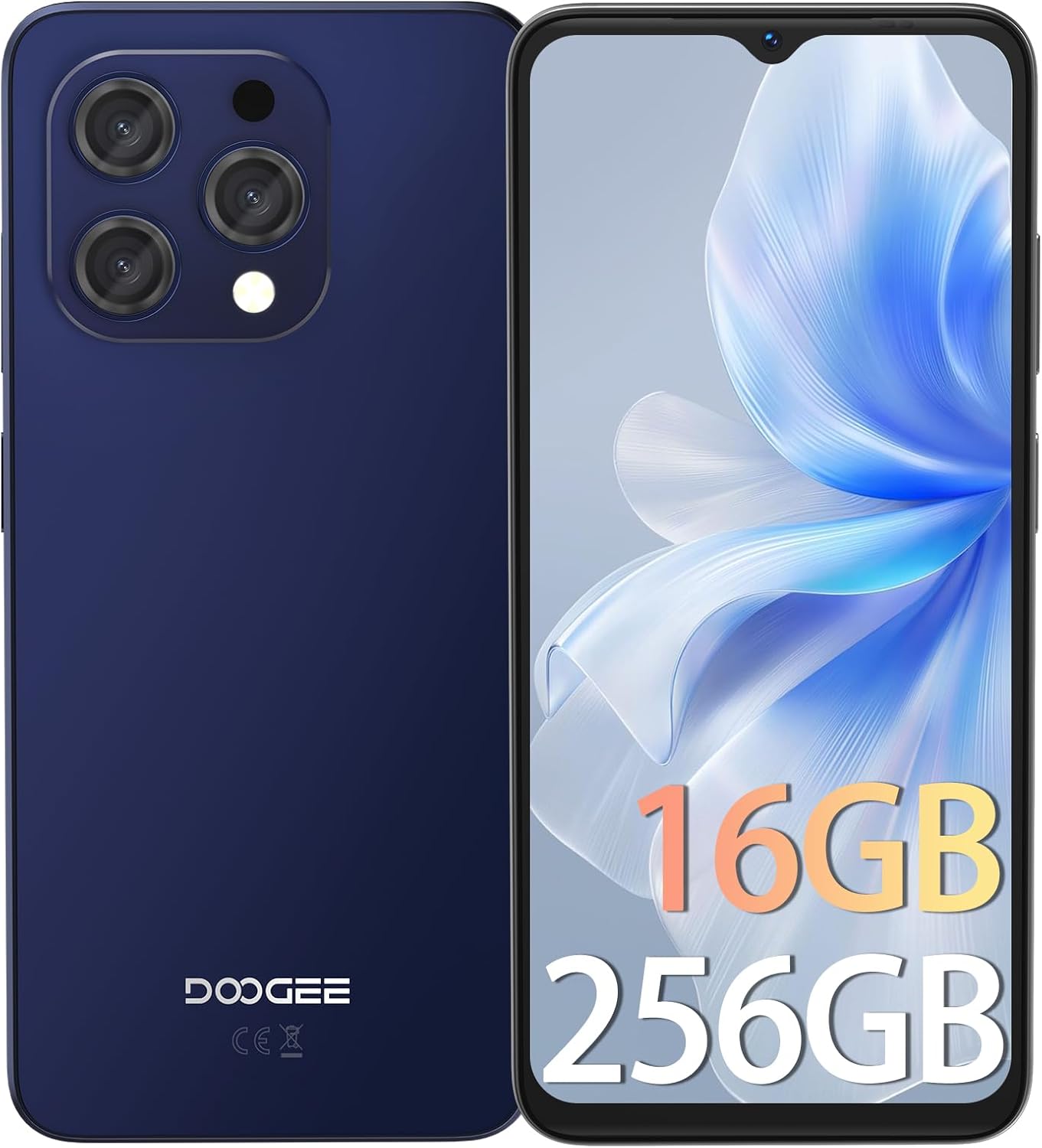
Image 3.1: Front and back view of the DOOGEE N55PRO smartphone. The front features a large display with a waterdrop notch for the front camera, while the back shows the multi-camera module and the DOOGEE branding.
Key Features:
- Display: 6.56-inch HD+ 90Hz IPS Waterdrop Screen for smooth visuals and vibrant colors.
- Processor: Octa-Core processor for efficient performance.
- Memory & Storage: 16GB RAM (with expansion technology) and 256GB ROM, expandable up to 1TB via TF card.
- Cameras: Dual Camera system with a 13MP rear camera and an 8MP front camera.
- Battery: 5150 mAh super-large battery for extended usage.
- Operating System: Android 14, offering the latest features and security updates.
- Connectivity: 4G cellular technology, Wi-Fi, Bluetooth, and a 3.5mm headphone jack.
- Security: Face Unlock ID for convenient and secure access.

Image 3.2: Illustration highlighting the 16GB RAM (with expansion technology) and 256GB ROM, expandable to 1TB, powered by an Octa-Core processor.

Image 3.3: Close-up of the DOOGEE N55PRO's 6.56-inch HD+ 90Hz IPS Waterdrop Screen, emphasizing its silky smooth, bright colors, high saturation, and fine image quality.

Image 3.4: Visual representation of the DOOGEE N55PRO's 5150 mAh super-large battery, indicating long-lasting power.

Image 3.5: Depiction of the DOOGEE N55PRO's Dual Camera system, featuring a 13MP rear camera and an 8MP front camera, with example photos.

Image 3.6: Visual representation of the Android 14 operating system interface on the DOOGEE N55PRO, showcasing various app screens.

Image 3.7: Overview of key features including Face Unlock ID, Dual 4G support, device weight (186g), and the 3.5mm connection port.
4. Setup
4.1. Inserting SIM Card(s) and MicroSD Card
- Locate the SIM card tray on the side of your phone.
- Insert the SIM ejector tool into the small hole next to the tray and press gently until the tray pops out.
- Place your Nano-SIM card(s) and/or MicroSD card into the designated slots on the tray. Ensure the gold contacts are facing down.
- Carefully push the tray back into the phone until it clicks into place.
4.2. Initial Power On and Setup
- Press and hold the Power button (usually on the right side) until the DOOGEE logo appears.
- Follow the on-screen instructions to select your language, connect to Wi-Fi, set up your Google account, and configure security settings like Face Unlock ID.
4.3. Charging the Device
Before first use, it is recommended to fully charge your phone. Connect the USB charging cable to the phone's charging port and the power adapter, then plug the adapter into a wall outlet. The battery indicator on the screen will show charging status.
5. Operating
5.1. Basic Navigation
- Touchscreen: Tap to select, swipe to scroll, pinch to zoom.
- Home Screen: Access apps, widgets, and notifications.
- Navigation Bar: Use the Back, Home, and Recent Apps buttons (or gestures) at the bottom of the screen.
5.2. Making Calls and Sending Messages
- Calls: Open the Phone app, dial a number or select a contact, then tap the call icon.
- Messages: Open the Messages app, tap 'Start chat', enter a recipient, type your message, and tap send.
5.3. Internet Connectivity
- Wi-Fi: Go to Settings > Network & internet > Wi-Fi. Turn Wi-Fi on, select a network, and enter the password if required.
- Mobile Data: Go to Settings > Network & internet > Mobile network. Ensure Mobile data is turned on.
5.4. Camera Usage
Open the Camera app. Tap the shutter button to take a photo. Swipe left or right to switch between photo, video, and other modes. Use the front/rear camera toggle to switch between the 13MP rear camera and the 8MP front camera.
5.5. Security Features
Your DOOGEE N55PRO supports Face Unlock ID. To set it up, go to Settings > Security > Face Unlock and follow the on-screen instructions to register your face.
6. Maintenance
6.1. Cleaning the Device
Use a soft, lint-free cloth to gently wipe the screen and body of your phone. Avoid using harsh chemicals or abrasive materials, as they can damage the device's finish.
6.2. Battery Care
- Avoid exposing the phone to extreme temperatures.
- Use only the original charger or a certified compatible charger.
- Do not leave the phone charging for excessively long periods after it's fully charged.
6.3. Software Updates
Regularly check for software updates to ensure your phone has the latest features, security patches, and performance improvements. Go to Settings > System > System update to check for and install available updates.
6.4. Data Backup
It is recommended to regularly back up your important data (photos, contacts, documents) to a cloud service (like Google Drive) or a computer to prevent data loss.
7. Troubleshooting
This section addresses common issues you might encounter with your DOOGEE N55PRO.
| Problem | Possible Solution |
|---|---|
| Phone does not turn on | Ensure the battery is charged. Connect to a charger for at least 10 minutes, then try powering on again. If unresponsive, perform a forced restart by holding the Power button for 10-15 seconds. |
| Apps are crashing or freezing | Clear the cache of the problematic app (Settings > Apps > [App Name] > Storage & cache > Clear cache). If the issue persists, restart the phone or reinstall the app. |
| Cannot connect to Wi-Fi | Ensure Wi-Fi is enabled. Restart your router and phone. Forget the network and reconnect. Check if other devices can connect to the same Wi-Fi network. |
| Poor call quality or no signal | Check if your SIM card is properly inserted. Move to an area with better network coverage. Restart your phone. Contact your mobile carrier if the issue persists. |
| Battery drains quickly | Reduce screen brightness, close unused apps running in the background, disable unnecessary features like GPS or Bluetooth when not in use. Check battery usage in Settings to identify power-hungry apps. |
8. Specifications
Detailed technical specifications for the DOOGEE N55PRO.
| Feature | Specification |
|---|---|
| Model Name | N55PRO |
| Operating System | Android 14 |
| Screen Size | 6.56 Inches |
| Memory Storage Capacity | 256 GB |
| RAM | 16GB (with expansion technology) |
| Cellular Technology | 4G |
| Connectivity Technology | Wi-Fi |
| Wireless Carrier | Unlocked for All Carriers |
| Rear Camera | 13MP |
| Front Camera | 8MP |
| Battery Capacity | 5150 mAh |
| Product Dimensions | 6.42 x 2.95 x 0.31 inches |
| Item Weight | 6.5 ounces (185 Grams) |
| Human Interface Input | Touchscreen |
| Color | Yellow (as per product data, though images show blue/black) |
| Date First Available | December 19, 2024 |
9. Warranty and Support
Your DOOGEE N55PRO comes with a standard manufacturer's warranty. Please refer to the warranty card included in your package for specific terms and conditions, including warranty period and coverage details. For technical support, service, or further inquiries, please visit the official DOOGEE website or contact their customer service department. Contact information can typically be found on the DOOGEE website or on the warranty card.
10. Safety Information
Please read all safety information before using your device to ensure safe and proper use. Improper use may cause damage to the device or personal injury.
- Do not disassemble or modify the device.
- Avoid exposing the device to extreme temperatures, direct sunlight, or fire.
- Keep the device away from water and moisture.
- Use only approved chargers and accessories.
- Do not use the device while driving or operating heavy machinery.
- Respect local regulations regarding mobile phone usage.
