
Inateck KB04112-G-DE
Inateck Keyboard Case for iPad 10th Generation User Manual
Model: KB04112-G-DE
1. Introduction
Thank you for choosing the Inateck Keyboard Case for iPad 10th Generation. This manual provides detailed instructions on how to set up, operate, and maintain your new keyboard case, ensuring optimal performance and longevity. Please read this manual thoroughly before use.
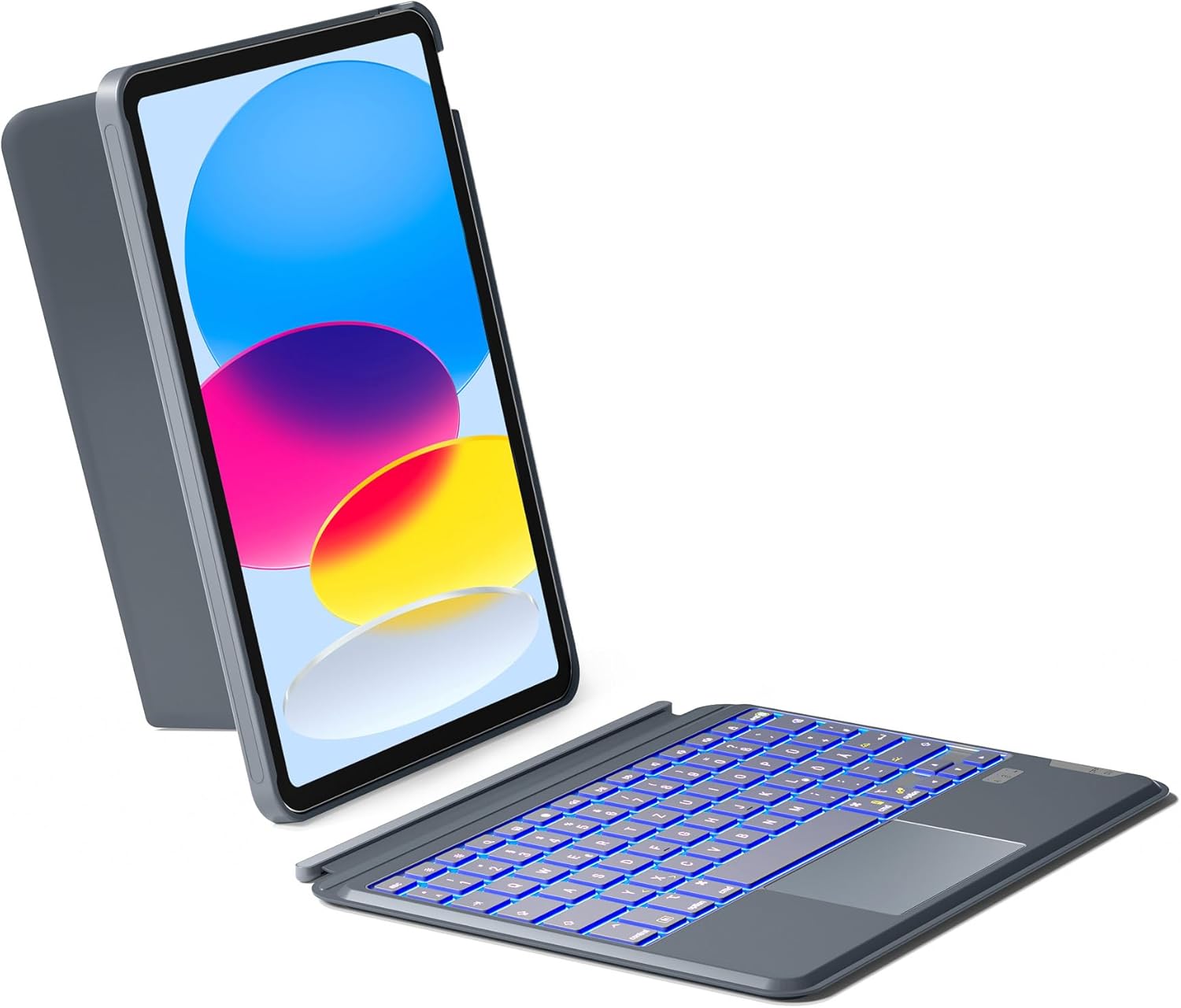
Inateck Keyboard Case for iPad 10th Generation, showing the iPad securely placed in the case with the detachable keyboard in front, illuminated with blue backlight.
2. Compatibility
This keyboard case is specifically designed for the following iPad models:
- iPad 10th Generation (2022): Model Numbers A2696, A2757, A2777, A3162
- iPad A16 (2025): Model Numbers A3354, A3355, A3356
To verify your iPad's model number, check the back of your device for a number starting with 'A'. This keyboard case is not compatible with other iPad models.

Image illustrating the compatible iPad models, specifically iPad 10th Generation (2022) and iPad A16 (2025), with their respective model numbers. It emphasizes checking the 'A' model number on the back of the iPad.
3. Key Features
- Detachable Keyboard: Magnetic connection allows for easy removal and attachment.
- Integrated Trackpad: Supports all iPad gestures for precise navigation, with palm rejection technology.
- 7-Color Backlight & 3 Brightness Levels: Provides comfortable typing in low-light conditions.
- Versatile Stand Modes: Supports 5 placement modes for various activities (working, typing, drawing, reading, watching movies).
- Portrait and Landscape View: Easily switch between orientations to suit your needs.
- Comfortable Typing Experience: Features scissor switch key structure and 1mm short key travel for accurate and efficient typing.
- Independent Hotkeys: For enhanced efficiency.
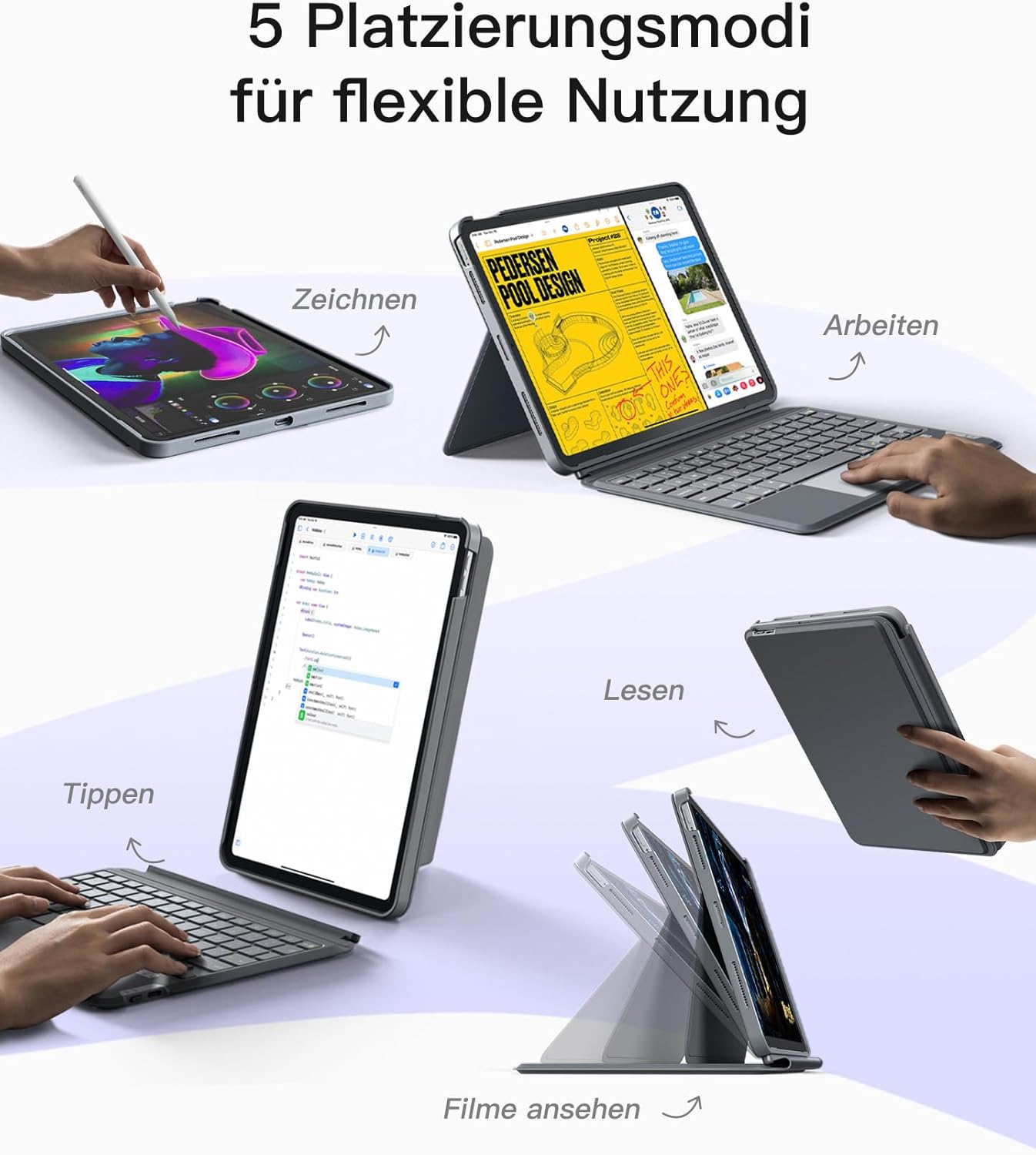
Diagram showing five versatile placement modes for the iPad with the keyboard case: drawing, working, typing, reading, and watching movies, highlighting the flexibility of the stand.

Close-up of the keyboard highlighting key features: comfortable scissor switch structure, 1mm short key travel for accuracy, and independent hotkeys for efficiency.
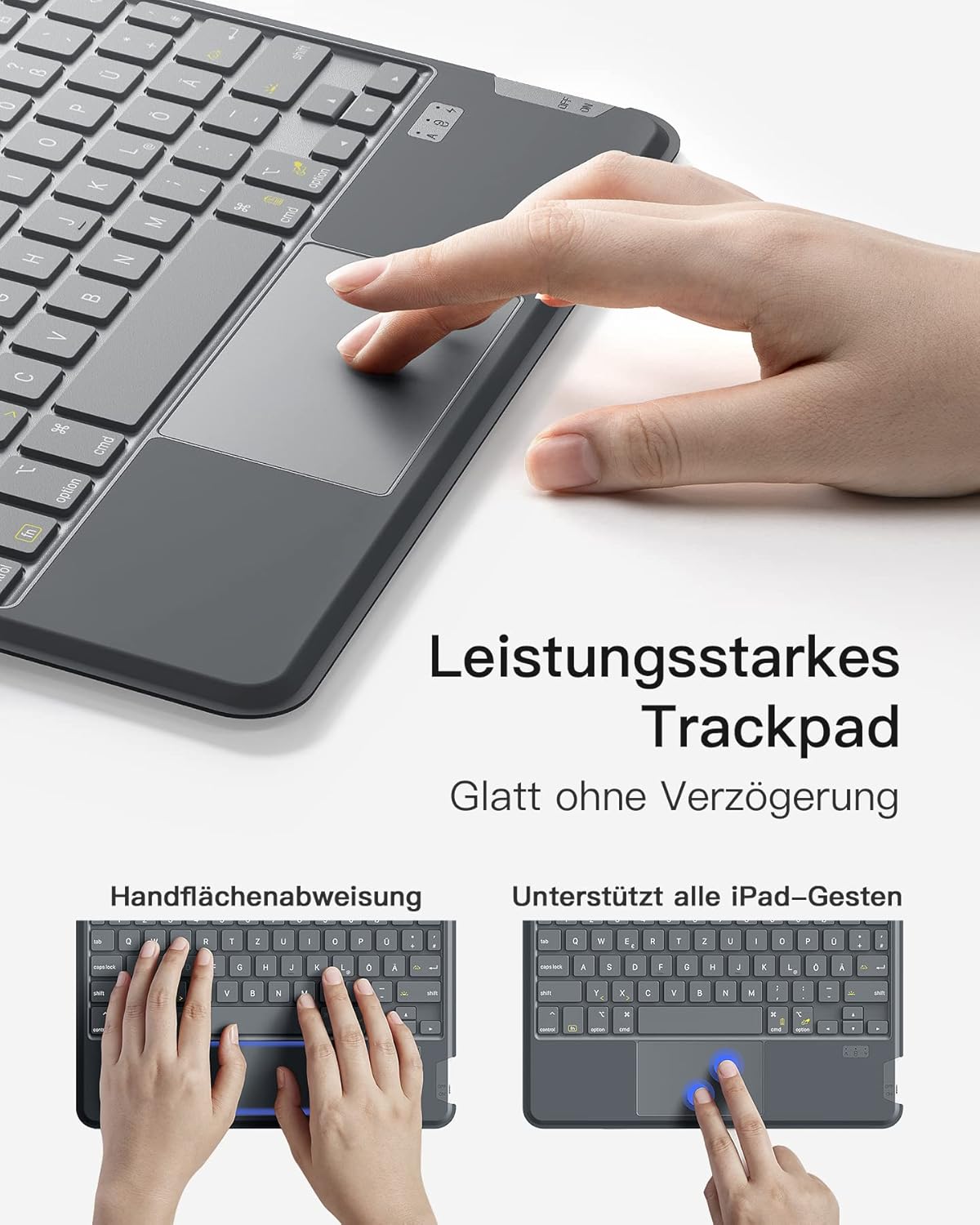
Image demonstrating the high-performance trackpad, showing palm rejection and support for all iPad gestures for precise navigation.
4. Setup and Installation
4.1 Installing Your iPad
- Gently align your iPad with the case, ensuring the camera cutout and ports match.
- Press the iPad firmly into the case until it is securely seated. Ensure all edges are protected.
4.2 Pairing the Keyboard via Bluetooth
- Ensure the keyboard is charged.
- Turn on the keyboard by sliding the power switch. The indicator light will flash.
- On your iPad, go to Settings > Bluetooth.
- Turn on Bluetooth. Your iPad will search for nearby devices.
- Select "Inateck Keyboard" (or similar name) from the list of available devices.
- Follow any on-screen prompts to complete the pairing process. The indicator light on the keyboard will turn off once successfully paired.
5. Operating Instructions
5.1 Using the Keyboard
The keyboard functions like a standard QWERTZ keyboard. Utilize the function keys (Fn) in combination with other keys for special shortcuts, such as media control, volume adjustment, and screen brightness.

A user typing on the Inateck keyboard, demonstrating the comfortable typing experience with the iPad in an upright position.
5.2 Adjusting Backlight
The keyboard features 7-color backlighting with 3 brightness levels. Use the dedicated backlight key (often depicted as a light bulb icon) to cycle through colors and brightness settings. Pressing the key repeatedly will change the color or adjust the brightness. Hold the key to turn the backlight off.

Illustration of the 7-color backlight and 3-level brightness settings, providing visual comfort for typing in various lighting conditions.
5.3 Using the Trackpad
The integrated trackpad supports multi-touch gestures for seamless navigation on your iPad. Refer to your iPad's settings for a full list of supported gestures. The trackpad includes palm rejection technology to prevent accidental inputs while typing.
5.4 Switching Stand Modes
The case offers five flexible stand modes. Adjust the iPad's position within the case to achieve the desired angle for typing, viewing, drawing, or reading. The magnetic design allows for easy repositioning.
5.5 Charging the Keyboard
When the keyboard battery is low, the indicator light will flash. Connect the provided USB cable to the keyboard's charging port and to a USB power source (e.g., computer, wall adapter). The indicator light will show charging status and turn off when fully charged.
6. Maintenance
- Cleaning: Use a soft, dry cloth to clean the keyboard and case. For stubborn stains, a slightly damp cloth can be used, but ensure no moisture enters the keyboard.
- Storage: When not in use for extended periods, store the keyboard case in a cool, dry place.
- Battery Care: To prolong battery life, avoid fully discharging the keyboard frequently. Charge it regularly, even if not in constant use.
- Avoid Extreme Conditions: Do not expose the product to extreme temperatures, direct sunlight, or high humidity.
7. Troubleshooting
| Problem | Possible Cause | Solution |
|---|---|---|
| Keyboard not connecting to iPad. | Bluetooth is off on iPad; Keyboard battery is low; Keyboard not in pairing mode; Interference. | Ensure iPad Bluetooth is on. Charge the keyboard. Put keyboard in pairing mode. Move away from other wireless devices. |
| Keys are not responding or a specific key is not working. | Low battery; Connection issue; Physical damage or debris under key. | Charge the keyboard. Re-pair the keyboard. Gently clean around the key. If persistent, contact support. |
| Trackpad is unresponsive or inaccurate. | Connection issue; Software glitch; Dirty trackpad surface. | Re-pair the keyboard. Restart your iPad. Clean the trackpad surface. |
| Backlight is not working. | Backlight turned off; Low battery. | Press the backlight key to turn it on. Charge the keyboard. |
8. Specifications
| Feature | Detail |
|---|---|
| Brand | Inateck |
| Model Number | KB04112-G-DE |
| Color | Grey 2 |
| Connectivity Technology | Bluetooth |
| Keyboard Description | Flexible |
| Special Features | Detachable Keyboard, 7-Color Backlight & Trackpad, Portrait/Landscape Stand |
| Compatible Devices | iPad 10th Generation |
| Battery Composition | Lithium-ion (1 included) |
| Material | Plastic |
| Included Components | USB Cable |
9. Warranty and Support
For warranty information and technical support, please refer to the documentation included with your product packaging or visit the official Inateck website. You can also contact Inateck customer service directly for assistance with product issues or inquiries.
- Online Support: Visit www.inateck.com for FAQs, drivers, and support resources.
- Customer Service: Contact information can typically be found on the Inateck website or product packaging.
Related documentsKB04112-G-DE


Ask a question about this manual
Ask about setup, troubleshooting, compatibility, parts, safety, or missing instructions. Manuals+ will review the question and use this page’s manual context to help answer it.