
1. Product Overview
The KAWA Dash Cam D5 is a compact 2K 1296P QHD front dash camera designed to record your driving journey. It features hands-free voice control, built-in Wi-Fi for app connectivity, continuous loop recording, G-Sensor for emergency event detection, and enhanced night vision for clear footage in low-light conditions. The discreet design ensures it does not obstruct your view while driving.
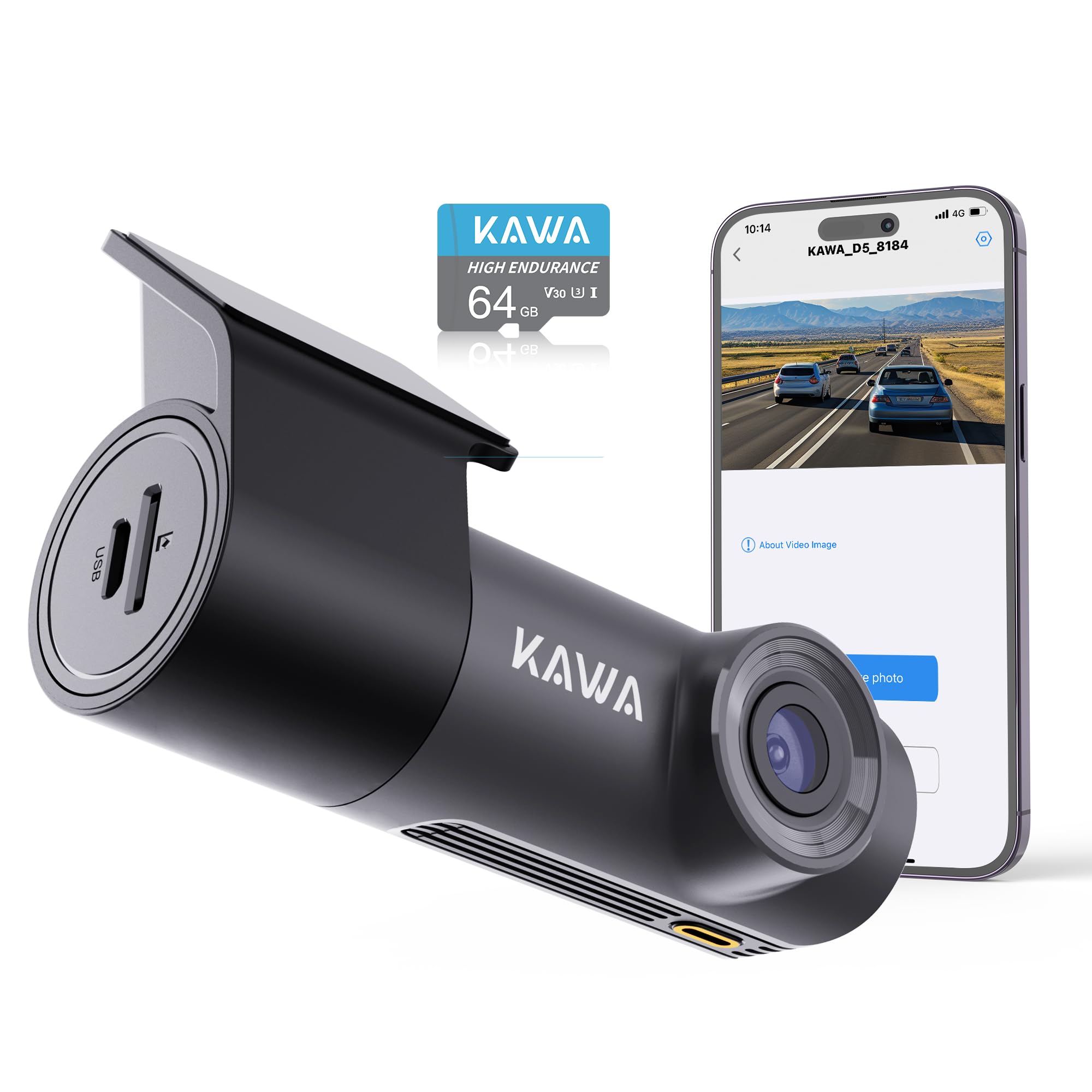
Image: The KAWA Dash Cam D5, showcasing its compact and hidden design when installed in a vehicle, with a visual guide for cable management.

Image: Overview of key features including 2K QHD resolution, voice control, Wi-Fi, 360-degree rotation, 24-hour parking monitor, night vision, emergency recording, and loop recording.
2. Safety Information
- Do not operate the dash cam while driving. Adjust settings only when the vehicle is safely parked.
- Ensure the dash cam is installed in a location that does not obstruct the driver's view or interfere with vehicle safety features.
- Use only the provided power adapter and cables to prevent damage or fire hazards.
- Avoid exposing the device to extreme temperatures, direct sunlight for prolonged periods, or moisture.
- Keep the device away from children.
3. Package Contents
Verify that all items are present in the package:
- KAWA Dash Cam D5
- Car Charger
- User Manual
- Heat-resistant Adhesive Paper
- Anti-static Film

Image: Visual representation of the items included in the KAWA Dash Cam D5 package.
4. Product Diagram
The KAWA Dash Cam D5 features a compact design. Refer to the image below for approximate dimensions.

Image: Physical dimensions of the KAWA Dash Cam D5, indicating its compact size for discreet installation.
5. Setup and Installation
5.1 Micro SD Card Installation
- Ensure the dash cam is powered off.
- Locate the Micro SD card slot on the side of the dash cam.
- Insert a Class 10 or higher Micro SD card (32GB or above recommended) into the slot until it clicks into place.
- To remove, gently push the card in until it springs out.
Note: A Micro SD card is not included and must be purchased separately. Using a reputable brand's high-speed Class 10 card is essential to avoid system crashes or video frame drops. For optimal compatibility, consider the official KAWA Micro SD card (ASIN: B0BNPKSJMX).

Image: Guidance on selecting and installing a Micro SD card for the dash cam.
5.2 Mounting the Dash Cam
- Clean the windshield surface where the dash cam will be mounted.
- Apply the anti-static film to the desired location on the windshield. Ensure it is smooth and free of air bubbles.
- Press the 3M adhesive of the dash cam mount firmly onto the dotted line in the center of the electrostatic sticker. This ensures a stable and secure attachment.
- Adjust the dash cam's angle for optimal view. The mount allows for multi-angle 360° rotation adjustment.

Image: The dash cam's mini hidden design and suggested cable routing for a clean installation.

Image: Instructions for securing the dash cam mount and its 360-degree rotation capability.
5.3 Power Connection
- Connect the car charger to the dash cam's power input port.
- Plug the car charger into your vehicle's cigarette lighter socket.
- Route the power cable neatly along the windshield and dashboard to avoid obstructing your view or interfering with driving.
6. Operating Instructions
6.1 Powering On/Off
- The dash cam will automatically power on and begin recording when your vehicle's ignition is turned on (and power is supplied to the cigarette lighter socket).
- It will automatically power off when the ignition is turned off.
6.2 Loop Recording
The dash cam records video in continuous loops (1, 2, or 3-minute segments). When the Micro SD card is full, the oldest video files will be overwritten by new recordings, ensuring continuous operation.

Image: Explanation of the loop recording feature, which ensures continuous recording by overwriting the oldest files.

Image: Details on endless loop recording and how storage capacity affects recording duration.
6.3 Emergency Recording (G-Sensor)
The built-in G-Sensor detects sudden impacts or collisions. When triggered, it automatically initiates emergency recording and locks the video file, preventing it from being overwritten by loop recording. These files are stored in a separate folder.

Image: Visual explanation of how emergency recording functions during impacts or collisions.
6.4 Hands-Free Voice Control
Control your dash cam using simple voice commands for safer operation while driving. Available commands include:
- "Lock the video"
- "Take photo"
- "Turn on audio" / "Turn off audio"
- "Turn on WiFi" / "Turn off WiFi"
- "Turn on hotspot" / "Turn off hotspot"

Image: Demonstrates the various voice commands available for hands-free operation of the dash cam.

Image: Further illustration of the voice control feature, emphasizing its convenience and safety benefits.
6.5 Wi-Fi and App Control
The KAWA Dash Cam D5 features built-in Wi-Fi, allowing you to connect to the KAWA AUTO app on your iOS or Android mobile device. Through the app, you can:
- View live video feed.
- Download recorded videos to your phone.
- Adjust dash cam settings.
- Perform OTA (Over-The-Air) firmware upgrades.
Download the "KAWA AUTO" app from the App Store (iOS) or Google Play Store (Android).

Image: Demonstrates Wi-Fi connectivity and app control for viewing, downloading, and sharing videos.

Image: Details on the built-in Wi-Fi functionality and the KAWA AUTO app for managing the dash cam.
6.6 24/7 Parking Monitor
With the optional parking monitoring cable (not included, ASIN: B0BKPKV72H), the dash cam can provide 24-hour surveillance for your parked vehicle. It supports G-Sensor emergency recording and time-lapse mode to capture incidents or save storage space.
- G-Sensor Emergency Recording: Automatically records and locks video upon detecting impacts while parked.
- Time-lapse Mode: Shrinks real-time footage (e.g., 30 minutes to 1 minute) to save storage space while maintaining continuous surveillance.

Image: Illustrates the 24/7 parking monitor feature, including G-Sensor and time-lapse capabilities.

Image: Further explanation of 24/7 parking surveillance and its features.
6.7 Night Vision and Wide Dynamic Range (WDR)
The dash cam is equipped with advanced features for clear nighttime footage and balanced exposure:
- Crystal-Clear Nighttime Footage: Captures license plates, road signs, and critical details with high clarity in low-light conditions.
- Wide Dynamic Range (WDR): Automatically adjusts exposure to balance bright and dark areas, preventing overexposure in strong light and underexposure in shadows, ensuring clear images in various lighting conditions.

Image: Demonstrates the dash cam's capability to record clear footage at night.

Image: Further illustration of the dash cam's night vision performance.

Image: Visual comparison demonstrating the effectiveness of Wide Dynamic Range (WDR) in balancing exposure.
6.8 Video Playback
Videos are recorded in MP4 format. For playback on your computer, we recommend using Potplayer or VLC Media Player for optimal experience.

Image: Recommended software for playing back dash cam video files on a computer.
7. Maintenance
7.1 Cleaning the Lens
Regularly clean the dash cam lens with a soft, lint-free cloth to ensure clear video quality. Avoid using abrasive cleaners or solvents.
7.2 Micro SD Card Management
- Formatting: It is recommended to format the Micro SD card periodically (e.g., once a month) through the dash cam's app settings to maintain optimal performance and prevent data corruption. Formatting will erase all data on the card, so back up important files first.
- Replacement: Micro SD cards have a limited lifespan. If you experience frequent recording errors or data corruption, consider replacing the card.
7.3 Firmware Updates
Firmware updates may be released to improve performance, add features, or fix bugs. Check for and install updates via the KAWA AUTO mobile app to ensure your dash cam has the latest software.
8. Troubleshooting
| Problem | Possible Cause | Solution |
|---|---|---|
| Dash cam does not power on. | No power supply; faulty car charger; loose connection. | Check car charger connection; ensure vehicle's cigarette lighter socket is functional; try a different power source if available. |
| Recording stops or freezes. | Micro SD card issue (full, corrupted, slow speed); firmware issue. | Format the Micro SD card; replace with a high-speed Class 10 card; check for firmware updates. |
| Wi-Fi connection unstable or fails. | Interference; distance from phone; app issue. | Ensure phone is close to the dash cam (within 1.5 meters); restart dash cam and phone; reinstall the KAWA AUTO app. |
| Voice control not responding. | Loud environment; incorrect commands; microphone obstruction. | Speak clearly and directly towards the dash cam; reduce background noise; ensure microphone is not blocked. |
| Poor video quality at night. | Dirty lens; extreme low light conditions. | Clean the lens; ensure no obstructions on the windshield. |
9. Specifications
| Feature | Specification |
|---|---|
| Model Name | D5 |
| Video Capture Resolution | 1296p (2K QHD) |
| Connectivity Technology | Wi-Fi |
| Special Features | App Control, Voice Control, Loop Recording, G-Sensor, Night Vision, 24/7 Parking Monitor (requires separate cable) |
| Mounting Type | Windshield Mount |
| Product Dimensions | 7 x 14 x 11 inches (approx. 3.7"L x 2.36"H x 1.18"D for camera unit) |
| Item Weight | 8.8 ounces |
| Power Source | Super Capacitor (no lithium-ion battery) |
| Operating Temperature | -4°F (-20°C) ~ 149°F (65°C) |
| Storage Temperature | -22°F (-30°C) ~ 176°F (80°C) |

Image: Information about the dash cam's Super Capacitor, which provides enhanced durability and temperature resistance compared to traditional batteries.
10. Warranty and Support
For warranty information, technical support, or service inquiries, please refer to the official KAWA website or contact KAWA customer support directly. Keep your purchase receipt as proof of purchase for warranty claims.
For the latest information and support resources, visit: KAWA Store on Amazon


