
1. Introduction
This manual provides comprehensive instructions for setting up, operating, and maintaining your NETGEAR Dual-Band WiFi 5 Range Extender (EX6170). This device is designed to extend the range of your existing WiFi network, providing improved wireless coverage and speed for your connected devices.
The EX6170 boosts your existing WiFi signal, delivering greater wireless speed in areas with intermittent or weak signals. It is ideal for enhancing connectivity for devices such as iPads, smartphones, and laptops, supporting activities like HD video streaming and online gaming. The extender is compatible with any standard WiFi router.

Figure 1: NETGEAR EX6170 WiFi Range Extender
2. Package Contents
Verify that your package contains the following items:
- AC1200 WiFi Range Extender (EX6170)
- Quick start guide
3. Key Features
- Extended Coverage: Adds up to 1,500 sq. ft. of WiFi coverage and connects up to 32 devices.
- High Performance: Provides up to 1200Mbps performance using dual-band WiFi and patented FastLane™ technology for a super high-speed connection and reduced interference.
- Optimized for Streaming & Gaming: Ideal for HD streaming and gaming with improved range and connectivity.
- Ethernet Port: Includes a 10/100Mbps Ethernet port for connecting a wired device like a game console or streaming player.
- Universal Compatibility: Works with any wireless router, gateway, or cable modem with WiFi.
- Security: Supports WEP and WPA/WPA2-PSK wireless security protocols.
- Easy Setup: Features a simple setup process, including a WPS (Wi-Fi Protected Setup) button for quick connection.
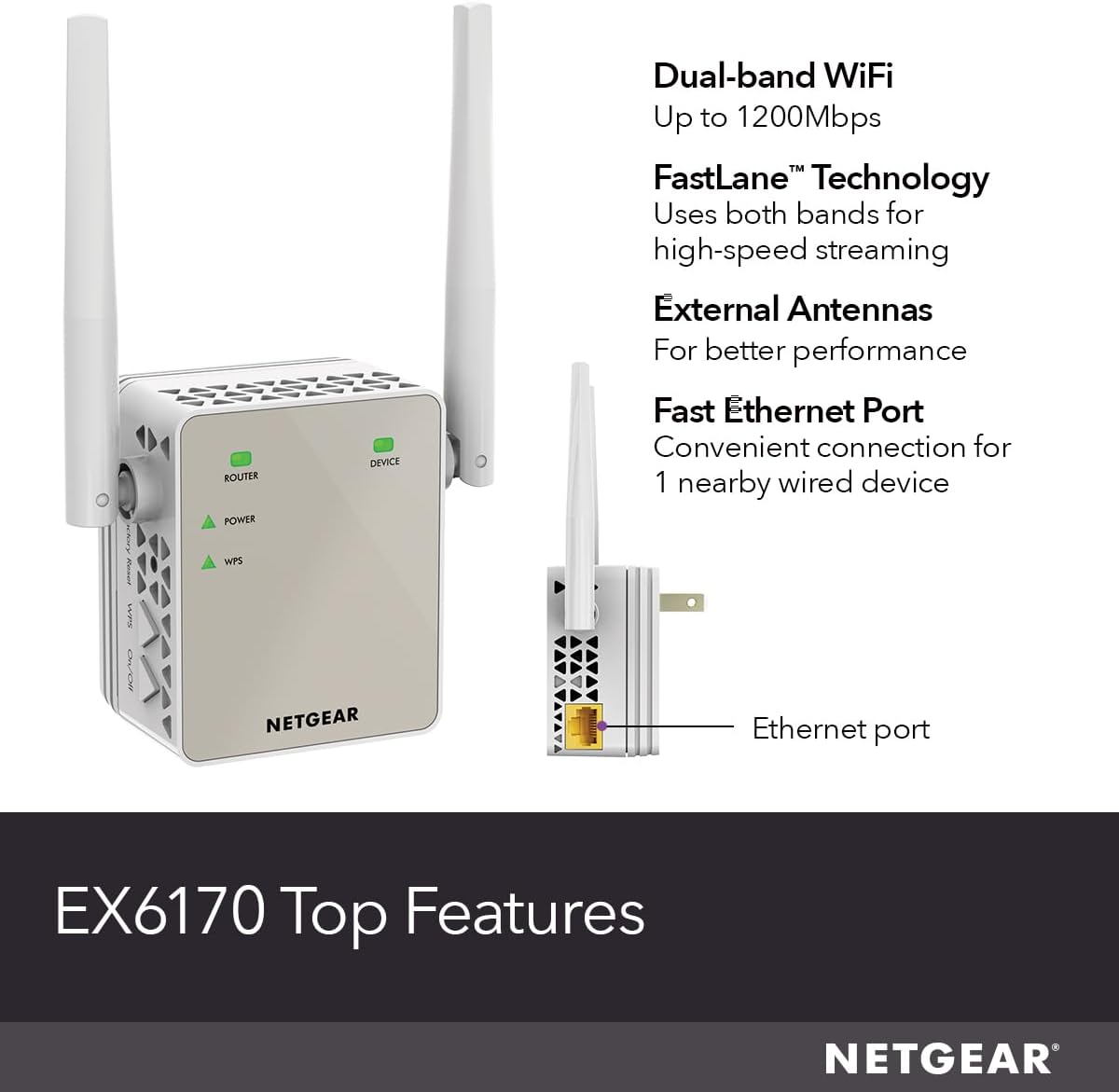
Figure 2: EX6170 Key Features Overview

Figure 3: Coverage Extension Capability
4. Setup Guide
There are two primary methods to set up your NETGEAR EX6170 Range Extender: using the WPS button or through a web browser.
4.1. WPS (Wi-Fi Protected Setup) Method (Recommended)
- Power On: Plug the extender into an electrical outlet near your WiFi router. Wait for the Power LED on the extender to light green.
- Press WPS on Extender: Press the WPS button on the side of your EX6170 extender. The WPS LED will start blinking.
- Press WPS on Router: Within two minutes, press the WPS button on your WiFi router. Refer to your router's manual for the exact location of its WPS button.
- Verify Connection: Once connected, the Router Link LED on the extender will light solid green. This indicates a successful connection to your router.
- Relocate Extender: Unplug the extender and move it to a new location that is about halfway between your router and the area with a weak WiFi signal. Ensure the Router Link LED remains solid green for optimal performance. If it's amber or red, move the extender closer to the router.
- Connect Devices: Your extended WiFi network will have the same name as your existing network, but with '_EXT' appended (e.g., MyWiFi_EXT). Connect your devices to this new network.

Figure 4: WPS Button Location
4.2. Browser Setup Method
- Power On: Plug the extender into an electrical outlet near your WiFi router. Wait for the Power LED to light green.
- Connect to Extender: On a computer or mobile device, connect to the extender's WiFi network. The network name will be 'NETGEAR_EXT' or 'NETGEAR_EXT_5G'. No password is required initially.
- Access Setup Page: Open a web browser and type www.mywifiext.net in the address bar.
- Follow Prompts: Follow the on-screen instructions to select your existing WiFi network(s) and enter your network password(s).
- Relocate and Connect: Once setup is complete, relocate the extender as described in step 5 of the WPS method and connect your devices to the extended network.
5. Operating Instructions
5.1. LED Indicators
The EX6170 features several LEDs that provide status information:
- Power LED: Solid green indicates the extender is powered on.
- Router Link LED:
- Solid Green: Best connection to the router.
- Solid Amber: Good connection to the router.
- Solid Red: Poor connection to the router.
- Off: No connection to the router.
- Device Link LED: Indicates connection status to client devices.
- WPS LED: Blinks during WPS pairing, solid green when connected via WPS.
5.2. Optimal Placement
For best performance, place the extender in a location that is:
- About halfway between your router and the area where you want to improve WiFi coverage.
- Within the range of your existing WiFi network.
- Away from large metal objects, concrete walls, or other sources of interference (e.g., microwaves, cordless phones).
6. Maintenance
To ensure optimal performance and longevity of your EX6170 extender:
- Firmware Updates: Periodically check the NETGEAR support website for firmware updates. Keeping your firmware up-to-date can improve performance, add new features, and fix bugs.
- Cleaning: Gently wipe the exterior of the extender with a soft, dry cloth. Do not use liquid cleaners or aerosols.
- Ventilation: Ensure the extender's ventilation holes are not blocked to prevent overheating.
- Rebooting: If you experience connectivity issues, try unplugging the extender from the power outlet for 10 seconds and then plugging it back in.
7. Troubleshooting
If you encounter issues with your NETGEAR EX6170, refer to the following common troubleshooting steps:
- No Internet Connection:
- Check the Router Link LED. If it's red or off, move the extender closer to your router.
- Ensure your main router has an active internet connection.
- Reboot both your router and the extender.
- Slow Speed or Frequent Disconnections:
- Relocate the extender to a position where the Router Link LED is solid green.
- Minimize interference from other electronic devices.
- Ensure your devices are connecting to the extended network (e.g., 'MyWiFi_EXT').
- Update the extender's firmware.
- If experiencing issues with 5GHz band, ensure your router's 5GHz signal is strong enough at the extender's location.
- Cannot Access mywifiext.net:
- Ensure your device is connected to the extender's network (NETGEAR_EXT or NETGEAR_EXT_5G).
- Try using a different web browser.
- Clear your browser's cache and cookies.
- If still unable to access, perform a factory reset on the extender (press and hold the Factory Reset button for 5-10 seconds) and try setup again.

Figure 5: Universal Compatibility with Routers and Modems
8. Specifications
| Feature | Specification |
|---|---|
| Model | EX6170 |
| Wireless Type | 802.11ac |
| Data Transfer Rate | Up to 1200 Mbps (AC1200) |
| Frequency Band Class | Dual-Band (2.4GHz & 5GHz) |
| Coverage | Up to 1,500 sq. ft. |
| Connected Devices | Up to 32 devices |
| Ethernet Port | 1 x 10/100Mbps Fast Ethernet Port (RJ45) |
| Security Protocols | WEP, WPA/WPA2-PSK |
| Dimensions | 7.09 x 5.75 x 4.06 inches (Package) |
| Weight | 11.2 ounces |
| Color | White |
9. Warranty and Support
For detailed warranty information and technical support, please refer to the official NETGEAR website or the documentation included with your product. NETGEAR provides various support resources, including FAQs, troubleshooting guides, and customer service contact options.
Visit www.netgear.com/support/ for the latest support information and resources.