Introduction
The YUNZII B68 is a versatile 65% compact mechanical keyboard designed for enhanced productivity and gaming. It features tri-mode connectivity, hot-swappable switches, gasket mount design for a comfortable typing experience, and customizable RGB backlighting. This manual provides detailed instructions for setting up, operating, and maintaining your keyboard.

Figure 1: YUNZII B68 Wireless Mechanical Keyboard (Black, Milk V2 Switch)
Package Contents
- YUNZII B68 Wireless Mechanical Keyboard
- USB-C to USB-A Cable
- 2.4G Wireless Receiver (USB Dongle)
- Keycap/Switch Puller Tool
- Additional Gradient Rainbow Keycaps
- User Manual
Product Features
Tri-Mode Connectivity
The B68 keyboard offers three connection options: Bluetooth 5.0, 2.4GHz wireless, and wired USB-C. It is compatible with Windows, MacOS, iOS, and Android devices, allowing connection to up to five devices simultaneously.

Figure 2: Tri-Mode Connectivity Options
5000 mAh Battery
Equipped with a large 5000mAh battery, the keyboard ensures extended use for productivity and gaming on the go.

Figure 3: 5000mAh Battery for Extended Use
Hot-Swappable Switches
The B68 features full-key hot-swappable sockets compatible with 3-pin and 5-pin switches. It comes pre-installed with pre-lubricated linear switches (Milk V2 Switch) for a smooth typing experience. The hot-swappable design allows for easy switch replacement without soldering.

Figure 4: Hot-Swappable Switch Sockets
Gasket Mount Design
Experience quieter and smoother typing with the precision gasket mount structure, featuring five layers of sound-absorbing padding (PE sandwich foam, IXPE switch pad, PET sound foam, switch foam, and a silicone button pad) to reduce noise and vibration.

Figure 5: Gasket Mount Design with Five-Layer Padding
RGB Backlighting & PBT Keycaps
The keyboard features colorful RGB backlighting with south-facing LEDs. It includes durable double-shot PBT keycaps and additional gradient rainbow keycaps for personalization. RGB settings can be customized via software.

Figure 6: Double-Shot PBT Keycaps and RGB Backlighting
65% Compact Layout with Multifunction Knob
The 65% compact layout maximizes desk space while retaining essential keys. A versatile multifunction knob allows effortless switching between multimedia and RGB modes, and adjusts volume and RGB brightness.
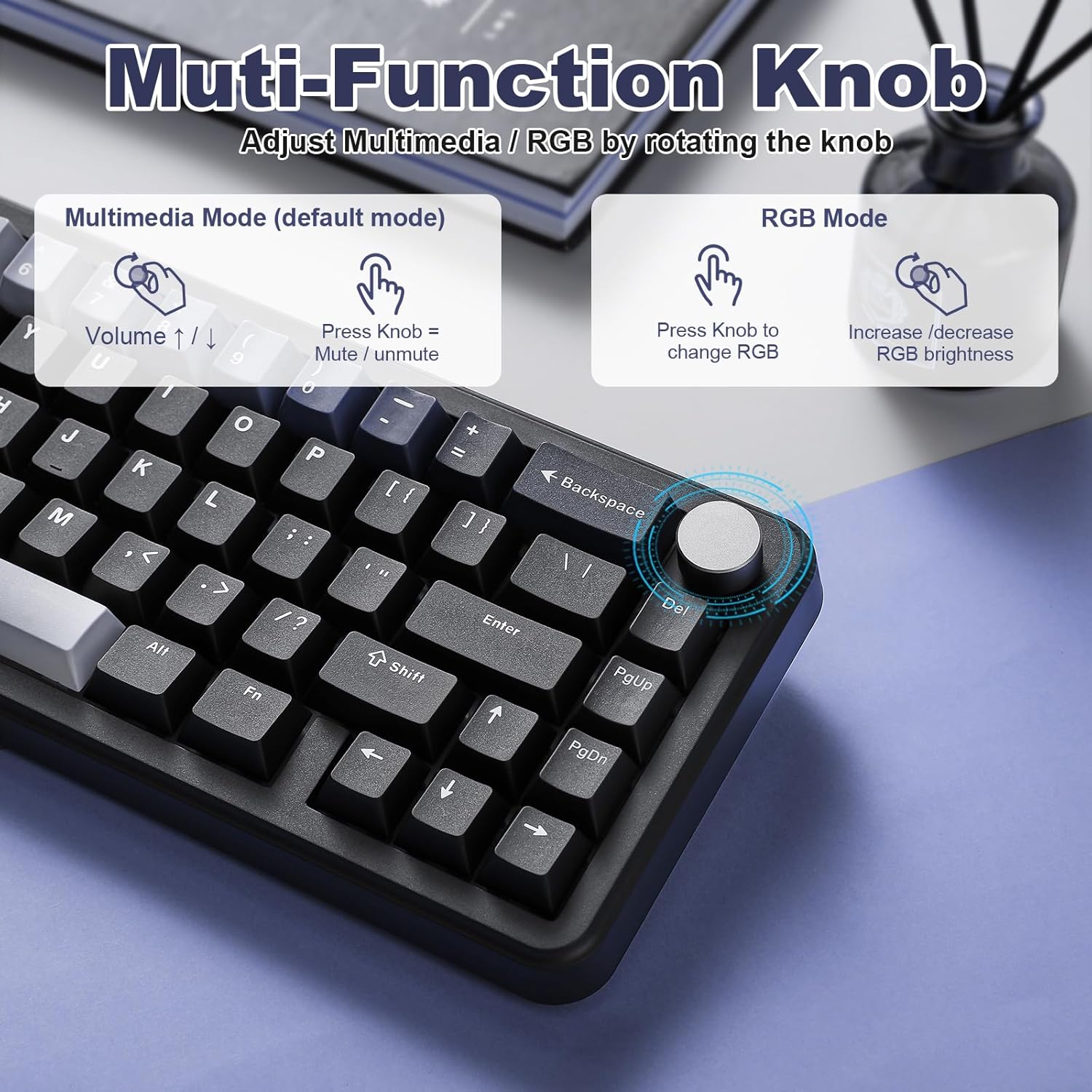
Figure 7: Multifunction Knob Controls
Setup
Wired Connection
- Locate the USB-C port on the keyboard and the USB-A port on your computer.
- Connect the provided USB-C to USB-A cable between the keyboard and your computer.
- Ensure the mode switch on the keyboard is set to 'Line' or 'USB' mode.
- The keyboard is now ready for use.
2.4GHz Wireless Connection
- Locate the 2.4G wireless receiver (USB dongle) in the packaging.
- Plug the 2.4G wireless receiver into an available USB port on your computer.
- Set the mode switch on the keyboard to '2.4G' mode.
- The keyboard should automatically connect. If not, press Fn + R to enter pairing mode. The R key will flash blue, indicating pairing.
- Once connected, the R key will return to normal backlight mode.
Bluetooth Connection
- Set the mode switch on the keyboard to 'BT' mode.
- Press and hold Fn + Q/W/E to enter Bluetooth pairing mode. The Q, W, or E key will flash in cyan/pink/yellow, indicating pairing for device 1, 2, or 3 respectively.
- On your device (computer, tablet, phone), go to Bluetooth settings and search for 'B68 3.0/5.0'.
- Select the keyboard to connect. Once connected, the corresponding Q/W/E key will return to normal backlight mode.
- To switch between paired Bluetooth devices, press Fn + Q, Fn + W, or Fn + E.
Operating Instructions
Multifunction Knob
- Default (Multimedia) Mode: Rotate the knob to adjust volume (up/down). Short press the knob to mute/unmute audio.
- RGB Mode: Long press the knob to switch to RGB mode. Rotate the knob to increase/decrease RGB brightness. Short press the knob to change RGB effects.
RGB Backlighting Control
- Fn + Backspace: Backlight Effect ON/OFF
- Fn + |: Change Backlight Effect (15 default modes)
- Fn + Enter: Change Backlight Color (8 colors)
- Fn + Tab: White Light ON/OFF
- Fn + ↑ / ↓: Brightness Up/Down
- Fn + ← / →: Blinking Speed Up/Down
FN Key Shortcuts (Windows)
- Fn + Caps Lock: Reset Keyboard
- Fn + Win: Lock/Unlock Windows Key
- Fn + F1: Screen Brightness Down
- Fn + F2: Screen Brightness Up
- Fn + F3: Calculator
- Fn + F4: Computer
- Fn + F5: Player
- Fn + F6: Previous Song
- Fn + F7: Next Song
- Fn + F8: Play/Pause
- Fn + F9: Stop
- Fn + F10: Mute
- Fn + F11: Volume Down
- Fn + F12: Volume Up
Programmable Software
The YUNZII B68 supports programmable software for Windows systems only. This software allows for advanced customization of key settings, RGB lighting, and macro functions.

Figure 8: Programmable Software Interface
Video 1: YUNZII B68 Wireless Mechanical Keyboard Features Overview
Video 2: YUNZII B68 Wireless Mechanical Keyboard Typing Sound Demo
Maintenance
- Cleaning Keycaps: Use the provided keycap puller to carefully remove keycaps. Clean them with a soft, damp cloth and mild soap if necessary. Ensure they are completely dry before reattaching.
- Cleaning Keyboard Body: Wipe the keyboard body with a soft, dry, or slightly damp cloth. Avoid using harsh chemicals or abrasive materials.
- Switch Maintenance: If replacing switches, use the switch puller tool to gently remove and insert switches. Avoid excessive force to prevent damage to the PCB.
- Battery Care: To prolong battery life, avoid fully discharging the keyboard frequently. Charge the keyboard using a 5V USB port.
Troubleshooting
- Keyboard not connecting: Ensure the mode switch (BT, 2.4G, USB) is set correctly. For wireless modes, ensure the receiver is properly plugged in or Bluetooth is enabled and paired. Try resetting the keyboard (Fn + Caps Lock).
- RGB lights not working/customizing: Check if RGB is turned on (Fn + Backspace). Ensure the multifunction knob is in RGB mode for brightness/effect changes. Use the programmable software for advanced customization.
- Keys not responding: Check if the Windows key is locked (Fn + Win). If switches are hot-swappable, ensure they are seated correctly. Try resetting the keyboard.
- Battery drain: Adjust the sleep time settings via the programmable software to conserve battery. Reduce RGB brightness or turn off backlighting when not needed.
Specifications
| Model | B68 |
| Layout | 65% Compact (68 keys + 1 knob) |
| Connectivity | Bluetooth 5.0, 2.4GHz Wireless, USB-C Wired |
| Battery Capacity | 5000 mAh |
| Switches | Hot-swappable (3-pin/5-pin), Milk V2 Linear Switches (pre-lubricated) |
| Keycaps | Double-shot PBT |
| Backlighting | RGB, South-facing LEDs |
| Compatibility | Windows, MacOS, iOS, Android |
| Product Dimensions | 12.83 x 12.83 x 1.26 inches |
| Item Weight | 2.38 pounds |
Warranty and Support
YUNZII products typically come with a standard manufacturer's warranty. Please refer to the warranty information provided in your product packaging or visit the official YUNZII website for detailed terms and conditions. For technical support or inquiries, please contact YUNZII customer service.


