
1. Introduction
This manual provides instructions for the Arktronic 32-inch FHD IPS WiFi Digital Picture Frame. This device is designed to display photos and videos with a 1920x1080 resolution IPS matte screen, offering clear viewing from various angles. It supports popular image formats (JPG, GIF, BMP, PNG) and video formats (MPEG1, MPEG2, MPEG4, Xvid, AVI, M-JPEG, H.264.MOV, VOB, MKV, DIVX4, DIVX5). The frame includes 64GB of internal storage and supports Micro SD card expansion up to 64GB, allowing for extensive media storage. Content can be shared via the VPhoto app or email, and the frame features automatic rotation between portrait and landscape orientations.
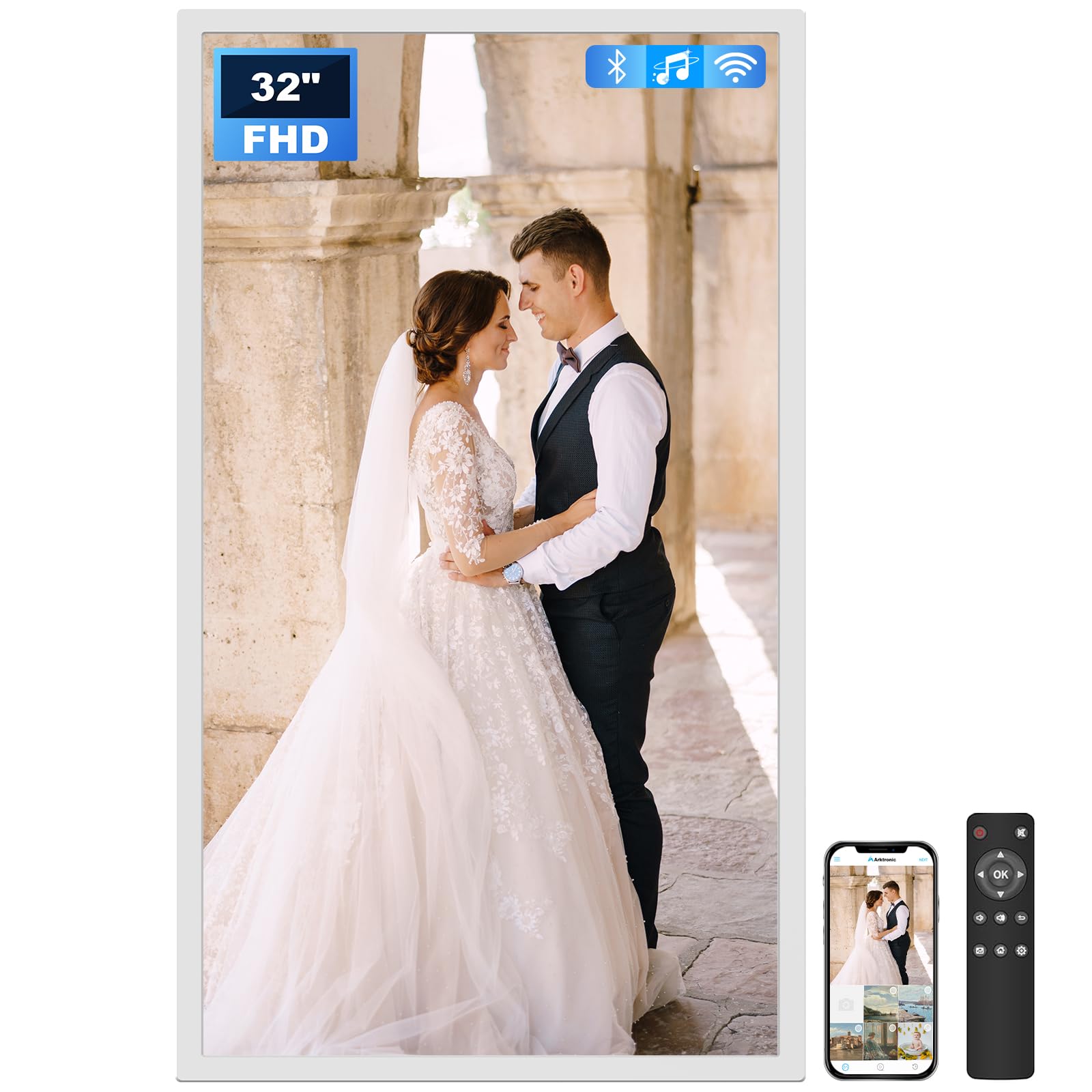
Figure 1: Arktronic 32-inch Digital Picture Frame
2. What's in the Box
Verify that all components are present in the packaging:
- Arktronic 32-inch Digital Picture Frame
- Remote Control (requires AAA batteries, not included)
- Power Adapter with US Plug
- Swivel Wall Mount (VESA Spec 100 x 100mm)
- Screwdriver
- Screws & Wall Anchors
- USB Flash Drive
- User Manual / Quick Start Guide

Figure 2: Package Contents
3. Product Overview
Familiarize yourself with the frame's components and interfaces:

Figure 3: Frame Interfaces and Controls
- FHD Non-Touch Screen (Matte Finish): Main display area.
- Speaker: For audio playback with videos or background music.
- VESA Holes: For mounting the frame using the included swivel wall mount.
- USB 2.0+ Port: For connecting USB flash drives.
- Type-C Port: For data transfer or power.
- Micro SD Slot: For inserting Micro SD cards (up to 64GB).
- DC IN: Power input port.
- Power Button: To turn the frame on/off.
- Volume Button: To adjust audio volume.
4. Setup
4.1 Initial Power On
- Connect the power adapter to the DC IN port on the frame and then to a power outlet.
- Press the Power Button to turn on the frame.
- Follow the on-screen prompts to select your language and connect to a Wi-Fi network (supports 2.4GHz and 5GHz).
4.2 App and Email Sharing Setup
The Arktronic frame uses the VPhoto app for easy photo and video sharing.
- Download the 'VPhoto' app from the App Store (iOS) or Google Play Store (Android).
- Create an account and follow the in-app instructions to pair your phone with the digital picture frame. This typically involves scanning a QR code displayed on the frame.
- Once paired, you can instantly share photos and videos from your phone to the frame.
- The frame also supports sharing via email. Refer to the on-screen settings or the VPhoto app for your frame's unique email address.

Figure 4: Snap and Share Process
4.3 Wall Mounting
The frame is designed for two-way wall mounting (portrait or landscape) using the included swivel mount.
- Identify a suitable location on your wall.
- Use the provided swivel wall mount, screwdriver, screws, and wall anchors to securely attach the mount to the wall. Ensure the mount is level.
- Attach the digital picture frame to the swivel mount using the VESA holes on the back of the frame.
- The swivel mount allows you to rotate the frame between portrait and landscape orientations without disassembly.

Figure 5: Swivel Mount for Orientation Adjustment
5. Operating Instructions
5.1 Remote Control Usage
The included remote control simplifies navigation and settings adjustments. Insert AAA batteries (not included) into the remote before use.

Figure 6: Remote Control
5.2 Displaying Photos and Videos
- Automatic Rotation: The frame automatically adjusts the display orientation (portrait or landscape) based on the image or video's metadata.
- Slideshow Mode: Configure slideshow intervals and transition effects in the settings menu.
- Playback Order: Adjust the order of media playback (e.g., chronological, random) via the settings.
- USB/Micro SD Playback: Insert a USB flash drive or Micro SD card into the respective port. The frame will detect the media and allow you to browse and play content directly.
5.3 Advanced Features
- Captions: Add descriptive captions to your photos through the VPhoto app. These captions will be displayed at the bottom of the photos on the frame.
- Background Music: Enable background music playback from the settings menu.
- Sleep Mode: Schedule the frame to turn off or enter a low-power state during specific hours to conserve energy.
- Image Zoom: Zoom in on photos using the remote control or app.
- Adjustable Brightness: Customize the screen brightness to suit your environment.

Figure 7: Audio Performance and Bluetooth Connectivity
6. Maintenance
6.1 Cleaning the Screen
To clean the matte screen, gently wipe it with a soft, lint-free cloth. For stubborn smudges, slightly dampen the cloth with water or a screen-safe cleaning solution. Avoid harsh chemicals or abrasive materials.
6.2 General Care
- Keep the frame away from direct sunlight, excessive heat, or moisture.
- Avoid dropping or subjecting the frame to strong impacts.
- Ensure proper ventilation around the frame, especially if wall-mounted.
7. Troubleshooting
| Problem | Possible Cause | Solution |
|---|---|---|
| Frame does not power on | Power adapter not connected or faulty; power outlet issue. | Ensure the power adapter is securely connected to the frame and a working power outlet. Try a different outlet. |
| Cannot connect to Wi-Fi | Incorrect Wi-Fi password; router too far; network issues. | Double-check the Wi-Fi password. Move the frame closer to the router. Restart your router. Ensure your Wi-Fi is 2.4GHz or 5GHz compatible. |
| Photos/Videos not appearing | Incorrect sharing method; unsupported file format; insufficient storage. | Ensure you are sharing via the VPhoto app or the correct email address. Verify file formats are supported. Check available storage on the frame. |
| Frame freezes or becomes unresponsive | Software glitch; too many files; overheating. | Unplug the power adapter, wait 10 seconds, then plug it back in to restart. Perform a factory reset if the issue persists (refer to settings menu). Ensure adequate ventilation. |
| Remote control not working | Dead batteries; obstruction; remote not paired. | Replace AAA batteries. Ensure no obstructions between the remote and the frame's IR receiver. Re-pair the remote if necessary (refer to settings). |
8. Specifications
| Feature | Detail |
|---|---|
| Model Number | AK-W320W-FH-B-V-US |
| Screen Size | 32 Inches |
| Resolution | 1920x1080 (FHD) |
| Display Type | IPS Matte Screen |
| Internal Storage | 64GB (up to 160,000 photos) |
| External Storage | Supports Micro SD card (up to 64GB), USB flash drives |
| Connectivity | WiFi (2.4GHz & 5GHz), USB 2.0+, Type-C |
| Supported Image Formats | JPG, GIF, BMP, PNG |
| Supported Video Formats | MPEG1, MPEG2, MPEG4, Xvid, AVI, M-JPEG, H.264.MOV, VOB, MKV, DIVX4, DIVX5 |
| Product Dimensions | 30 x 18 x 0.99 inches |
| Item Weight | 17.31 pounds |
| Color | White |
9. Warranty & Support
Arktronic provides the following for this product:
- 30-day money-back commitment
- 1-year worry-free warranty
- Lifetime professional service
For technical assistance, troubleshooting, or warranty claims, please contact Arktronic customer support through their official website or the contact information provided with your purchase documentation.
10. Official Product Videos
Arktronic 32-inch Extra Large Digital Picture Frame Art
This video showcases the Arktronic 32-inch digital picture frame, highlighting its design and how it displays various art and photo content in different home settings. It demonstrates the frame's aesthetic appeal and its ability to blend into diverse decor.