
1. Introduction
This manual provides detailed instructions for the setup, operation, maintenance, and troubleshooting of your Arktronic 32 Inch FHD Digital Picture Frame. Please read this manual thoroughly before using the device to ensure proper functionality and longevity.

Figure 1.1: Arktronic 32 Inch FHD Digital Picture Frame with accessories.
Product Features:
- 32 Inch IPS FHD Touch Screen: 1920x1080 resolution for high-quality image display from wide viewing angles.
- 64GB Internal Storage: Capable of storing up to 160,000 photos.
- Wi-Fi Connectivity: Share photos and videos securely via the VPhoto app and email.
- Remote Control: For convenient operation, especially for non-touch interactions. (Requires AAA batteries, not included).
- Multi-functionality: Includes features such as background music, light sensor, sleep mode, image zoom, adjustable brightness, slideshow modes, and playback order adjustment.
- Versatile Placement: Designed for two-way wall mounting (portrait or landscape) and suitable for various environments.
- Media Support: Supports popular image formats (JPG, GIF, BMP, PNG) and video formats (MPEG1, MPEG2, MPEG4, Xvid, AVI, M-JPEG, H.264.MOV, VOB, MKV, DIVX4, DIVX5).
2. Setup
2.1 What's in the Box
Verify that all components are present in the packaging:
- Arktronic 32 Inch FHD Digital Picture Frame
- Swivel Wall Mount (VESA Spec 100 x 100mm)
- Remote Control
- Power Cord (70.87 inches)
- Screwdriver
- Screws & Wall Anchors
- Quick Start Guide

Figure 2.1: Package Contents.
2.2 Physical Installation
The frame can be wall-mounted in either portrait or landscape orientation using the included swivel wall mount. Ensure the mounting location is suitable for the frame's weight (approximately 22.4 pounds).
- Select a desired location on the wall.
- Use the provided screws and wall anchors to securely attach the swivel wall mount to the wall.
- Carefully attach the digital picture frame to the mounted bracket. The swivel design allows for easy rotation between portrait and landscape modes without disassembly.
- Connect the power cord to the DC IN port on the back of the frame and plug it into a power outlet.
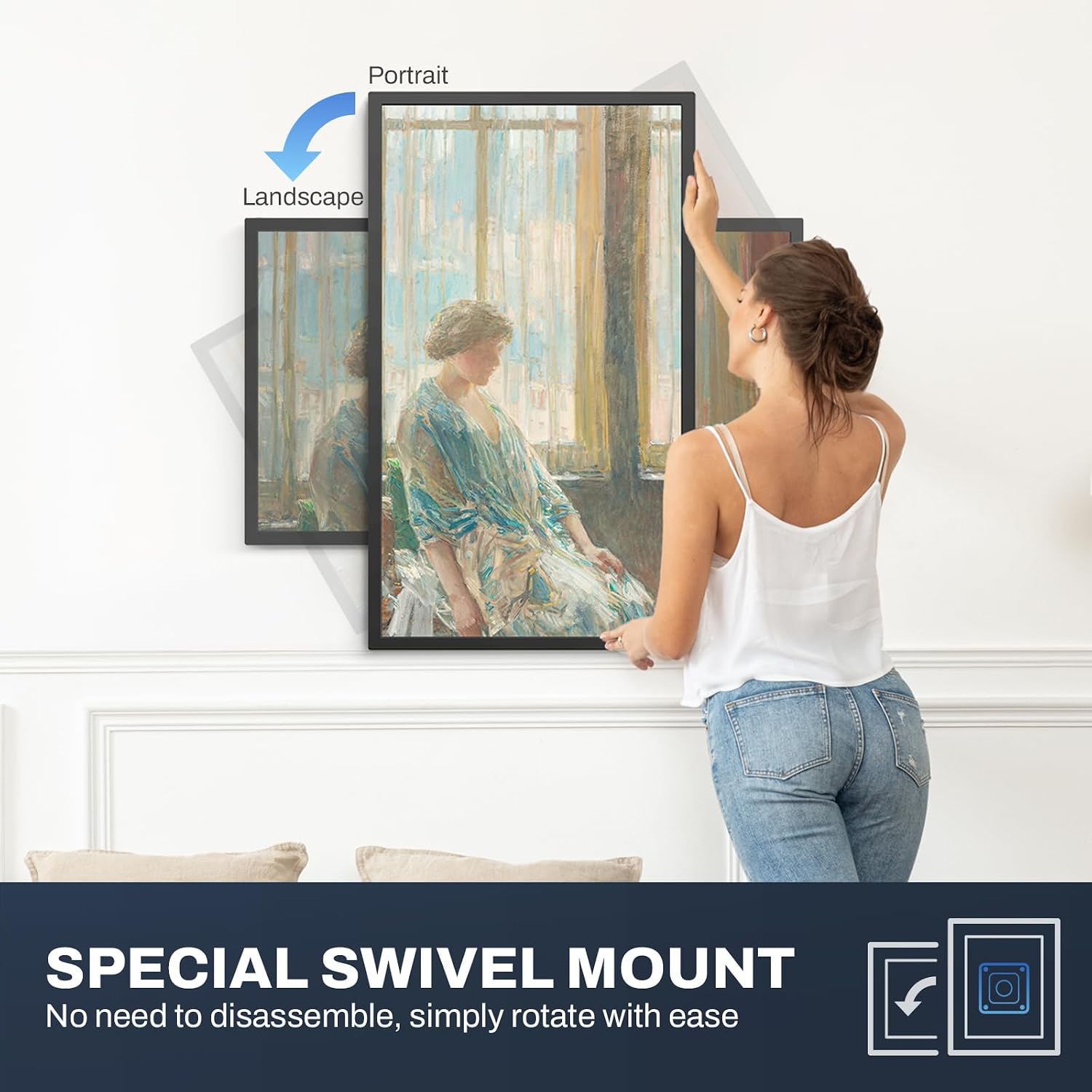
Figure 2.2: Swivel Wall Mount for flexible orientation.
2.3 Initial Power On and Wi-Fi Connection
- Press the power button on the back of the frame or on the remote control to turn on the device.
- Follow the on-screen prompts for initial setup.
- Navigate to the Settings menu, then select Wi-Fi.
- Choose your Wi-Fi network from the list and enter the password. The frame supports both 2.4GHz and 5GHz networks.
- Once connected, the Wi-Fi icon will indicate a successful connection.

Figure 2.3: Wi-Fi Connectivity.
2.4 VPhoto App Installation
To easily share photos and videos, download the VPhoto app on your smartphone or tablet:
- Search for "VPhoto" in the Apple App Store (for iOS devices) or Google Play Store (for Android devices).
- Install the app and follow the in-app instructions to pair it with your digital picture frame.
- You can invite friends and family to share photos directly to your frame via the app or email.
3. Operating Instructions
3.1 Navigating the Interface
The Arktronic digital picture frame features a touchscreen interface for direct interaction and a remote control for convenience.

Figure 3.1: Touchscreen Interface.
3.2 Adding Photos and Videos
You can add media to your frame using several methods:
- VPhoto App: Use the VPhoto app on your smartphone to upload photos and videos directly to the frame over Wi-Fi.
- Email: Send photos and videos to the unique email address assigned to your frame.
- Micro SD Card: Insert a Micro SD card (up to 64GB, not included) into the designated slot on the frame to import media.
- USB Drive: Connect a USB drive to the USB 2.0+ port to import media.

Figure 3.2: Sharing moments with loved ones.
3.3 Display Modes and Settings
Customize your viewing experience through the frame's settings:
- Slideshow Mode: Adjust the interval between photos (e.g., 5 minutes) and select different transition effects.
- Brightness: Adjust the screen brightness to suit your environment.
- Volume Adjustment: Control the audio output for videos or background music.
- Light Sensor: Enable or disable the automatic brightness adjustment based on ambient light.
- Sleep Mode: Schedule times for the frame to automatically turn off or enter a low-power state.
- Background Music: Play music files while photos are displayed.
- Captions: Display captions at the bottom of photos to provide context or stories.

Figure 3.3: Audio performance and Bluetooth connectivity.
3.4 Additional Functions
- Clock & Alarm: Set the current time and configure alarms.
- Weather Display: View current weather conditions and forecasts.
- Image Zoom: Zoom in on displayed photos for closer inspection.
4. Maintenance
4.1 Cleaning the Frame
To maintain the clarity of your screen and the appearance of the frame:
- Always power off and unplug the frame before cleaning.
- Use a soft, lint-free cloth to gently wipe the screen. For stubborn smudges, slightly dampen the cloth with water or a screen-safe cleaning solution.
- Wipe the frame's exterior with a dry, soft cloth. Avoid abrasive cleaners or solvents.
4.2 Data Management
The frame comes with 64GB of built-in memory. You can manage your stored media as follows:
- Import/Export: Use the Micro SD card slot or USB port to import new media or export existing media from the frame.
- Storage Capacity: The 64GB internal memory can store approximately 160,000 photos.

Figure 4.1: 64GB Internal Storage.
5. Troubleshooting
If you encounter issues with your Arktronic digital picture frame, refer to the following common solutions:
| Problem | Possible Cause | Solution |
|---|---|---|
| Frame does not power on. | Power cord not connected or power outlet issue. | Ensure the power cord is securely connected to the frame and a working power outlet. Try a different outlet. |
| Wi-Fi connection fails. | Incorrect password, network out of range, or router issue. | Verify the Wi-Fi password. Ensure the frame is within range of your router. Restart your router. |
| Remote control not responding. | Batteries are dead or incorrectly inserted. | Replace the AAA batteries in the remote control. Ensure they are inserted with correct polarity. |
| Photos/videos not displaying. | Unsupported file format, corrupted file, or storage issue. | Check if the file format is supported (JPG, GIF, BMP, PNG for images; MPEG1, MPEG2, MPEG4, Xvid, AVI, M-JPEG, H.264.MOV, VOB, MKV, DIVX4, DIVX5 for videos). Try re-uploading the file. Ensure sufficient storage space. |
| Screen freezes or becomes unresponsive. | Temporary software glitch. | Perform a soft reset by holding the power button until the frame restarts. If the issue persists, consider a factory data reset (see below). |
5.1 Factory Data Reset
A factory data reset will erase all data from your device's internal storage, including system and app data, settings, music, photos, and other user data. This action requires an internet connection.
- Navigate to Settings.
- Select Factory Data Reset.
- Confirm your choice to reset the device.
6. Specifications
| Feature | Detail |
|---|---|
| Model Number | AK-W320B-T-FH-B-V-US |
| Screen Size | 32 Inches |
| Resolution | 1920 x 1080 (FHD) |
| Display Type | IPS Touch Screen |
| Internal Storage | 64GB |
| Connectivity | Wi-Fi (2.4GHz & 5GHz), Bluetooth |
| External Storage | Micro SD card (up to 64GB), USB 2.0+ |
| Supported Image Formats | JPG, GIF, BMP, PNG |
| Supported Video Formats | MPEG1, MPEG2, MPEG4, Xvid, AVI, M-JPEG, H.264.MOV, VOB, MKV, DIVX4, DIVX5 |
| Product Dimensions | 30 x 17 x 0.99 inches |
| Item Weight | 22.4 pounds |
| Manufacturer | Arktronic |
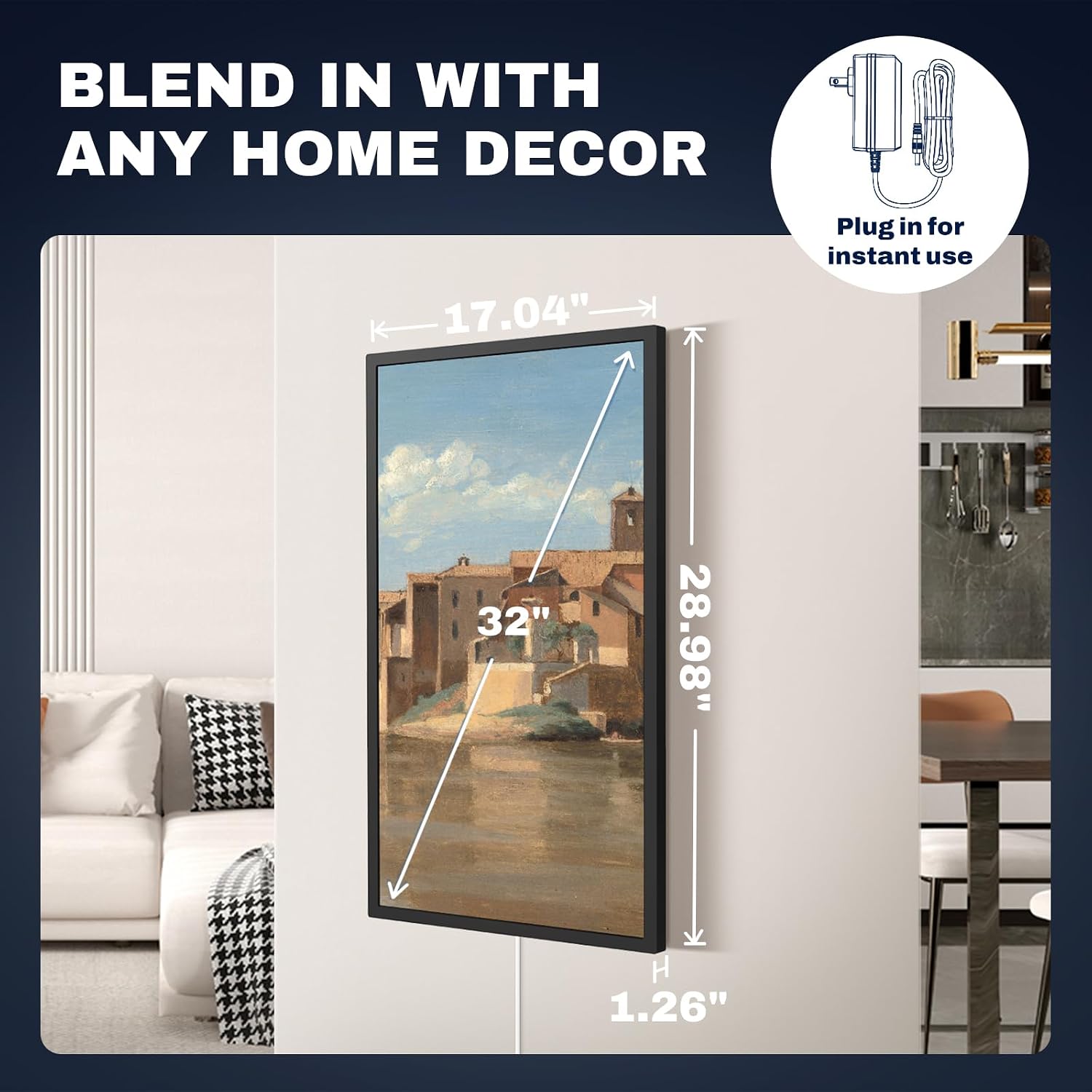
Figure 6.1: Product Dimensions and Power Connection.
7. Warranty and Support
7.1 Warranty Information
Arktronic provides a 1-year worry-free warranty for this product. This warranty covers manufacturing defects and ensures product functionality under normal use. Please retain your proof of purchase for warranty claims.
7.2 Customer Support
For technical assistance, troubleshooting, or warranty inquiries, please contact Arktronic customer service. Refer to the Quick Start Guide included in your package for specific contact details or visit the official Arktronic website for support resources.
Arktronic is committed to providing lifetime professional service for its products.