
Introduction
This manual provides comprehensive instructions for the setup, operation, maintenance, and troubleshooting of your LTC Nimbleback NB841 PRO 75% Wireless Mechanical Keyboard. Please read this manual thoroughly to ensure optimal performance and longevity of your device.

Image: LTC Nimbleback NB841 PRO 75% Wireless Mechanical Keyboard in Sky Blue.
Product Features
- Compact Screen: A multifunctional display screen capable of showing GIF images, time, battery status, current WIN/MAC layouts, lighting effects, color, speed, and CPU status.
- Intuitive Knob Control: A convenient knob for adjusting volume, switching between Win/Mac layouts, controlling backlight brightness/speed, and changing RGB mode/color.
- Triple Connectivity Modes: Supports Bluetooth, wired (USB-C), and 2.4GHz wireless connections for versatile device compatibility.
- Excellent Silicone Sound Dampening: Features a triple-layer silicone dampening structure to minimize hollow sounds and cavity noise, providing a smooth and quiet typing experience. Includes oil-resistant PBT keycaps for comfort.
- Customizable Hot-Swap Design: Equipped with a hot-swappable PCB, allowing for easy replacement of most 3-pin and 5-pin switches without soldering. Compatible with popular MX-style switches.
- Powerful Software Support: Comprehensive software for personalizing GIF or images, remapping key combinations, assigning macros, adjusting backlight settings, and monitoring CPU temperature. Compatible with Windows 7/8/10/11, Android, iOS, and macOS.
Package Contents
Upon opening the package, please verify that all items are present and in good condition:
- LTC Nimbleback NB841 PRO Mechanical Keyboard
- USB-C Cable
- Keycap Puller
- Switch Puller
- Instruction Manual (this document)
Video: Unboxing of the LTC Nimbleback NB841 Pro Wireless Mechanical Keyboard, showing the keyboard and included accessories like the USB cable and keycap/switch puller.
Setup
1. Connectivity Modes
The NB841 PRO supports three connection types: 2.4GHz wireless, Bluetooth 5.0, and wired USB-C.
- 2.4GHz Wireless: Locate the 2.4GHz USB dongle, usually stored in a magnetic slot on the keyboard's underside. Insert the dongle into an available USB port on your computer. Switch the keyboard's mode selector to 2.4G.
- Bluetooth 5.0: Switch the keyboard's mode selector to BT. On your device, search for Bluetooth devices and select 'LTC NB841 PRO'. Follow any on-screen pairing instructions.
- Wired USB-C: Connect the provided USB-C cable from the keyboard to an available USB port on your computer. The keyboard will automatically switch to wired mode.

Image: Tri-mode connectivity options: 2.4GHz, Bluetooth 5.0, and USB-C wired.
2. Software Installation
To unlock full customization options, including GIF display, key remapping, macros, and advanced lighting, download the LTC software from the official LTC website. The software is compatible with Windows and macOS.
Note: Some users have reported issues with software login or download. If you encounter difficulties, please refer to the Troubleshooting section or contact LTC support.

Image: Software interface for customizing keyboard settings.
Operating Instructions
1. Smart Display Screen Functions
The integrated display screen provides quick access to various settings and information:
- Home Screen: Displays date, time, battery level, and current operating system (WIN/MAC) and connection mode (2.4G/BT/CAPS).
- RGB Mode & Color: Adjust backlight effects and colors.
- Screen Brightness & Sleep: Control the display's brightness and sleep timer.
- GIF Image Display: Upload and display custom GIF animations via the software.
- System & Language: Configure system settings and language preferences.
- CPU Temp: Monitor your computer's CPU temperature.

Image: Smart Digital Screen displaying various functions.
2. Intuitive Knob Control
The multi-function knob allows for quick adjustments:
- Volume Control: Rotate the knob to adjust system volume. Press down to mute/unmute.
- Screen Control: Press FN + Knob to enter the screen menu. Rotate the knob to select a section, then press to confirm.

Image: Knob control for volume and screen navigation.
3. RGB Backlight Control
The keyboard features 22 brilliant RGB effects. Use the following key combinations for control:
- FN + \|: Backlight On/Off
- FN + ↑: Backlight Mode Switch
- FN + ↓: Backlight Color Switch
- FN + ←/→: Adjust Breathing Speed
- FN + F5/F6: Backlight Brightness +/-

Image: Dynamic RGB lighting and control shortcuts.
4. Hot-Swap Switches
The hot-swappable PCB allows you to easily change switches without soldering. Use the provided switch puller to carefully remove existing switches and insert new compatible 3-pin or 5-pin MX-style switches.
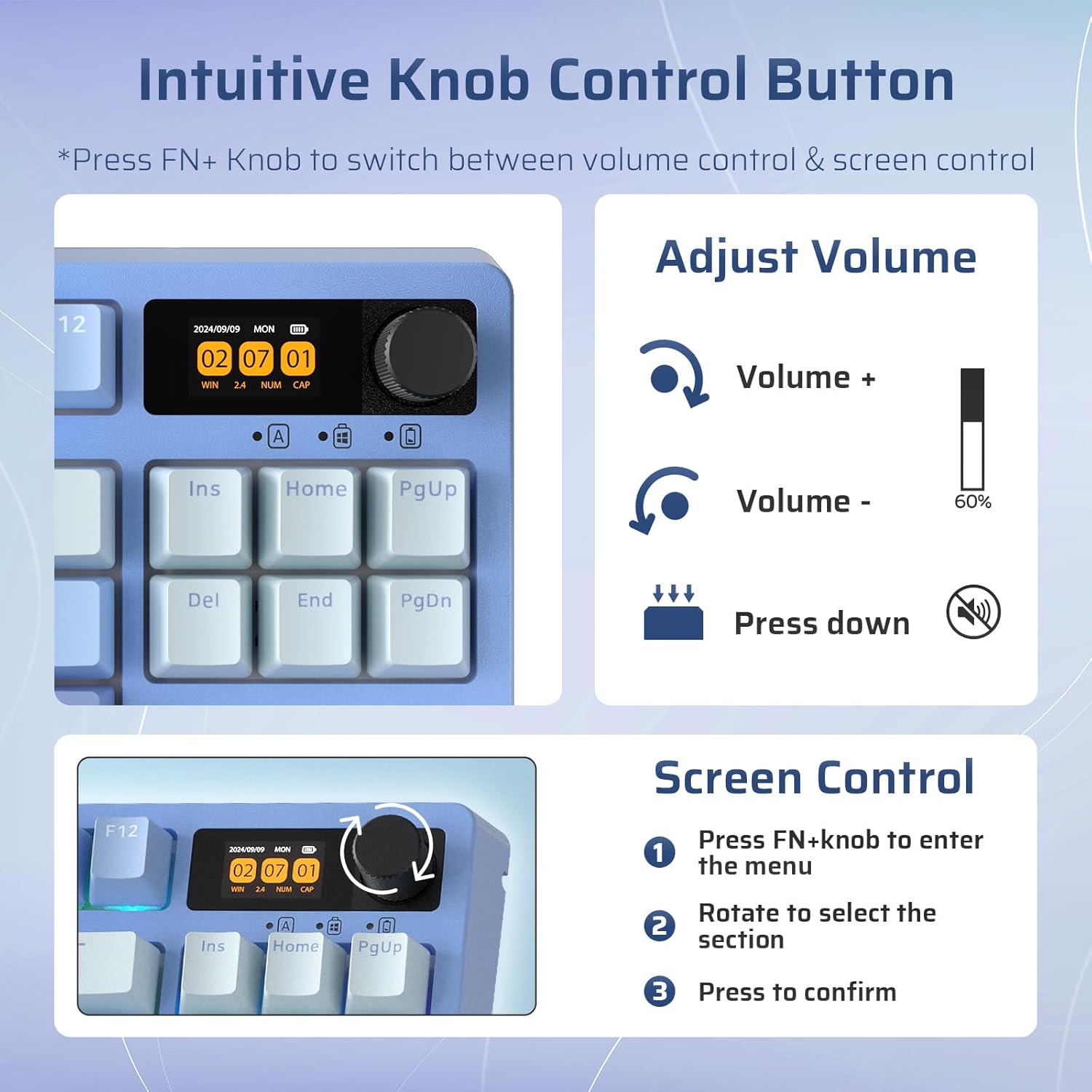
Image: Hot-swap PCB socket for easy switch replacement.
5. Check Battery Level
To check the current battery level, press FN + Backspace. The display screen will show the battery status.

Image: Checking battery level using FN + Backspace.
Maintenance
Regular maintenance helps preserve your keyboard's performance and appearance.
- Cleaning: Use a soft, dry cloth to wipe the keyboard surface. For deeper cleaning, remove keycaps using the provided keycap puller and use compressed air to clear debris from between switches. Avoid using harsh chemicals or abrasive materials.
- Switch Care: If replacing switches, ensure they are aligned correctly before pressing them into the PCB to avoid bending pins.
- Battery Care: For optimal battery life, avoid fully discharging the keyboard frequently. Store in a cool, dry place when not in use for extended periods.
Troubleshooting
| Issue | Possible Cause | Solution |
|---|---|---|
| Keyboard not connecting (2.4GHz/Bluetooth) | Incorrect mode selected, low battery, dongle not inserted (2.4GHz), not paired (Bluetooth), interference. | Ensure correct mode is selected on the keyboard. Charge the keyboard. Re-insert 2.4GHz dongle or re-pair Bluetooth. Move closer to the receiver or reduce interference. |
| Keys not responding or double-typing | Faulty switch, debris under keycap, software issue. | Remove keycap and clean around the switch. If issue persists, replace the switch (hot-swappable design). Check for software updates or reinstall drivers. |
| Display screen not working or showing incorrect info | Software glitch, incorrect settings, low battery. | Ensure keyboard is charged. Check display settings via the knob or software. Restart the keyboard and/or computer. Update keyboard firmware/software. |
| Software login issues | Server issues, incorrect credentials, browser compatibility. | Verify internet connection. Double-check login credentials. Try a different web browser. Contact LTC customer support for assistance. |
| RGB backlight not functioning | Backlight turned off, incorrect mode, software conflict. | Press FN + \| to toggle backlight. Cycle through modes with FN + ↑. Check software settings for RGB control. |
Specifications
| Feature | Detail |
|---|---|
| Model Number | NB841 Pro |
| Product Dimensions | 5.24 x 1.65 x 12.64 inches |
| Item Weight | 2.6 pounds |
| Manufacturer | LTC |
| Batteries | 1 Lithium Polymer battery (included) |
| Compatible Devices | Laptop, PC, Tablet |
| Connectivity Technology | Bluetooth, RF (2.4GHz), USB-C |
| Keyboard Description | Mechanical |
| Special Features | Backlit, Hot-Swappable, Hotkeys and Media Keys, Programmable Keys, Volume Roller, Display Screen |
| Backlighting | RGB |
Support
For further assistance, technical support, or warranty inquiries, please visit the official LTC website or contact their customer service department. Keep your purchase receipt for warranty claims.


