
1. Introduction
Welcome to the user manual for your new Packard Bell Silverstone T18 tablet. This guide provides essential information on setting up, operating, maintaining, and troubleshooting your device. Please read this manual thoroughly to ensure optimal performance and longevity of your tablet.
2. Product Features
The Packard Bell Silverstone T18 tablet is designed for versatile use, offering a blend of entertainment and productivity. Key features include:
- 10.51-Inch Full HD IPS Display: Enjoy vibrant visuals and wide viewing angles for media consumption and work.
- 6GB RAM and 128GB Storage Capacity: Provides smooth multitasking and ample space for applications, photos, and videos.
- 13MP Primary Camera and 5MP Front Camera: Capture clear photos and engage in video calls.
- Supports LTE Connectivity: Stay connected on the go with cellular data capabilities.
- Ideal for Movies, Gaming, and Productivity: A powerful processor and display make it suitable for various tasks.
3. Package Contents
Please check the box for the following items:
- Packard Bell Silverstone T18 Tablet
- USB Charging Cable
- Power Adapter
- Folio Cover
- Quick Start Guide (if included)
If any items are missing or damaged, please contact your retailer or Packard Bell support.
4. Device Overview
Familiarize yourself with the physical components of your Packard Bell Silverstone T18 tablet.
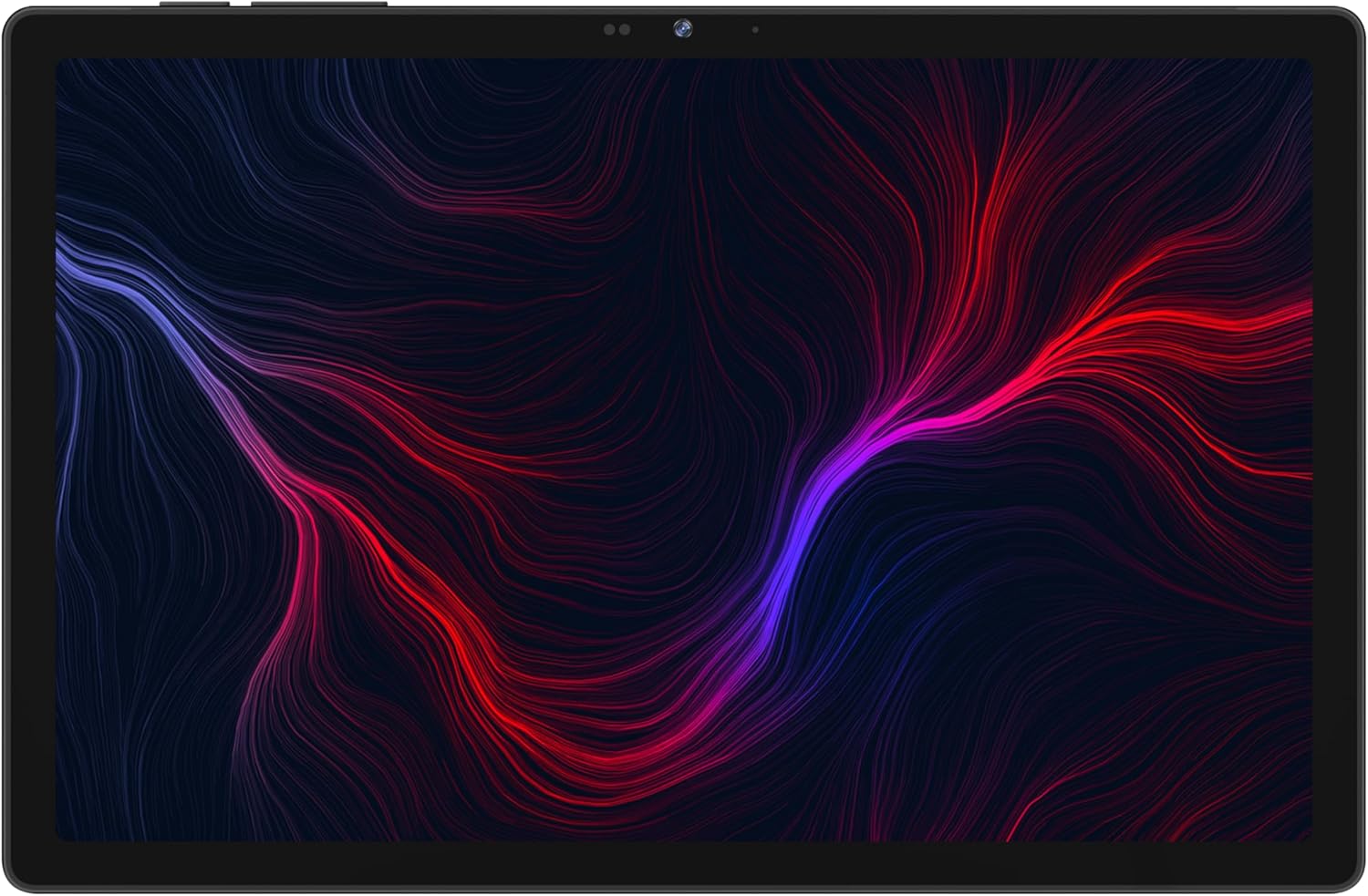
Figure 4.1: Front View. This image shows the tablet's 10.51-inch display, with the front-facing camera located at the top center bezel.
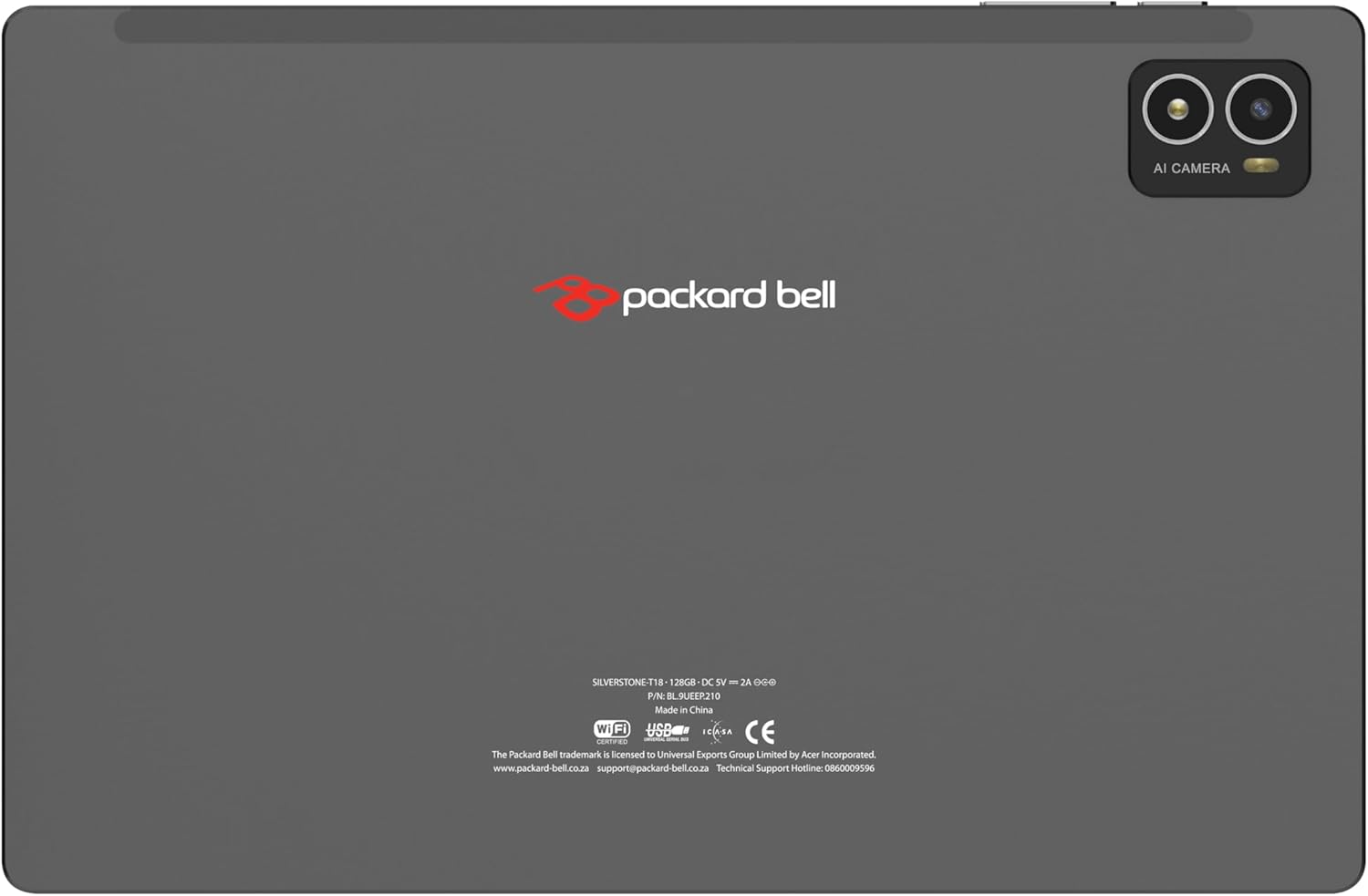
Figure 4.2: Back View. The rear of the tablet features the Packard Bell logo centrally, and a dual camera module with an LED flash and 'AI CAMERA' branding in the upper right corner.

Figure 4.3: Tablet with Folio Cover (Viewing Stand). The tablet is shown securely placed within its accompanying black folio cover, which is folded to create a convenient stand for hands-free viewing.
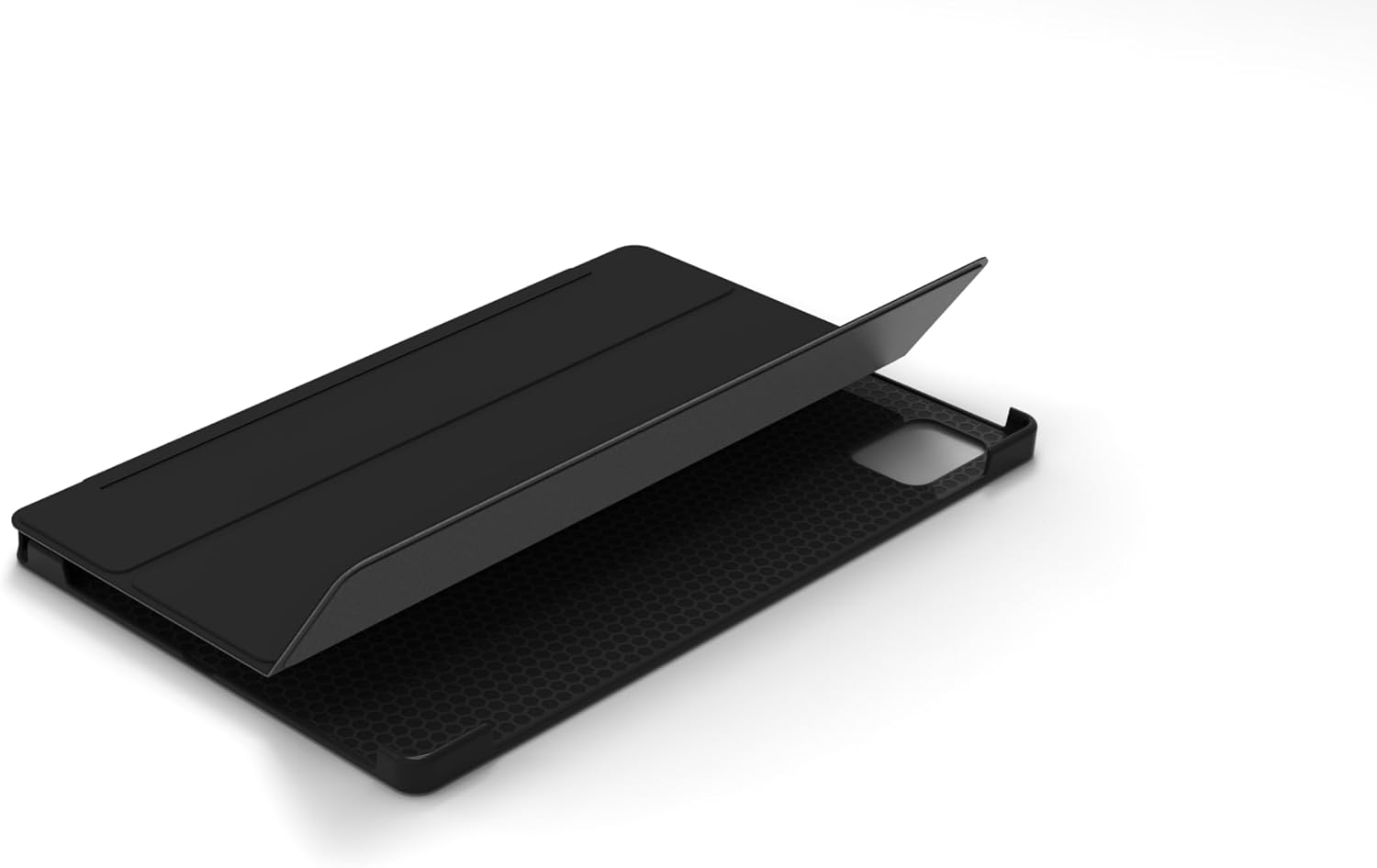
Figure 4.4: Tablet with Folio Cover (Installation). This image illustrates the process of inserting the tablet into the protective black folio cover, highlighting the precise fit and the textured inner lining of the cover.
4.1. Buttons and Ports
- Power Button: Located on the side, used to turn the tablet on/off or put it to sleep/wake it up.
- Volume Buttons: Adjust the audio volume.
- USB-C Port: For charging and data transfer.
- 3.5mm Headphone Jack: Connect wired headphones.
- SIM/MicroSD Card Slot: Insert a Nano-SIM card for LTE connectivity and a microSD card for expandable storage.
- Front Camera: For video calls and selfies.
- Rear Camera: For taking photos and videos.
- Speakers: For audio output.
5. Setup
5.1. Charging the Battery
Before first use, fully charge the tablet. Connect the USB-C cable to the tablet's USB-C port and the other end to the power adapter. Plug the adapter into a wall outlet. The battery indicator on the screen will show charging status.
5.2. Powering On/Off
- To Power On: Press and hold the Power button until the Packard Bell logo appears.
- To Power Off: Press and hold the Power button until the power options menu appears, then select "Power off."
- To Sleep/Wake: Briefly press the Power button.
5.3. Initial Setup
Upon first power-on, the tablet will guide you through the initial setup process:
- Select your preferred language.
- Connect to a Wi-Fi network.
- Sign in with your Google account or create a new one. This is necessary to download apps from the Google Play Store.
- Review and accept the terms and conditions.
- Set up screen lock (PIN, pattern, password).
5.4. Inserting SIM and MicroSD Cards
Locate the SIM/MicroSD card slot on the side of the tablet. Use the provided SIM ejector tool to open the tray. Carefully place your Nano-SIM card and/or microSD card into the designated slots on the tray, ensuring correct orientation. Gently push the tray back into the tablet until it clicks into place.
6. Operating the Tablet
6.1. Basic Navigation
The tablet uses a touch-sensitive screen for navigation:
- Tap: Select an item or open an app.
- Tap and Hold: Access contextual menus or move items.
- Swipe: Scroll through screens or lists.
- Pinch: Zoom in or out on images and web pages.
6.2. Connecting to Networks
- Wi-Fi: Go to Settings > Network & internet > Wi-Fi. Turn Wi-Fi on and select your desired network. Enter the password if prompted.
- Mobile Data (LTE): If you have a SIM card inserted, go to Settings > Network & internet > Mobile network. Ensure Mobile data is turned on.
- Bluetooth: For connecting wireless accessories. Go to Settings > Connected devices > Bluetooth. Turn Bluetooth on and pair with your device.
6.3. Using the Camera
Open the Camera app from the home screen or app drawer. You can switch between the front and rear cameras, select photo or video mode, and adjust settings like flash and timer. Tap the shutter button to capture an image or start/stop video recording.
6.4. Managing Applications
- Install Apps: Open the Google Play Store app, search for your desired app, and tap "Install."
- Uninstall Apps: Tap and hold an app icon on the home screen or app drawer, then drag it to "Uninstall" or select "App info" and choose "Uninstall."
- Update Apps: The Google Play Store will notify you of available updates. You can also manually check in the Play Store.
7. Maintenance
7.1. Cleaning the Tablet
Use a soft, lint-free cloth to clean the screen and body of the tablet. For stubborn smudges, slightly dampen the cloth with water or a screen-cleaning solution. Avoid using harsh chemicals, abrasive materials, or excessive moisture.
7.2. Software Updates
Regularly check for and install software updates to ensure your tablet has the latest features, security patches, and performance improvements. Go to Settings > System > System update to check for updates.
7.3. Battery Care
- Avoid fully discharging the battery frequently.
- Do not expose the tablet to extreme temperatures.
- Use only the original or certified compatible charger.
8. Troubleshooting
Here are solutions to some common issues you might encounter:
| Problem | Solution |
|---|---|
| Tablet does not power on. | Ensure the battery is charged. Connect the charger and wait a few minutes before attempting to power on again. If unresponsive, perform a force restart by holding the Power button for 10-15 seconds. |
| Wi-Fi connection issues. | Restart the tablet and your Wi-Fi router. Forget the network in Wi-Fi settings and reconnect. Ensure you are within range of the Wi-Fi signal. |
| Apps are crashing or freezing. | Close and reopen the app. Clear the app's cache (Settings > Apps > [App Name] > Storage & cache > Clear cache). Update the app to the latest version. If the problem persists, uninstall and reinstall the app. |
| Slow performance. | Close unused apps running in the background. Clear cache for frequently used apps. Free up storage space by deleting unnecessary files. Restart the tablet regularly. |
| Mobile data not working. | Ensure a valid SIM card is correctly inserted. Check that Mobile data is enabled in Settings > Network & internet > Mobile network. Verify your data plan with your service provider. |
9. Specifications
Below are the technical specifications for the Packard Bell Silverstone T18 tablet:
| Feature | Detail |
|---|---|
| Brand | Packard Bell |
| Model Name | Silverstone T18 |
| Memory Storage Capacity | 128 GB |
| Screen Size | 10.51 Inches |
| Display Resolution Maximum | 1200 x 1920 Pixels |
| Operating System | Android 13 |
| Colour | Gray |
| RAM Memory Installed Size | 6 GB |
| Generation | 1st Generation |
| Graphics Processor Manufacturer | MT8788 Octa Core Processor |
10. Warranty and Support
Your Packard Bell Silverstone T18 tablet comes with a standard manufacturer's warranty. Please refer to the warranty card included in your package for specific terms and conditions, including warranty period and coverage details.
For technical support, service, or further inquiries, please visit the official Packard Bell website or contact their customer service. Contact information can typically be found on the Packard Bell website or in your product documentation.


