
1. Introduction and Overview
The TizzyToy MT002-Pro is a versatile brushless motor drone designed for both beginners and experienced pilots. It features a 4K Ultra HD camera with 90-degree adjustable angle, real-time FPV transmission, and a robust design for stable flight. Enjoy extended flight times, precise positioning, and a variety of intelligent flight modes for an enhanced aerial experience.

Figure 1: TizzyToy MT002-Pro Drone with remote controller, batteries, and accessories.
2. Setup and Preparation
2.1 Unboxing and Initial Inspection
Carefully unpack all components from the carrying case. Verify that all items listed in the package contents are present and undamaged. The drone comes with a compact carrying case for easy transport and storage.
Figure 2: Drone and accessories neatly organized in the carrying case.
2.2 Battery Installation and Charging
The drone is furnished with two reliable batteries, enabling a maximum flight duration of 40 minutes. Ensure both batteries are fully charged before use. Connect the provided USB-C cable to the battery and a suitable power source. The remote controller also requires batteries (not included) for operation.
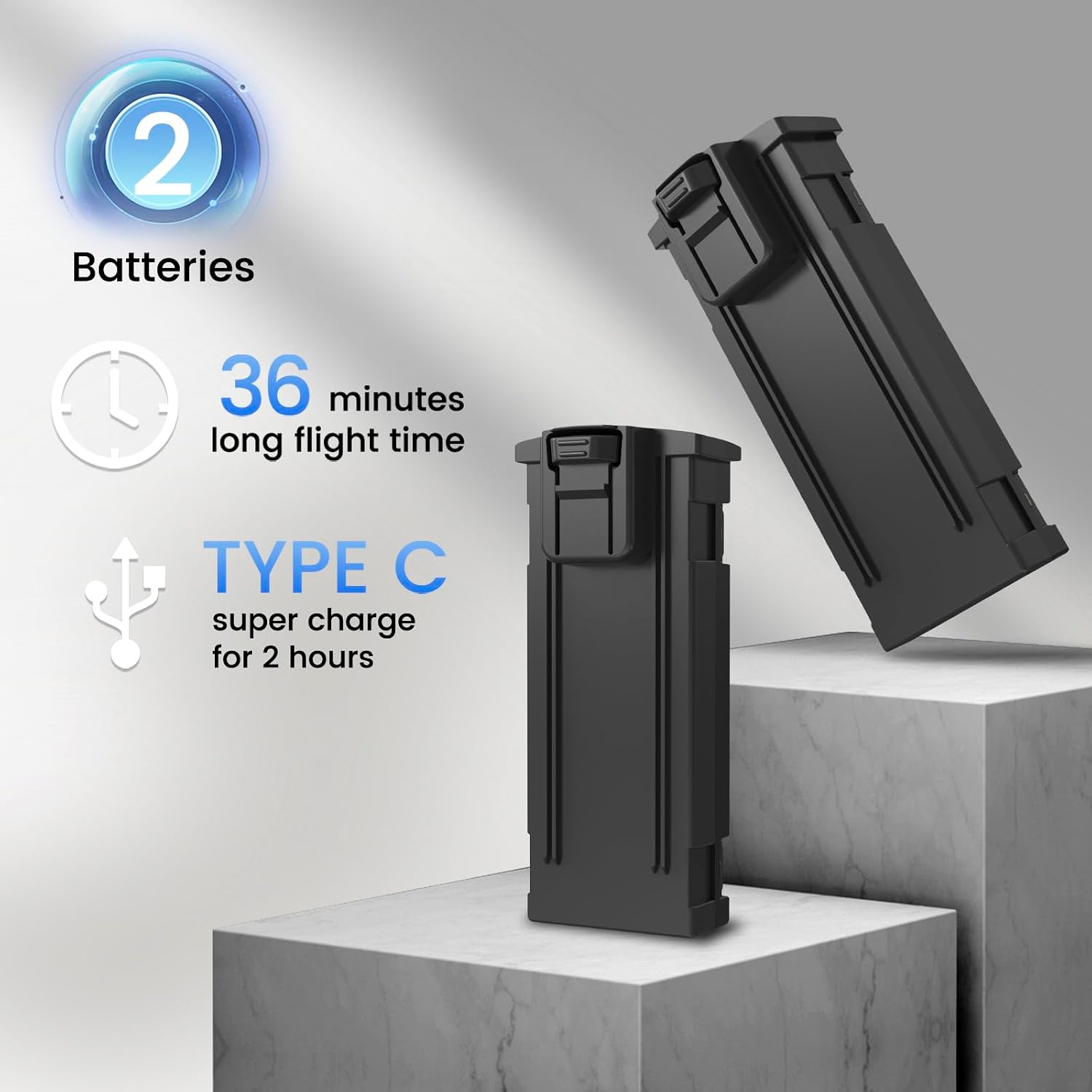
Figure 3: Two 1800mAh batteries provide extended flight time. Recharge via USB-C.
2.3 Propeller Guards Installation
For added safety, especially during initial flights or indoor use, attach the propeller guards to the drone's arms. This helps prevent damage to the propellers and protects against accidental contact.
2.4 Remote Controller Setup
Insert the required batteries into the remote controller. Extend the phone bracket on the controller to securely hold your smartphone for FPV viewing and app control.
3. Operating Instructions
3.1 Power On and Pairing
Power on the drone by pressing and holding the power button. The drone's lights will flash. Then, power on the remote controller. The drone and controller will automatically pair. Ensure the drone is placed on a flat, level surface during pairing and calibration.
3.2 Calibration
After pairing, calibrate the drone by moving both joysticks on the remote controller to the bottom-outer corners simultaneously. The drone's lights will change to indicate successful calibration.
3.3 Takeoff and Landing
The drone supports one-key takeoff and landing. Press the dedicated takeoff/landing button on the remote controller to initiate automatic takeoff or landing. For manual control, gently push the left joystick upwards to ascend.
3.4 Flight Controls
Use the joysticks to control the drone's movement: ascend/descend, forward/backward, left/right, and rotation. The remote controller includes a cheat sheet for button functions. Different speed modes are available for varying flight conditions and pilot skill levels.
3.5 App Control and FPV
Download the dedicated app to your smartphone. Connect your phone to the drone's Wi-Fi network. The app provides a first-person view (FPV) from the drone's camera, allowing you to control flight, capture photos, and record videos directly from your device. The app also offers features like gesture photography, 360-degree rolls, and built-in MV production with filters and music.

Figure 4: Remote controller with smartphone for real-time FPV and app-based flight controls.
3.6 Official Product Videos
Video 1: Demonstrates the drone's 40-minute flight time capability during outdoor use. Shows stable flight and maneuverability.
Video 2: Shows the drone being flown shortly after unboxing, highlighting its quick setup and ease of initial flight.
Video 3: General flight demonstration of the TizzyToy drone, showcasing its stability and responsiveness.
Video 4: Short clip demonstrating the drone's flight capabilities and ease of control.
Video 5: Highlights the drone's fun and durable aspects during flight.
Video 6: A brief preview of the drone's performance, meeting user expectations.
Video 7: Demonstrates the drone's ease of use and fun features for all skill levels.
4. Features Overview
4.1 4K Ultra HD Camera & FPV
The drone offers 4K resolution for photo taking and video recording. The camera angle can be adjusted 90 degrees up and down using the remote control. With 50 times software amplification accessible via the app and a robust shock-absorbing design, the drone captures stable footage and images.

Figure 5: Detail of the 4K Ultra HD camera with 90-degree electric adjustment.
4.2 Brushless Motor & Optical Flow Positioning
Equipped with a substantial brushless motor, the drone ensures commendable wind resistance and flight stability. Its advanced optical flow positioning technology helps maintain steady flight even at a height of 15 meters. This, along with headless mode, significantly minimizes the likelihood of misplacing the drone.

Figure 6: Illustration of the brushless motor for enhanced performance and durability.
4.3 Intelligent Flight Modes
The drone offers various intelligent functionalities including gesture-recognition photography, 360-degree rolls, three-speed adjustment, and indoor obstacle avoidance mode. These features make flying more engaging and user-friendly.

Figure 7: Visual representation of beginner-friendly intelligent functions.
5. Maintenance
To ensure optimal performance and longevity of your TizzyToy MT002-Pro drone, regular maintenance is recommended:
- Propeller Check: Regularly inspect propellers for any signs of damage (cracks, bends). Replace damaged propellers immediately using the provided spare parts.
- Cleaning: Use a soft, dry cloth to clean the drone's body and camera lens. Avoid using harsh chemicals or solvents.
- Battery Care: Store batteries in a cool, dry place. Do not overcharge or completely discharge batteries. If not used for extended periods, charge them to about 50-60% capacity.
- Motor Inspection: Ensure motors are free from dust, dirt, or debris that could impede rotation.
6. Troubleshooting
If you encounter issues with your TizzyToy MT002-Pro drone, consider the following common troubleshooting steps:
- Drone Not Powering On: Ensure the battery is fully charged and correctly inserted.
- Failure to Pair: Make sure both the drone and remote controller are powered on and within range. Repeat the pairing process.
- Unstable Flight/Drifting: Perform a full calibration of the drone on a flat surface. Check for any damaged propellers and replace if necessary. Avoid flying in strong winds.
- No FPV Feed: Ensure your smartphone is correctly connected to the drone's Wi-Fi network and the app is open.
- Loss of Control/Beyond Range Alert: Immediately activate the emergency stop function if the drone goes out of control or beyond safe operating range.
For further assistance, refer to the comprehensive instructional videos and responsive after-sales service mentioned in the warranty section.
7. Specifications
| Feature | Specification |
|---|---|
| Brand | TizzyToy |
| Model Name | MT002-pro |
| Video Capture Resolution | 4K |
| Effective Still Resolution | 8.3 MP |
| Connectivity Technology | Wi-Fi |
| Remote Control Technology | Wi-Fi |
| Control Type | Remote Control |
| Maximum Range | 4000 Feet |
| Battery Cell Composition | Lithium Polymer |
| Item Weight | 1.19 pounds |
| Product Dimensions | 1"L x 1"W x 1"H |
8. Warranty and Support
If your TizzyToy drone experiences a fault within 30 days from the date of arrival during normal usage, we are responsible for replacing it at no cost to you. The main components of a TizzyToy drone are also guaranteed for 6 months.
We offer a variety of in-depth video tutorials that guide you through different drone operation techniques. Our customer service team is available round the clock to assist with your inquiries. Please contact customer service for additional support or to acquire replacement parts.

Figure 8: Details on warranty and customer support.