
Pretfy QS-Zigbee-CP03 Tuya ZigBee Intelligent Curtain Switch Module User Manual
Brand: Pretfy | Model: QS-Zigbee-CP03
1. Introduction
This manual provides comprehensive instructions for the installation, operation, and maintenance of your Pretfy QS-Zigbee-CP03 Tuya ZigBee Intelligent Curtain Switch Module. This device is designed to convert traditional curtain modules into intelligent, app-controlled systems, enhancing convenience and smart home integration.
With this module, you can remotely control your curtains via a mobile application, set timing functions for automatic operation, and integrate with voice control systems like Alexa and Google Home. Please read this manual thoroughly before installation and use to ensure proper functionality and safety.
2. Product Overview and Features
The Pretfy QS-Zigbee-CP03 is a compact and powerful ZigBee curtain switch module designed for seamless integration into your smart home ecosystem. It offers a range of features to automate and simplify curtain control.
- APP Remote Control: Control your curtains from anywhere using the Tuya APP on your mobile device.
- Timing Function: Schedule automatic opening and closing of curtains at specific times, with adjustable opening heights.
- Family Sharing and Group Function: Share control of the device with multiple family members and group multiple modules for synchronized control.
- Hands-free Voice Control: Compatible with Amazon Alexa and Google Home for convenient voice commands.
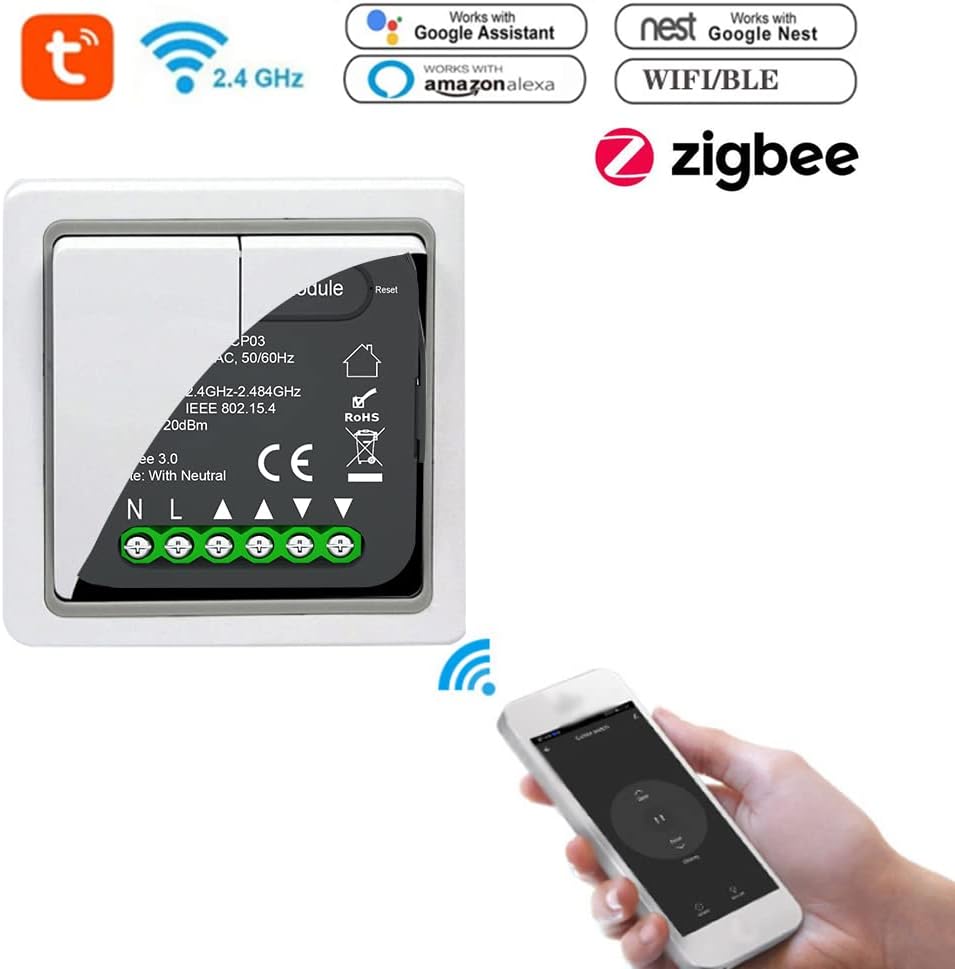
- Traditional Switch Conversion: Easily convert your existing traditional curtain switch into a smart module.

3. Setup and Installation
Important Note: This module requires a ZigBee gateway (hub) to function. Ensure you have a compatible ZigBee gateway set up before proceeding with installation.
3.1 Safety Precautions
- Always disconnect power at the circuit breaker before performing any electrical work.
- If you are unsure about electrical wiring, consult a qualified electrician.
- Ensure the module is installed in a dry environment, away from moisture.
3.2 Wiring Diagram and Installation Steps
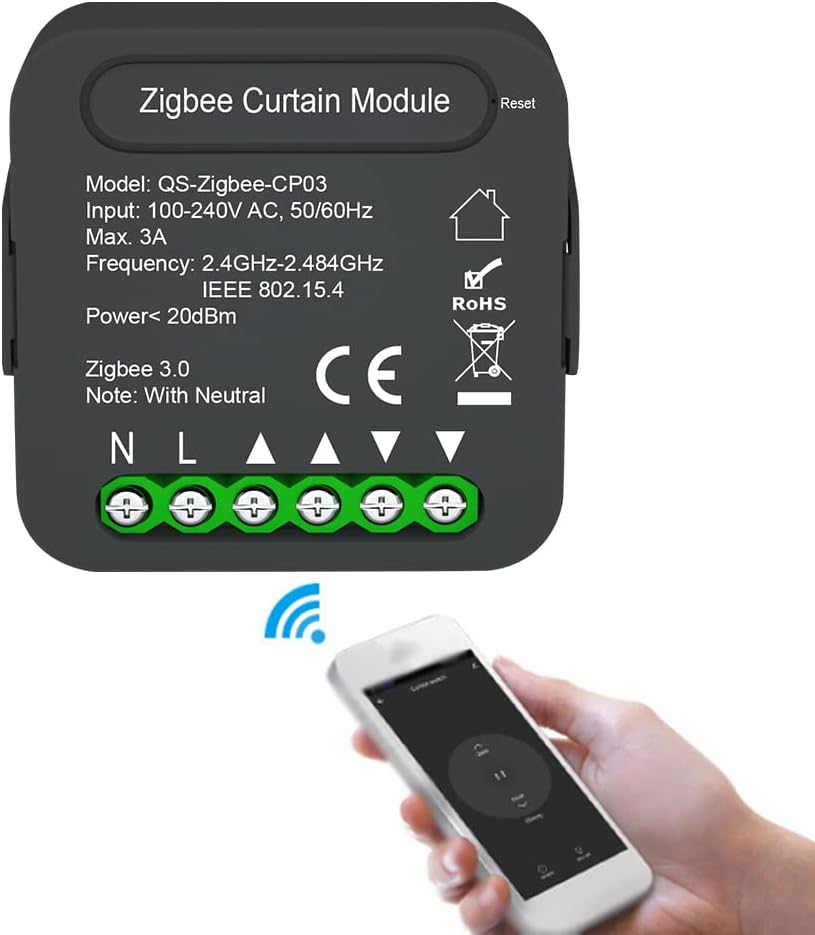
The QS-Zigbee-CP03 module is designed to be integrated with your existing curtain switch. It requires a neutral wire for operation.
- Disconnect Power: Turn off the main power supply to the curtain circuit at your home's circuit breaker.
- Access Wiring: Remove your existing curtain switch from the wall box to access the wiring.
- Identify Wires: Identify the Live (L), Neutral (N), and motor control wires (typically Open/Up, Close/Down, and Common for the motor). The module has clearly labeled terminals: N (Neutral), L (Live), L1 (Open/Up), L2 (Close/Down), and a terminal for the motor's common wire.
- Connect Module:
- Connect the Live wire from your wall box to the 'L' terminal on the module.
- Connect the Neutral wire from your wall box to the 'N' terminal on the module.
- Connect the motor's 'Open/Up' wire to the 'L1' terminal on the module.
- Connect the motor's 'Close/Down' wire to the 'L2' terminal on the module.
- Connect the common wire of the motor to the appropriate terminal on the module or ensure it's connected as per your motor's instructions.
- Connect your traditional curtain switch to the module's switch input terminals (if applicable, refer to the diagram for specific connections).
- Secure Module: Carefully place the module inside the wall box, ensuring wires are not pinched.
- Reinstall Switch Plate: Reattach your curtain switch and cover plate.
- Restore Power: Turn the power back on at the circuit breaker.


4. Operating Instructions
4.1 Pairing with ZigBee Gateway and Tuya APP
- Download Tuya APP: Download the "Tuya Smart" or "Smart Life" app from your mobile device's app store (iOS or Android).
- Register/Login: Create an account or log in to your existing account.
- Add Gateway: Ensure your ZigBee gateway is already added and online in the Tuya APP.
- Enter Pairing Mode: Power on the QS-Zigbee-CP03 module. The module will automatically enter pairing mode (or you may need to press the reset button for 5 seconds until the indicator light flashes).
- Add Device in APP: In the Tuya APP, select your ZigBee gateway, then choose "Add sub-device" or "Add new device". The app will scan for nearby ZigBee devices.
- Confirm Device: Once the module is discovered, confirm its addition to your network. You can rename the device for easy identification (e.g., "Living Room Curtains").
4.2 APP Remote Control
After successful pairing, you can control your curtains directly from the Tuya APP.
- Open the Tuya APP and select your curtain module device.
- You will see options to "Open", "Close", or "Pause" the curtains.
- Some interfaces may allow you to adjust the opening percentage of the curtains.
4.3 Timing and Schedule Functions
Automate your curtains by setting schedules within the Tuya APP.
- In the device control interface, look for a "Timer" or "Schedule" option.
- Tap to add a new schedule.
- Set the desired time for the action (e.g., 7:00 AM).
- Choose the action (e.g., "Open" or "Close") and the repeat days (e.g., "Everyday", "Weekdays", "Weekends").
- Save the schedule. You can create multiple schedules for different times and actions.

4.4 Voice Control Integration
To use voice commands, link your Tuya account with Amazon Alexa or Google Home.
- Open the Alexa or Google Home app.
- Navigate to "Skills & Games" (Alexa) or "Works with Google" (Google Home).
- Search for "Tuya Smart" or "Smart Life" skill/service and enable it.
- Link your Tuya account when prompted.
- Discover devices. Your curtain module should now appear.
- You can now use voice commands such as:
- "Alexa, open Living Room Curtains."
- "Hey Google, close Bedroom Curtains."
- "Alexa, pause Living Room Curtains."
4.5 Family Sharing and Group Function
Share control with family members or group multiple devices for synchronized actions.
- Family Sharing: In the Tuya APP, go to the device settings and look for "Share Device" or "Device Sharing". You can invite other Tuya accounts to control the module.
- Group Function: To control multiple curtain modules simultaneously (e.g., all curtains in a living room), create a group in the Tuya APP and add the desired modules to it. You can then control the entire group with a single command.

5. Specifications
Detailed technical specifications for the Pretfy QS-Zigbee-CP03 module:
| Attribute | Value |
|---|---|
| Model | QS-Zigbee-CP03 |
| Manufacturer Part Number | Pretfy AYUSE20409W24 |
| Input Voltage | 100~240V AC, 50/60Hz |
| Max. Current | 3A |
| Wireless Frequency | 2.4GHz-2.484GHz IEEE 802.15.4 |
| Power | <20dBm |
| Zigbee Standard | 3.0 |
| Material | ABS+PC |
| Color | Black |
| Product Dimensions | 1.97 x 1.81 x 0.94 inches (50 x 46.0 x 24mm) |
| Weight | 45g / 1.6ounce (Package weight) |
| ASIN | B0DDT7J3WP |

6. Troubleshooting
If you encounter issues with your Pretfy QS-Zigbee-CP03 module, please refer to the following common troubleshooting steps:
- Module Not Responding:
- Ensure the module is correctly wired and receiving power. Check circuit breaker.
- Verify that your ZigBee gateway is powered on and connected to the internet.
- Check the distance between the module and the gateway. Obstacles can affect signal strength.
- Cannot Pair with APP:
- Ensure the module is in pairing mode (indicator light flashing). If not, press and hold the reset button for 5 seconds.
- Confirm your ZigBee gateway is online and functioning correctly.
- Make sure your mobile device is connected to a 2.4GHz Wi-Fi network during the pairing process.
- Curtains Not Moving Correctly:
- Verify the motor wiring (L1, L2) is correct according to the installation diagram.
- Check if the curtain motor itself is functioning properly when controlled manually.
- Recalibrate the curtain travel limits if your motor supports it and the app provides such an option.
- Voice Control Not Working:
- Ensure your Tuya account is correctly linked to Alexa or Google Home.
- Check if the device name in the voice assistant app matches the name you are using in your commands.
- Try rediscovering devices in your Alexa or Google Home app.
If the problem persists, please contact customer support for further assistance.
7. Warranty and Support
This product is typically covered by a manufacturer's warranty. For specific warranty terms and conditions, please refer to the documentation provided with your purchase or contact the seller directly. Standard return policy for this product is 30 days from the date of purchase.
For technical support, troubleshooting assistance, or warranty claims, please contact Pretfy customer service or the retailer from whom you purchased the product. Please have your model number (QS-Zigbee-CP03) and purchase details ready when contacting support.
Manufacturer: Pretfy
ASIN: B0DDT7J3WP