
MCHOSE G3
Contents
MCHOSE G3 Wireless Gaming Mouse User Manual
Model: G3
Introduction
The MCHOSE G3 Wireless Gaming Mouse is designed for optimal performance and versatility, offering a seamless gaming experience with its advanced features. This manual provides comprehensive instructions for setting up, operating, maintaining, and troubleshooting your G3 mouse.

Figure 1: Top view of the MCHOSE G3 Wireless Gaming Mouse (Black).
Setup
The G3 mouse supports three connection modes: 2.4G wireless, Bluetooth, and wired USB-C. Choose the mode that best suits your needs.
1. Package Contents
- MCHOSE G3 Wireless Gaming Mouse
- USB-C to USB-A Cable
- 2.4G USB Receiver (located in the mouse's bottom compartment)
- User Manual (this document)
2. Charging the Mouse
Before first use, it is recommended to fully charge the mouse. Connect the provided USB-C cable to the mouse's front port and the USB-A end to your computer or a USB power adapter.

Figure 2: The G3 mouse connected via USB-C for charging, indicating its rechargeable capability and long battery life.
The mouse features a 130-hour battery life on a full charge.
3. Connecting the Mouse
The G3 mouse offers flexible connectivity options:
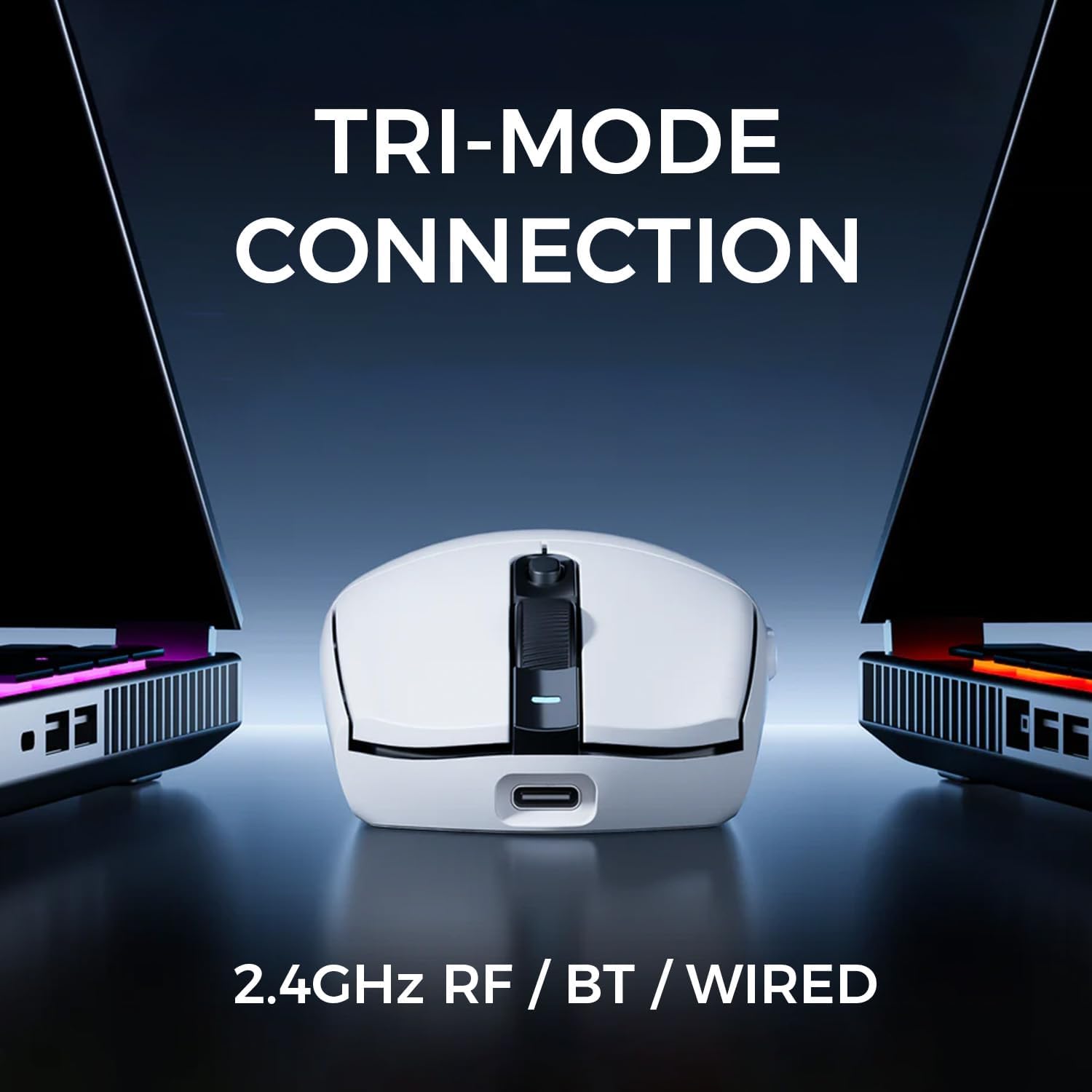
Figure 3: The G3 mouse demonstrating its tri-mode connection capabilities: 2.4GHz RF, Bluetooth, and Wired.
- 2.4G Wireless Mode:
- Locate the 2.4G USB receiver in the compartment on the bottom of the mouse.
- Plug the USB receiver into an available USB port on your computer.
- Turn on the mouse using the ON/OFF switch located on the bottom.
- The mouse will automatically connect to the receiver. The 2.4G indicator light on the bottom of the mouse will illuminate.
- Bluetooth Mode:
- Turn on the mouse using the ON/OFF switch.
- Press and hold the BT1 or BT2 button on the bottom of the mouse for 3 seconds until the corresponding indicator light (BT1 or BT2) starts blinking rapidly. This indicates pairing mode.
- On your computer, go to Bluetooth settings and search for "MCHOSE G3".
- Select the mouse to pair. Once connected, the indicator light will stop blinking and remain solid.
- Wired Mode:
- Connect the provided USB-C cable to the mouse and the USB-A end to your computer.
- The mouse will automatically switch to wired mode and begin charging. No drivers are typically required for basic functionality.
Operating the Mouse
The MCHOSE G3 mouse is designed for intuitive use with customizable features.
1. Button Functions
The G3 mouse features standard left/right click buttons, a scroll wheel with middle click, and two side buttons. It also includes a dedicated DPI switch.

Figure 4: Labeled components of the MCHOSE G3 mouse, including indicator lights, switches, and receiver organizer.
- Left/Right Click: Standard mouse functions. The independent button pressure system provides a balanced tactile feedback.
- Scroll Wheel: For scrolling up and down. Pressing the wheel acts as a middle click.
- Side Buttons: Typically used for forward/backward navigation in web browsers or customizable in gaming software.
- DPI Switch: Located below the scroll wheel. Press to cycle through DPI settings.
2. Adjusting DPI (Dots Per Inch)
The G3 mouse features a PAW3311 optical sensor, offering up to 12,000 DPI for precise tracking. Press the DPI switch button to cycle through preset DPI levels. The DPI indicator light will change color or blink to indicate the current DPI setting.

Figure 5: The PAW3311 optical sensor on the underside of the G3 mouse, capable of up to 12,000 DPI.
3. Software Customization (Optional)
For advanced customization, including button remapping, macro creation, and precise DPI adjustments, download the official MCHOSE G3 software from the MCHOSE website. While some software elements may be in Chinese, core functionalities are generally intuitive.
Maintenance
Proper care will extend the lifespan of your MCHOSE G3 mouse.
- Cleaning: Use a soft, dry cloth to wipe the mouse surface. For stubborn dirt, slightly dampen the cloth with water or a mild cleaning solution. Avoid harsh chemicals or abrasive materials.
- Sensor Care: Keep the optical sensor on the bottom of the mouse clean and free of dust or debris to ensure accurate tracking.
- Storage: When not in use for extended periods, store the mouse in a cool, dry place. If using wireless mode, consider turning off the mouse to conserve battery.
- Battery: Avoid fully discharging the battery frequently. Charge the mouse when the battery indicator suggests low power.
Troubleshooting
If you encounter issues with your MCHOSE G3 mouse, refer to the following common problems and solutions:
| Problem | Possible Cause | Solution |
|---|---|---|
| Mouse not responding in wireless mode. | Low battery, receiver not plugged in, incorrect mode, interference. | Charge the mouse. Ensure the 2.4G receiver is securely plugged in. Verify the mouse is in 2.4G or Bluetooth mode. Move closer to the receiver or try a different USB port. |
| Mouse cursor erratic or not tracking smoothly. | Dirty sensor, unsuitable surface, low battery. | Clean the optical sensor on the bottom of the mouse. Use the mouse on a clean, non-reflective surface or a mouse pad. Charge the mouse. |
| Bluetooth connection issues. | Mouse not in pairing mode, computer Bluetooth off, interference. | Ensure the mouse is in Bluetooth pairing mode (blinking BT indicator). Check if Bluetooth is enabled on your computer. Remove and re-pair the device. |
| Buttons or scroll wheel not working. | Software conflict, physical damage. | Restart your computer. Try the mouse on a different computer to rule out software issues. If the problem persists, contact customer support. |
Specifications
| Feature | Detail |
|---|---|
| Model | G3 |
| Brand | MCHOSE |
| Connectivity Technology | 2.4G RF, Bluetooth, Wired (USB-C) |
| Sensor | PAW3311 Optical Sensor |
| DPI Range | Up to 12,000 DPI |
| Polling Rate | 1K Polling (1000Hz) |
| Weight | 64 grams |
| Battery Life | Up to 130 hours |
| Battery Type | 1 Lithium Ion battery (included) |
| Dimensions (Package) | 6.65 x 4.69 x 2.09 inches |
| Item Weight | 2.26 ounces |
Warranty and Support
MCHOSE products are built with quality and reliability in mind. For warranty information and technical support, please refer to the official MCHOSE website or contact their customer service directly.
Online Support: Visit the official MCHOSE website for FAQs, driver downloads, and support resources.
Contact Information: Refer to your product packaging or the MCHOSE website for specific contact details for your region.
Documents and downloads
Ask a question about this manual
Ask about setup, troubleshooting, compatibility, parts, safety, or missing instructions. Manuals+ will review the question and use this page’s manual context to help answer it.