
1. Introduction
Thank you for choosing the Gesnada K68 Portable Karaoke Machine. This device combines a powerful Bluetooth speaker with dual wireless microphones and dynamic disco lights, designed to enhance your audio experience for various occasions. Please read this manual carefully to ensure proper usage and to fully enjoy all features of your new karaoke machine.
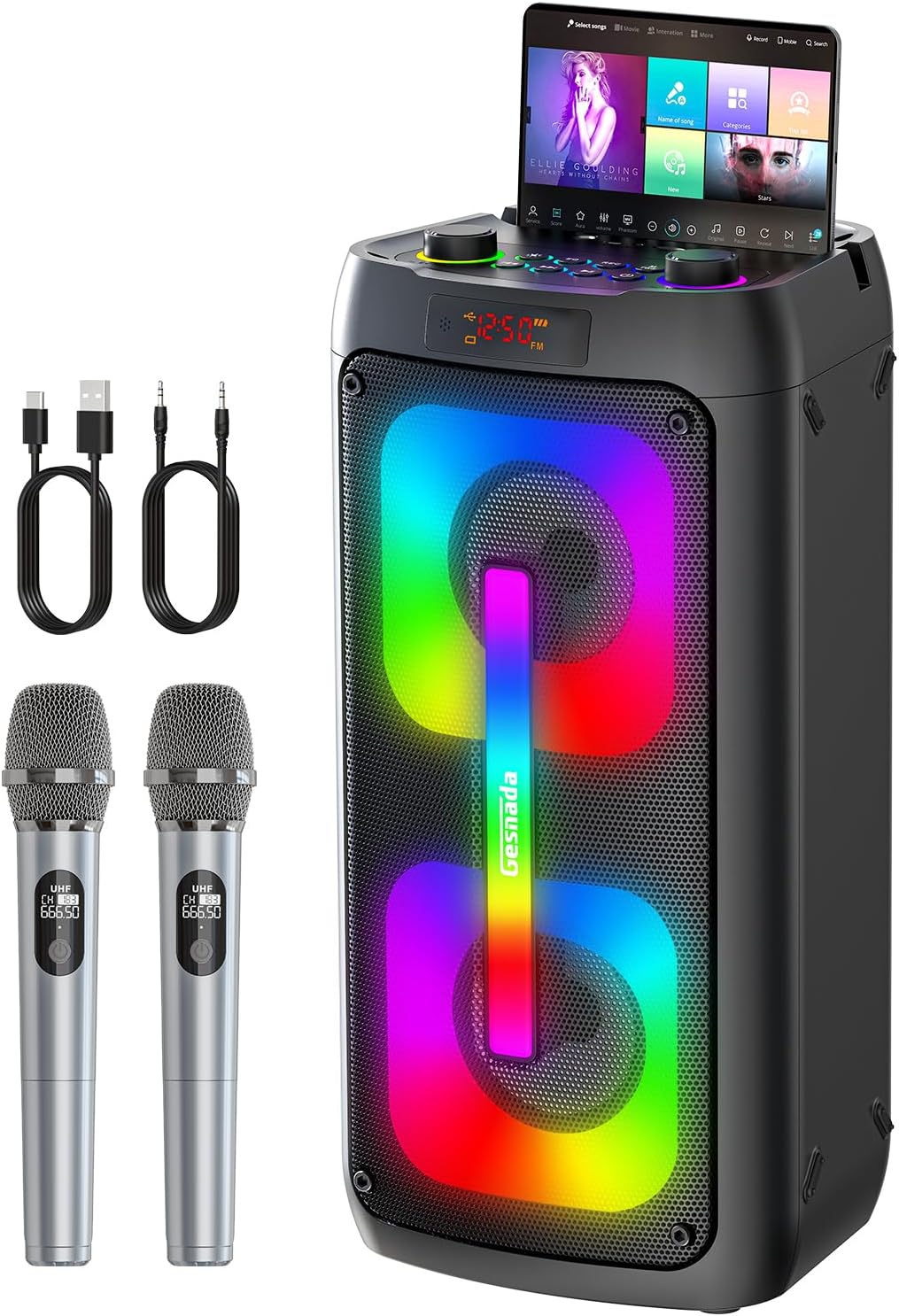
Figure 1: Gesnada K68 Portable Karaoke Machine and accessories.
2. What's in the Box
Please check the package contents upon unboxing:
- 1x Gesnada K68 Karaoke Machine
- 2x Wireless Microphones
- 1x Remote Control
- 1x User Manual
- 1x Auxiliary Cable
- 1x Charging Cable for Karaoke Machine

Figure 2: All items included in the product package.
3. Product Overview
3.1 Key Features
- High-Definition Sound: Equipped with dual 4-inch full-range speakers, delivering 60W high power output for clear, loud, and distortion-free audio.
- Multiple Playback Methods: Supports Bluetooth 5.3, Micro TF card, Flash USB, and AUX connections.
- Long Battery Life & RGB Dynamic Lighting: Built-in 4500mAh rechargeable battery provides 6-8 hours of continuous use. Multiple lighting modes sync with music.
- TWS Mode: True Wireless Stereo technology allows two K68 units to connect for independent left and right channel output, creating an immersive stereo experience.
- Recording and Playback: Capture your performances and listen back to improve your singing skills.
- Dual Wireless Microphones: Comes with two auto-pairing wireless microphones for duets and interactive fun.
3.2 Control Panel and Interfaces
The top panel of the karaoke machine features various controls and input ports for easy operation.

Figure 3: Control Panel and Interfaces.
Interfaces:
- MIC: 6.35mm microphone input (for wired microphones, if desired).
- Type-C: Charging port for the karaoke machine.
- AUX: 3.5mm auxiliary input for connecting external audio devices.
- TF: Micro TF card slot for music playback.
- USB: USB port for Flash USB drive music playback.
Multifunctional Buttons:
- EQ: Equalizer settings.
- REC: Record function.
- M: Mode selection (Bluetooth, FM, AUX, USB, TF).
- TWS: True Wireless Stereo pairing button.
- Play/Pause: Control media playback.
- Previous/Next: Skip tracks.
- Echo Knob: Adjust microphone echo effect.
- Volume Knob: Adjust master volume.
- Light Button: Cycle through RGB lighting modes.
4. Setup
4.1 Charging the Karaoke Machine
- Connect the provided Type-C charging cable to the Type-C port on the karaoke machine.
- Plug the other end of the charging cable into a compatible USB power adapter (not included) or a USB port.
- The LED display will indicate charging status. A full charge typically provides 6-8 hours of use.
4.2 Charging the Wireless Microphones
The wireless microphones are battery-operated. Ensure they are charged before use. The microphones typically use AA batteries (included) or have internal rechargeable batteries. Refer to the microphone's specific instructions for charging or battery replacement.
5. Operating Instructions
5.1 Power On/Off
Press and hold the Power button on the control panel to turn the karaoke machine on or off.
5.2 Bluetooth Connection
To connect your device via Bluetooth:
- Turn on the karaoke machine. It will automatically enter Bluetooth pairing mode, indicated by a flashing 'BT' on the LED display.
- Enable Bluetooth on your smartphone, tablet, or computer.
- Search for "K68" in the list of available devices and select it to pair.
- Once connected, you will hear an audible confirmation, and the 'BT' indicator will stop flashing.

Figure 4: Connecting via Bluetooth 5.3.
5.3 Using Wireless Microphones
The two wireless microphones are designed for automatic pairing with the K68 machine.
- Ensure the karaoke machine is powered on.
- Turn on each wireless microphone. They should automatically connect to the speaker.
- Adjust the microphone volume and echo effect using the dedicated knobs on the control panel.
5.4 Other Playback Modes
Press the 'M' (Mode) button to cycle through available input sources:
- Micro TF Card: Insert a Micro TF card with MP3 audio files into the 'TF' slot. The machine will automatically begin playback.
- Flash USB: Insert a USB flash drive with MP3 audio files into the 'USB' port. The machine will automatically begin playback.
- AUX Input: Connect an external audio device (e.g., MP3 player, laptop) using the provided 3.5mm AUX cable to the 'AUX' port.
- FM Radio: Select FM mode using the 'M' button. Use the skip buttons to scan for radio stations.
5.5 TWS (True Wireless Stereo) Mode
To connect two K68 karaoke machines for a stereo sound experience:
- Ensure both K68 machines are powered on and in Bluetooth mode, but not yet paired with any device.
- On one of the machines (this will be the primary speaker), press the 'TWS' button. It will search for the secondary speaker.
- Once connected, you will hear an audible confirmation. The primary speaker will handle the left channel, and the secondary speaker will handle the right channel.
- Now, connect your Bluetooth device to the primary K68 speaker as described in section 5.2.

Figure 5: TWS Mode for stereo sound.
5.6 Recording Function
To record your singing:
- Ensure a USB flash drive or Micro TF card is inserted into the respective slot.
- Start playing music from your chosen source (e.g., Bluetooth).
- Press the 'REC' button to begin recording your microphone input along with the music.
- Press 'REC' again to stop recording. The recording will be saved to the inserted storage device.
5.7 RGB Dynamic Lighting Effects
The K68 features dynamic RGB lighting that syncs with the music. Press the 'Light' button on the control panel to cycle through different lighting modes or turn the lights off.

Figure 6: RGB Dynamic Lighting in action.
5.8 Official Product Video
Video 1: An official product video demonstrating the Gesnada K68 karaoke machine's features, including its dual wireless microphones and party speaker capabilities.
6. Maintenance
- Cleaning: Use a soft, dry cloth to clean the exterior of the machine. Do not use abrasive cleaners or solvents.
- Storage: Store the device in a cool, dry place away from direct sunlight and extreme temperatures.
- Battery Care: To prolong battery life, fully charge the device before first use and at least once every three months if not used regularly. Avoid completely draining the battery frequently.
- Water Exposure: This device is not waterproof. Avoid exposure to water or excessive moisture.
7. Troubleshooting
| Problem | Possible Cause | Solution |
|---|---|---|
| No power/Device won't turn on | Low battery; Power button not pressed correctly. | Charge the karaoke machine fully. Press and hold the power button for a few seconds. |
| No sound from speaker | Volume too low; Incorrect input mode; Device not connected properly. | Increase volume. Press 'M' to select correct input mode. Reconnect Bluetooth or check cables. |
| Microphones not working | Microphones off; Low microphone battery; Not paired. | Turn on microphones. Replace/charge microphone batteries. Ensure microphones are within range and paired. |
| Poor sound quality/Distortion | Volume too high; Device too far from speaker (Bluetooth); Interference. | Reduce volume. Move device closer to speaker. Avoid sources of interference. |
| Volume control issues (e.g., auto-adjusting) | Software glitch; External interference. | Restart the device. Ensure no other devices are attempting to control volume. If persistent, contact support. |
| Constant echo effect on microphone | Echo setting too high; Malfunction. | Adjust the 'Echo' knob to reduce the effect. If unable to adjust, contact support. |
| TWS pairing failed | Speakers too far apart; Already paired to another device. | Ensure both speakers are close and not connected to other devices. Re-attempt TWS pairing. |
8. Specifications
| Feature | Detail |
|---|---|
| Model Number | K68 |
| Brand | Gesnada |
| Output Wattage | 60 Watts |
| Speaker Count | 2 (Dual 4-inch full-range speakers) |
| Connectivity Technology | Bluetooth 5.3, AUX, Micro SD Card, USB |
| Power Source | Battery Powered (Built-in 4500mAh Lithium Ion) |
| Item Dimensions (L x W x H) | 10.25 x 9.65 x 20.47 inches |
| Item Weight | 8.69 pounds |
| Mounting Type | Floor Standing |
| Compatible Devices | Smartphone, iPhone, Tablet, Computer |
| Microphones | 2 Wireless Microphones (AA batteries included) |
9. Warranty and Support
Gesnada is committed to providing quality products and customer satisfaction. If you encounter any issues with your K68 karaoke machine or have questions not covered in this manual, please do not hesitate to contact our customer service team. We are always here to help you.
For support, please refer to the contact information provided on the product packaging or the official Gesnada website.
