
1. Introduction
Thank you for choosing the MCHOSE G3 Wireless Gaming Mouse. This manual provides detailed instructions for setting up, operating, maintaining, and troubleshooting your device. Please read this manual thoroughly to ensure optimal performance and longevity of your mouse.
Image 1: MCHOSE G3 Series Wireless Gaming Mouse. This image displays the MCHOSE G3 mouse in white, highlighting its sleek design and branding.
2. Product Overview
The MCHOSE G3 is a high-performance symmetrical gaming mouse designed for precision and comfort. It features a PAW3311 optical sensor, tri-mode connectivity, and a lightweight design.
Key Features:
- Tri-Mode Connection: Seamlessly switch between 2.4G wireless, Bluetooth, and wired modes.
- PAW3311 Optical Sensor: Delivers precise tracking with up to 12,000 DPI.
- Lightweight Design: Weighs approximately 64 grams for enhanced control and comfort.
- Long Battery Life: Up to 130 hours of usage on a single charge.
- Independent Button Pressure System: Provides tactile feedback and durability with 60-million click lifespan switches.

Image 2: Top view of the MCHOSE G3 Wireless Gaming Mouse. This image shows the symmetrical design of the mouse, including the scroll wheel and main buttons.

Image 3: Detail of the PAW3311 Optical Sensor. This image illustrates the high-precision optical sensor located on the underside of the mouse, capable of 12,000 DPI tracking.

Image 4: Diagram of the Independent Button Pressure System. This cutaway view shows the internal mechanism of the mouse buttons, highlighting the springs that provide consistent tactile feedback and durability.
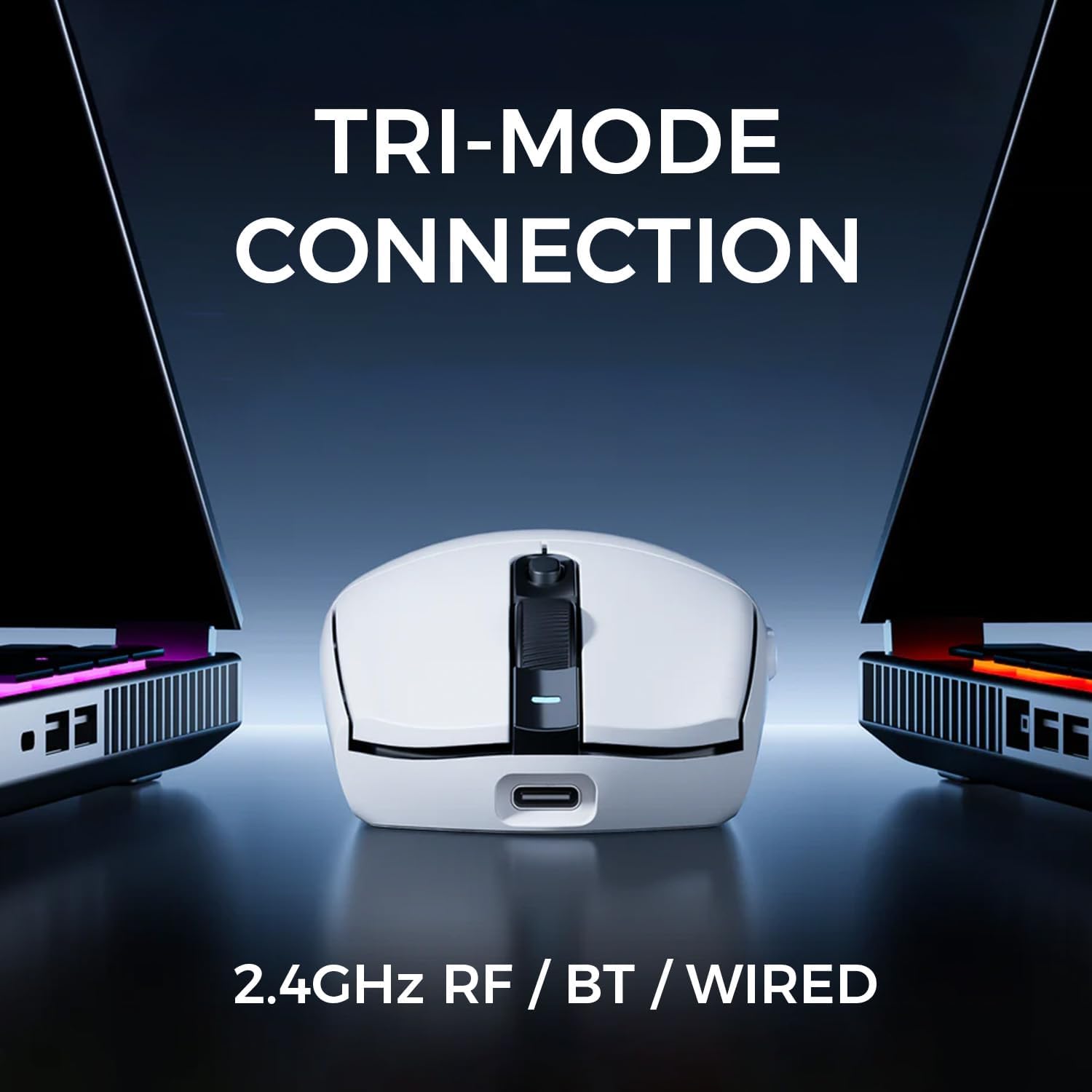
Image 5: Tri-Mode Connection feature. This image displays the mouse connected to two different devices, illustrating its 2.4GHz RF, Bluetooth, and wired connectivity options.

Image 6: MCHOSE G3 mouse highlighting its 64-gram lightweight design. This image emphasizes the ergonomic and light build of the mouse for comfortable use.

Image 7: USB Type-C Rechargeable port. This image shows the mouse being charged via a USB Type-C cable, indicating its rechargeable battery and long battery life.
3. Package Contents
The MCHOSE G3 Wireless Gaming Mouse package includes the following items:
- MCHOSE G3 Wireless Gaming Mouse
- USB Receiver (2.4G dongle)
- USB Type-C Charging Cable
- User Manual (this document)
4. Setup Instructions
4.1 Charging the Mouse
Before first use, it is recommended to fully charge the mouse. Connect the supplied USB Type-C charging cable to the mouse's charging port and the other end to a USB power source (e.g., computer USB port, USB wall adapter). The DPI indicator light will show charging status.
4.2 Connecting the Mouse
The MCHOSE G3 offers three connection modes: 2.4G Wireless, Bluetooth, and Wired.

Image 8: MCHOSE G3 Mouse Diagram with Labeled Parts. This diagram illustrates the various components of the mouse, including the DPI switch, DPI indicator light, 2.4G indicator light, BT1/BT2 indicator lights, ON/OFF switch, and receiver organizer.
4.2.1 2.4G Wireless Mode
- Locate the USB receiver (dongle) stored in the compartment on the underside of the mouse.
- Plug the USB receiver into an available USB port on your computer.
- Turn on the mouse using the ON/OFF switch located on the underside.
- The 2.4G indicator light will illuminate, indicating a successful connection.
4.2.2 Bluetooth Mode
- Turn on the mouse using the ON/OFF switch.
- Press and hold the Bluetooth pairing button (refer to Image 8 for location, typically a button near the ON/OFF switch or a combination with the DPI button) until the BT1 or BT2 indicator light starts blinking rapidly.
- On your computer or device, navigate to Bluetooth settings and search for new devices.
- Select "MCHOSE G3" from the list of available devices to pair.
- The BT indicator light will become solid once connected. You can pair two different Bluetooth devices (BT1 and BT2).
4.2.3 Wired Mode
- Connect the USB Type-C charging cable to the mouse's front port.
- Connect the other end of the cable to a USB port on your computer.
- The mouse will automatically switch to wired mode and function without needing to be turned on via the ON/OFF switch.
4.3 DPI Adjustment
The MCHOSE G3 mouse features a dedicated DPI switch, usually located behind the scroll wheel (refer to Image 8). Press this button to cycle through different DPI sensitivity levels. The DPI indicator light will change color or blink to indicate the current DPI setting.
5. Operating Instructions
5.1 Switching Connection Modes
To switch between 2.4G wireless and Bluetooth modes, use the mode switch on the underside of the mouse or a dedicated button if available. For wired mode, simply connect the USB-C cable.
5.2 Battery Management
The mouse has a built-in rechargeable Lithium Ion battery. When the battery is low, the DPI indicator light may flash or change color. Connect the mouse using the USB Type-C cable to recharge. The mouse can be used while charging in wired mode.
6. Maintenance
6.1 Cleaning
To clean your MCHOSE G3 mouse, use a soft, dry cloth. For stubborn dirt, a slightly damp cloth can be used, but ensure no moisture enters the mouse's internal components. Avoid using harsh chemicals or abrasive materials.
6.2 Storage
When not in use for extended periods, store the mouse in a cool, dry place. If storing for a long time, ensure the mouse is fully charged to preserve battery health.
7. Troubleshooting
If you encounter issues with your MCHOSE G3 mouse, please refer to the following common solutions:
- Mouse not responding: Ensure the mouse is turned on and fully charged. Check the connection mode (2.4G, Bluetooth, or wired) and ensure it matches your computer's setup. For 2.4G, try replugging the USB receiver. For Bluetooth, re-pair the device.
- Lag or intermittent connection: Ensure the mouse is within range of the receiver or Bluetooth device. Minimize interference from other wireless devices. Try switching to wired mode to confirm functionality.
- DPI not changing: Press the DPI switch button firmly. If the indicator light does not respond, try restarting the mouse.
- Battery not charging: Ensure the USB Type-C cable is securely connected to both the mouse and the power source. Try a different USB port or charging cable.
For further assistance, please refer to the official MCHOSE user guide (PDF) available online or contact customer support.
Official User Guide (PDF): Download Here
8. Specifications
| Feature | Specification |
|---|---|
| Model | G3 |
| Connectivity Technology | 2.4G RF, Bluetooth, Wired |
| Movement Detection Technology | Optical (PAW3311 Sensor) |
| DPI Resolution | Up to 12,000 DPI |
| Polling Rate | 1K Polling (1000Hz) |
| Item Weight | 64 grams (2.26 ounces) |
| Battery Life | Up to 130 hours |
| Battery Type | 1 Lithium Ion battery (included) |
| Dimensions | 6.57 x 4.61 x 2.05 inches (Package) |
| Special Features | Symmetrical Design, Independent Button Pressure System |
9. Warranty and Support
MCHOSE products are covered by a limited warranty. For specific warranty terms and conditions, please refer to the warranty information provided with your purchase or visit the official MCHOSE website. For technical support, product inquiries, or warranty claims, please contact MCHOSE customer service through their official channels.


