
1. Introduction
This manual provides essential information for the safe and efficient operation of your HORION 55P6D 55-inch 4K UHD Smart TV. Please read this manual thoroughly before using the product and retain it for future reference.

Image: Front view of the HORION 55P6D 55-inch 4K UHD Smart TV, showcasing its slim design and vibrant display.
2. Safety Information
Observe the following safety precautions to prevent damage and ensure safe operation:
- Power Supply: Connect the TV only to an AC 120V, 60Hz power source. Ensure the power cord is not damaged or pinched.
- Ventilation: Do not block ventilation openings. Allow adequate space around the TV for proper airflow to prevent overheating.
- Water and Moisture: Do not expose the TV to rain, moisture, or excessive humidity. Avoid placing liquid-filled objects on or near the TV.
- Cleaning: Unplug the TV before cleaning. Use a soft, dry cloth. Do not use liquid or aerosol cleaners.
- Placement: Place the TV on a stable, level surface or mount it securely to a wall. Keep it away from direct sunlight, heat sources, and strong magnetic fields.
- Servicing: Do not attempt to service the TV yourself. Refer all servicing to qualified service personnel.
3. Package Contents
Verify that all items are present in the packaging:
- HORION WebOS TV (55P6D)
- Remote Control
- Power Cable
- TV Stand Components
- User Manual (this document)

Image: A visual representation of the HORION 55P6D TV's dimensions and the accessories included in the box, such as the remote control, power cable, and stand components.
4. Physical Overview and Connections
Familiarize yourself with the TV's ports and controls.

Image: A detailed diagram illustrating the various input and output ports located on the rear panel of the HORION 55P6D TV, including Audio-R, Audio-L, Video, Earphone Port, USB1/USB2 Interface, HDMI 1/2/3 Input, TV antenna input, Optical Output, and LAN port.
Available Ports:
- HDMI Inputs (x3): For connecting external devices like gaming consoles, Blu-ray players, and streaming devices.
- USB Ports (x2): For connecting USB storage devices to play media or for service.
- LAN (Ethernet) Port: For a wired internet connection.
- Optical Output: For connecting to external audio systems.
- TV Antenna Input: For connecting an antenna for over-the-air broadcasts.
- Audio/Video (RCA) Inputs: For connecting older analog devices.
- Earphone Port: For connecting headphones.
5. Setup
5.1 Stand Installation
- Carefully place the TV screen-down on a soft, flat surface to prevent scratches.
- Align the stand components with the designated slots on the bottom of the TV.
- Secure the stand using the provided screws. Ensure the stand is firmly attached.
5.2 Wall Mounting (Optional)
If wall mounting, ensure you use a VESA-compatible wall mount kit (not included) appropriate for the TV's size and weight. Follow the wall mount manufacturer's instructions carefully. The TV supports standard VESA mounting patterns.
5.3 Power Connection
Connect the power cable to the TV's power input and then to a standard AC 120V, 60Hz electrical outlet.
5.4 Initial Setup
Upon first power-on, the TV will guide you through the initial setup process:
- Language Selection: Choose your preferred language.
- Network Connection: Connect to your Wi-Fi network or use a wired Ethernet connection. The TV supports dual-band WiFi for stable, high-speed access.
- Channel Scan: If using an antenna, perform a channel scan to find available broadcasts.
- WebOS 22 Account: Follow on-screen prompts to set up or log in to your WebOS account for full smart TV functionality.

Image: A screenshot of the WebOS 22 interface, displaying various streaming application icons and navigation options, highlighting the intuitive user experience.
6. Operating
6.1 Remote Control
The included remote control allows navigation through the WebOS 22 interface, channel selection, volume control, and access to smart features. Refer to the remote control diagram (if available in a separate quick start guide) for specific button functions.
6.2 WebOS 22 Navigation
The WebOS 22 interface features a card-based design for easy content discovery. Use the remote's directional buttons and 'OK' button to navigate. Access streaming apps like Netflix, Disney+, and Hulu directly from the home screen. Voice commands are supported for enhanced control.

Image: The WebOS 22 home screen, emphasizing its smart features and ease of access to various applications and content.
6.3 Smart Features
- Streaming Apps: Access a wide range of pre-installed and downloadable streaming services.
- Bluetooth 5.1: Pair wireless headphones, speakers, or game controllers for a personalized audio experience or enhanced gaming.
- Screen Mirroring: Utilize Miracast for Android devices or AirPlay for Apple devices to wirelessly display content from your smartphone or tablet on the TV screen.

Image: A visual demonstrating the screen mirroring capability, showing a smartphone's display wirelessly projected onto the HORION TV, set against a scenic backdrop.
6.4 Input Selection
Press the 'Input' button on your remote to switch between connected devices (HDMI 1, HDMI 2, HDMI 3, USB, AV, TV Tuner, etc.).
6.5 Audio and Video Settings
- 4K UHD Resolution: The TV automatically displays content in 4K Ultra HD (3840x2160) when available.
- HDR10: This technology enhances contrast, color depth, and brightness for a more lifelike picture. Ensure your content source supports HDR10 for optimal viewing.
- Dolby Audio: Provides rich, dynamic sound. Adjust audio settings in the TV menu to optimize for different content types (e.g., movie, music, voice).
- MEMC Technology: Motion Estimation, Motion Compensation (MEMC) reduces motion blur and judder in fast-moving scenes, providing clearer action in movies, sports, and gaming.
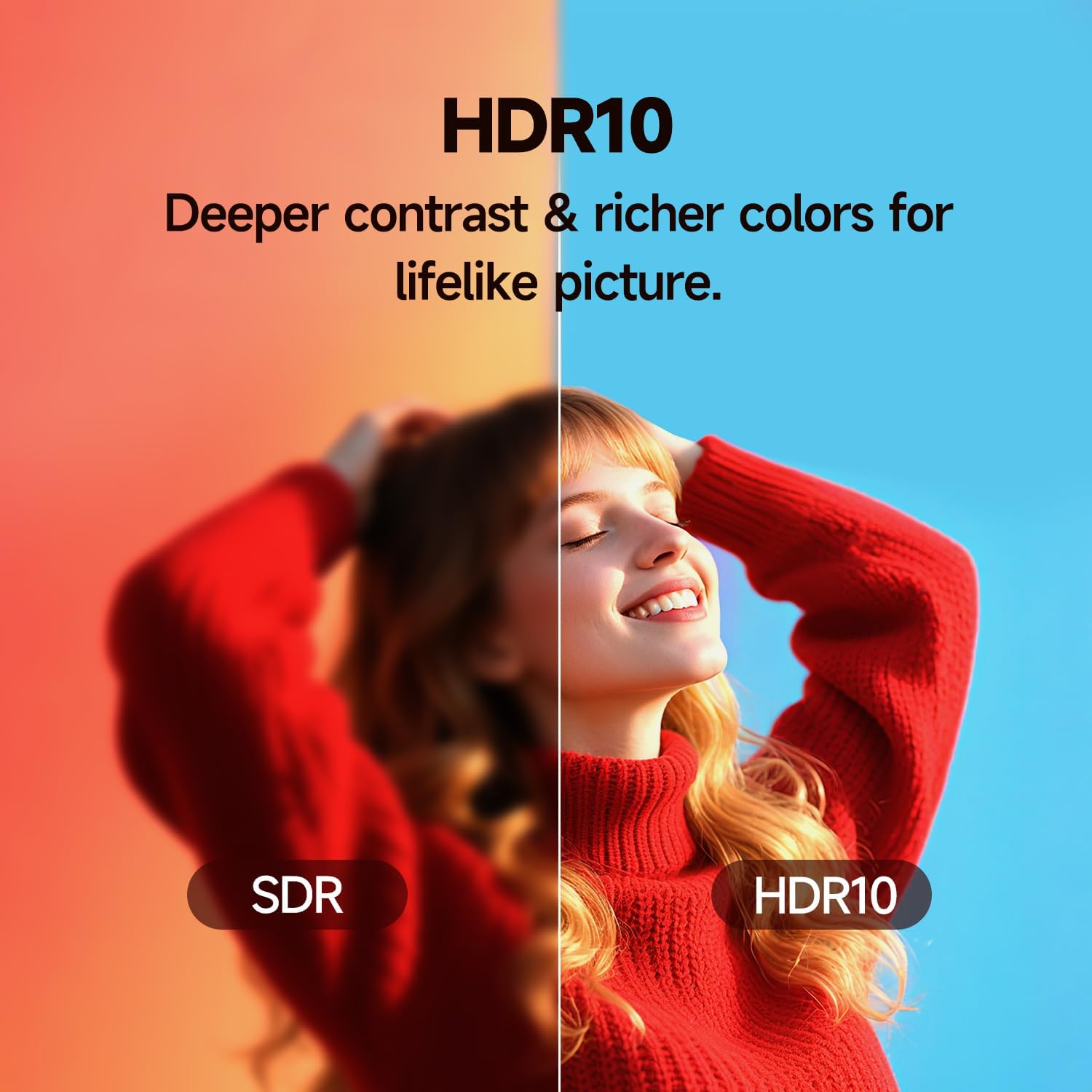
Image: A side-by-side comparison demonstrating the visual improvement of HDR10 over standard dynamic range (SDR), showing deeper contrast and richer colors.
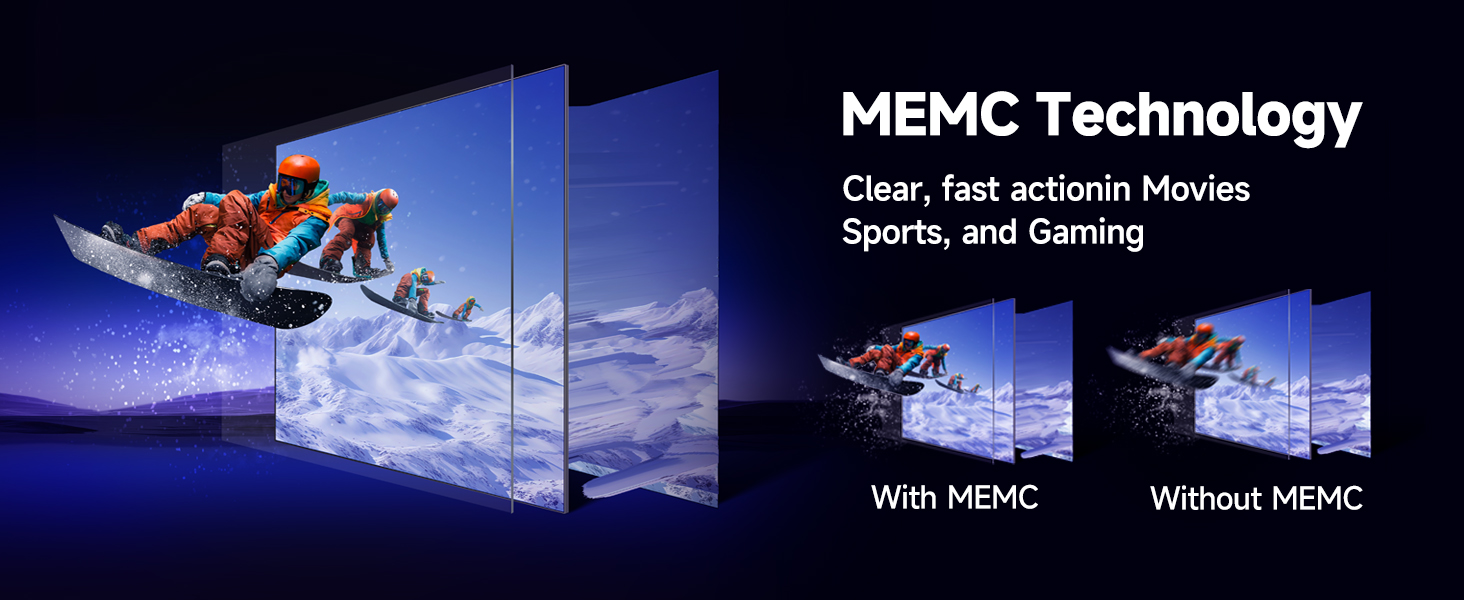
Image: A visual comparison illustrating the effect of MEMC technology, showing a clear, fast-moving image with MEMC versus a blurry image without it, ideal for action scenes and gaming.
7. Maintenance
7.1 Cleaning
To clean the TV screen, gently wipe it with a soft, lint-free cloth. For stubborn marks, slightly dampen the cloth with water. Do not spray cleaners directly onto the screen. For the TV casing, use a soft, dry cloth.
7.2 Software Updates
The TV receives regular over-the-air (OTA) updates to ensure access to the latest features and security patches. Ensure your TV is connected to the internet to receive these updates. You can check for updates manually in the TV's settings menu.
8. Troubleshooting
If you encounter issues with your TV, refer to the following common problems and solutions:
| Problem | Possible Solution |
|---|---|
| No Power | Ensure the power cable is securely connected to both the TV and the power outlet. Check if the outlet is functioning by plugging in another device. |
| No Picture, but Sound is Present | Check the input source. Ensure the connected device is powered on and its video output is correctly connected to the TV. |
| No Sound, but Picture is Present | Check the volume level and ensure the TV is not muted. Verify audio cables for external devices. Check TV audio output settings. |
| Remote Control Not Working | Replace the batteries in the remote control. Ensure there are no obstructions between the remote and the TV's IR sensor. |
| Cannot Connect to Wi-Fi | Ensure your Wi-Fi router is on and functioning. Re-enter the Wi-Fi password. Try restarting both the TV and the router. |
| Picture Quality Issues (Blurry, Distorted) | Check the resolution settings of your input source. Ensure HDMI cables are high-speed and properly connected. Adjust picture settings on the TV. |
If the problem persists after attempting these solutions, please contact customer support.
9. Specifications
| Feature | Detail |
|---|---|
| Brand | HORION |
| Model Name | 55P6D |
| Screen Size | 55 Inches |
| Display Technology | LED |
| Resolution | 4K Ultra HD (3840x2160) |
| Operating System | WebOS 22 |
| Special Features | Flat, Game Mode, HDR10, Dolby Audio, MEMC Technology |
| Connectivity Technology | Wired (LAN), Wireless (Dual-band WiFi), Bluetooth 5.1 |
| Supported Internet Services | Netflix, Amazon Prime Video, Hulu, Disney+, and more via WebOS 22 |
| Aspect Ratio | 16:9 |
| Product Dimensions (without stand) | 48.27" x 3.66" x 28.39" (approx.) |
| Product Dimensions (with stand) | 48.27" x 11.77" x 30.2" (approx.) |
| Item Weight | 23.9 pounds |
| Voltage | 120 Volts |
| Wattage | 110 watts |
| Processor | RTD2874 Quad-Core Processor |

Image: A visual representation of the RTD2874 Quad-Core Processor, indicating its role in providing smooth performance and responsive controls for the TV.
10. Warranty and Support
For any product-related issues or technical assistance, please contact HORION customer service. Our team is committed to responding within 24 hours to help resolve your concerns as quickly as possible.
While specific warranty details are not provided in this manual, please refer to your purchase documentation or contact HORION customer support for comprehensive warranty information.
