
Introduction
This manual provides detailed instructions for the setup, operation, and maintenance of your Samsung 34-inch Class Ultrawide Monitor. This monitor features a 21:9 wide screen, 4ms response time, 75Hz refresh rate, and WQHD (3,440 x 1,440) LED display. It supports FreeSync technology and offers multiple connectivity options including HDMI and DisplayPort.
Key Features:
- WQHD Image Quality: Experience razor-sharp images with a screen resolution of 3440x1440 pixels, approximately 2.4 times the density of Full HD. This allows for more content display without excessive scrolling or zooming.
- Seamless Multi-tasking: The 34-inch ultra-wide screen and 21:9 WQHD resolution provide ample workspace for comfortable multi-tasking on a single screen, enhancing productivity for documents, gaming, or movies.
- PBP and PIP Functions: Utilize Picture-by-Picture (PBP) to display input from two sources side-by-side at their native resolution. Picture-in-Picture (PIP) allows resizing the second source up to 25% of the screen and positioning it anywhere.
- Smoother Gameplay: AMD FreeSync synchronizes the refresh rate of your graphics card and monitor to minimize image tearing and stutter. Low Input Lag Mode reduces delay between input devices and on-screen response for a fluid gaming experience.
- Stylish and Practical Design: The monitor features a slim panel, elegant Y-stand, and metallic bezel. VESA-compatible mounting allows for precise positioning, while DP and HDMI ports offer versatile connectivity.
Setup Instructions
1. Unpacking and Assembly
Carefully remove all components from the packaging. Ensure all parts are present: monitor panel, stand base, stand neck, power cable, HDMI cable, and documentation.
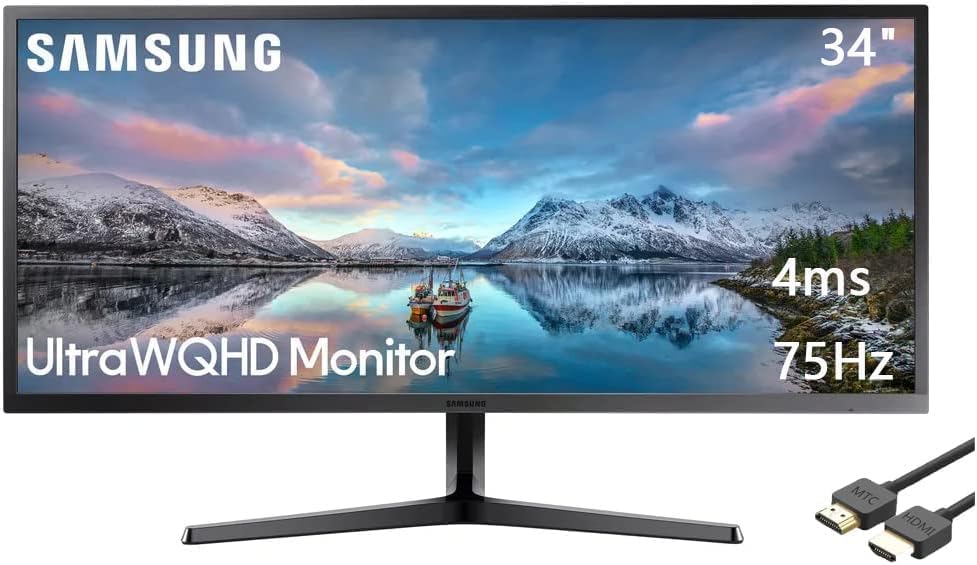
Figure 1: Front view of the Samsung 34-inch Ultrawide Monitor.
- Attach the Stand:
- Place the monitor panel face down on a soft, clean cloth to prevent scratches.
- Align the stand neck with the mounting slot on the back of the monitor and push until it clicks into place.
- Attach the stand base to the stand neck and secure it with the provided screw.
- VESA Mount (Optional):
If using a VESA-compatible wall mount or desk arm (100 x 100mm), remove the stand neck from the monitor. Follow the instructions provided with your VESA mounting kit.
2. Connecting to Your Device
The monitor supports HDMI and DisplayPort connections. Ensure your computer or device has compatible output ports.

Figure 2: Rear view of the monitor with port locations highlighted.
- Connect Video Cable:
- Connect one end of the HDMI or DisplayPort cable to the corresponding port on your computer.
- Connect the other end of the cable to an available HDMI (2 ports) or DisplayPort (1 port) on the monitor.
- Connect Power:
- Connect the power cable to the monitor's power input.
- Plug the other end of the power cable into a wall outlet.
- Power On:
Press the power button on the monitor. The monitor should automatically detect the input signal. If not, you may need to manually select the input source using the monitor's OSD (On-Screen Display) menu.
Operating Instructions
1. On-Screen Display (OSD) Menu
The OSD menu allows you to adjust various monitor settings. Access it using the joystick button located on the back or bottom of the monitor.
- Power Button: Press to turn the monitor on/off.
- Joystick: Move up/down/left/right to navigate menu options. Press to select.
2. Display Settings
- Brightness/Contrast: Adjust these settings for optimal visual comfort.
- MagicBright: Select from various preset modes (e.g., Standard, Cinema, Dynamic Contrast) for different viewing environments.
- Eye Saver Mode: Reduces blue light emissions to minimize eye strain during prolonged use.
- Flicker Free: Eliminates screen flickering for a more comfortable viewing experience.
3. Multi-Tasking Features (PBP/PIP)
The monitor supports Picture-by-Picture (PBP) and Picture-in-Picture (PIP) for enhanced productivity.

Figure 3: Monitor screen showing two input sources side-by-side in PBP mode.
- PBP (Picture-by-Picture):
- Access the OSD menu and navigate to the PBP/PIP settings.
- Select PBP mode and choose the input sources for each side of the screen.
- PIP (Picture-in-Picture):
- From the PBP/PIP settings, select PIP mode.
- Choose the main and sub-input sources. You can adjust the size and position of the sub-window.
4. Gaming Features
- AMD FreeSync: Enable FreeSync in the OSD menu and on your compatible AMD graphics card settings to synchronize refresh rates and reduce screen tearing.
- Game Mode: Optimize display settings for gaming by activating Game Mode in the OSD menu.
- Low Input Lag Mode: Reduces input delay for a more responsive gaming experience.
Maintenance
Cleaning the Monitor
- Always unplug the monitor from the power outlet before cleaning.
- Use a soft, lint-free cloth slightly dampened with water or a specialized screen cleaner.
- Do not spray cleaner directly onto the screen. Apply it to the cloth first.
- Avoid using abrasive cleaners, alcohol, or ammonia-based solutions, as these can damage the screen or casing.
- Gently wipe the screen and exterior surfaces.
General Care
- Avoid placing heavy objects on the monitor or its cables.
- Do not block ventilation openings on the monitor.
- Keep the monitor away from direct sunlight, heat sources, and excessive moisture.
Troubleshooting
If you encounter issues with your monitor, refer to the following common problems and solutions.
| Problem | Possible Solution |
|---|---|
| No image on screen |
|
| Image is blurry or distorted |
|
| Screen flickering |
|
| No sound (if monitor has speakers) |
|
Specifications
| Feature | Detail |
|---|---|
| Screen Size | 34 Inches |
| Resolution | 3440 x 1440 (WQHD Ultra Wide 1440p) |
| Aspect Ratio | 2.39:1 (21:9) |
| Refresh Rate | 75 Hz |
| Response Time | 4ms |
| Viewing Angle | 178° (H) / 178° (V) |
| Display Colors | 16.7 Million |
| Brightness | 300 cd/m2 |
| Contrast Ratio | 3000:1 (Typ), 2000:1 (Min) |
| Adaptive Sync Technology | FreeSync (AMD Adaptive Sync) |
| Connectivity | 2 x HDMI, 1 x DisplayPort |
| Power Supply | 100 - 240 VAC, 50/60Hz |
| Power Consumption | 59W (Max.), < 0.3W (Off Mode) |
| Stand Adjustments | Tilt: -1.5°(+/-1.0°) to 15.0°(+/-2.0°) |
| VESA Compatibility | 100 x 100mm |
| Product Dimensions (with stand) | 18.54" x 32.60" x 9.56" |
| Product Dimensions (without stand) | 14.54" x 32.60" x 4.16" |
| Item Weight (with stand) | 15.21 lbs. |
| Item Weight (without stand) | 14.11 lbs. |
| Manufacturer | SAMSUNG |
| Model Number | Samsung 34 Class Ultrawide Monitor |
Warranty Information
Samsung provides a limited warranty for its monitors. The specific terms and duration of the warranty may vary by region and product. Please refer to the warranty card included in your product packaging or visit the official Samsung website for detailed warranty information.
Typically, the warranty covers manufacturing defects under normal use. It does not cover damage caused by misuse, accidents, unauthorized modifications, or external factors.
Customer Support
For technical assistance, troubleshooting, or service inquiries, please contact Samsung Customer Support.
- Online Support: Visit the official Samsung support website for FAQs, downloads, and service requests. Samsung Support Website
- Telephone Support: Refer to your product documentation for regional contact numbers.
When contacting support, please have your monitor's model number (Samsung 34 Class Ultrawide Monitor) and serial number ready.