
1. Introduction
This manual provides essential information for the safe and efficient operation of your OPPO A80 5G Smartphone. Please read this manual thoroughly before using the device to ensure proper functionality and to prevent damage. Keep this manual for future reference.
2. Safety Information
Always follow basic safety precautions when using your smartphone to reduce the risk of fire, electric shock, and injury to persons. This includes, but is not limited to:
- Do not expose the device to extreme temperatures or direct sunlight.
- Avoid contact with liquids.
- Use only manufacturer-approved chargers and accessories.
- Do not attempt to disassemble or repair the device yourself. Refer all servicing to qualified personnel.
- Observe all local laws and regulations regarding mobile phone use, especially while driving.
3. Package Contents
Verify that all items are present in the package:
- OPPO A80 5G Smartphone
- USB Cable
- Quick Start Guide (may be separate from this manual)
- SIM Ejector Tool (may be included)
Note: A power adapter may not be included and might need to be purchased separately.
4. Product Overview
Familiarize yourself with the physical components of your OPPO A80 5G smartphone.

Figure 4.1: Front and Back View of the OPPO A80 5G Smartphone. This image displays the device from both the front, showing the display, and the back, highlighting the camera module and OPPO branding.

Figure 4.2: Front Display of the OPPO A80 5G Smartphone. This image focuses on the 6.67-inch IPS LCD screen, showcasing its full-screen design with a small punch-hole camera at the top center.

Figure 4.3: Rear View of the OPPO A80 5G Smartphone. This image highlights the vertical triple camera setup on the back, along with the textured purple finish and the OPPO logo.
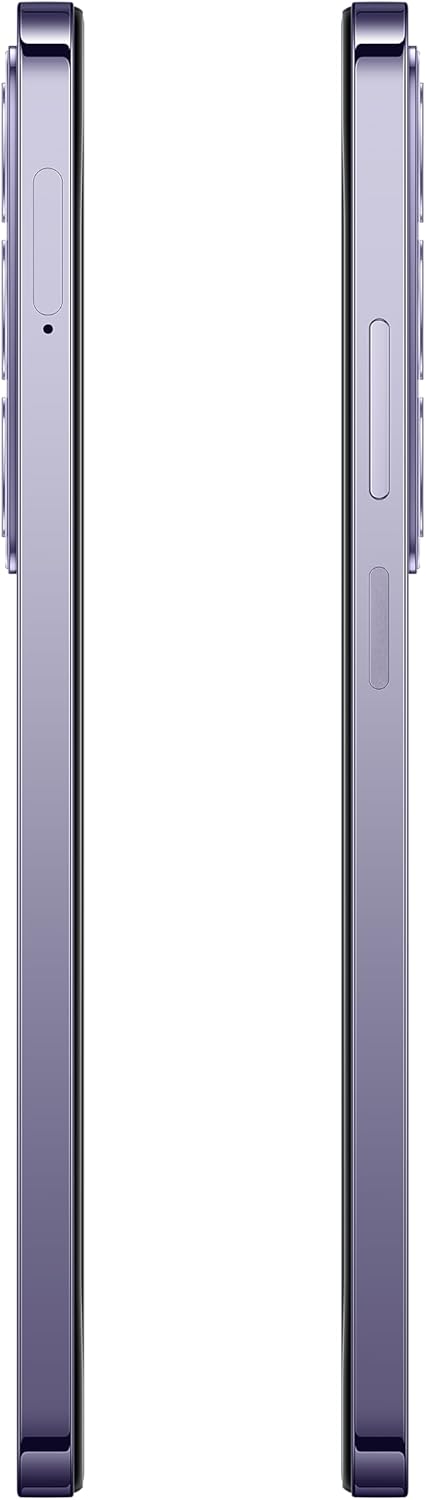
Figure 4.4: Side Profile of the OPPO A80 5G Smartphone. This image shows the slim profile of the device, including the power button and volume rocker on the right side.
Key Components:
- Front Camera: Located at the top of the display.
- Display: 6.67-inch IPS LCD touchscreen.
- Volume Buttons: On the side, for adjusting volume.
- Power Button: On the side, for turning the device on/off and locking/unlocking the screen.
- SIM Card Tray: For inserting SIM cards and microSDXC card.
- USB-C Port: For charging and data transfer.
- Speaker: For audio output.
- Main Camera Module: Located on the back, featuring 50 MP wide and 2 MP depth sensors.
5. Setup
5.1. Inserting SIM Cards and MicroSD Card
- Locate the SIM card tray on the side of the phone.
- Insert the SIM ejector tool into the small hole next to the tray and push gently until the tray pops out.
- Place your Nano-SIM cards (up to two) and/or a microSDXC card into the designated slots on the tray. Ensure the gold contacts face downwards.
- Carefully push the tray back into the phone until it is flush with the side.
5.2. Charging the Battery
Before first use, fully charge the device battery.
- Connect the USB cable to the USB-C port on the bottom of the phone.
- Connect the other end of the USB cable to a compatible power adapter (not included) or a computer's USB port.
- The charging indicator will appear on the screen.
5.3. Powering On/Off
- To Power On: Press and hold the Power button until the OPPO logo appears.
- To Power Off: Press and hold the Power button, then select "Power off" from the options on the screen.
5.4. Initial Setup Wizard
Upon first power-on, follow the on-screen instructions to complete the initial setup, including language selection, Wi-Fi connection, Google account setup, and security settings.
6. Operating Instructions
6.1. Basic Navigation
- Touch: Tap an icon to open an app or select an item.
- Swipe: Drag your finger across the screen to scroll or navigate between screens.
- Pinch: Use two fingers to zoom in or out on photos and web pages.
- Home Screen: The central hub for your apps and widgets.
- Notification Panel: Swipe down from the top of the screen to access notifications and quick settings.
6.2. Making Calls
- Open the Phone app.
- Enter the phone number using the dial pad or select a contact from your contacts list.
- Tap the call icon to initiate the call.
6.3. Sending Messages
- Open the Messages app.
- Tap the "Start chat" or "New message" icon.
- Enter the recipient's number or select from contacts.
- Type your message in the text field.
- Tap the send icon.
6.4. Using the Camera
- Open the Camera app.
- Select photo or video mode.
- Frame your shot.
- Tap the shutter button to take a photo or start/stop recording a video.
6.5. Connecting to Wi-Fi
- Go to Settings > Wi-Fi.
- Toggle Wi-Fi on.
- Select your desired network from the list.
- Enter the password if prompted, then tap Connect.
7. Maintenance
7.1. Cleaning Your Device
- Use a soft, lint-free cloth to clean the screen and body.
- Avoid using harsh chemicals, abrasive cleaners, or aerosol sprays.
- Do not spray cleaners directly onto the device.
7.2. Software Updates
Regularly check for and install software updates to ensure optimal performance and security.
- Go to Settings > About device > Up to date or Software update.
- Follow the on-screen prompts to download and install any available updates.
7.3. Battery Care
- Avoid fully discharging the battery frequently.
- Do not leave the device charging for extended periods after it is fully charged.
- Keep the device within recommended operating temperatures.
8. Troubleshooting
| Problem | Possible Solution |
|---|---|
| Device does not power on. | Ensure the battery is charged. Connect to a charger for at least 10 minutes, then try powering on again. |
| Cannot connect to Wi-Fi. | Check if Wi-Fi is enabled in settings. Restart your router and the phone. Verify the Wi-Fi password. |
| Apps are crashing or freezing. | Close and reopen the app. Clear the app's cache (Settings > Apps > [App Name] > Storage > Clear cache). Restart the phone. |
| Poor call quality. | Check network signal strength. Move to an area with better reception. Ensure nothing is blocking the microphone or speaker. |
| Battery drains quickly. | Reduce screen brightness. Close unused apps running in the background. Disable unnecessary features like Bluetooth or GPS when not in use. |
9. Specifications
| Feature | Detail |
|---|---|
| Model Name | OPPO A80 |
| Model Number | CPH2639AU Purple |
| Operating System | Android 14, ColorOS 14 |
| Processor | Mediatek Dimensity 6300 (6 nm), Octa-core (2x2.4 GHz Cortex-A76 & 6x2.0 GHz Cortex-A55) |
| Display | 6.67 inches, IPS LCD, 720 x 1604 pixels, Panda glass |
| RAM | 8GB |
| Internal Storage | 256GB (expandable via microSDXC) |
| Rear Camera | 50 MP, f/1.8, (wide), PDAF; 2 MP, f/2.4, (depth) |
| Front Camera | 8 MP, f/2.0, (wide) |
| Battery | Li-Po 5100 mAh, non-removable |
| Dimensions | 6.52 x 3 x 0.3 inches |
| Weight | 6.6 ounces (186 Grams) |
| Cellular Technology | 5G (NR N1/N3/N5/N7/N8/N20/N26/N28/N38/N40/N41/N66/N77/N78) |
| Wireless Connectivity | Wi-Fi |
10. Warranty and Support
10.1. Warranty Information
Your OPPO A80 5G Smartphone comes with a limited manufacturer's warranty. Please refer to the warranty card included in your product packaging or visit the official OPPO website for detailed terms and conditions regarding warranty coverage, duration, and limitations.
Note: Warranty terms may vary by region and retailer. Keep your proof of purchase for warranty claims.
10.2. Customer Support
For technical assistance, troubleshooting beyond this manual, or service inquiries, please contact OPPO customer support through their official channels:
- Official Website: Visit the OPPO official website for support resources, FAQs, and contact information.
- Service Centers: Locate authorized OPPO service centers in your region for in-person assistance.
When contacting support, please have your device model number (CPH2639AU Purple) and serial number ready.


