
AOCHUAN AC S2 MIC
AOCHUAN S2 Mic Smartphone Gimbal Stabilizer User Manual
Model: AC S2 MIC
1. Introduction
Thank you for choosing the AOCHUAN S2 Mic Smartphone Gimbal Stabilizer. This professional 3-axis gimbal is designed to enhance your mobile videography with superior stability, integrated features, and intelligent tracking capabilities. This manual provides essential information for setup, operation, maintenance, and troubleshooting to ensure you get the most out of your device.
The S2 Mic version includes a built-in wireless lavalier microphone for enhanced audio quality, an 18cm extension rod, and an integrated fill light, making it a versatile tool for content creators.
2. Package Contents
Upon opening your AOCHUAN S2 Mic package, please verify that all items listed below are present and in good condition:
- 1 × AOCHUAN SMART S2 Gimbal (smartphone not included)
- 1 × Convenient Storage Bag
- 1 × Tripod
- 1 × USB-C Charging Cable
- 1 × User Manual
- 1 × Wireless Microphone

Image: All components included in the AOCHUAN S2 Mic package, including the gimbal, tripod, charging cable, storage bag, and wireless microphone.

Image: A visual diagram detailing the contents of the AOCHUAN Smart S2 package, including the gimbal, tripod, wireless microphone, user manual, carrying case, and Type-C charging cables.
3. Setup Guide
3.1 Mounting and Leveling the Mobile Phone
Proper mounting and leveling are crucial for optimal gimbal performance. Follow these steps carefully:
- **Attach the Tripod:** Securely mount the included tripod to the bottom of the gimbal handle.
- **Unlock Axis Buckles:** Unscrew both the tilt axis buckle and the roll axis buckle to free the gimbal's movement.
- **Rotate Motor:** Rotate the motor from the right side to the front of the gimbal. Lift the rear tilt axis motor and rotate the mobile clamp to prepare for phone mounting.
- **Mount Phone (Portrait Angle):**
- Pull apart the mobile clamp and carefully insert your smartphone.
- Move the clamp from the back to center the mobile phone within the clamp.
- Push the roll axis left and right to ensure the phone is balanced and stationary.
- Finally, push the clamp up and down to make the mobile phone horizontal when stationary.
Video: Demonstrates how to balance your phone on the Smart S2 gimbal, ensuring proper setup for stable footage.
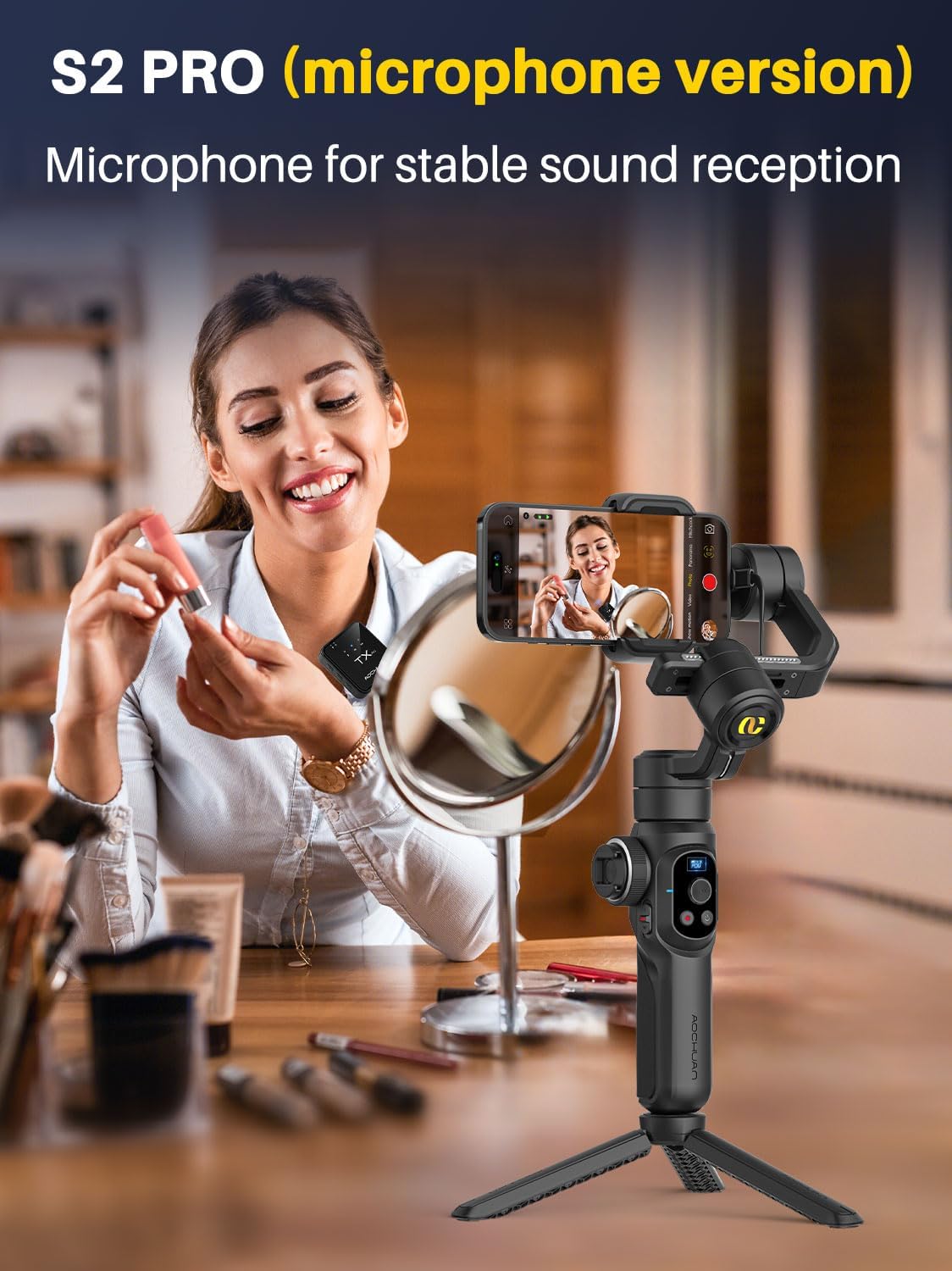
Image: A user demonstrating the correct method for mounting a smartphone onto the gimbal in portrait orientation, ensuring it is securely clamped and balanced.
- **Mount Phone (Landscape Angle):**
- Rotate the mobile clamp by 90 degrees.
- Pull apart the mobile clamp and fix the mobile phone inside.
- Push the roll axis left and right to make itself in a horizontal state when stationary.
- Adjust the clamp from the back to ensure the mobile phone is in a horizontal state when stationary.
Important Note on Balance:
The balance of the roll axis is critical for the gimbal's normal operation. Regardless of how you adjust the mobile clamp, the roll axis must always remain in balance. For specific mobile phone conditions, you can make moderate adjustments to the mobile clamp's position to achieve optimal balance.
3.2 App Download and Bluetooth Connection
To unlock the full potential of your AOCHUAN S2 Mic, download the official AOCHUAN app and connect via Bluetooth:
- **Scan QR Code:** Scan the QR code provided in the user manual (or search "AOCHUAN" in your app store) to download the official AOCHUAN app.
- **Enable Bluetooth:** On your mobile phone, go to Bluetooth settings and connect to "Smart S2".
- **Launch App:** Once connected, all functions within the AOCHUAN app will be available for use.
Video: A detailed guide on connecting the AOCHUAN Smart S2 gimbal via Bluetooth and utilizing the official AOCHUAN app for full functionality.
4. Operating Instructions
4.1 Power and Fill Light Controls
- **Power On/Off:** Long press the power button to switch the S2 gimbal on or off.
- **Fill Light:** Single click the power button to cycle through the integrated fill light settings: low beam, medium beam, high beam, and off.

Image: The AOCHUAN S2 Mic Gimbal showcasing its integrated fill light, which provides three levels of adjustable brightness for various shooting environments.
4.2 Gimbal Modes and Joystick Control
The OLED display on the gimbal shows the current gimbal mode, battery life, and Bluetooth status. You can switch between modes using the joystick:
- **Switching Modes:** Single click the joystick in the middle of the panel to switch between different gimbal modes (e.g., Pan Follow Mode (PF), Full Lock Mode (L), POV Mode, Full Follow Mode (F), Inception Mode (DM)).
- **Direction Control:** Push the joystick up, down, left, and right to control the direction of your mobile phone's camera.
- **Reset Position:** Double-clicking the joystick will return the phone to its initial position.

Image: The OLED display on the AOCHUAN S2 Mic Gimbal, illustrating various operational modes such as Pan Follow Mode (PF), POV Mode, Full Lock Mode (L), Full Follow Mode (F), and Inception Mode (DM), along with battery and Bluetooth indicators.
4.3 Photo/Video Button
- **Capture:** Single click the red-dot button to start taking videos or pictures.
- **Switch Camera (AOCHUAN App):** In the AOCHUAN app, you can double-click the red-dot button to switch between the front and rear cameras.
4.4 Focus Wheel and Zoom Push Rod
- **Focus Wheel:** Turning the roller on the left side of the gimbal body allows you to adjust the virtual and real focus of the picture.
- **Zoom Push Rod:** Push the zoom rod up and down to realize real-time zooming in and zooming out.
Note:
The focus wheel and zoom push rod functions require the use of the official AOCHUAN app.

Image: A close-up of the AOCHUAN S2 Mic Gimbal's control panel, highlighting the magic focus wheel for smooth focus adjustments and the zoom push rod for real-time zooming.
4.6 Trigger Button
The trigger button is located on the back of the gimbal body:
- **GO Mode:** Press down the trigger button to enter GO mode.
- **Portrait/Landscape Switch:** Hold the gimbal horizontally and single click the trigger button to quickly switch between portrait and landscape view angles.
- **DM Auto Nightmare Mode (Inception Mode):** Double-click the trigger button to enter DM Auto Nightmare Mode. In this mode, the stabilizer will automatically rotate and support any angle shooting. Double-tap the trigger button again to exit this mode.
- **Selfie Mode (Landscape):** Under landscape mode, triple click the trigger button. The mobile phone will rotate automatically, and the motor will adjust itself to selfie mode. Triple-tap the trigger button again to reset the motor.
- **Selfie Mode (Portrait):** Under portrait mode, re-mount the mobile phone with the camera facing the ground. Push the mobile phone lower to avoid it hitting the gimbal arm during rotation. Adjust the roll axis in balance, then switch on the gimbal. Triple click the trigger button to enter selfie mode. Triple-tap the trigger button again to reset the motor.

Image: The AOCHUAN S2 Mic Gimbal extended with its built-in rod, demonstrating its use in selfie mode for capturing wider angles or group photos.
Video: An introductory video showcasing the SMART S2 Pro 3-Axis Gimbal Stabilizer for all phones, highlighting its key features and capabilities.
4.7 Wireless Microphone
The S2 Mic version includes a clip-on wireless microphone for enhanced audio quality. It has a reception range of up to 10 meters, reducing sound interference from a distance. This compact microphone allows you to capture clear audio while filming, ideal for voiceovers or commentary.

Image: The AOCHUAN S2 Mic Gimbal shown alongside its clip-on wireless lavalier microphone, emphasizing the enhanced audio capture capability.
4.8 Smart Tracking Performance
Equipped with Smart 7.0 tracking technology, the AOCHUAN Smart S2 gimbal ensures smooth and stable tracking of subjects and objects, keeping them centered in the frame. This feature is suitable for vlogs, video recordings, and live streaming. The AOCHUAN app also offers various master camera templates for creative projects.

Image: The AOCHUAN S2 Mic Gimbal demonstrating its face tracking and gesture control capabilities, showing a subject being tracked within the smartphone's camera view.
5. Maintenance
- **Cleaning:** Use a soft, dry cloth to clean the gimbal and its components. Avoid using harsh chemicals or abrasive materials.
- **Storage:** When not in use, store the gimbal in its convenient storage bag to protect it from dust and damage.
- **Battery Care:** The gimbal uses 1 Lithium Ion battery (included). Ensure proper charging and avoid over-discharging to prolong battery life.
6. Troubleshooting
| Problem | Possible Cause | Solution |
|---|---|---|
| Gimbal not stabilizing / erratic movement | Improper phone balance; Axis buckles not fully unscrewed. | Ensure phone is perfectly balanced on all axes. Fully unscrew all axis buckles before powering on. |
| Bluetooth connection issues | Bluetooth not enabled; App not updated; Interference. | Ensure Bluetooth is on. Restart phone and gimbal. Update AOCHUAN app. Try connecting in a different location. |
| App features not working (e.g., focus, zoom) | Not using official AOCHUAN app; App permissions. | Ensure you are using the official AOCHUAN app. Check app permissions for camera and storage access. |
| Short battery life | Battery not fully charged; Old battery; Excessive use of fill light. | Fully charge the gimbal before use. Consider replacing the battery if it's old. Limit continuous use of high-brightness fill light. |
| Phone hitting gimbal arm during rotation | Improper phone mounting in portrait selfie mode. | In portrait selfie mode, ensure the phone is mounted with the camera facing the ground and pushed slightly lower to clear the gimbal arm. |
If you encounter any issues not covered here, or if troubleshooting steps do not resolve the problem, please contact AOCHUAN customer support via Amazon for assistance.
7. Specifications
- **Model:** AC S2 MIC
- **Brand:** AOCHUAN
- **Product Type:** 3-Axis Smartphone Gimbal Stabilizer with Wireless Lavalier Microphone
- **Built-in Features:** 18cm Extension Rod, Fill Light
- **Dimensions (Package):** 14.53 x 8.78 x 3.35 inches
- **Item Weight:** 3.11 pounds (1409 Grams)
- **Maximum Weight Recommendation:** 300 Grams (for smartphone)
- **Battery:** 1 Lithium Ion battery (included)
- **Color:** Black
- **Compatible Devices:** Smartphones (iPhone & Android)
8. Warranty and Support
AOCHUAN is dedicated to the design and development of gimbal stabilizers and aims to provide top-notch service. For any questions or assistance regarding your AOCHUAN S2 Mic Smartphone Gimbal Stabilizer, please feel free to reach out to us via Amazon. Refer to your purchase details for specific warranty information.
Ask a question about this manual
Ask about setup, troubleshooting, compatibility, parts, safety, or missing instructions. Manuals+ will review the question and use this page’s manual context to help answer it.