
1. Introduction
This manual provides essential information for setting up, operating, and maintaining your HORION 65-inch 4K UHD Smart TV (Model 65P6D). Please read this manual thoroughly before using the television to ensure proper and safe operation. Keep this manual for future reference.

Image 1.1: The HORION 65-inch 4K UHD Smart TV, showcasing its slim design and vibrant display.
2. Setup
2.1. Unboxing and Package Contents
Carefully remove the TV and all accessories from the packaging. Ensure all components are present and undamaged. The package should include:
- HORION WebOS TV
- Remote Control
- Power Cable
- TV Stand (2 pieces)
- User Manual (this document)

Image 2.1: Diagram illustrating the included components and the television's dimensions with and without the stand.
2.2. Physical Installation
You can install your TV using the included stand or a compatible VESA wall mount (sold separately).
2.2.1. Stand Installation
- Place the TV screen-down on a soft, flat surface to prevent damage.
- Align the stand pieces with the mounting holes on the bottom of the TV.
- Secure the stands using the provided screws. Ensure they are tightened firmly.
- Carefully lift the TV to its upright position on a stable, level surface.
2.2.2. Wall Mount Installation
If using a wall mount, refer to the instructions provided with your wall mount kit. Ensure the VESA mounting pattern and screw specifications are compatible with your TV model (refer to Specifications section).
2.3. Connecting Peripherals
Connect your external devices such as Blu-ray players, gaming consoles, sound systems, and antennas to the appropriate ports on the TV.

Image 2.2: Detailed diagram of the TV's input and output ports, including HDMI, USB, Audio, and LAN connections.
- HDMI Ports: Connect high-definition devices like gaming consoles, cable boxes, or streaming sticks. This TV features multiple HDMI inputs.
- USB Ports: Connect USB storage devices for media playback.
- Audio Output: Connect external sound systems or headphones.
- LAN Port: For a wired internet connection.
- TV Antenna Input: Connect an antenna for over-the-air broadcasts.
2.4. Initial Power On and Network Setup
- Connect the power cable to the TV and then to a power outlet.
- Press the power button on the remote control or on the TV itself.
- Follow the on-screen instructions to complete the initial setup, including language selection, time zone, and network connection.
- For Wi-Fi connection, select your network from the list and enter the password. For a wired connection, ensure the LAN cable is connected.
3. Operating Instructions
3.1. Remote Control Functions
The remote control allows you to navigate the TV's features. Familiarize yourself with the buttons for power, volume, channel, input selection, and smart TV functions.
3.2. Navigating WebOS 22
Your HORION Smart TV runs on WebOS 22, an intuitive operating system designed for easy content discovery and navigation.
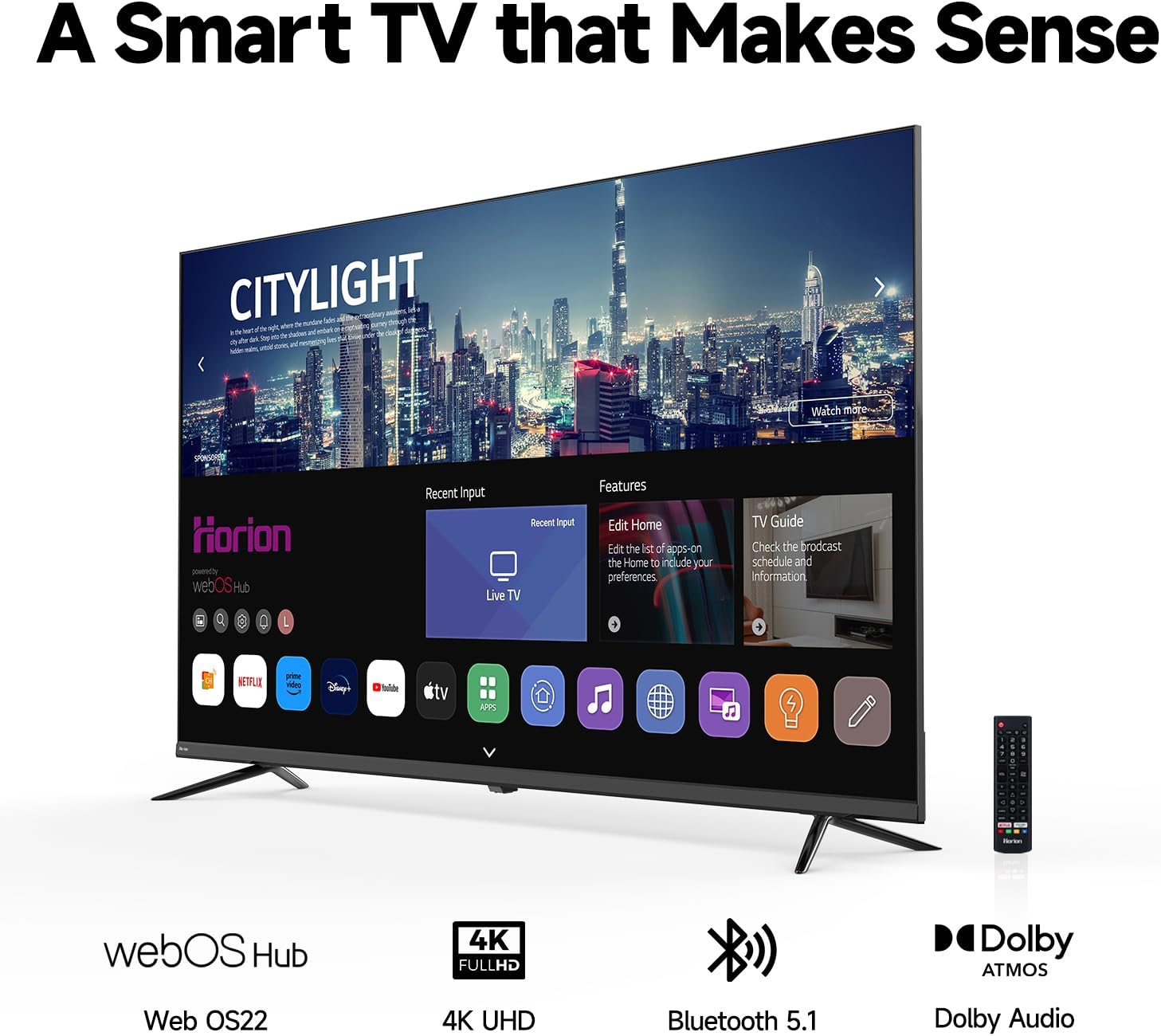
Image 3.1: The WebOS 22 home screen, displaying various applications and input options for easy access.
- Home Screen: Press the Home button on your remote to access the launcher bar, which displays your favorite apps, recent inputs, and other features.
- App Store: Download and install additional applications from the integrated app store.
- Voice Control: Use voice commands for searching content, changing settings, or launching apps.
- Input Selection: Easily switch between connected devices (HDMI, USB, TV tuner) from the home screen or dedicated input button.
3.3. Picture and Audio Settings
Optimize your viewing and listening experience through the TV's settings menu.
3.3.1. Picture Quality
- 4K UHD Resolution: Enjoy content in stunning 3840x2160 resolution.
- HDR10: High Dynamic Range 10 provides enhanced contrast and a wider range of colors for a more lifelike picture.
- MEMC Technology: Motion Estimation, Motion Compensation reduces motion blur and judder in fast-paced scenes, improving clarity for sports and action movies.
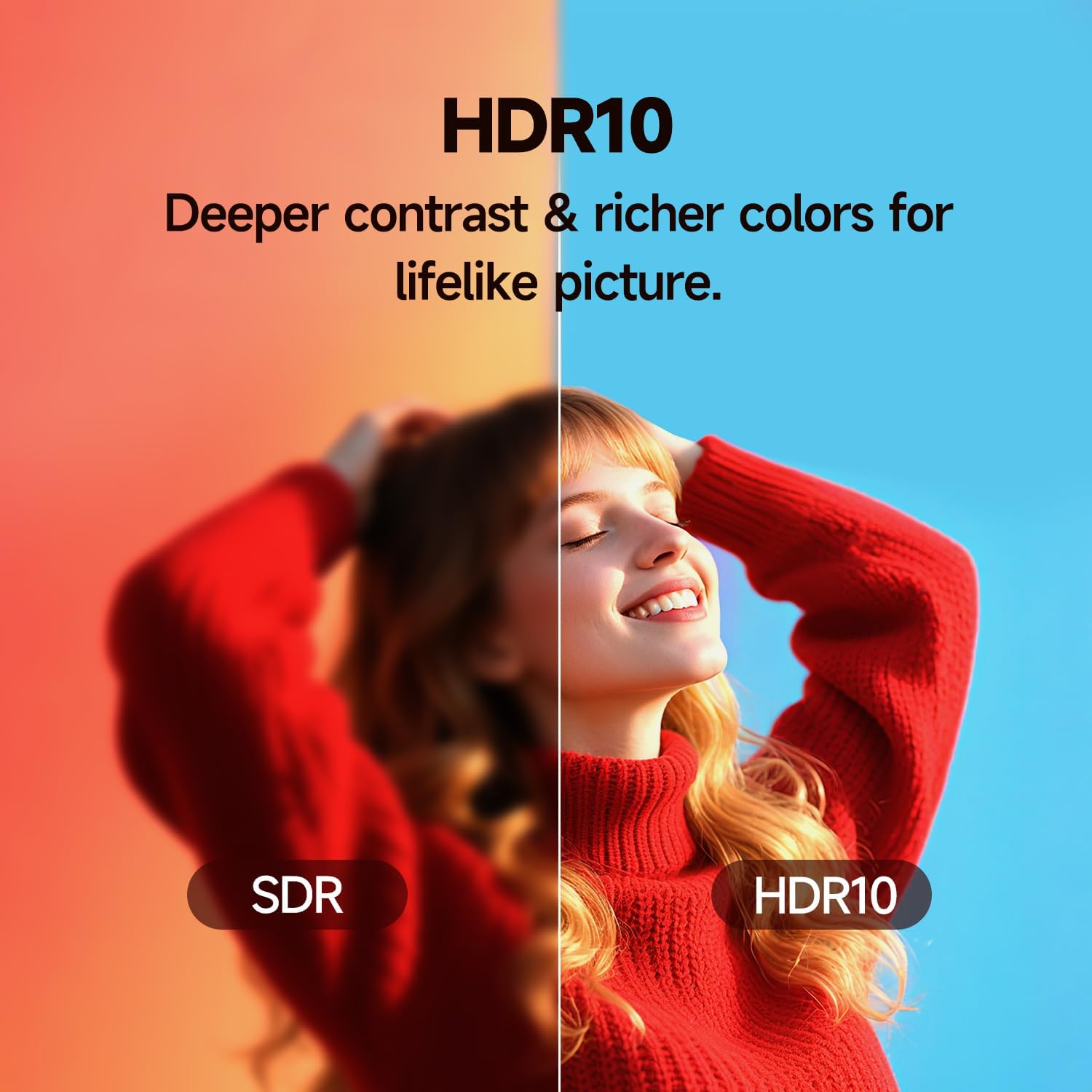
Image 3.2: A visual comparison demonstrating the deeper contrast and richer colors achieved with HDR10 compared to Standard Dynamic Range (SDR).
3.3.2. Audio Quality
- Dolby Audio: Experience optimized sound with enhanced dialogue clarity and immersive effects.
- Dual 12W Speakers: Integrated speakers provide clear and powerful audio.

Image 3.3: Illustration of the Dolby Audio experience, highlighting clear and powerful sound from the dual 12W speakers.
3.4. Smart Features and Connectivity
- Streaming Services: Access popular apps like Netflix, Disney+, Hulu, and Amazon Prime Video directly from the WebOS 22 interface.
- Bluetooth 5.1: Connect wireless headphones, speakers, or game controllers.
- Miracast & Airplay: Wirelessly mirror content from compatible Android devices (Miracast) or Apple devices (Airplay) to your TV.
4. Maintenance
4.1. Cleaning the TV
To maintain the TV's appearance and performance:
- Always unplug the TV before cleaning.
- Use a soft, dry, lint-free cloth to wipe the screen and cabinet.
- For stubborn marks, lightly dampen the cloth with water or a specialized screen cleaner. Never spray liquid directly onto the screen.
- Avoid using abrasive cleaners, waxes, or solvents.
4.2. Software Updates
Your WebOS 22 TV receives regular over-the-air (OTA) updates to enhance features, improve performance, and apply security patches. Ensure your TV is connected to the internet to receive these updates automatically or check for them manually in the settings menu.
5. Troubleshooting
If you encounter issues with your TV, refer to the following common problems and solutions:
| Problem | Possible Solution |
|---|---|
| No Power | Ensure the power cable is securely connected to both the TV and a working power outlet. Try a different outlet. |
| No Picture / Black Screen | Check input source (e.g., HDMI 1, TV). Ensure external devices are powered on and connected correctly. Try restarting the TV. |
| No Sound | Check volume level and mute status. Verify audio output settings if using external speakers. Ensure cables are connected properly. |
| Remote Control Not Working | Replace batteries. Ensure no obstructions between the remote and the TV's IR sensor. |
| Network Connection Issues | Restart your router/modem. Check Wi-Fi password. Try a wired (LAN) connection if possible. |
If the problem persists after attempting these solutions, please contact customer support.
6. Specifications
Detailed technical specifications for the HORION 65-inch 4K UHD Smart TV (Model 65P6D):
| Feature | Detail |
|---|---|
| Brand | HORION |
| Model Name | 65P6D |
| Screen Size | 65 Inches |
| Display Technology | LED |
| Resolution | 4K (3840x2160) |
| Operating System | WebOS 22 |
| Special Features | Flat Screen, HDR10, MEMC Technology |
| Audio Technology | Dolby Audio, Dual 12W Speakers |
| Connectivity Technology | Bluetooth 5.1, Wi-Fi (Dual-band), HDMI (multiple), USB (multiple), LAN |
| Supported Internet Services | Netflix, Hulu, Amazon Prime Video, others |
| Aspect Ratio | 16:9 |
| Product Dimensions (without stand) | 38"D x 24"W x 9"H (approx. 56.93" x 3.74" x 32.83") |
| Item Weight | 49.9 pounds |
| Voltage | 120 Volts |
| Wattage | 110 watts |
7. Warranty and Support
7.1. Warranty Information
For specific warranty details, please refer to the warranty card included with your product or visit the official HORION website. Keep your proof of purchase for warranty claims.
7.2. Customer Support
If you require assistance, have questions, or encounter issues not covered in this manual, please contact HORION customer service. Our team is available to provide support and guidance.
Contact information can typically be found on the HORION official website or on the product packaging.
