
HORION 43P6D
HORION 43P6D 43-inch 4K UHD Smart TV User Manual
Model: 43P6D
1. Introduction
This manual provides essential information for the safe and efficient operation of your HORION 43P6D 43-inch 4K UHD Smart TV. Please read this manual thoroughly before using the television and retain it for future reference.

Image 1.1: Front view of the HORION 43-inch 4K UHD Smart TV.
2. Safety Information
Always adhere to the following safety guidelines to prevent electric shock, fire, or damage to the television:
- Do not expose the television to rain or moisture.
- Ensure proper ventilation; do not block ventilation openings.
- Place the television on a stable, level surface.
- Use only the power cord supplied with the television.
- Unplug the television during lightning storms or when unused for long periods.
- Refer all servicing to qualified service personnel.
3. Package Contents
Verify that all items are present in the packaging:
- HORION 43-inch 4K UHD Smart TV (Model: 43P6D)
- Remote Control
- Power Cable
- TV Stand (2 pieces)
- User Manual (this document)

Image 3.1: Illustration of the items included in the product package.
4. Setup
4.1 Attaching the TV Stand
- Carefully place the TV face-down on a soft, clean surface to prevent screen damage.
- Align the stand pieces with the corresponding slots on the bottom of the TV.
- Secure the stand pieces using the provided screws. Ensure they are tightened firmly.
4.2 Connecting External Devices
The HORION 43P6D TV offers various ports for connecting external devices:
- HDMI Ports (HDMI 1, HDMI 2, HDMI 3): Connect Blu-ray players, gaming consoles, set-top boxes, or other HDMI-compatible devices.
- USB Ports (USB1/USB2 Interface): Connect USB storage devices for media playback.
- AUDIO-R/AUDIO-L/VIDEO: Connect older analog devices using RCA cables.
- Earphone Port: Connect headphones for private listening.
- Optical Output: Connect to a soundbar or AV receiver for digital audio output.
- LAN: Connect an Ethernet cable for a wired internet connection.
- TV: Connect an antenna or cable for broadcast television.

Image 4.1: Overview of the TV's connectivity ports.
4.3 Initial Power On and Network Setup
- Connect the power cable to the TV and a wall outlet.
- Press the power button on the TV or remote control to turn it on.
- Follow the on-screen instructions to select your language, region, and perform initial setup.
- During setup, you will be prompted to connect to a network. Select your Wi-Fi network and enter the password, or ensure a LAN cable is connected.
5. Operating Instructions
5.1 Remote Control Functions
The included remote control allows you to navigate the TV's features. Familiarize yourself with its buttons for power, volume, channel, input selection, and smart TV navigation.
5.2 WebOS 22 Navigation
Your HORION TV features WebOS 22, an intuitive smart TV platform. The home screen provides quick access to apps, inputs, and settings.
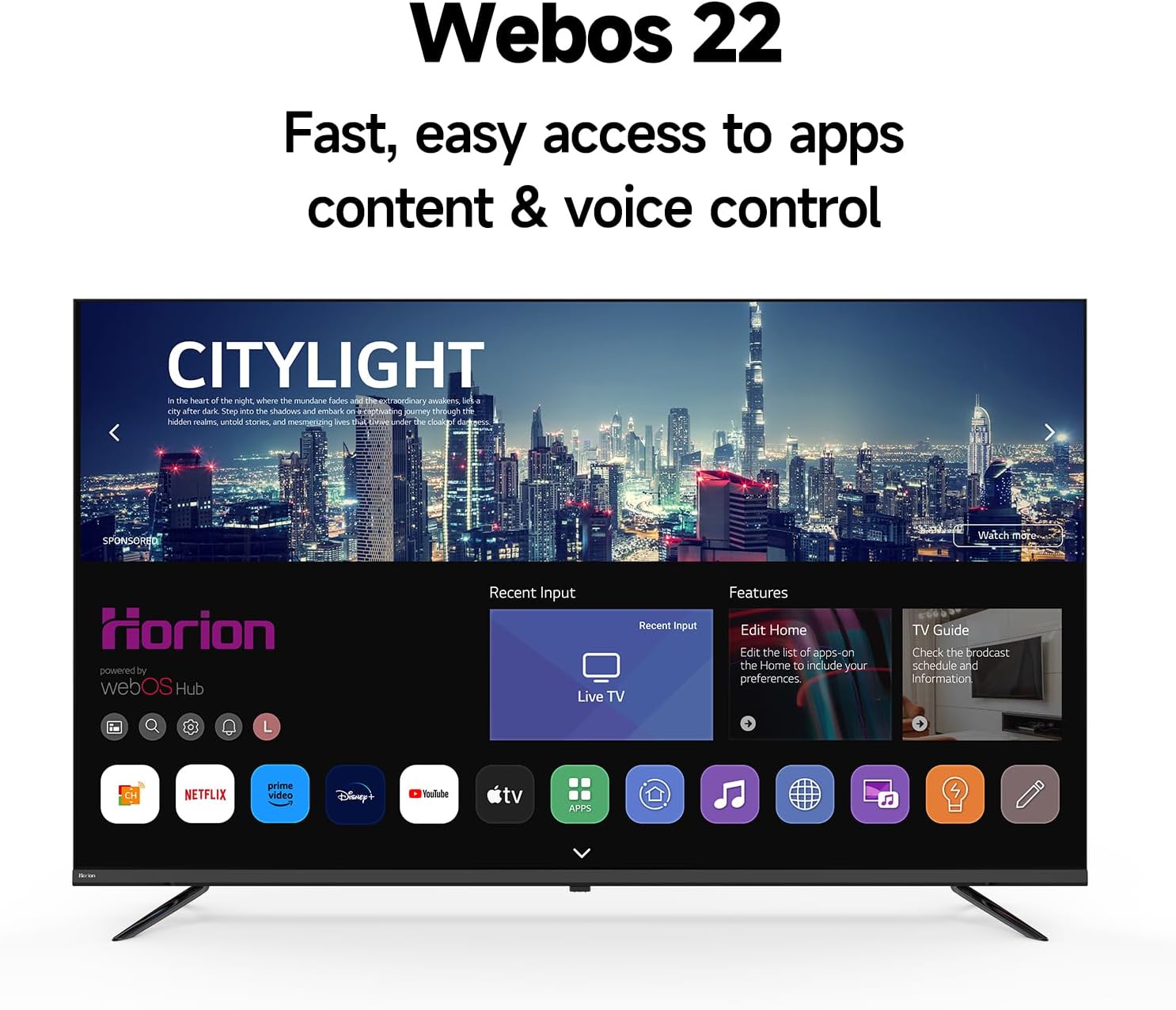
Image 5.1: The WebOS 22 home screen for fast access to content.
- Use the directional buttons on the remote to navigate through the interface.
- Press the 'Home' button to access the main WebOS launcher bar.
- Voice commands are supported for easier content discovery and control.
5.3 Smart Features
The WebOS 22 platform provides access to a wide range of smart features:
- Streaming Applications: Access popular services like Netflix, Disney+, Hulu, and more.
- Screen Mirroring: Utilize Miracast or AirPlay to cast content from compatible mobile devices to the TV.
- Live TV: Access broadcast channels through your antenna or cable connection.
5.4 Picture Settings
Your TV supports 4K UHD resolution and HDR10 for enhanced visual quality.

Image 5.2: The TV's 4K Ultra HD display capability.
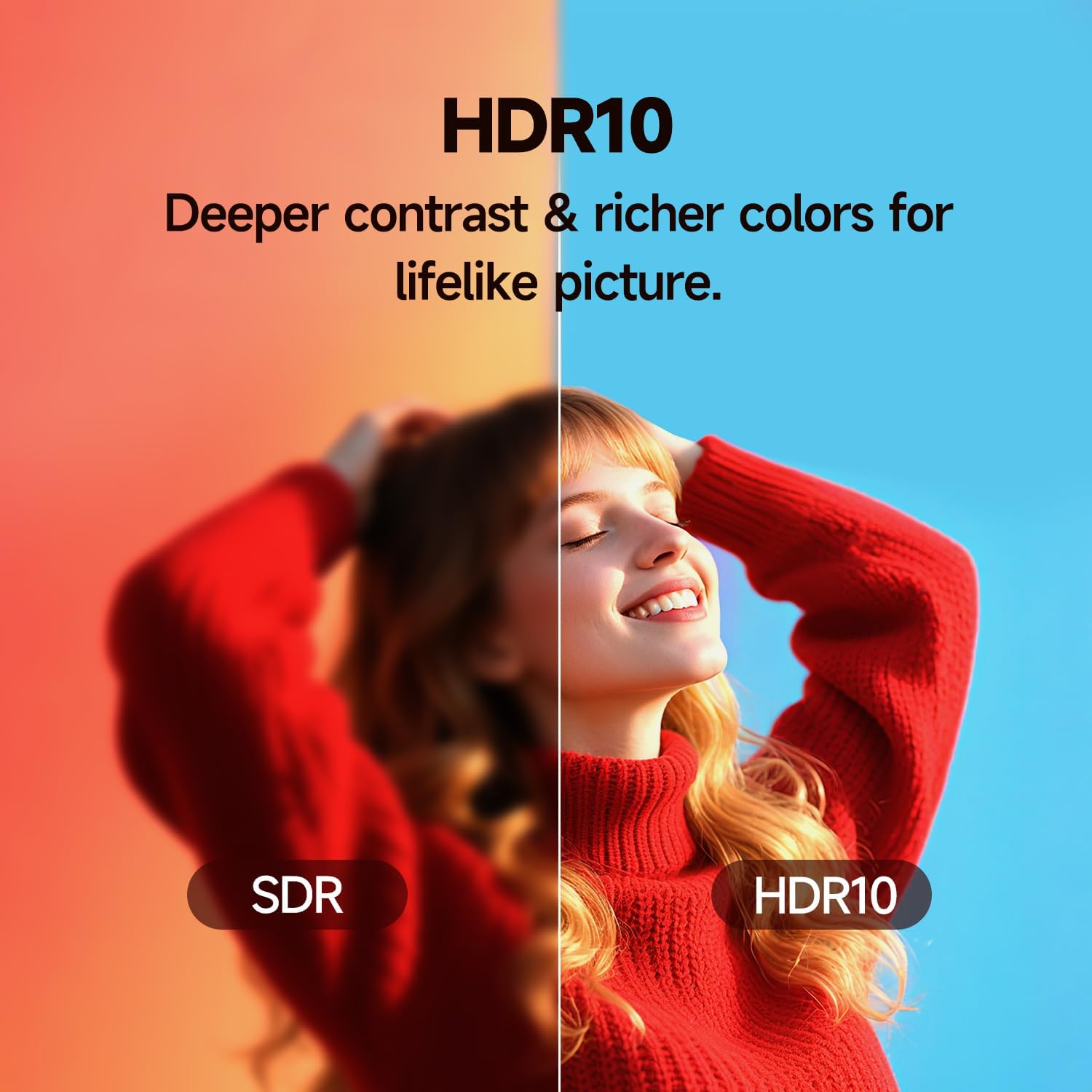
Image 5.3: Visual comparison of SDR versus HDR10 picture quality.
- Navigate to the 'Picture' settings menu to adjust brightness, contrast, color, and sharpness.
- Enable HDR10 mode for compatible content to experience enhanced dynamic range.
- MEMC (Motion Estimation, Motion Compensation) technology helps reduce motion blur in fast-paced scenes.
5.5 Audio Settings
The TV features Dolby Audio for optimized sound.

Image 5.4: Visual representation of Dolby Audio output from the TV.
- Access the 'Sound' settings menu to adjust volume, sound mode (e.g., Standard, Music, Movie), and equalizer settings.
- Ensure Dolby Audio is enabled for the best audio experience with compatible content.
5.6 Bluetooth Connectivity
The TV supports Bluetooth 5.1 for wireless audio connections.
- Go to 'Settings' > 'Sound' > 'Bluetooth' to pair with Bluetooth headphones or speakers.
- Ensure your Bluetooth device is in pairing mode.
6. Maintenance
6.1 Cleaning the TV
- Always unplug the TV before cleaning.
- Use a soft, dry cloth to wipe the screen and cabinet.
- For stubborn marks, lightly dampen the cloth with water or a specialized screen cleaner. Do not spray cleaner directly onto the screen.
- Avoid using abrasive cleaners, waxes, or solvents.
6.2 Software Updates
The TV receives regular over-the-air (OTA) updates to enhance features and security.
- Ensure your TV is connected to the internet.
- The TV will typically notify you when an update is available. Follow the on-screen prompts to install.
- You can manually check for updates in 'Settings' > 'All Settings' > 'General' > 'About This TV' > 'Check for Updates'.
7. Troubleshooting
If you encounter issues with your TV, refer to the following common solutions:
| Problem | Possible Cause | Solution |
|---|---|---|
| No power | Power cable disconnected, power outlet issue | Check power cable connection. Test outlet with another device. |
| No picture, but sound is present | Incorrect input source, faulty HDMI cable | Press 'Input' button on remote to select correct source. Try a different HDMI cable. |
| No sound, but picture is present | Volume muted, external audio device issue | Unmute volume. Check audio settings. Ensure external audio device is properly connected and powered. |
| Remote control not working | Dead batteries, obstruction | Replace batteries. Remove any obstructions between remote and TV. |
| Wi-Fi connection issues | Incorrect password, router issue, signal interference | Re-enter Wi-Fi password. Restart router. Move TV closer to router or use wired LAN connection. |
8. Specifications
- Model: 43P6D
- Screen Size: 43 inches
- Display Technology: 4K UHD LED
- Resolution: 3840 x 2160 (4K Ultra HD)
- Operating System: WebOS 22
- Contrast Ratio: 22 Mega Contrast
- HDR Support: HDR10
- Audio: Dolby Audio, Dual 8W Speakers
- Bluetooth: Version 5.1
- Wi-Fi: Dual-band
- Processor: RTD2874 Quad-Core
- Special Features: MEMC, Browser, Built-In Speaker, Flat
- Connectivity: Multiple HDMI ports, USB ports, Earphone Port, Optical Output, LAN, TV Antenna Input
- Product Dimensions (without stand): 37.68" W x 3.43" D x 22.01" H
- Product Dimensions (with stand): 37.68" W x 8.78" D x 22.01" H
- Item Weight: 16 pounds
- Voltage: 120 Volts
- Wattage: 110 watts
9. Warranty and Support
9.1 Warranty Information
For detailed warranty information, please refer to the warranty card included with your product or contact HORION customer service. Standard return policies typically allow for a 30-day free return, refund, or replacement.
9.2 Customer Support
Should you require assistance or have any questions regarding your HORION 43P6D Smart TV, please contact our customer service team. Contact details can be found on the official HORION website or within your product packaging.
Related documents43P6D

Ask a question about this manual
Ask about setup, troubleshooting, compatibility, parts, safety, or missing instructions. Manuals+ will review the question and use this page’s manual context to help answer it.