
NetumScan 2.4G Wireless Receiver/Dongle
NetumScan 2.4G Wireless Receiver/Dongle User Manual
Model: 2.4G Wireless Receiver/Dongle
Introduction
This user manual provides essential information for the proper use and maintenance of your NetumScan 2.4G Wireless Receiver/Dongle. Please read this manual thoroughly before using the product to ensure optimal performance and longevity.
Product Overview
The NetumScan 2.4G Wireless Receiver/Dongle is a crucial component designed to establish a stable 2.4G wireless connection between your NetumScan barcode scanner and a host device, such as a laptop or desktop computer. It facilitates seamless data transmission, enabling efficient barcode scanning operations.
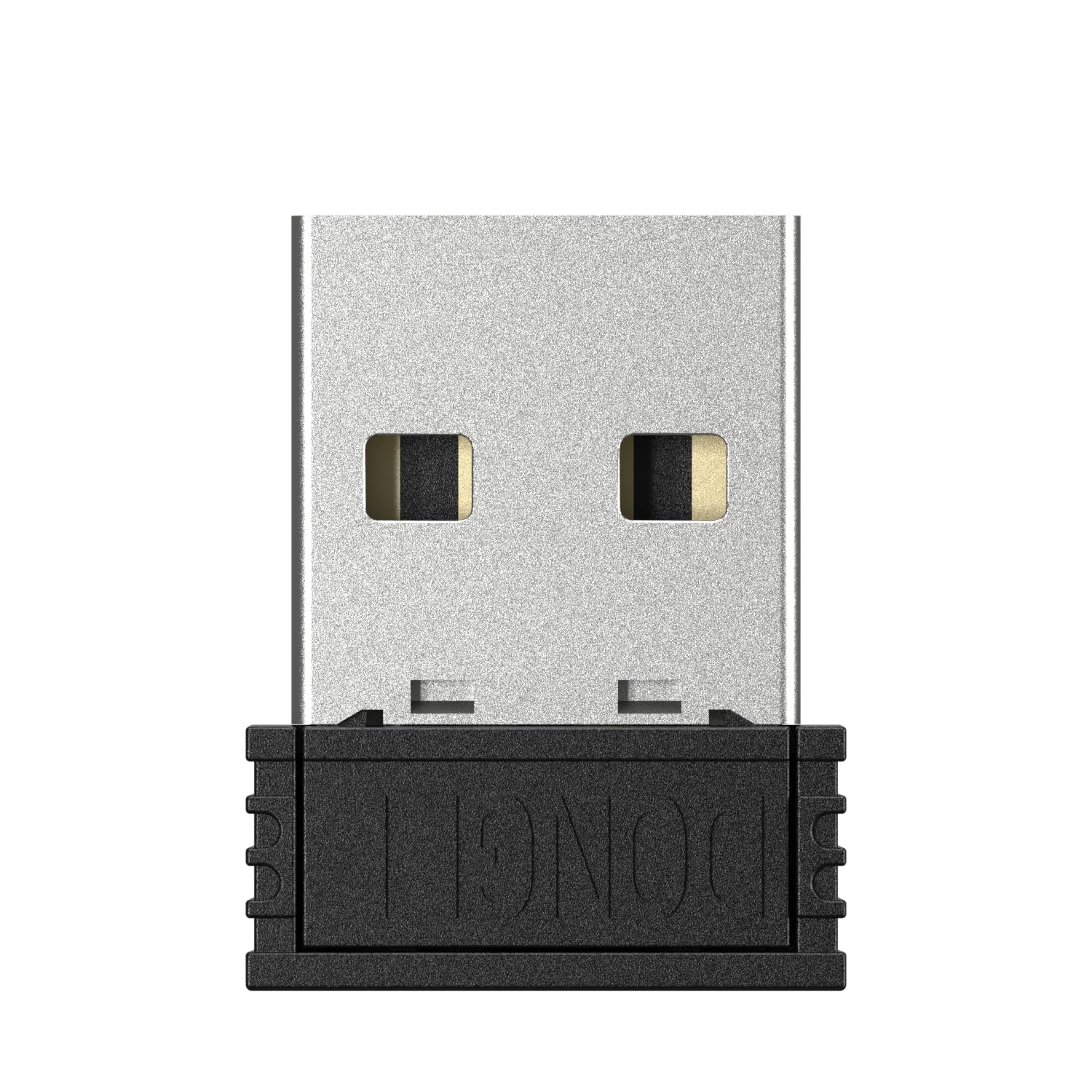
Image: Front view of the NetumScan 2.4G Wireless Receiver/Dongle. It features a silver metallic USB connector and a textured black plastic body with the word "DONGLE" subtly embossed on it. This device is essential for wireless communication with compatible NetumScan barcode scanners.
Features
- 2.4G Wireless Connectivity: Provides a reliable and stable wireless connection for your barcode scanner.
- USB Interface: Plugs directly into any standard USB port on your computer.
- Plug and Play: No drivers required for most operating systems, simplifying setup.
- Compact Design: Small and portable, ideal for various work environments.
Compatibility
This 2.4G Wireless Receiver/Dongle is specifically designed for use with NetumScan 2.4G Wireless Barcode Scanners. It is compatible with the following L-Series models:
- NetumScan NSL6S
- NetumScan NSL8S
- NetumScan NSL8BLS
- And other compatible NetumScan 2.4G wireless barcode scanners.
It connects to host devices such as laptops and desktop computers via a standard USB port.
Setup Instructions
- Power On Scanner: Ensure your NetumScan 2.4G wireless barcode scanner is powered on and fully charged.
- Insert Dongle: Insert the NetumScan 2.4G Wireless Receiver/Dongle into an available USB port on your laptop or desktop computer.
- Automatic Recognition: The operating system will typically recognize the dongle automatically without requiring additional driver installation.
- Pairing (if necessary): If the scanner does not automatically connect, refer to your specific barcode scanner's manual for pairing instructions. Typically, this involves scanning a pairing barcode provided with the scanner.
- Test Connection: Open a text editor (e.g., Notepad, Word) or any application that accepts text input. Scan a test barcode with your scanner. The scanned data should appear in the application, confirming a successful connection.
Operating Instructions
Once the NetumScan 2.4G Wireless Receiver/Dongle is successfully connected to your computer and paired with your barcode scanner, it operates transparently. The dongle acts as a bridge, converting the wireless signals from the scanner into standard USB keyboard input for your computer.
- Data Transmission: When a barcode is scanned by the paired NetumScan wireless scanner, the data is wirelessly transmitted to the dongle.
- Keyboard Emulation: The dongle then emulates keyboard input, sending the scanned data directly to the active application on your computer, just as if you had typed it.
- Range: Maintain the scanner within the effective wireless range of the dongle for uninterrupted data transmission.
Maintenance
The NetumScan 2.4G Wireless Receiver/Dongle requires minimal maintenance. Follow these guidelines to ensure its longevity:
- Cleaning: Use a soft, dry cloth to wipe the dongle. Avoid using liquid cleaners or solvents.
- Storage: Store the dongle in a cool, dry place when not in use.
- Handling: Avoid dropping the dongle or exposing it to extreme temperatures or moisture.
- USB Port Care: Always insert and remove the dongle gently from the USB port to prevent damage to both the dongle and the port.
Troubleshooting
| Problem | Possible Cause | Solution |
|---|---|---|
| Scanner not connecting to computer via dongle. |
|
|
| Scanned data not appearing in application. |
|
|
Specifications
| Attribute | Detail |
|---|---|
| Brand | NetumScan |
| Connectivity Technology | 2.4G Wireless (via USB Dongle) |
| Compatible Devices | NetumScan 2.4G Wireless Barcode Scanners (e.g., NSL6S, NSL8S, NSL8BLS), Laptops, Desktop Computers |
| Interface | USB Type-A |
| Power Source | USB Powered |
| Manufacturer | NetumScan |
| Country of Origin | China |
Warranty Information
Specific warranty details for the NetumScan 2.4G Wireless Receiver/Dongle are typically provided with the original barcode scanner purchase or can be found on the official NetumScan website. Please retain your proof of purchase for warranty claims.
Customer Support
For technical assistance, troubleshooting, or further inquiries regarding your NetumScan 2.4G Wireless Receiver/Dongle, please visit the official NetumScan support page or contact their customer service. Contact information is usually available on the manufacturer's website or included with your product packaging.
You can visit the NetumScan Store on Amazon for more information: NetumScan Store
Related documents2.4G Wireless Receiver/Dongle


Ask a question about this manual
Ask about setup, troubleshooting, compatibility, parts, safety, or missing instructions. Manuals+ will review the question and use this page’s manual context to help answer it.