
MCHOSE MC-G75
MCHOSE G75 Pro Wireless Mechanical Keyboard User Manual
Model: MC-G75
Introduction
Welcome to the MCHOSE G75 Pro Wireless Mechanical Keyboard user manual. This guide provides detailed instructions on setting up, operating, maintaining, and troubleshooting your new keyboard. Please read this manual thoroughly to ensure optimal performance and longevity of your device.

Image: The MCHOSE G75 Pro Mechanical Keyboard, showcasing its sleek design.
Package Contents
Upon unboxing, please verify that all items listed below are present:
- MCHOSE G75 Pro Wireless Mechanical Keyboard
- Keycap Puller
- USB-C Cable (for wired connection and charging)
- 2.4GHz Wireless Receiver
- User Manual (this document)
Product Overview
Key Features
- Compact 75% Layout: Efficient design retaining essential keys while minimizing desk footprint.
- Gasket Mounted Design: Enhanced typing feel and sound profile with 5 layers of sound and shock-absorbing padding.
- Vibrant RGB Backlighting: Customizable per-key RGB lighting for personalized aesthetics.
- Tri-Mode Connectivity: Seamless switching between 2.4GHz RF wireless, Bluetooth, and wired USB connections.
- Hot-Swappable Switches: Easily change mechanical switches without soldering for custom typing experiences.
- Double-Shot PBT Keycaps: Durable keycaps with legends that will not fade over time.
Keyboard Layout
The G75 Pro features a compact 75% layout, which includes function keys (F1-F12), a dedicated arrow cluster, and essential navigation keys (Home, End, PgUp, PgDn, Del, Ins) while omitting the numeric keypad to save space.

Image: Top-down view of the G75 Pro keyboard, highlighting its compact 75% layout.
Gasket Mounted Structure
The keyboard incorporates a gasket-mounted design with five layers of dampening materials (Poron Foam, IXPE Foam, PET Film, Per-Key Flex-Cut PCBA, Poron Foam) to provide a softer, more consistent typing feel and improved acoustics by reducing vibrations and hollow sounds.

Image: Exploded view illustrating the five layers of sound and shock-absorbing materials within the gasket-mounted keyboard structure.
Hot-Swappable Switches
The G75 Pro supports hot-swappable mechanical switches, allowing users to easily replace switches without soldering. This feature enables customization of typing feel and sound. The keyboard is compatible with 3-pin and 5-pin mechanical switches.

Image: Close-up of the keyboard showcasing a removed keycap and switch, demonstrating the hot-swappable feature with a Cabbage Tofu Switch.

Image: Diagram showing the Cabbage Tofu Switch V2 with its operating force, pre-travel, and total travel specifications.
Setup and Initial Use
Charging the Keyboard
The MCHOSE G75 Pro comes with two built-in Lithium Polymer batteries. Before first use, it is recommended to fully charge the keyboard. Connect the provided USB-C cable to the keyboard's USB-C port and the other end to a powered USB port on your computer or a USB wall adapter. The charging indicator will show the charging status.
Connecting the Keyboard
The G75 Pro supports three connection modes: 2.4GHz wireless, Bluetooth, and wired USB-C.
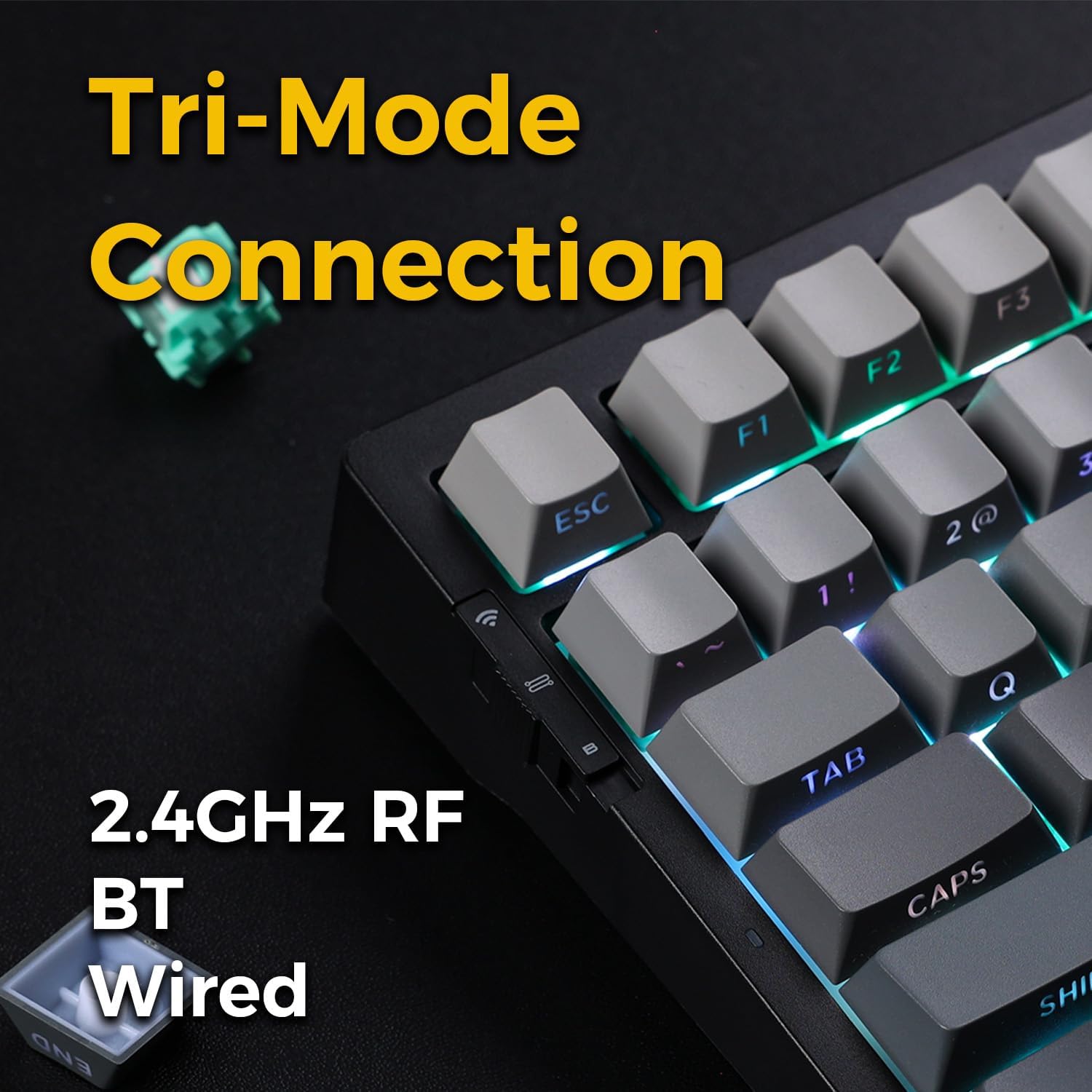
Image: Close-up of the keyboard's side, showing the switch for selecting between 2.4GHz, Bluetooth, and wired modes.
- Wired Mode:
Connect the USB-C cable from the keyboard to your computer's USB port. The keyboard will automatically switch to wired mode and be ready for use. This mode also charges the keyboard.
- 2.4GHz Wireless Mode:
Locate the 2.4GHz wireless receiver (usually stored in a compartment on the keyboard). Plug the receiver into an available USB port on your computer. Slide the mode switch on the keyboard to the "2.4G" position. The keyboard should connect automatically. If not, press Fn + 4 to initiate pairing.
- Bluetooth Mode:
Slide the mode switch on the keyboard to the "BT" position. The keyboard supports up to three Bluetooth devices. To pair, press and hold Fn + 1, Fn + 2, or Fn + 3 for 3-5 seconds until the indicator light flashes rapidly, indicating pairing mode.
- On your computer or device, open Bluetooth settings.
- Search for "MCHOSE G75 Pro" or similar and select it to connect.
- Once connected, the indicator light will stop flashing.
To switch between paired Bluetooth devices, simply press Fn + 1, Fn + 2, or Fn + 3 briefly.
Operating the Keyboard
RGB Backlight Customization
The G75 Pro features customizable RGB backlighting. Use the following key combinations to adjust lighting effects:
- Fn + \ |: Cycle through backlight modes.
- Fn + ↑ / ↓: Adjust backlight brightness.
- Fn + ← / →: Adjust backlight speed/direction.
- Fn + Del: Change backlight color (for certain modes).
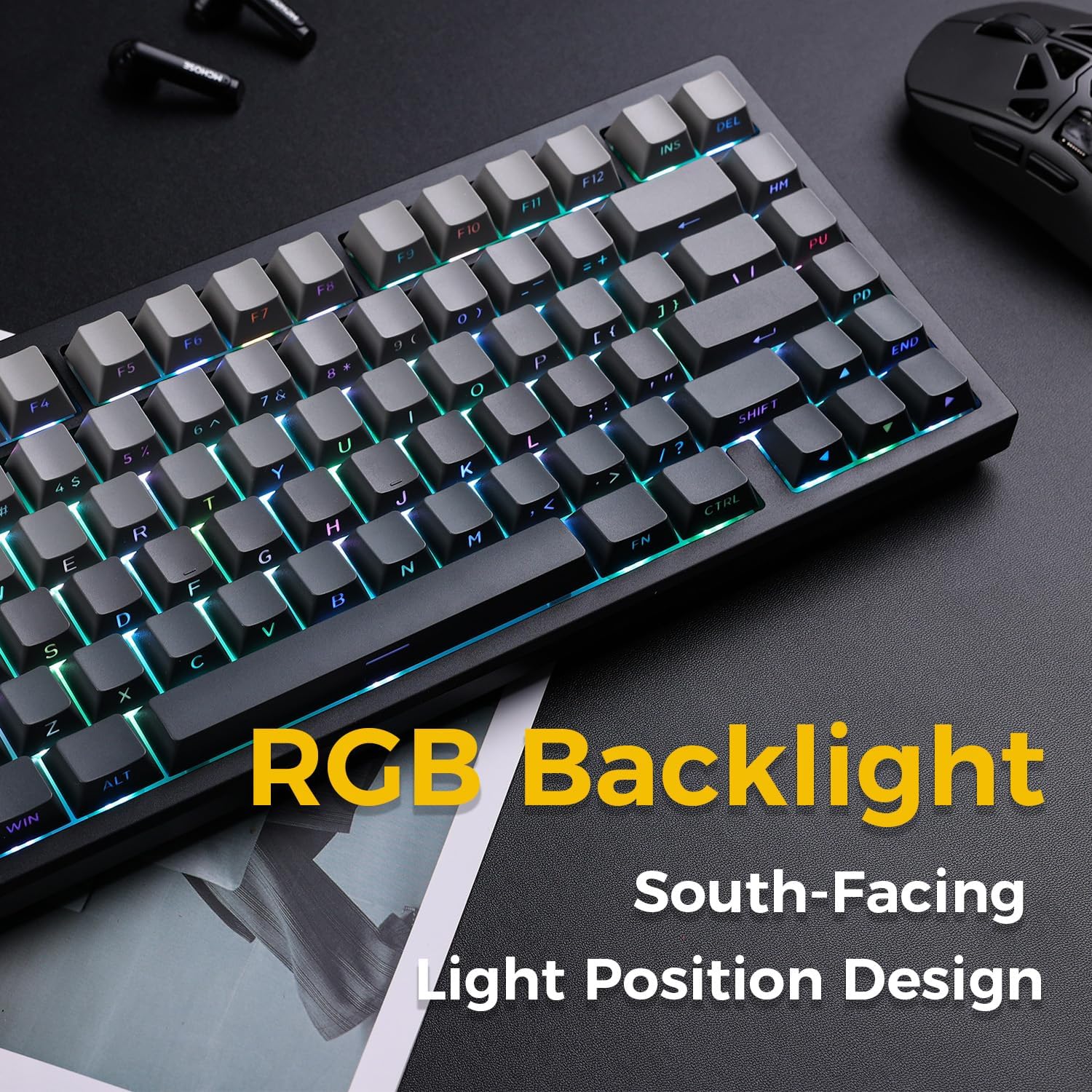
Image: The keyboard with vibrant RGB backlighting, highlighting the south-facing LED design for better light distribution with custom keycaps.
Function Key Combinations (Fn Keys)
The Fn key allows access to secondary functions printed on certain keys. Common combinations include:
- Fn + F1-F12: Multimedia controls (e.g., volume, play/pause).
- Fn + Win: Lock/Unlock Windows key.
- Fn + Alt: Switch between Windows/Mac layout (if supported).
Note: For advanced customization and key remapping, dedicated software may be available from the manufacturer's website. Please refer to the official MCHOSE support resources for software downloads and instructions.
Maintenance
Cleaning the Keyboard
To maintain your keyboard's appearance and functionality:
- Disconnect the keyboard from your computer before cleaning.
- Use a soft, lint-free cloth slightly dampened with water or a mild cleaning solution to wipe the keycaps and chassis.
- For deeper cleaning, use the provided keycap puller to remove keycaps and a can of compressed air to clear debris from underneath.
- Avoid using harsh chemicals or abrasive materials.
Replacing Switches and Keycaps
Thanks to the hot-swappable design, you can easily replace switches and keycaps:
- Removing Keycaps: Use the keycap puller to gently pull keycaps straight up.
- Removing Switches: Use a switch puller (not included, but often comes with replacement switches) to carefully unclip and pull the switch straight up from the PCB.
- Installing Switches: Align the pins of the new switch with the holes on the PCB. Gently push the switch down until it clicks into place. Ensure pins are not bent.
- Installing Keycaps: Align the keycap with the switch stem and press down firmly until it is seated.
Troubleshooting
| Problem | Possible Cause | Solution |
|---|---|---|
| Keyboard not responding in wireless mode. | Low battery, incorrect mode, receiver not connected, pairing issue. | Charge the keyboard. Ensure the mode switch is set correctly (2.4G or BT). Re-insert the 2.4GHz receiver. Re-pair Bluetooth (Fn + 1/2/3). |
| RGB backlight not working or stuck. | Software glitch, incorrect setting. | Try cycling through backlight modes (Fn + \ |). Adjust brightness (Fn + ↑). Restart the keyboard. Check manufacturer's software for advanced settings. |
| Keys not registering or double-typing. | Dust/debris under keycap, faulty switch. | Remove keycap and clean with compressed air. If issue persists, replace the switch (hot-swappable feature). |
| Windows/Command key not functioning correctly on Mac. | Operating system compatibility, key mapping. | Ensure the keyboard is in the correct OS mode (if applicable, check manual for Fn + Alt combination). For advanced remapping on macOS, third-party software like Karabiner-Elements might be required, though compatibility can vary. |
Specifications
| Feature | Detail |
|---|---|
| Model Number | MC-G75 |
| Layout | 75% (82 keys) |
| Connectivity | 2.4GHz Wireless, Bluetooth, Wired (USB-C) |
| Backlighting | RGB |
| Switch Type | Mechanical (Hot-Swappable) |
| Keycap Material | Double-Shot PBT |
| Dampening Layers | 5-layer Gasket Mounted |
| Dimensions (L x W x H) | 14.96 x 7.24 x 2.28 inches |
| Item Weight | 2.99 pounds |
| Batteries | 2 Lithium Polymer batteries (included) |
| Compatible Devices | PC |
Warranty and Support
MCHOSE products are manufactured to high quality standards. For warranty information, please refer to the warranty card included with your product or visit the official MCHOSE website. If you encounter any issues not covered in this manual or require further assistance, please contact MCHOSE customer support through their official channels.
MCHOSE Official Store: Visit MCHOSE Store on Amazon
Related documentsMC-G75


Ask a question about this manual
Ask about setup, troubleshooting, compatibility, parts, safety, or missing instructions. Manuals+ will review the question and use this page’s manual context to help answer it.