
Introduction
Welcome to the user manual for your new Huawei Watch D2 LCA-B11. This guide provides essential information on setting up, operating, maintaining, and troubleshooting your device. The Huawei Watch D2 is designed to be a comprehensive health and fitness companion, offering advanced features such as portable blood pressure monitoring, heart rate tracking, and a variety of smart lifestyle functions.
Key features include:
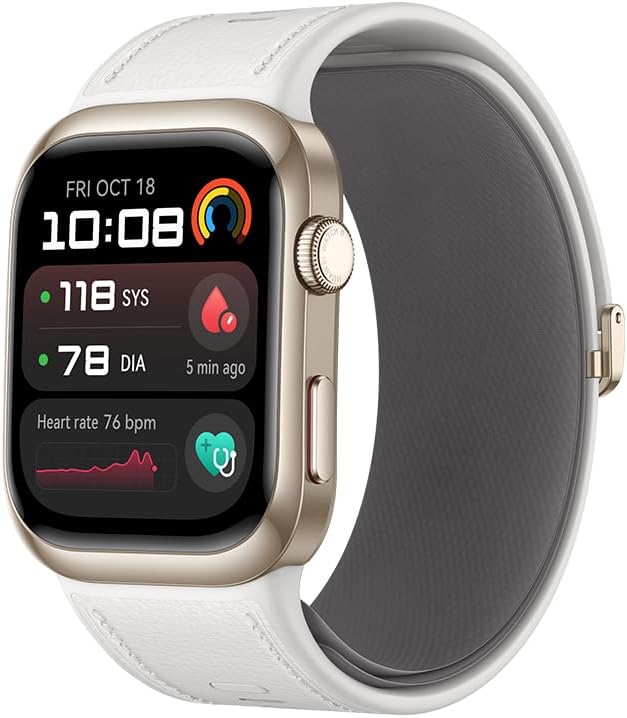
- Portable Blood Pressure Monitoring: Track your blood pressure levels 24/7, even during sleep, with high-level data and accurate pulse rates.
- Instant Health Monitoring: Receive practical reports with up to 9 key health indicators, presented through interactive charts and tables.
- Slim and Lightweight Design: Features a 1.82-inch AMOLED display with up to 1500 nits brightness and an always-on display.
- Innovative Strap with Integrated Airbag: A 2-in-1 design with an ultra-narrow 26.5mm mechanical airbag for comfortable and accurate measurements.
- Smart Lifestyle Features: Over 80 workout modes, automatic activity detection, precise GNSS positioning, and Bluetooth connectivity for calls and notifications.
Setup
Follow these steps to set up your Huawei Watch D2 for the first time:
- Charge the Device: Before first use, fully charge your watch using the provided charging cable. Connect the magnetic end to the charging port on the back of the watch and the USB end to a power adapter or computer.
- Power On: Press and hold the side button to power on the watch.
- Install Huawei Health App: Download the Huawei Health app on your smartphone. It is compatible with both iOS and Android devices. You can find the app on your device's respective app store or by scanning the QR code displayed on the watch screen during initial setup.
- Pair with Smartphone: Open the Huawei Health app, navigate to 'Devices', and select 'Add device'. Follow the on-screen instructions to pair your watch via Bluetooth. Ensure Bluetooth is enabled on your smartphone.
- Initial Configuration: Once paired, the app will guide you through setting up your profile, preferences, and granting necessary permissions for health monitoring.


Operating
Your Huawei Watch D2 offers intuitive controls and a range of functionalities:
Basic Navigation
- Touchscreen: Swipe up, down, left, or right to navigate through menus and notifications. Tap to select items.
- Rotary Crown: Rotate the crown to scroll through lists or zoom in/out. Press the crown to return to the home screen or confirm selections.
- Side Button: Press the side button to access the app list or perform specific functions depending on the context.
Health Monitoring
The watch is equipped with advanced sensors for comprehensive health tracking:
- Blood Pressure: To measure blood pressure, ensure the watch strap is properly fitted. Follow the instructions on the watch screen or in the Huawei Health app for accurate readings. The integrated airbag in the strap inflates to provide precise measurements.
- Heart Rate: The watch continuously monitors your heart rate using PPG 6.0 technology. View real-time data on the watch face or detailed trends in the app.
- Stress Monitoring: Track your stress levels throughout the day. The watch can also guide you through breathing exercises to help manage stress.
- Sleep Tracking: Monitor your sleep patterns, including sleep stages and quality, to help improve your rest.

Smart Lifestyle Features
- Calls and Notifications: Connect your watch via Bluetooth to your smartphone to answer or reject calls and view call logs directly from your wrist. Receive notifications for messages, emails, and other apps.
- Workout Modes: Choose from over 80 workout modes, with automatic detection for six common activities. The integrated GNSS positioning system provides accurate tracking for outdoor activities.
- Music Control: Control music playback on your smartphone directly from your watch.
- Remote Camera Shutter: Use your watch as a remote shutter for your smartphone camera.

Maintenance
Proper care will extend the life and performance of your Huawei Watch D2:
- Cleaning: Regularly clean the watch body and strap with a soft, damp cloth. Avoid using harsh chemicals or abrasive materials. Ensure the charging contacts on the back of the watch are clean and dry.
- Water Resistance: The watch has an IP68 rating, meaning it is resistant to dust and can withstand immersion in water up to 1.5 meters for 30 minutes. However, it is not suitable for diving, hot showers, or saunas. After exposure to water, dry the watch thoroughly.
- Battery Care: To maximize battery life, avoid extreme temperatures. Charge the watch regularly, but avoid leaving it fully charged or fully discharged for extended periods. The 524mAh battery provides ample power for daily use.
- Strap Care: The innovative airbag strap is designed for comfort and accuracy. Keep it clean and dry. If the strap becomes damaged, contact Huawei support for replacement options.
Troubleshooting
If you encounter issues with your Huawei Watch D2, try the following solutions:
| Problem | Possible Solution |
|---|---|
| Watch not powering on | Ensure the watch is fully charged. Connect it to the charger and wait a few minutes before attempting to power on again. |
| Unable to pair with phone | Ensure Bluetooth is enabled on your phone and the watch. Restart both devices. Make sure the Huawei Health app is updated to the latest version. |
| Inaccurate health readings | Ensure the watch is worn snugly on your wrist, about one finger's width above the wrist bone. Clean the sensors on the back of the watch. Avoid excessive movement during measurements. |
| Short battery life | Reduce screen brightness, disable always-on display, limit continuous health monitoring features if not needed, and close background apps on the watch. |
| Notifications not appearing | Check notification permissions in the Huawei Health app and your phone's settings. Ensure the watch is connected via Bluetooth. |
For more detailed troubleshooting or persistent issues, refer to the help section within the Huawei Health app or visit the official Huawei support website.
Specifications
| Feature | Detail |
|---|---|
| Brand Name | Huawei |
| Model Number | 55020DJC |
| Screen Size | 1.82 inches AMOLED |
| Item Shape | Square |
| GPS System | Integrated GPS system |
| Battery Cell Composition | Lithium Ion |
| Wireless Communication Standard | Bluetooth |
| Connectivity Technology | Bluetooth |
| Battery Capacity | 524 mAh |
| Special Features | Accelerometer, Blood Pressure Monitor, Heart Rate Monitor, Stress Monitor, Sleep Tracker, Speaker, Microphone |
| Operating System | Android Wear (Note: Huawei smartwatches typically run HarmonyOS, but the provided data indicates Android Wear.) |
| Water Resistance | IP68 |
| Package Dimensions | 12.8 x 11.9 x 9.2 cm; 7.82 grams |
| Batteries | 1 Lithium Polymer battery required (included) |
| Date First Available | December 17, 2024 |
Warranty and Support
Your Huawei Watch D2 LCA-B11 comes with a standard manufacturer's warranty. For specific warranty terms and conditions, please refer to the documentation included with your product or visit the official Huawei support website.
For technical assistance, product inquiries, or warranty claims, please contact Huawei customer support. You can also visit the official Huawei Store on Amazon for more information and resources.


