LECTRUS K02 Pro 4K 3-Channel Dash Camera User Manual
Model: K02 Pro | Brand: LECTRUS
1. Introduction
Thank you for choosing the LECTRUS K02 Pro 4K 3-Channel Dash Camera. This manual provides detailed instructions for the installation, operation, and maintenance of your new dash camera. Please read this manual thoroughly before use to ensure proper functionality and to maximize your driving safety and recording experience.
2. Package Contents
Please verify that all items listed below are included in your package:
- LECTRUS K02 Pro Dash Camera
- Rear Camera (11.5 ft cable)
- Suction Cup Mount
- 3M Adhesive Mount
- Car Charger (11.5 ft cable)
- Type-C Data Cable
- 64GB SD Card (pre-installed)
- Installation Tools
- User Manual (this document)

3. Product Overview
The LECTRUS K02 Pro is a 4K 3-channel dash camera designed to provide comprehensive video surveillance for your vehicle, covering the front, interior, and rear. It features advanced functionalities such as 5G WiFi connectivity, night vision, G-sensor collision detection, and 24-hour parking monitoring.

4. Setup and Installation
4.1 Preparing the Dash Camera
- Before installation, ensure to remove the protective film from all camera lenses.
- Clean your windshield thoroughly to ensure optimal recording quality and secure mounting.
- The 64GB SD card is pre-installed. Ensure it is properly seated before first use.
4.2 Mounting the Dash Camera
- Choose a suitable location on your windshield, preferably behind the rearview mirror, that does not obstruct your view.
- Attach the suction cup mount or 3M adhesive mount to the dash camera.
- Securely attach the mount to the chosen location on the windshield.
4.3 Connecting the Rear Camera
- Connect the rear camera cable to the main dash camera unit.
- Route the rear camera cable discreetly along the vehicle's headliner and trim to the rear of the vehicle.
- Mount the rear camera on the rear windshield, ensuring a clear view.
4.4 Power Connection
- Connect the car charger to the dash camera's power input.
- Plug the car charger into your vehicle's 12V power outlet (cigarette lighter socket).
- Route the power cable neatly to avoid interference with driving controls.

Video 4.1: Official LECTRUS K02 Pro 4K dash cam installation guide. This video demonstrates the step-by-step process of setting up and installing the dash camera in a vehicle, including mounting the main unit, connecting the rear camera, and routing cables for a clean setup.
Video 4.2: Official LECTRUS 4K Front Dash Cam Installation. This video provides a focused guide on installing the front dash camera unit, detailing the mounting process and initial setup steps.
5. Operating Instructions
5.1 Basic Operation
- The dash camera will automatically power on and begin recording when your vehicle starts.
- The 3-inch IPS screen allows for real-time viewing and playback of recorded footage.
- To prevent overheating, the screen may turn off automatically. This can be adjusted in settings.
5.2 High-Resolution Video Recording
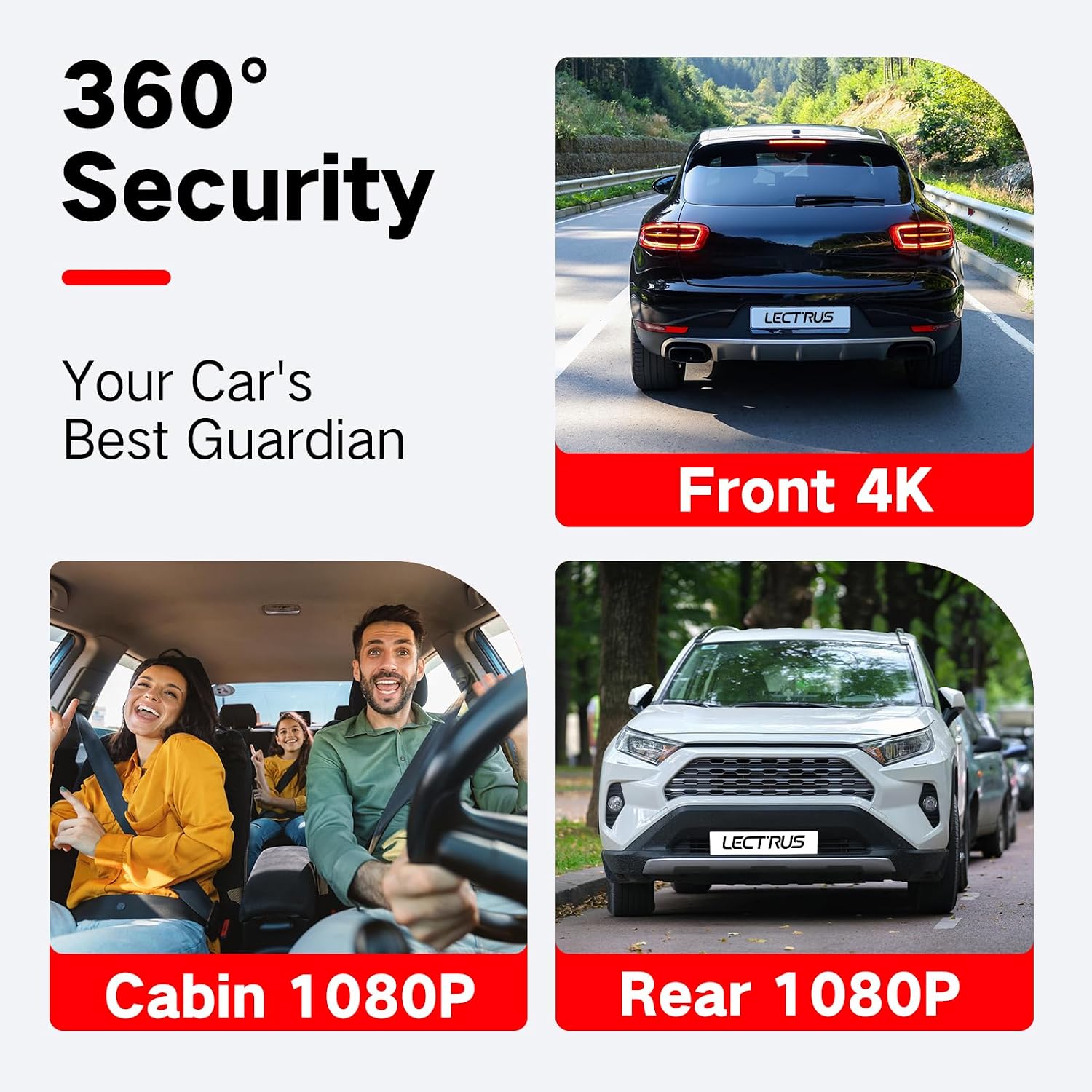
The main camera records in 4K resolution, while the interior and rear cameras record in 1080P, ensuring clear and detailed footage from all three channels.


5.3 5G WiFi and APP Control
The dash camera supports 5G WiFi for fast wireless video transfer and control via the dedicated mobile application. Search for "LuckyCam" on your app store or scan the QR code in the instruction manual to download.
- To quickly enable WiFi, long-press the UP button on the dash cam.
- Connect your smartphone to the dash cam's WiFi network.
- Use the app to view live footage, download recordings, and adjust settings.

Video 5.1: Official LECTRUS guide on how to connect to WiFi with our dash cam. This video demonstrates the process of connecting the dash camera to a smartphone via WiFi for app control and video transfer.
5.4 Night Vision
High-sensitivity sensors and infrared filters ensure clear video recording in low-light conditions. In very low light, the night vision mode may automatically activate, resulting in black-and-white video, which is normal. This feature can be disabled in settings if preferred.

5.5 G-Sensor and Parking Mode
The built-in G-sensor detects sudden movements or collisions, automatically triggering emergency recording and locking the footage to prevent overwriting. The parking mode allows the dash cam to monitor surroundings when the car is parked.
- When parked, the dash cam enters sleep mode to conserve battery. Motion or collision will activate recording.
- For continuous 24-hour parking monitoring, an additional ACC hardwire kit (not included) is required.
5.6 Loop Recording
The loop recording feature automatically overwrites the oldest unlocked video files when the memory card is full, ensuring continuous recording without manual intervention. Locked emergency recordings are protected from being overwritten.

6. Maintenance
- Regularly clean the camera lenses with a soft, lint-free cloth to ensure clear video quality.
- Periodically check the mounting for security, especially if using a suction cup mount.
- Format the SD card monthly to maintain optimal performance and prevent data corruption. (Note: Formatting will erase all data on the card. Back up important files first.)
- Avoid exposing the dash camera to extreme temperatures for prolonged periods when not in use. The super capacitor ensures stable operation in varying climates during use.
7. Troubleshooting
| Problem | Possible Cause | Solution |
|---|---|---|
| Dash cam does not power on. | No power supply; loose connection; faulty car charger. | Check power connection; ensure car charger is working; try a different 12V outlet. |
| Poor video quality. | Protective film on lens; dirty windshield/lens; low light conditions. | Remove protective film; clean lenses and windshield; ensure sufficient lighting for optimal recording. |
| SD card full / Recording stops. | Loop recording off; too many locked files; faulty SD card. | Ensure loop recording is enabled; manually delete unnecessary locked files; format SD card; replace SD card if issue persists. |
| WiFi connection issues. | Incorrect WiFi password; out of range; app issues. | Verify WiFi password; ensure device is within range; restart dash cam and phone app. |
| Parking mode not working continuously. | No hardwire kit installed. | Install an ACC hardwire kit for 24-hour continuous parking monitoring. |
8. Specifications
| Feature | Detail |
|---|---|
| Model Name | K02 Pro |
| Video Capture Resolution | Front: 4K, Interior: 1080P, Rear: 1080P |
| Display | 3-inch IPS Screen |
| Connectivity | 5G WiFi, USB |
| Special Features | Night Vision, APP Control, Parking Mode, G-Sensor, Loop Recording |
| Storage | Supports up to 256GB SD Card (64GB included) |
| Battery | 300mAh built-in lithium battery (approx. 15-20 mins recording when fully charged) |
| Power Source | Super Capacitor (for stable operation in extreme temperatures) |
| Product Dimensions | 2.56 x 7.48 x 5.12 inches |
| Item Weight | 1 pound |
| Manufacturer | LECTRUS |
9. Warranty and Support
For warranty information and technical support, please refer to the official LECTRUS website or contact LECTRUS customer service directly. Keep your purchase receipt as proof of purchase for warranty claims.
LECTRUS Customer Service: Please visit the LECTRUS Store on Amazon for contact details and further assistance.
Protection Plans: Additional protection plans are available for purchase. Please check product listing for details.
- 2-Year Protection Plan
- 3-Year Protection Plan
- Complete Protect (monthly subscription)


