
Introduction
This manual provides detailed instructions for the installation, operation, and maintenance of your ASURE 9-inch Android Car Stereo. This unit is designed to upgrade the infotainment system in specific GMC and Chevrolet models from 2007-2013, offering advanced features like wireless Carplay, Android Auto, GPS navigation, and enhanced audio capabilities. Please read this manual thoroughly before installation and use to ensure proper function and safety.

Image: The ASURE 9-inch Android Car Stereo unit, featuring a large touchscreen display, integrated into a vehicle's dashboard with a wood-grain finish.
Vehicle Compatibility
This ASURE car stereo is specifically designed for the following vehicle models and years:
- GMC Yukon (2007-2013)
- Chevrolet Silverado (2007-2013)
- Chevrolet Suburban (2007-2013)
- Chevrolet Tahoe (2007-2013)
Important Notes:
- This unit is compatible with base models only. It does not support Hybrid and LZT trim levels.
- If your factory radio included a 10-button navigation screen, an extra wiring kit may be required. Please contact ASURE support for assistance.
- The unit supports your original backup camera and steering wheel controls.

Image: A visual guide illustrating compatible and incompatible dashboard configurations for the ASURE car stereo. It highlights specific areas to check for compatibility, such as air vents and radio button layouts.
Included Components
Verify that all the following components are present in your package:
- 1x ASURE Car Radio Unit (9-inch screen)
- 1x Installation Bezel
- 1x Wiring Harness Kit (Plug and Play)
- 1x GPS Antenna
- 2x USB Cables
- 1x Microphone
- 1x Wi-Fi/Bluetooth Antenna
- 1x CAN-BUS Decoder
- Audio/Video Ports (RCA cables)
- User Manual and Screwdriver (may vary)

Image: A comprehensive diagram displaying the main car stereo unit, the installation bezel, various cables (GPS antenna, USB, microphone, power harness with CAN-BUS decoder), and other accessories included in the package.
Setup and Installation
The installation process is designed to be plug-and-play, requiring no wire cutting for compatible vehicles. However, professional installation is recommended if you are unfamiliar with car audio systems.
Installation Steps:
- Prepare the Dashboard: Carefully remove the factory radio and trim from your vehicle's dashboard. Refer to your vehicle's service manual or contact ASURE support for a video demo of factory radio removal if needed.
- Install the Bezel: Place the provided installation bezel into the dashboard opening.
- Mount the Screen: Insert the ASURE car stereo screen into the installation bezel. Secure it using the four screws provided.
- Connect Wiring: Connect all necessary cables from the wiring harness kit to the corresponding ports on the back of the car stereo unit and to your vehicle's existing wiring. Ensure all connections are secure before proceeding.
- Power Plug: Connect the main power plug to the radio's socket.
- CAN-BUS Box: Connect the CAN-BUS box to the wiring harness. This enables communication with your vehicle's systems, including steering wheel controls and reverse camera.
- Steering Wheel Control Plug: Connect the 8-pin plug (integrated into the power harness) to the radio's rear 8-pin socket to enable steering wheel control functionality.
- GPS Antenna: Connect the GPS antenna and position it in a location with a clear view of the sky for optimal signal reception.
- Wi-Fi/Bluetooth Antenna: Connect the white plug for the Wi-Fi and Bluetooth antenna to the main device. Failure to connect this will result in no Bluetooth or Wi-Fi signals.
- Backup Camera Input: If installing an aftermarket backup camera, connect its video output to the designated camera input on the stereo. The CAN-BUS system will automatically switch to the rear view interface when reverse gear is engaged.
- Test Functionality: Before fully securing the unit, perform a preliminary test of all functions: power on, audio, touchscreen response, Carplay/Android Auto, GPS, and steering wheel controls.
- Final Assembly: Once all functions are verified, carefully fix the brackets onto the car's inside dashboard using factory screws. Reassemble any removed trim pieces.
Important Installation Tip: Connect all necessary cables and ensure all wiring is 100% complete before fixing the frame into your car's dashboard. Once the frame is fixed, adjusting the wiring will require reopening the dashboard.

Image: A four-panel diagram illustrating the installation process, including the front view of the frame, how to put the screen into the frame, fixing brackets, and a detailed wiring diagram with numbered connections.
Operating Instructions
Basic Operation:
- Power On/Off: Press and hold the power button (usually located on the front panel) to turn the unit on or off. A short press typically mutes or unmutes the audio.
- Volume Control: Use the physical volume knob or the on-screen controls to adjust the audio level.
- Touchscreen Interface: Navigate through menus and applications by tapping, swiping, and pinching on the 9-inch IPS HD touchscreen.
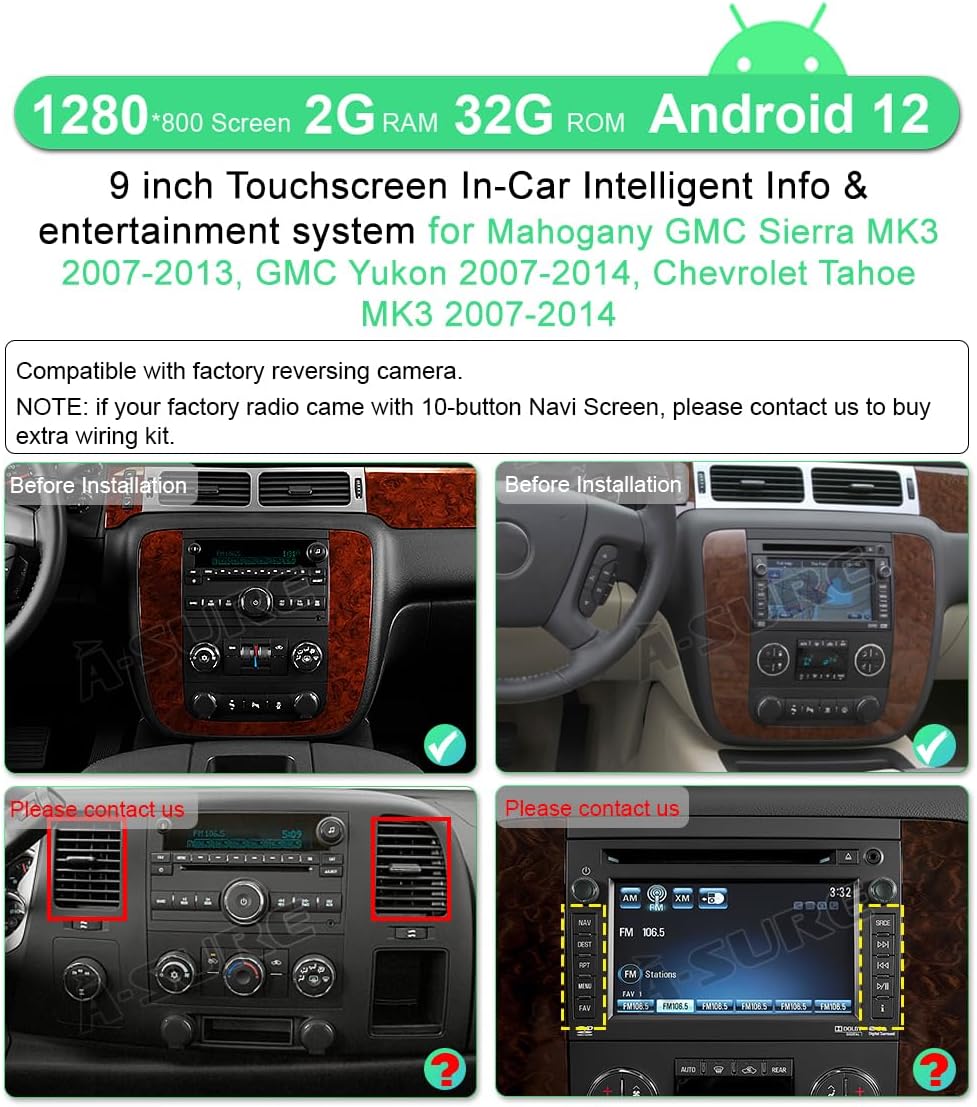
Image: A screenshot of the ASURE car stereo's main user interface, displaying a speedometer, current time, date, music playback controls, and icons for various applications like Car Link, WhatsApp, FAQ, Spotify, and YouTube.
Wireless Carplay & Android Auto:
The unit supports wireless Carplay for iPhone and wireless Android Auto for Android smartphones, allowing seamless integration for navigation, communication, and entertainment.
- Ensure Bluetooth and Wi-Fi are enabled on your smartphone.
- On the car stereo, navigate to the Carplay or Android Auto application.
- Follow the on-screen prompts to pair your device via Bluetooth. Once paired, the system will establish a Wi-Fi connection for wireless Carplay/Android Auto.
- Use voice commands (Siri or Google Assistant) for hands-free operation.

Image: A split-screen view demonstrating the Carplay interface on the left, showing phone, music, maps, and messages, and the Android Auto interface on the right, displaying navigation and media controls.
GPS Navigation & Wi-Fi:
The unit features precise GPS navigation and Wi-Fi connectivity for online services.
- GPS: The built-in GPS module provides fast and accurate positioning. You can download and use your preferred navigation applications (e.g., Google Maps, Waze, iGo) for both online and offline maps.
- Wi-Fi: Connect the stereo to a Wi-Fi hotspot (e.g., from your smartphone) to access online features, stream media, download apps, and receive traffic updates.

Image: A graphic illustrating Wi-Fi connectivity with various app icons (Netflix, YouTube, TikTok, Facebook, Spotify) and GPS navigation showing a map with route details and estimated travel time.
Audio System (DSP):
The integrated Digital Signal Processor (DSP) allows for customizable audio settings to optimize sound quality.
- Access the DSP settings through the audio menu.
- Adjust equalizer (EQ) settings, balance, fader, and subwoofer output to suit your preferences.
Steering Wheel Control:
The unit supports your vehicle's original steering wheel control buttons. After installation, you may need to program or customize the buttons.
- From the main menu, tap "Settings."
- Go to "Factory" settings and input the password: 3368.
- Tap "Car Model."
- Select "XP(Simple) -> GM/Chevrolet -> Enclave -> XP." This configures the CAN-BUS for proper steering wheel control functionality.

Image: Screenshots of the ASURE car stereo's settings menu, showing the steps to configure the CAN-BUS type, car brand (GM/Chevrolet), car model (Enclave), and CAN-BUS box type (XP) for steering wheel control functionality.
Maintenance
To ensure the longevity and optimal performance of your ASURE car stereo, follow these general maintenance guidelines:
- Screen Cleaning: Use a soft, lint-free cloth specifically designed for electronics to clean the touchscreen. Do not use abrasive cleaners or solvents, as they can damage the display.
- Software Updates: Periodically check for software updates provided by ASURE to ensure you have the latest features and bug fixes. Updates can typically be found on the ASURE support website or through the unit's system settings if an internet connection is available.
- Environmental Conditions: Avoid exposing the unit to extreme temperatures, direct sunlight for prolonged periods, or excessive moisture.
- Cable Connections: Occasionally check all cable connections to ensure they remain secure and free from damage.
Troubleshooting
This section addresses common issues you might encounter with your ASURE car stereo.
| Problem | Possible Cause | Solution |
|---|---|---|
| Unit does not power on. | Loose power connection, blown fuse. | Check all power cable connections. Inspect vehicle's fuse box for blown fuses. |
| No Bluetooth or Wi-Fi signal. | Wi-Fi/Bluetooth antenna not connected. | Ensure the white plug for the Wi-Fi/Bluetooth antenna is securely connected to the main device. |
| Steering wheel controls not working. | 8-pin plug not connected, incorrect CAN-BUS settings. | Verify the 8-pin steering wheel control plug is connected. Check CAN-BUS settings (Settings > Factory > 3368 > Car Model > XP(Simple) > GM/Chevrolet > Enclave > XP). |
| Backup camera not displaying. | Camera not connected, faulty camera, CAN-BUS issue. | Ensure the backup camera is properly connected to the video input. If no camera is installed, the screen will display a prompt. If issues persist, contact support. |
| No sound or distorted audio. | Loose speaker connections, incorrect audio settings. | Check speaker wiring. Verify DSP/EQ settings are configured correctly. |
| Unit is slow or unresponsive. | Too many apps running, low memory. | Close unnecessary applications. Restart the unit. Consider a factory reset if the issue persists (note: this will erase all user data). |
Specifications
| Feature | Detail |
|---|---|
| Model | ASURE 9 Inch Android GPS Navigation Unit |
| Display Size | 9 Inches |
| Display Resolution | 1280x800 IPS Touchscreen |
| Operating System | Android |
| Special Features | Wireless Apple CarPlay, Wireless Android Auto, Bluetooth, Touchscreen, DSP Audio |
| Connectivity Technology | Bluetooth, USB, Wi-Fi |
| GPS Map Type | Worldwide (supports online/offline maps) |
| Audio Output Mode | Stereo |
| Mounting Type | Dashboard Mount |
| Product Dimensions | 8.9 x 5.1 x 1.6 inches |
| Item Weight | 3.36 pounds |
| Manufacturer | ASURE |
Warranty and Support
Your ASURE car stereo comes with the following warranty and support:
- Warranty: 30 days free return and replacement, 1 year repair service.
- Technical Support: For any installation questions, troubleshooting assistance, or to inquire about additional wiring kits (e.g., for 10-button Navi Screen factory radios or rear view cameras), please contact ASURE customer support.