1. Introduction
This manual provides detailed instructions for the proper installation, operation, and maintenance of your SWITCHFLUX DisplayPort Splitter. This device is designed to extend or mirror a single DisplayPort signal to up to three DisplayPort monitors, supporting resolutions up to 4K@60Hz.
2. Safety Information
- Ensure the device is connected to a stable power source using the provided Micro USB cable.
- Do not expose the device to moisture or extreme temperatures.
- Avoid using the splitter with any docking station, hub, or KVM switch, as this may cause compatibility issues or performance degradation.
- This device is unidirectional, supporting connection from a DisplayPort source to DisplayPort display devices only.
3. Package Contents
- SWITCHFLUX DisplayPort Splitter (DP to 3×DP adapter)
- Micro USB Power Cable (for optimal performance)
4. Product Overview
The SWITCHFLUX DisplayPort Splitter allows you to connect a single DisplayPort source to three DisplayPort monitors. It features a durable aluminum alloy casing and a nylon braided cable for enhanced longevity.


5. Setup Instructions
Follow these steps to set up your DisplayPort splitter:
- Connect the Source: Plug the DisplayPort input cable from the splitter into the DisplayPort output of your PC, laptop, or graphics card. Ensure your source device's DisplayPort version is at least 1.2 to achieve 4K resolution.
- Connect the Displays: Connect up to three DisplayPort monitors to the 'Output' ports on the splitter using DisplayPort cables.
- Provide Power: Connect the Micro USB power cable to the splitter and then to a 5V1A power source (e.g., a USB port on your computer or a USB wall adapter). This step is crucial for stable operation and optimal display results.
- Verify Connection: Ensure all connections are secure. The system should automatically detect the connected displays.

6. Operating Instructions
The SWITCHFLUX DisplayPort Splitter supports various display modes:
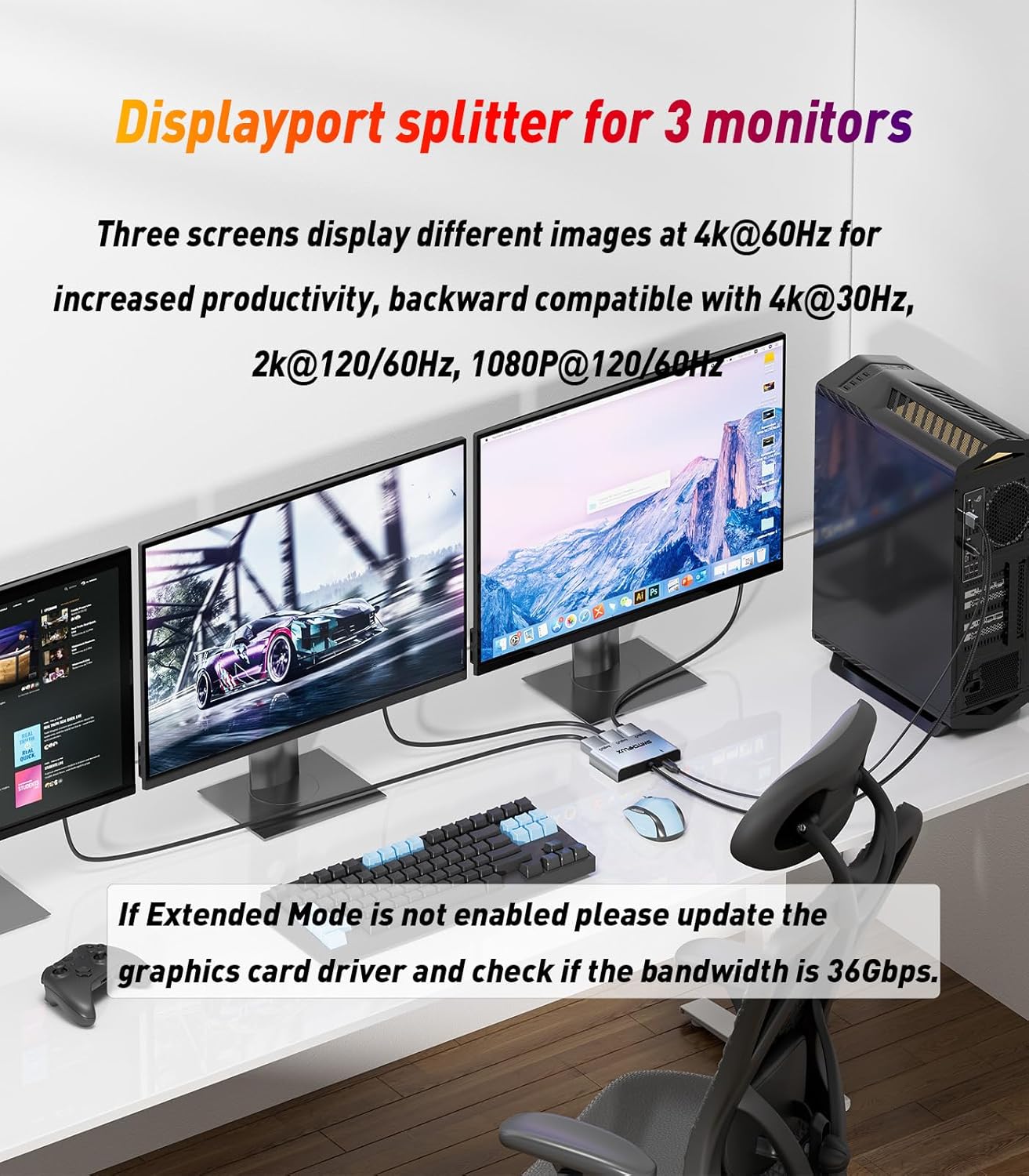
- Extended Display (MST Mode): Each monitor displays independent content, expanding your desktop workspace. This mode is ideal for multitasking and increased productivity.
- Mirrored Display (SST Mode): All connected monitors display the same content as your primary screen. This is useful for presentations or sharing content.
- Video Wall Mode: Combine multiple displays to act as one large screen, creating an immersive viewing experience.
Note: This device is compatible with Windows operating systems only. Mac OS is not supported for multi-stream transport (MST) functionality.

To configure your display settings (Extended, Mirrored, or Video Wall), right-click on your desktop, select 'Display settings' (Windows 10/11) or 'Screen Resolution' (Windows 7/8), and adjust the settings as needed.
7. Maintenance
To ensure the longevity and optimal performance of your DisplayPort splitter:
- Keep the device clean by wiping it with a soft, dry cloth.
- Avoid using harsh chemicals or abrasive cleaners.
- Store the device in a cool, dry place when not in use.
- Do not bend or twist the cable excessively.
8. Troubleshooting
| Problem | Possible Cause | Solution |
|---|---|---|
| No display on monitors | No power to splitter; loose connections; incompatible source/display. | Ensure Micro USB power cable is connected. Check all DisplayPort cables are securely plugged in. Verify source and displays are DisplayPort compatible. |
| Extended mode not working | Outdated graphics card drivers; insufficient bandwidth; Mac OS. | Update your graphics card drivers to the latest version. Ensure your system supports MST and has sufficient bandwidth (e.g., 36Gbps). Note that Mac OS does not support MST. |
| Flickering or unstable display | Insufficient power; cable quality; incompatible setup. | Ensure the Micro USB power cable is connected and providing stable power. Try using high-quality DisplayPort cables. Avoid using with docking stations, hubs, or KVMs. |
| Lower than expected resolution (e.g., not 4K) | Source DP version; display capabilities; cable quality. | Ensure your input device (PC/graphics card) has a DisplayPort version of at least 1.2. Verify your monitors support the desired resolution. Use high-quality DisplayPort cables. |
9. Specifications
- Model: DP to 3×DP adapter
- Brand: SWITCHFLUX
- Connector Type: DisplayPort
- Number of Ports: 1 Input, 3 Outputs
- Supported Resolution: Up to 4K@60Hz (single DP screen), 4K@60/30Hz (dual DP screen), backward compatible with 2K@120Hz/60Hz and 1080P@120Hz/60Hz.
- Compatible Devices: Desktop PCs, Laptops, NVIDIA/AMD Graphic Cards with DisplayPort output.
- Power Requirement: 5V1A via Micro USB (required for operation)
- Material: Aluminum alloy casing, nylon braided cable, 24K gold-plated connectors.
- Item Weight: 4.6 ounces (0.13 Kilograms)
- Package Dimensions: 5.71 x 3.98 x 0.79 inches
10. Warranty and Support
SWITCHFLUX is dedicated to providing high-quality products. For any inquiries or support needs regarding your DisplayPort splitter, please contact SWITCHFLUX customer support. We aim to provide fast and responsible support within 18 hours.


