
1. Introduction
Thank you for choosing the Pericat Portable Outdoor Projector, Model PJ108. This projector is designed to provide a versatile and high-quality viewing experience, whether for home entertainment, outdoor activities, or business presentations. Featuring upgraded 5G WiFi and Bluetooth 5.3 connectivity, native 1080P resolution with 4K support, and a powerful 13000 Lumen output, it delivers clear, bright, and rich images. Its compact design and multiple connectivity options make it an ideal solution for various media needs.
This manual provides essential information on setting up, operating, maintaining, and troubleshooting your Pericat PJ108 projector. Please read it thoroughly before use to ensure optimal performance and longevity of your device.
2. What's in the Box
Upon opening the package, please verify that all the following items are included:
- Pericat Portable Outdoor Projector (PJ108)
- HDMI Cable
- Remote Control
- Instruction Manual
- Power Cable

Image: Pericat Portable Outdoor Projector PJ108 and its included accessories.
3. Product Overview
3.1. Components and Controls
Familiarize yourself with the various parts and controls of your Pericat PJ108 projector.

Image: Top view of the Pericat PJ108 projector, highlighting the control panel buttons and focus/keystone adjustment rings.
- Lens: Projects the image onto the screen or surface.
- Focus Ring: Manually adjust for image clarity.
- Keystone Correction Ring: Manually adjust for trapezoidal image correction (vertical only, up to ±15°).
- Control Panel: Buttons for navigation, menu access, power, and source selection.
- Built-in Speakers: Dual 15W HIFI speakers for audio output.
- Cooling System: Integrated system for heat dissipation and low noise operation.
3.2. Dimensions and Portability
The Pericat PJ108 projector is designed to be compact and portable, making it easy to carry and set up in various locations.

Image: The compact size of the Pericat PJ108 projector, with approximate dimensions of 7 inches (length), 5.5 inches (width), and 2.7 inches (height).
3.3. Ports and Connectivity
The projector offers a variety of ports for connecting external devices.

Image: Side view of the Pericat PJ108 projector, illustrating the HDMI, USB, AV, and 3.5mm audio jack ports.
- HDMI Port: Connects to devices like TV Sticks, gaming consoles (PS3/4/5), PCs, and laptops.
- USB Port: Connects to USB drives for media playback.
- AV Port: Connects to older devices using an AV cable.
- 3.5mm Headphone Jack: Connects to external headphones or speakers.
- Power Input: Connects the power cable to the projector.
4. Setup
4.1. Placement
Choose a suitable location for your projector. The projection distance can range from 4.1 to 35 feet, offering a display size from 35 to 300 inches. Ensure the projector is placed on a stable, flat surface or mounted securely.

Image: Illustration of various projection distances and corresponding screen sizes (35" to 300") for the Pericat PJ108 projector.
- Table Placement: Place the projector on a flat surface in front of the projection area.
- Tripod Installation: The projector supports tripod mounting for flexible positioning.
- Ceiling Installation: The projector can be ceiling-mounted for a permanent setup.

Image: Demonstrates various installation methods for the Pericat PJ108 projector, including table placement, tripod mounting, and ceiling installation.
4.2. Power Connection
- Connect the power cable to the projector's power input port.
- Plug the other end of the power cable into a power outlet.
- Press the power button on the projector or remote control to turn on the device.
4.3. Image Adjustment
- Focus: Rotate the focus ring on the projector lens until the image appears sharp and clear.
- Keystone Correction: If the projected image appears trapezoidal (wider at the top or bottom), rotate the keystone correction ring to adjust the vertical angle until the image is rectangular. The projector supports ±15° vertical keystone correction.
- Zoom Function: Use the remote control or menu settings to adjust the image size from 50% to 100% without moving the projector.
5. Operating Instructions
5.1. Connecting Devices
The Pericat PJ108 projector offers multiple ways to connect your media sources.
5.1.1. Wired Connections (HDMI, USB, AV)
- HDMI: Connect your TV Stick, PS3/4/5, PC, or laptop to the projector's HDMI port using an HDMI cable. Select the HDMI input source from the projector's menu.
- USB: Insert a USB drive into the USB port. The projector will typically prompt you to select media files for playback.
- AV: Use an AV cable to connect devices with AV output to the projector's AV port. Select the AV input source.
5.1.2. Wireless Connections (WiFi & Bluetooth)
The projector supports dual-band 2.4G and 5G WiFi for stable screen mirroring and Bluetooth 5.3 for audio output.
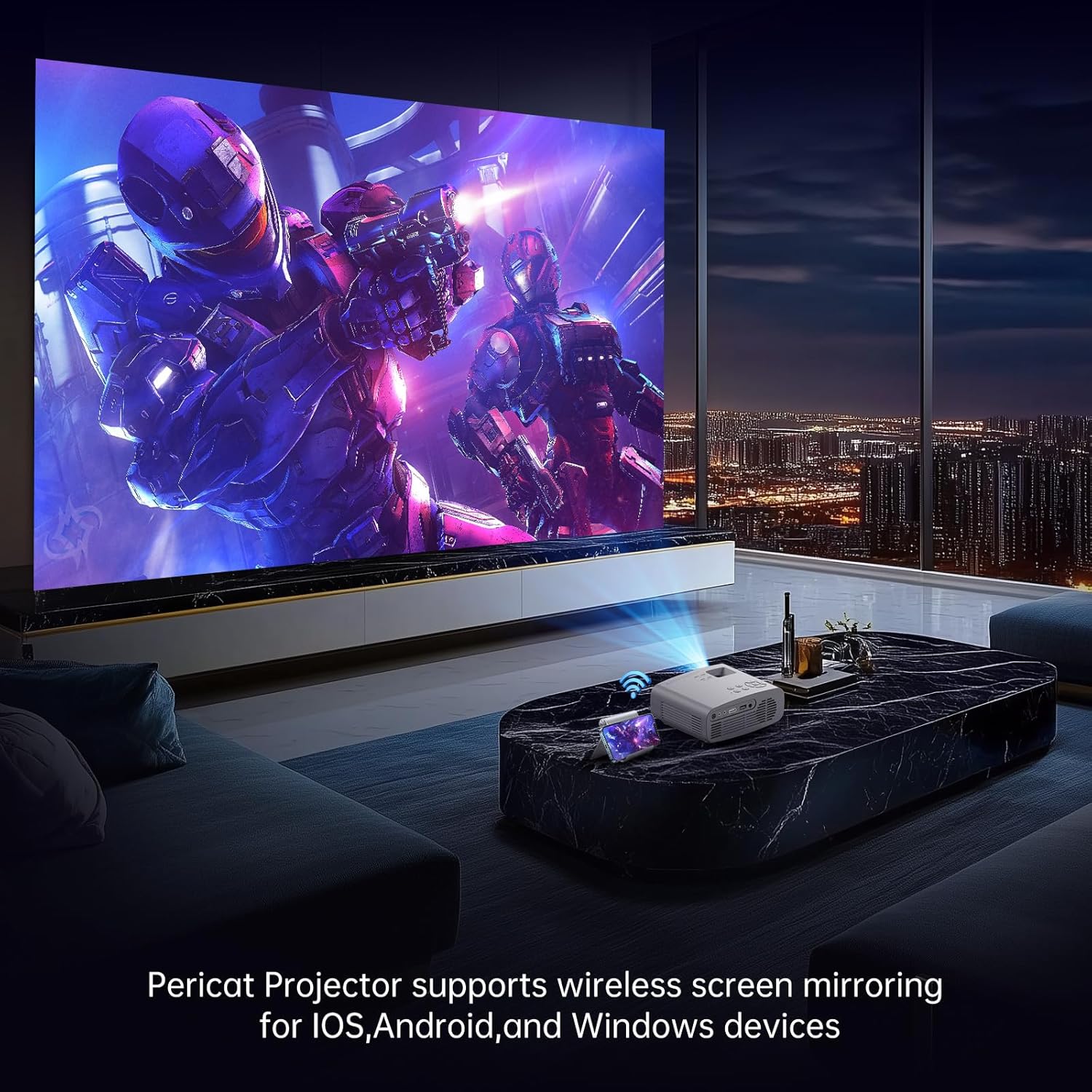
Image: The Pericat PJ108 projector showcasing its wireless screen mirroring capabilities with iOS, Android, and Windows devices.
- WiFi Screen Mirroring:
- Navigate to the "Screen Mirroring" or "WiFi Display" option in the projector's menu.
- Connect the projector to your home WiFi network (2.4G or 5G).
- On your smartphone (iOS/Android) or Windows device, enable screen mirroring/casting and select the projector from the list of available devices.
- Note: Due to copyright restrictions, streaming services like Netflix, Amazon Prime Video, Disney+, and Hulu cannot be directly mirrored from a smartphone. For these services, connect a TV Stick (e.g., Fire Stick) to the projector's HDMI port.
- Bluetooth Connection:
- Go to the Bluetooth settings in the projector's menu.
- Enable Bluetooth on the projector and your desired audio device (Bluetooth headphones, speakers).
- Select your audio device from the list on the projector to pair.
5.2. Audio Output
The projector features built-in 15W HIFI speakers for clear sound. For alternative audio experiences:
- Connect external speakers or headphones via the 3.5mm audio jack.
- Pair Bluetooth-enabled speakers or headphones wirelessly as described in the "Bluetooth Connection" section.
6. Maintenance
Proper maintenance ensures the longevity and optimal performance of your projector.
- Cleaning the Lens: Use a soft, lint-free cloth specifically designed for optical lenses. Do not use abrasive cleaners or excessive force.
- Cleaning the Exterior: Wipe the projector's exterior with a soft, dry cloth. For stubborn marks, a slightly damp cloth can be used, but ensure no moisture enters the device.
- Ventilation: Ensure the projector's ventilation openings are clear and not obstructed to prevent overheating. The built-in cooling system requires proper airflow.
- Storage: When not in use for extended periods, store the projector in a cool, dry place, away from direct sunlight and extreme temperatures.
7. Troubleshooting
If you encounter issues with your Pericat PJ108 projector, refer to the following common problems and solutions.
| Problem | Possible Cause / Solution |
|---|---|
| No image or "No Signal" displayed. |
|
| Image is blurry or out of focus. |
|
| Image is trapezoidal or distorted. |
|
| No sound or low sound. |
|
| Cannot connect to WiFi or screen mirroring fails. |
|
| Fan noise is loud. |
|
8. Specifications
Key technical specifications for the Pericat Portable Outdoor Projector PJ108.
| Feature | Detail |
|---|---|
| Brand | Pericat |
| Model | PJ108 |
| Native Resolution | 1920 x 1080P (Full HD) |
| Supported Resolution | Up to 4K |
| Brightness | 13000 Lumens |
| Contrast Ratio | 10000:1 |
| Projection Size | 35" - 300" |
| Projection Distance | 4.1 - 35 feet |
| Keystone Correction | ±15° Vertical (Manual) |
| Zoom Function | 50% - 100% |
| Connectivity Technology | Wi-Fi (2.4G & 5G), Bluetooth 5.3 |
| Input Ports | HDMI, USB, AV |
| Audio Output | 3.5mm Headphone Jack, Built-in 15W HIFI Speakers |
| Dimensions (L x W x H) | 6.7 x 5.5 x 2.55 inches |
| Item Weight | 2.38 pounds |
| Color | White9 |
9. Warranty and Support
Pericat is committed to providing high-quality products and excellent customer service.
- Lifetime Service Warranty: Your Pericat PJ108 projector comes with a lifetime service warranty.
- Customer Service: For any questions, issues, or support needs, please contact our 24/7 customer service team. We are dedicated to assisting you and resolving any problems you may encounter.
- Contact Information: Refer to the contact details provided on the product packaging or the official Pericat website for the most up-to-date support channels.