
1. Product Overview
The Yunir MT7902 is a high-performance Tri-Band M.2 Network Adapter designed to enhance wireless connectivity for laptops, desktop PCs, industrial control devices, and smart home devices. It supports 2.4GHz, 5GHz, and 6GHz frequencies, delivering ultra-high speeds up to 2400Mbps. Additionally, it integrates the latest 5.2 technology for improved wireless peripheral connections.
This adapter is compatible with various operating systems, including Windows 10, Windows 11, Linux, OpenWrt, and Ubuntu, ensuring broad usability across different computing environments.
2. Key Features
- Tri-Band Support & High Speed: Supports 2.4GHz (300Mbps), 5GHz (1200Mbps), and 6GHz (2400Mbps) frequencies for a combined speed of up to 2400Mbps, ensuring stable and fluent performance for large file transfers, HD video streaming, and online gaming.
- Advanced 5.2 Technology: Features upgraded 5.2 for longer distance, wider bandwidth, faster rates, and lower power consumption, ideal for connecting headsets, gamepads, and other devices.
- Broad System Compatibility: Compatible with Windows 10, Windows 11, Linux, OpenWrt, and Ubuntu operating systems.
- Easy M.2 Installation: Designed with an M.2 interface for straightforward installation into compatible devices.
- Wi-Fi 6E Technology: Utilizes the latest Wi-Fi 6E technology for wider bandwidth and reduced network interference in the 6GHz band, enhancing connection stability.
3. Specifications
| Feature | Detail |
|---|---|
| Item Type | Network Card |
| Material | PCB |
| Frequency | 2.4GHz, 5GHz, 6GHz Tri Band |
| Speed | 2.4G: 300Mbps, 5G: 1200Mbps, 6G: 2400Mbps |
| Bluetooth Version | 5.2 |
| System Support | Windows 10, Windows 11, Linux, OpenWrt, Ubuntu |
| Interface | M.2 |
| Data Transfer Rate | 2400 Megabits Per Second (Max) |
| Compatible Devices | Desktop, Laptop, Smart Home Device |
| Item Model Number | Yuniri4tn3dbewm |
| Package Dimensions | 2.36 x 1.57 x 0.39 inches |
| Item Weight | 0.141 ounces |
4. Setup and Installation
This section guides you through the physical installation of the Yunir MT7902 M.2 Network Adapter into a compatible device.
4.1 Before You Begin
- Ensure your device (laptop, desktop, etc.) has an available M.2 slot (Key E or A+E, typically for Wi-Fi modules).
- Power off your device completely and disconnect it from all power sources.
- Ground yourself to prevent electrostatic discharge (ESD) by touching a grounded metal object.
- Gather necessary tools: a small Phillips head screwdriver.
4.2 Installation Steps
- Open Your Device: Carefully open the casing of your laptop or desktop PC to access the motherboard and M.2 slots. Refer to your device's manual for specific instructions on how to open it.

Figure 1: The MT7902 network card, shown with a laptop in the background, indicating its intended use in portable computers. - Locate M.2 Slot: Identify an available M.2 slot on your motherboard. It typically has a screw stand-off nearby.

Figure 2: Top view of the Yunir MT7902 network card, highlighting its M.2 connector and antenna ports. - Insert the Network Card: Gently slide the MT7902 network card into the M.2 slot at an angle (usually 30 degrees) until it is fully seated.
- Secure the Card: Push the card down and secure it with the small screw provided with your device or the network card itself.
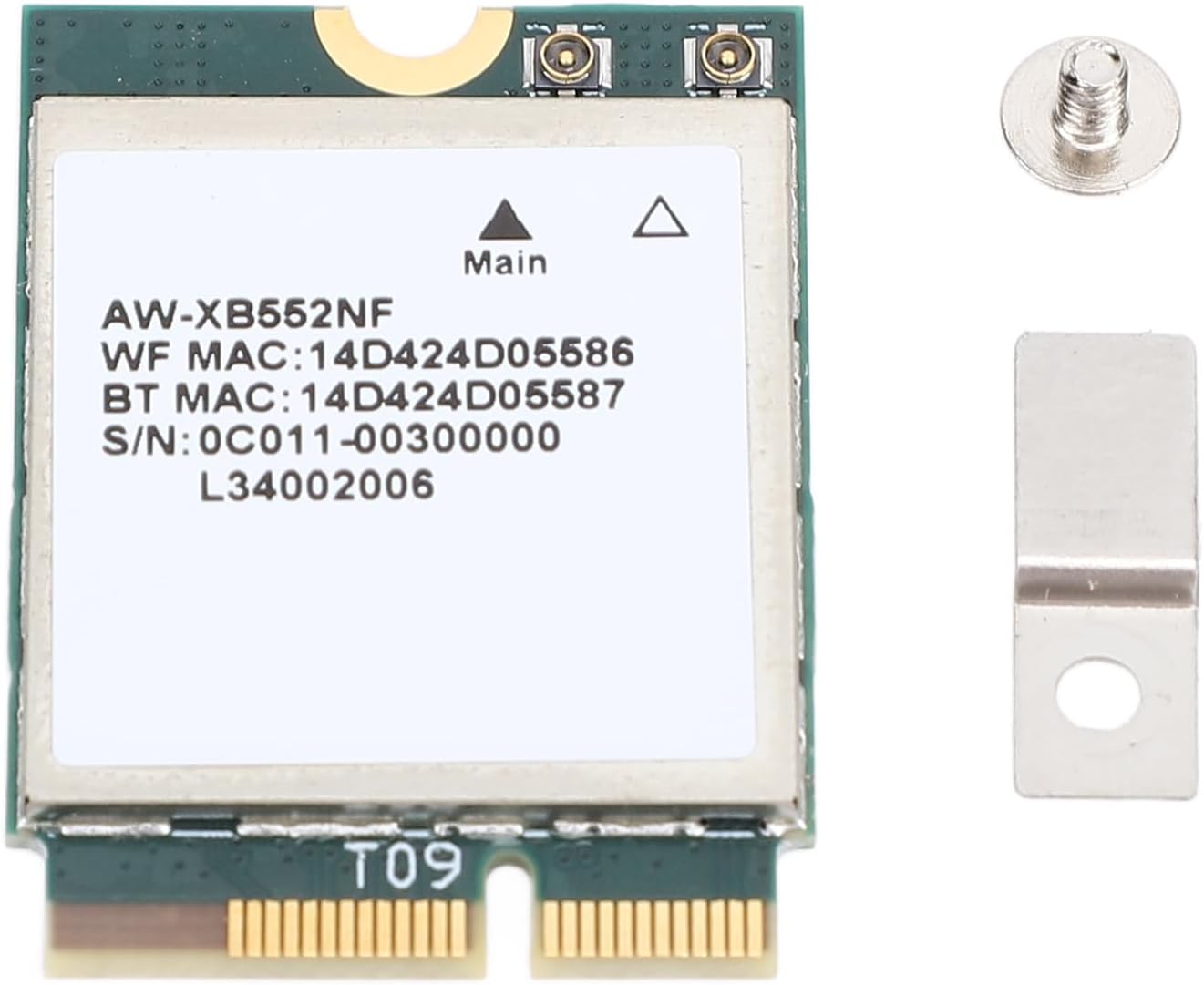
Figure 3: The MT7902 network card shown alongside a mounting screw and a retention bracket, illustrating the components needed for secure installation. - Connect Antennas (if applicable): If your device uses external antennas, carefully connect the antenna cables to the corresponding connectors on the network card. Ensure a secure connection.
- Close Your Device: Reassemble your device's casing, ensuring all screws are tightened and components are properly seated.
- Power On and Install Drivers: Power on your device. The operating system may automatically detect and install basic drivers. If not, you may need to download the latest drivers from the manufacturer's website (Yunir or the chipset manufacturer, e.g., MediaTek for MT7902) using a wired connection or another device.
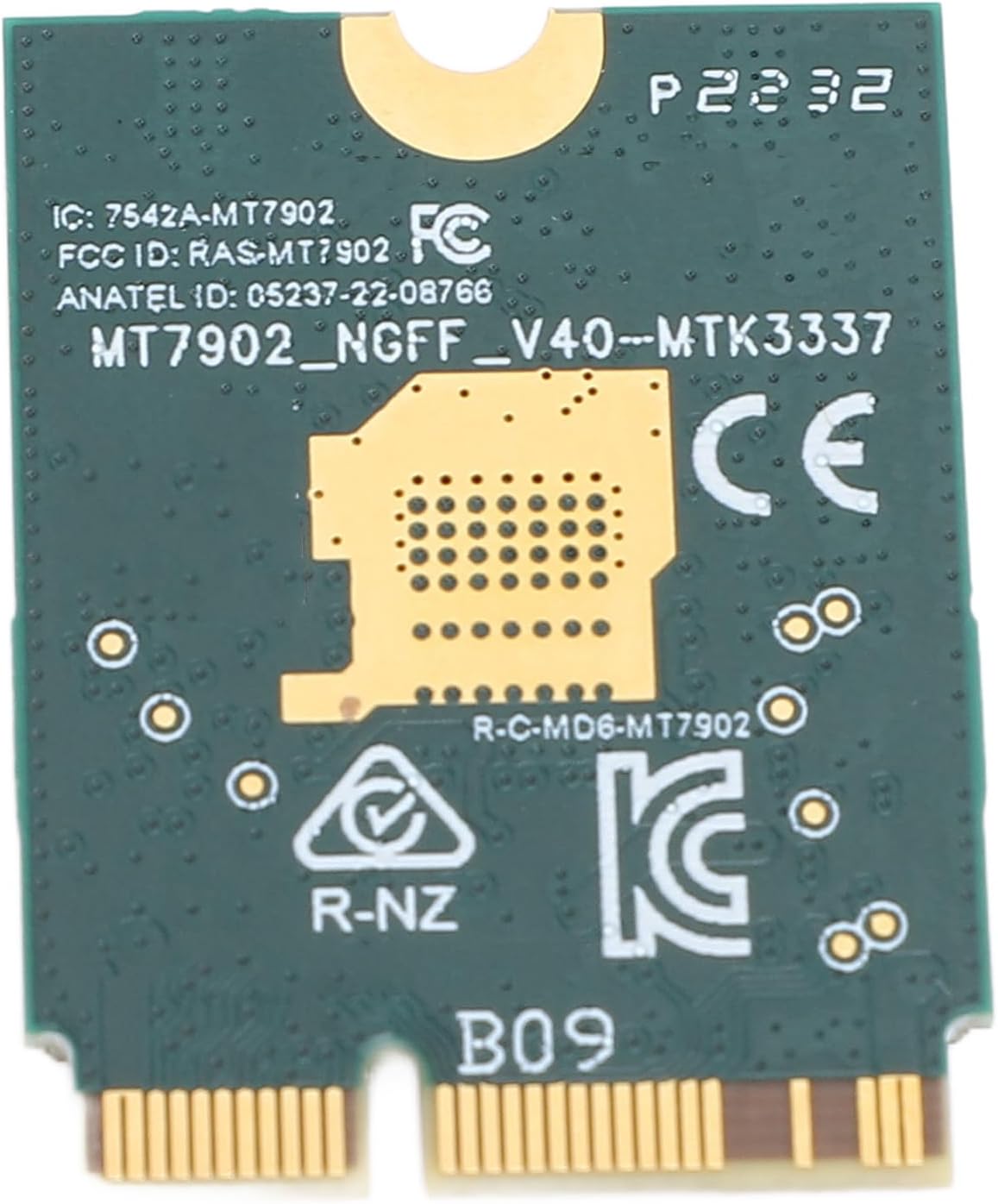
Figure 4: Bottom view of the MT7902 network card, displaying regulatory compliance markings such as FCC ID and CE, which are important for driver identification.
5. Operating Instructions
Once the MT7902 network adapter is installed and drivers are in place, you can begin using its wireless and Bluetooth functionalities.
5.1 Connecting to Wi-Fi
- Ensure your Wi-Fi router is powered on and broadcasting a signal.
- On your operating system, locate the Wi-Fi icon (usually in the system tray or notification area).
- Click on the Wi-Fi icon to view available networks.
- Select your desired network (SSID) from the list.
- Enter the network security key (password) if prompted.
- Click "Connect". Your device should now be connected to the Wi-Fi network.
- To utilize the 6GHz band (Wi-Fi 6E), ensure your router supports Wi-Fi 6E and that your operating system and drivers are up to date.
5.2 Using Bluetooth 5.2
- Ensure Bluetooth is enabled in your operating system settings.
- Put your Bluetooth device (e.g., headphones, gamepad) into pairing mode.
- On your computer, go to Bluetooth settings (e.g., "Devices" > "Bluetooth & other devices" in Windows).
- Click "Add Bluetooth or other device" and select "Bluetooth".
- Select your device from the list and follow any on-screen prompts to complete pairing.
6. Maintenance
Proper maintenance ensures the longevity and optimal performance of your network adapter.
- Keep Drivers Updated: Regularly check for and install the latest drivers for your MT7902 network adapter from the Yunir website or your operating system's update service. Updated drivers often include performance improvements and bug fixes.
- Maintain a Clean Environment: Ensure your computer's internal environment is free from excessive dust, which can hinder airflow and lead to overheating of components, including the network card.
- Avoid Physical Damage: Handle your device carefully to prevent physical damage to the network card or its connections.
7. Troubleshooting
If you encounter issues with your Yunir MT7902 network adapter, refer to the following troubleshooting steps.
7.1 No Wi-Fi Connection or Device Not Detected
- Check Physical Installation: Ensure the network card is securely seated in its M.2 slot.
- Verify Drivers: Confirm that the correct drivers are installed. Check Device Manager (Windows) or network settings (Linux) to see if the adapter is recognized and functioning without errors. Reinstall drivers if necessary.
- Enable Wi-Fi: Make sure Wi-Fi is enabled in your operating system settings and any physical Wi-Fi switch on your laptop is turned on.
- Restart Device: A simple restart of your computer can often resolve temporary connectivity issues.
7.2 Slow Wi-Fi Speed or Unstable Connection
- Router Proximity: Move closer to your Wi-Fi router to improve signal strength.
- Interference: Reduce interference from other electronic devices (microwaves, cordless phones) or physical obstructions.
- Router Settings: Ensure your router is configured for optimal performance, especially if using 5GHz or 6GHz bands. Try changing Wi-Fi channels.
- Driver Update: Ensure your network adapter drivers are up to date.
- Antenna Connection: Verify that any external antennas are securely connected to the network card.
7.3 Bluetooth Device Pairing Issues
- Enable Bluetooth: Confirm Bluetooth is enabled on both your computer and the device you are trying to pair.
- Pairing Mode: Ensure the Bluetooth device is in discoverable/pairing mode.
- Remove Old Pairings: If the device was previously paired, remove it from your computer's Bluetooth settings and try pairing again.
- Driver Update: Update Bluetooth drivers for the MT7902 adapter.
8. Warranty and Support
For specific warranty information, please refer to the documentation provided with your purchase or contact Yunir customer support directly. General support inquiries can often be resolved by visiting the manufacturer's official website for FAQs, driver downloads, and contact information.
Manufacturer: Yunir
Please retain your proof of purchase for warranty claims.