1. Introduction
This manual provides essential information for the safe and effective use of your RXQMXG AC Power Adapter. Please read this manual thoroughly before using the product and retain it for future reference.
This AC Power Adapter is designed to be compatible with devices such as the Brookstone Big Blue 200 Large Wi-Fi Bluetooth Speaker, providing reliable power for your electronic devices.
2. Important Safety Information
WARNING: To reduce the risk of fire or electric shock, carefully follow these instructions.
- Product Parameters: Ensure the output and plug size of this adapter match your device's requirements before purchase and use. Input: 100 - 240 VAC 50/60Hz Worldwide Voltage Use.
- Protection Features: The charger incorporates overcurrent protection, overvoltage protection, short circuit protection, and over temperature protection.
- Ventilation: If using the adapter for extended periods, ensure it is placed in a well-ventilated area with suitable humidity. Do not place it on skin products or other materials that may impede airflow.
- Modification: Do not open or modify the power supply, power cord, or power cable. Unauthorized modifications can lead to electric shock or fire.
- Children Safety: Keep children and infants away from high voltage power sources and the adapter during operation.
- Compatibility Check: If you are uncertain about compatibility, verify your device model and parameters (input voltage, input current, plug size, plug polarity) before connecting.
3. Product Features
The RXQMXG AC Power Adapter is designed with user convenience and device protection in mind. Key features include:
- Universal Input: AC 100V-240V 50/60Hz, suitable for worldwide voltage use.
- Comprehensive Protection: Built-in overcurrent, overvoltage, short circuit, and over temperature protection mechanisms safeguard your devices.
- Portable Design: Small and lightweight, making it easy to carry in a backpack, purse or laptop bag for use in various environments.
- Durable Construction: Features a weaving power cable for increased strength and durability, and nickel plating process for high conductivity.
- Standard Plug: Equipped with a 2-pin metal plug for safe transmission.

Image: Details of the 2-pin metal plug, weaving power cable, and nickel plating process, highlighting the adapter's robust construction.

Image: Visual representation of the adapter's comprehensive safety features, including overcurrent, short circuit, overvoltage, and over temperature protection.
4. Specifications
| Attribute | Value |
|---|---|
| Input Voltage | AC 100V-240V, 50/60Hz |
| Output | DC (Specific output voltage/current must match device) |
| Connector Type | Round |
| Compatible Devices | Speakers (e.g., Brookstone Big Blue 200) and other compatible electronics |
| Special Feature | Short Circuit Output Protection |
| Color | Black |
| Power Source | Corded Electric |
| Package Dimensions | 6 x 3 x 2 inches (approximate) |
| Item Weight | 9 ounces (approximate) |

Image: The adapter's dimensions (approximately 4.94in x 1.99in x 1.12in) are shown, along with illustrations of it being easily stored in a bag, emphasizing its portable design.
5. Setup and Installation
Follow these steps to properly set up your AC Power Adapter:
- Verify Compatibility: Before connecting, ensure the adapter's output voltage, current, and plug size match the requirements of your electronic device (e.g., Brookstone Big Blue 200 Speaker). Refer to your device's manual for specifications.
- Connect to Device: Insert the DC output plug of the adapter firmly into the power input port of your electronic device.
- Connect to Power Outlet: Plug the AC input cord of the adapter into a standard wall power outlet (100-240V AC, 50/60Hz).
- Power On: Once connected, your device should receive power. Turn on your device as per its own operating instructions.
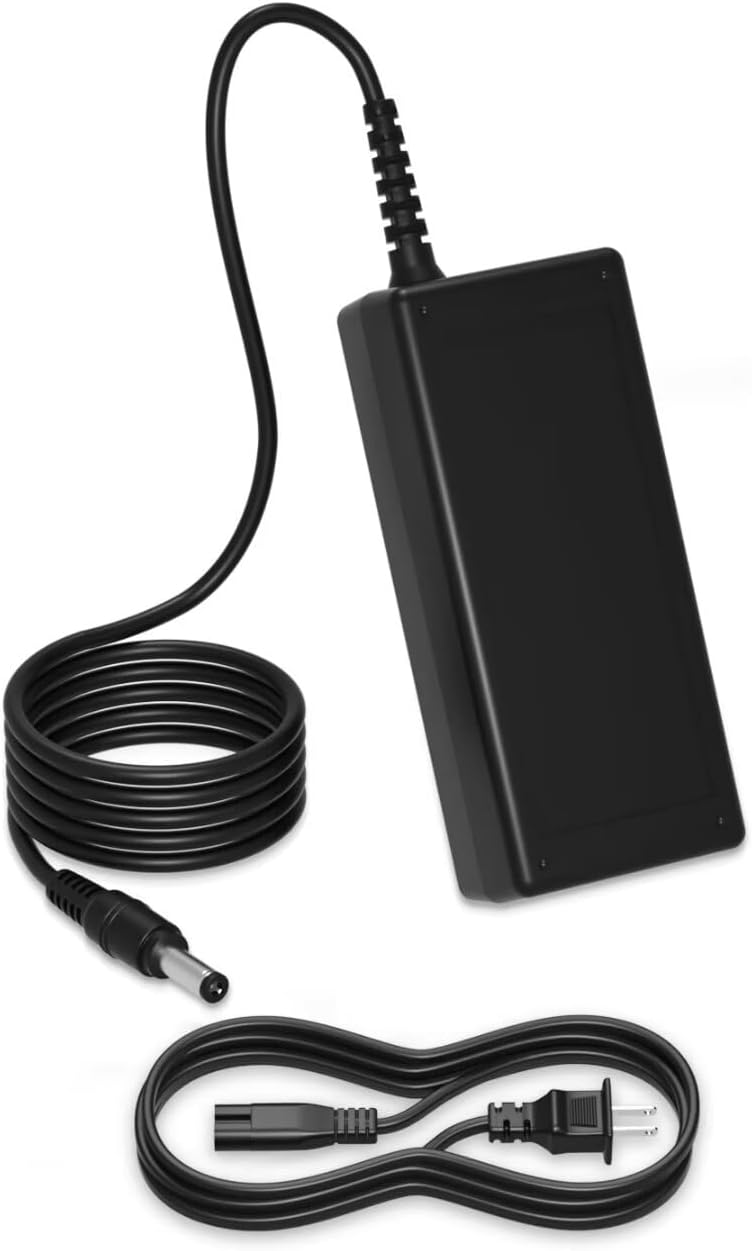
Image: The complete AC power adapter unit, including the main adapter block, the DC output cable with its round connector, and the detachable AC input power cord.

Image: The power adapter in use, connected to a wall outlet and providing power to a laptop, demonstrating a typical setup scenario.
6. Operating Instructions
The RXQMXG AC Power Adapter operates automatically once connected to a compatible device and a power source. No manual adjustments are required for its basic function.
- Continuous Power: The adapter provides continuous power to your device as long as it is plugged into a live electrical outlet.
- Overload Protection: In case of an electrical overload, short circuit, or overheating, the adapter's built-in protection mechanisms will activate to prevent damage to itself and the connected device. If this occurs, disconnect the adapter from the power source and the device, wait a few minutes, and then reconnect. If the issue persists, consult the troubleshooting section.
- Usage Environments: The adapter is suitable for use in various indoor environments such as bedrooms, living rooms, offices, schools, and during business trips.

Image: A collage illustrating the versatility of the power adapter, showing its use in an office, home, school, and during a business trip, highlighting its adaptability to various environments.
7. Maintenance
Proper maintenance ensures the longevity and safe operation of your AC Power Adapter:
- Cleaning: Disconnect the adapter from the power outlet and the device before cleaning. Use a soft, dry cloth to wipe the exterior. Do not use liquid cleaners or sprays.
- Storage: When not in use, store the adapter in a cool, dry place away from direct sunlight and extreme temperatures. Avoid tightly coiling the cables to prevent damage.
- Inspection: Periodically inspect the power cord and adapter for any signs of damage, such as frayed wires, cuts, or bent pins. If any damage is observed, discontinue use immediately and replace the adapter.
- Ventilation: Always ensure adequate ventilation around the adapter during operation to prevent overheating. Do not cover the adapter with cloths or place it in enclosed spaces.
8. Troubleshooting
If you encounter issues with your AC Power Adapter, refer to the following common problems and solutions:
| Problem | Possible Cause | Solution |
|---|---|---|
| Device not powering on/charging. |
|
|
| Adapter feels hot during use. |
|
|
| Sparking when plugging in. |
|
|
If the problem persists after attempting these solutions, please contact customer support.
9. Warranty and Support
For information regarding warranty coverage or technical support, please refer to the seller's information on the product purchase page or contact the manufacturer directly. Keep your purchase receipt as proof of purchase.
Manufacturer: Dongguan Lewe Electronics Co., LTD
Brand: RXQMXG
ASIN: B0DDJBWFND


