
Introduction
The Logitech Zone Wireless 2 is a premium noise-canceling headset designed for professional use, offering advanced audio clarity and comfort. This manual provides instructions for setting up, operating, maintaining, and troubleshooting your headset to ensure optimal performance.
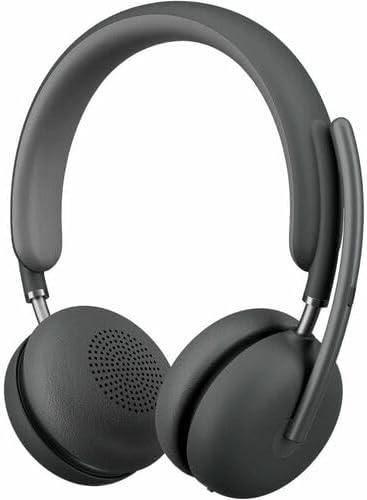
Image: The Logitech Zone Wireless 2 headset, shown in graphite color.
Key Features:
- Microsoft Teams Certified: Optimized for Microsoft Teams over native Bluetooth, freeing up a USB port.
- Advanced Call Clarity: Logi Tune app feature suppresses far-end ambient noise for clearer communication.
- Four Noise-Canceling Microphones: Elevate your voice and suppress background sounds.
- Hybrid Active Noise Cancellation (ANC): Offers ANC high, ANC low, transparency on, and ANC/transparency off modes for focused work.
- Personalized Audio: Custom listening experience via Personal EQ in the Logi Tune mobile app with 40mm drivers.
- Sustainable Design: Features interchangeable earpads, a replaceable battery, 20% post-consumer recycled plastic, and low-carbon aluminum.
- Wireless Freedom: Connects simultaneously to laptop and mobile phone via Bluetooth with a range of up to 170 ft (50 meters).
- Extended Battery Life: Up to 15 hours talk time and 22 hours listening time (with ANC on).
Setup
1. What's in the Box
- Logitech Zone Wireless 2 Headset
- Protective Case
- USB-C Charging Cable
- USB-C to USB-A Adapter
- User Manual (this document)
- Ear Cushions (pre-installed, with additional set for replacement)

Image: The Logitech Zone Wireless 2 headset, protective case, USB-C cable, and USB-C to USB-A adapter.
2. Charging the Headset
- Connect the USB-C charging cable to the USB-C port on the headset.
- Connect the other end of the cable to a USB power source (e.g., computer USB port, wall adapter).
- The LED indicator on the headset will show charging status. A full charge takes approximately 2 hours.
3. Connecting to Devices
The Zone Wireless 2 headset supports Bluetooth 5.2 for wireless connectivity.
Bluetooth Pairing:
- Power on the headset by sliding the power switch.
- Press and hold the Bluetooth pairing button on the headset until the LED indicator flashes blue rapidly.
- On your device (laptop, smartphone), go to Bluetooth settings and select "Logitech Zone Wireless 2" from the list of available devices.
- Once connected, the LED indicator will turn solid blue.

Image: Diagram illustrating the headset's ability to connect simultaneously to a smartphone and a laptop via Bluetooth.
Microsoft Teams Certification:
The headset is certified for Microsoft Teams over native Bluetooth. This allows for a full Teams meeting experience without requiring a separate USB dongle, preserving your device's USB ports.
4. Logi Tune App Installation
For full functionality, including Personal EQ, Advanced Call Clarity, and firmware updates, download and install the Logi Tune application on your computer or mobile device. The app provides a personalized experience and device management.

Image: A laptop screen displaying the Logi Tune application interface, showing device management and settings.
Operating the Headset
1. Headset Controls
The headset features intuitive controls for managing calls, media, and noise cancellation.

Image: A close-up of the right earcup, showing the power switch, ANC button, and other controls.
- Power Switch: Slide to turn the headset on or off.
- Volume Buttons: Adjust audio volume.
- Multi-function Button: Play/pause media, answer/end calls.
- ANC Button: Cycle through Active Noise Cancellation modes.
- Microphone Mute: Flip the microphone boom up to mute, down to unmute.
2. Active Noise Cancellation (ANC)
The Hybrid ANC feature allows you to control your listening environment. Press the ANC button to switch between modes:
- ANC High: Maximum noise cancellation for noisy environments.
- ANC Low: Reduced noise cancellation for less intrusive background sounds.
- Transparency On: Allows ambient sounds to pass through, keeping you aware of your surroundings.
- ANC and Transparency Off: No active noise cancellation or transparency mode.
3. Microphone Usage
The headset features four noise-canceling microphones designed to isolate your voice and suppress background noise during calls. Simply lower the microphone boom to activate the microphone for calls. Raise it to mute.

Image: A man wearing the headset, illustrating the clear audio experience with sound wave graphics around his head.
4. Audio Customization with Logi Tune
Use the Logi Tune app to personalize your audio experience:
- Personal EQ: Adjust audio frequencies to optimize sound for your hearing range.
- Advanced Call Clarity: Further refine noise suppression for incoming audio.
- Firmware Updates: Ensure your headset has the latest features and performance improvements.
Maintenance
1. Cleaning
- Wipe the headset with a soft, damp cloth.
- Avoid using abrasive cleaners or solvents.
- Ensure all ports are dry before charging or connecting.
2. Earpad and Battery Replacement
The Zone Wireless 2 is designed for longevity with user-replaceable components:
- Earpads: Interchangeable earpads can be replaced to maintain hygiene and comfort. Refer to the Logi Tune app or Logitech support website for instructions on how to replace them.
- Battery: The battery is designed to be replaceable, extending the product's lifespan. Contact Logitech support for information on obtaining and replacing the battery.

Image: The headset disassembled, showing the removable earpads, internal components, and a replaceable battery, highlighting its modular design.
3. Storage
When not in use, store the headset in its protective case to prevent damage and keep it clean.
Troubleshooting
- No Power: Ensure the headset is charged. Connect it to a power source using the USB-C cable.
- Cannot Connect via Bluetooth:
- Ensure the headset is in pairing mode (LED flashing blue).
- Check your device's Bluetooth settings and ensure Bluetooth is enabled.
- Try restarting both the headset and your device.
- If previously paired, remove the headset from your device's Bluetooth list and re-pair.
- Poor Audio Quality:
- Ensure the headset is within the Bluetooth range (up to 170 ft / 50 meters).
- Check for interference from other wireless devices.
- Adjust Personal EQ settings in the Logi Tune app.
- Ensure the microphone boom is properly positioned for clear voice pickup.
- ANC Not Working Effectively:
- Ensure ANC mode is activated (not in Transparency or Off mode).
- Check that the earpads are properly seated and forming a good seal around your ears.
- Logi Tune App Issues: Ensure the app is updated to the latest version. Restart the app and your headset.
For further assistance, refer to the Logitech support website or the Logi Tune application.
Specifications
| Feature | Detail |
|---|---|
| Model Name | Zone Wireless 2 |
| Item Model Number | 981-001435 |
| Connectivity Technology | Wireless (Bluetooth 5.2) |
| Bluetooth Range | Up to 50 meters (170 ft) |
| Headphones Jack | USB Type C (for charging) |
| Audio Driver Type | Dynamic Driver (40 mm) |
| Frequency Range | 20 - 20000 Hz |
| Noise Control | Hybrid Active Noise Cancellation |
| Microphone | Four noise-canceling mics |
| Battery Life (Listening) | Up to 22 hours (with ANC on) |
| Battery Life (Talk Time) | Up to 15 hours (with ANC on) |
| Charging Time | Approx. 2 hours |
| Item Weight | 230 Grams (8.1 ounces) |
| Product Dimensions | 9 x 8.75 x 2.5 inches |
| Material | Plastic (20% post-consumer recycled) |
| Compatible Devices | Desktops, Laptops (PC, Mac), Smartphones |
| Control Method | App (Logi Tune), Media Control Buttons |
| UPC | 097855196316 |
Warranty and Support
Warranty Information
Logitech products are typically covered by a limited hardware warranty. Please refer to the warranty card included with your product or visit the official Logitech website for specific warranty terms and conditions applicable to your region and product model.
Customer Support
For technical assistance, troubleshooting guides, FAQs, and driver downloads, please visit the official Logitech support website:
You can also utilize the Logi Tune application for device management, personalized settings, and access to support resources directly from the app.


