
KUNFINE KF-V6526C
KUNFINE 10-inch CarPlay Android Auto Navigation Stereo User Manual
Model: KF-V6526C | Compatible with Hyundai Tucson (2005-2009)
1. Product Overview
This KUNFINE 10-inch IPS touchscreen head unit is designed to upgrade your vehicle's infotainment system. It features integrated CarPlay and Android Auto for seamless smartphone connectivity, GPS navigation, Bluetooth, Wi-Fi, and supports a reverse camera input. The system is built on a powerful Android platform, offering expandability and a user-friendly interface.
Compatibility: This unit is specifically designed for Hyundai Tucson models manufactured between 2005 and 2009.
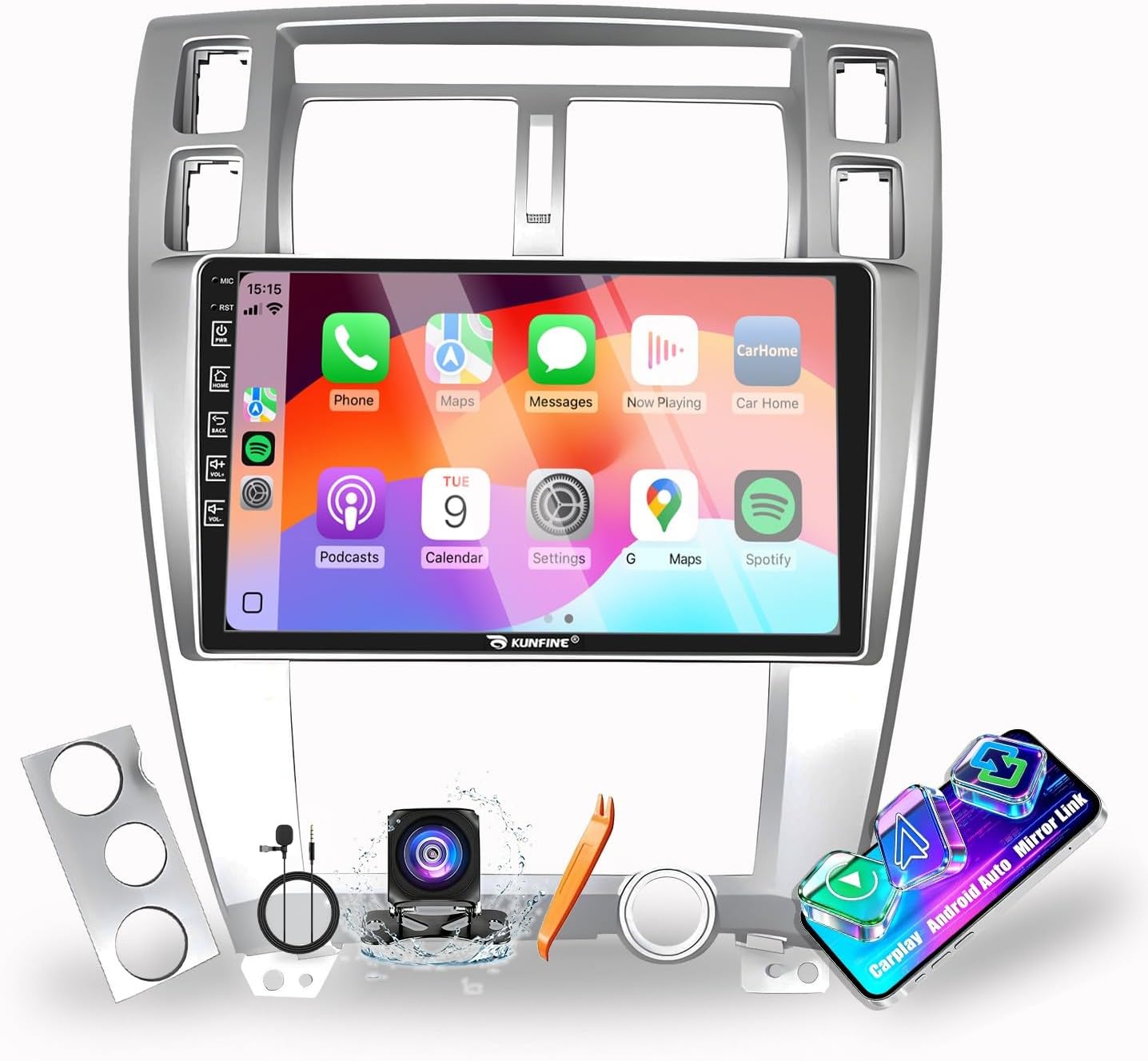
Image 1.1: KUNFINE 10-inch CarPlay Android Auto Navigation Stereo main unit.
2. What's in the Box
Please verify that all components are present before beginning installation.
- 1x Car Android Head Unit with Mask
- 1x GPS Antenna
- 1x Power Cable (Default)
- 1x Power Cable (Optional)
- 2x USB Port Cables (4-pin and 6-pin)
- 1x RCA Expand Cable
- 1x RCA Connector for Reverse Camera
- 1x Install Kit (includes crowbar)
- 1x External Microphone
- 1x AHD 720 Reverse Camera

Image 2.1: Visual representation of all included components in the package.
3. Setup and Installation
Professional installation is recommended. Ensure the vehicle's power is disconnected before starting the installation process.
- Carefully remove the original car stereo and dashboard trim.
- Connect the provided power cables, GPS antenna, and other necessary wiring harnesses to the new head unit. Ensure all connections are secure.
- If installing the reverse camera, route the camera cable to the rear of the vehicle and connect it to the designated RCA input on the head unit.
- Mount the new KUNFINE head unit into the dashboard opening.
- Reinstall the dashboard trim.
- Reconnect the vehicle's power and test all functions.

Image 3.1: Dashboard before KUNFINE stereo installation.

Image 3.2: Dashboard after KUNFINE stereo installation.
4. Operating Instructions
4.1 CarPlay and Android Auto
Connect your iOS or Android device to the head unit via USB to activate CarPlay or Android Auto. This allows you to access navigation, music, calls, and messages directly from the head unit's display, using voice commands for a safer driving experience.

Image 4.1: Display showing CarPlay and Android Auto interfaces.
4.2 GPS Navigation
The unit features satellite GPS for real-time navigation, even without a network connection. With Wi-Fi connected, you can use online navigation services and download various navigation applications.

Image 4.2: GPS navigation screen displaying a map and route information.
4.3 Wi-Fi Connectivity
Connect to a Wi-Fi network to browse the internet, access online navigation, stream videos, and download applications from the app store.

Image 4.3: Head unit display showing Wi-Fi settings and various application icons.
4.4 Bluetooth Function
Utilize the built-in Bluetooth for wireless music streaming, hands-free calling, and navigation audio. Pair your smartphone with the head unit to enjoy these features.

Image 4.4: Bluetooth interface showing call screen and music playback.
4.5 Steering Wheel Control (SWC)
The unit supports steering wheel controls, allowing you to quickly switch functions, adjust volume, and manage calls without taking your hands off the wheel. Refer to the installation guide for wiring SWC.

Image 4.5: On-screen display for configuring steering wheel controls.
4.6 Car Reverse Camera Display
When the vehicle is in reverse gear, the display automatically switches to the rear-view camera feed, providing a clear view of the area behind your car for safer parking and maneuvering.

Image 4.6: Display showing the rear-view camera feed with parking guidelines.
4.7 FM Radio
Tune into your favorite FM radio stations. Long press to save preferred stations for quick access.

Image 4.7: FM radio tuning interface on the head unit.
4.8 2.5D IPS Touchscreen
The 10-inch 2.5D IPS touchscreen offers a high-definition, scratch-resistant, and wear-resistant display, providing excellent visual clarity and responsiveness.

Image 4.8: Illustration highlighting the 10-inch, IPS, and 2.5D display features.
4.9 Product Demonstration Video
Video 4.9: A demonstration of the KUNFINE car radio for Tucson models, showcasing various features and user interface elements.
5. Maintenance
- Screen Cleaning: Use a soft, lint-free cloth to gently wipe the touchscreen. For stubborn smudges, slightly dampen the cloth with water or a screen-safe cleaner. Avoid harsh chemicals or abrasive materials.
- Software Updates: Periodically check for software updates through the system settings or the manufacturer's website to ensure optimal performance and access to new features.
- General Care: Keep the unit free from excessive dust and moisture. Avoid exposing it to extreme temperatures.
6. Troubleshooting
| Problem | Possible Cause | Solution |
|---|---|---|
| Unit does not power on. | Loose power connection, blown fuse, vehicle battery issue. | Check power cables and connections. Inspect vehicle fuses. Ensure car battery is charged. |
| No sound. | Volume too low, mute activated, speaker wiring issue. | Increase volume. Check if mute is active. Verify speaker wiring connections. |
| GPS signal lost or inaccurate. | GPS antenna obstructed or improperly installed, driving in areas with poor signal. | Ensure GPS antenna has a clear view of the sky. Check antenna connection. Try moving to an open area. |
| CarPlay/Android Auto not connecting. | Incorrect USB cable, phone software issue, app not enabled. | Use a high-quality USB data cable. Restart your phone and the head unit. Ensure CarPlay/Android Auto is enabled on your phone. |
If you encounter issues not listed here or if the suggested solutions do not resolve the problem, please contact KUNFINE customer support for assistance.
7. Specifications
| Brand | KUNFINE |
| Model Name | Kunfine Car (KF-V6526C) |
| Screen Size | 10 inches |
| Display Type | LCD, IPS |
| Touch Screen Type | Capacitive |
| Resolution | 1920 x 1080 (Note: Product images suggest 1280x720, please verify with manufacturer if critical) |
| Operating System | Android |
| Memory Storage Capacity | 64 GB |
| Connectivity Technology | USB, Bluetooth, Wi-Fi |
| Supported Navigation System | GPS |
| Audio Output Mode | Stereo |
| Mounting Type | Dashboard Mount |
| Compatible Devices | Smartphone, Tablet |
8. Warranty and Support
This KUNFINE product comes with a one-year warranty covering non-human damage. For any questions, technical support, or warranty claims, please contact the seller directly. Your consultation is always welcomed.
For further assistance, please refer to the contact information provided with your purchase or visit the official KUNFINE website.
Ask a question about this manual
Ask about setup, troubleshooting, compatibility, parts, safety, or missing instructions. Manuals+ will review the question and use this page’s manual context to help answer it.