
Nextbase Piqo 2K Quad HD
Nextbase Piqo 2K Smart Dash Cam User Manual
Model: Piqo 2K Quad HD
Brand: Nextbase
1. Introduction
The Nextbase Piqo 2K Smart Dash Cam is a compact and advanced device designed to record your journeys in high definition, providing crucial evidence in case of incidents and enhancing overall driving safety. It features 1440p Ultra-Wide Quad HD recording, built-in Wi-Fi, Bluetooth, and GPS for seamless connectivity and location tracking. Key functionalities include Smart Parking, Emergency SOS, and Voice Control, making it a reliable driving companion.

Figure 1: Angled view of the Nextbase Piqo 2K Smart Dash Cam.

Figure 2: Front view of the Nextbase Piqo 2K Smart Dash Cam.
2. What's in the Box
Upon opening your Nextbase Piqo 2K Smart Dash Cam package, verify that all the following components are included:
- Nextbase Piqo 2K Dash Cam Unit
- Mount (with pre-applied 3M adhesive)
- Power Cable (USB-C to 12V car adapter)
- User Manual
- 32GB U3 microSD Card
- Spare 3M Adhesive Pad
- Cable Trim Tool
- Cleaning Wipes (Wet and Dry)
- Cleaning Cloth
- Nextbase Security Stickers

Figure 3: The retail packaging for the Nextbase Piqo 2K Smart Dash Cam.

Figure 4: All components included in the Nextbase Piqo 2K Smart Dash Cam package.
3. Setup
3.1 Mounting the Dash Cam
- Choose a Location: Select a discreet location on your windshield, ideally behind the rearview mirror, that does not obstruct your view of the road.
- Clean the Windshield: Use the provided wet and dry wipes to thoroughly clean the chosen area on your windshield. Ensure the surface is free of dust, grease, and moisture for optimal adhesive bonding.
- Attach the Mount: Remove the protective film from the 3M adhesive on the dash cam mount. Firmly press the mount onto the cleaned windshield area for at least 30 seconds. Allow the adhesive to cure for a few hours before attaching the dash cam unit.
- Attach the Dash Cam: Once the mount is securely attached, slide the Piqo 2K dash cam unit onto the mount until it clicks into place. The quick-release mechanism allows for easy removal if needed.

Figure 5: The dash cam discreetly mounted behind the rearview mirror inside a vehicle.

Figure 6: External view of the dash cam mounted on the windshield, showing its compact design.
3.2 Power Connection
- Connect Power Cable: Plug the USB-C end of the power cable into the dash cam unit.
- Connect to Vehicle Power: Insert the 12V car adapter end of the power cable into your vehicle's 12V power socket (cigarette lighter socket).
- Route the Cable: Carefully route the power cable around your windshield and dashboard, tucking it into the trim using the provided trim tool for a neat and secure installation.
3.3 Insert MicroSD Card
Insert the provided 32GB U3 microSD card into the designated slot on the side of the dash cam. Ensure it clicks into place. This card is essential for recording and storing footage.
3.4 Install Piqo App
Download and install the Nextbase Piqo app on your smartphone (available on iOS App Store and Google Play Store). This app allows you to view live footage, manage recordings, adjust settings, and access advanced features.
4. Operating Instructions
4.1 Basic Recording
The Piqo 2K dash cam automatically begins recording when it receives power (e.g., when you start your vehicle). It records in a continuous loop, overwriting the oldest footage when the microSD card is full. Important footage can be protected from being overwritten.
4.2 Smart Parking
When your vehicle is parked, the Smart Parking feature automatically records any bumps or hits. It will alert you via the app when you return to your vehicle. This feature may require a separate Quick Connect or Pro Install Cable (sold separately) for continuous power.
4.3 Emergency SOS
In the event of a serious accident, the Emergency SOS feature automatically contacts emergency services, sharing your GPS location and other vital details. This feature is available via a Piqo Protect+ subscription.
4.4 Witness Mode Lite
Activate Witness Mode Lite by saying "Nexy, Start Witness Mode." This sends an instant SOS notification to a pre-selected friend or loved one, providing immediate assistance when you need help.
4.5 Guardian Mode Lite
Set speed or location limits for other drivers using your car. Piqo saves evidence and alerts you if these limits are breached, offering peace of mind when your vehicle is used by others.
4.6 Connectivity (Wi-Fi, Bluetooth, GPS)
The dash cam features built-in Wi-Fi, Bluetooth, and GPS. Wi-Fi allows for quick footage transfer to your smartphone via the Piqo app. Bluetooth enables seamless pairing with your device, and GPS tracks your location data, which is embedded in the video footage.
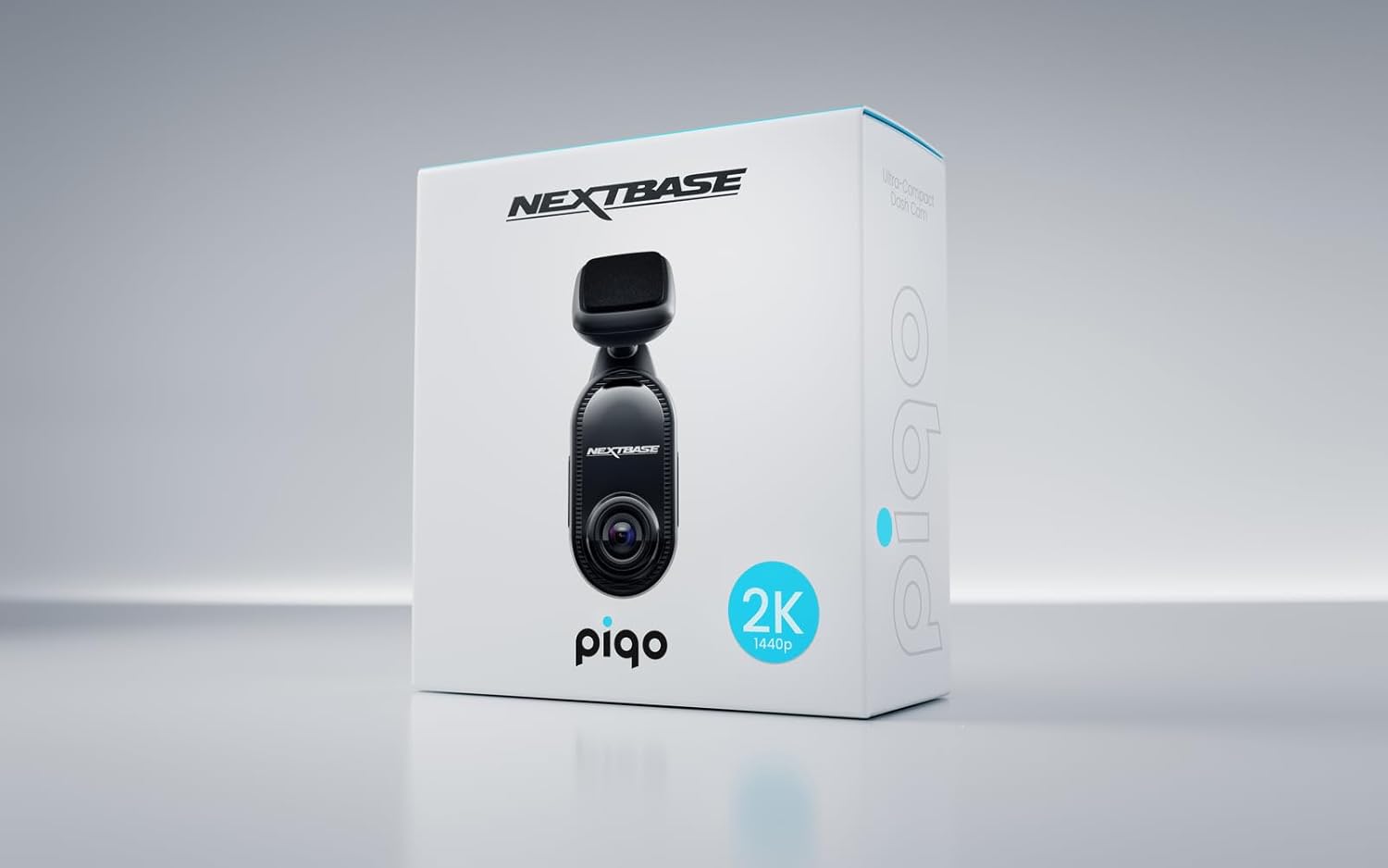
Figure 7: The Piqo app displaying map and GPS data alongside recorded footage.
5. Maintenance
5.1 Cleaning
Regularly clean the dash cam lens and the windshield area where the camera is mounted. Use the provided cleaning cloth and wipes to remove dust, fingerprints, and smudges that could affect video quality. Avoid using harsh chemicals or abrasive materials.
5.2 SD Card Management
It is recommended to format the microSD card every 2-4 weeks to maintain optimal performance and prevent data corruption. This can usually be done through the dash cam's settings via the Piqo app. Replace the microSD card if you notice any issues with recording or data integrity.
5.3 Firmware Updates
Periodically check for firmware updates via the Piqo app or the Nextbase website. Keeping your dash cam's firmware up-to-date ensures you have the latest features, bug fixes, and performance improvements.
6. Troubleshooting
If you encounter issues with your Nextbase Piqo 2K Smart Dash Cam, refer to the following common troubleshooting steps:
| Problem | Possible Cause | Solution |
|---|---|---|
| Dash Cam not powering on | No power supply; loose connection | Check 12V power socket and cable connection. Ensure vehicle ignition is on. |
| Recording not starting | SD card issue; full SD card | Ensure SD card is inserted correctly. Format the SD card via the app or camera settings. Replace if faulty. |
| Poor video quality | Dirty lens/windshield; incorrect resolution settings | Clean the lens and windshield. Check video resolution settings in the Piqo app. |
| App not connecting to dash cam | Wi-Fi/Bluetooth issue; app glitch | Ensure Wi-Fi and Bluetooth are enabled on your phone. Restart both the dash cam and the app. |
| Dash Cam freezing/unresponsive | Software glitch; power interruption | Perform a soft reset by disconnecting and reconnecting power. Update firmware if available. |
7. Specifications
| Feature | Detail |
|---|---|
| Product Dimensions | 1.26 x 1.57 x 4.25 inches |
| Item Weight | 8.4 ounces |
| Video Capture Resolution | 1440p (2K Quad HD) |
| Field of View | 145-degree Ultra-Wide |
| Connectivity Technologies | Bluetooth, Wi-Fi |
| GPS | GPS Enabled |
| Special Features | Compact Design, Smart Parking, Emergency SOS, Voice Control, Witness Mode Lite, Guardian Mode Lite |
| Included Components | Cable, User Manual, Mount |
| Mounting Type | Windshield Mount |
| Color | Black |
| Manufacturer | Nextbase |
| First Available Date | November 18, 2024 |
8. Warranty and Support
Nextbase products are designed for reliability and performance. For detailed warranty information, please refer to the warranty card included in your product packaging or visit the official Nextbase website. For technical support, FAQs, and additional resources, please visit the Nextbase support page or contact their customer service directly.
Online Support: www.nextbase.com/support
Always ensure you are using genuine Nextbase accessories and following recommended guidelines to maintain your product's warranty and ensure optimal performance.
Related documentsPiqo 2K Quad HD


Ask a question about this manual
Ask about setup, troubleshooting, compatibility, parts, safety, or missing instructions. Manuals+ will review the question and use this page’s manual context to help answer it.