
1. Introduction
This manual provides detailed instructions for the installation, operation, and maintenance of your UJNIKM Tuya Smart WiFi Biometric Fingerprint Digital Door Lock. Please read this manual thoroughly before installation and use to ensure proper function and longevity of the product. This lock offers multiple secure access methods and smart home integration for enhanced convenience and security.

Figure 1: Front and back view of the UJNIKM Smart WiFi Biometric Fingerprint Digital Door Lock.
2. Product Features
- Multiple Unlock Methods: Fingerprint, Password, IC Card, Mechanical Key, and APP remote unlock.
- Smart Connectivity: Works with Wi-Fi 2.4GHz for remote management via the Tuya Smart APP.
- Integrated Doorbell: Standard doorbell function for visitor notification.
- Durable Construction: Features a wire drawing panel, frosted shell, and aluminum alloy panel/handle.
- Power Efficiency: Operates on 4pcs AA batteries with a low power alarm function.
- Emergency Access: Includes an emergency key for backup use.
- Dynamic Passcode Support: Generate temporary or time-limited passwords for guests or service providers.
- Normal Open Mode: Allows for free access when enabled.

Figure 2: Overview of the smart features of the UJNIKM Fingerprint Lock.
3. Specifications
| Specification | Detail |
|---|---|
| Brand | UJNIKM |
| Model Name | 50 50 Dual 180 |
| Unlock Methods | Fingerprint, Password, IC Card, Mechanical Key, APP |
| Connectivity | Wi-Fi 2.4GHz |
| Power Supply | 4 x AA Batteries |
| Emergency Power | USB Charging Port |
| Mortise Type | 50 50 Dual 180 (also available for 60/85, 55/72 mortise or single latch) |
| Available Door Thickness | 35 mm ~ 55 mm |
| Applicable Door Types | Steel doors, Wooden doors, Glass doors, Brass doors, Stainless steel doors |
| Handle Direction | Universal Left/Right |
| Product Dimensions | 39 X 263 X 22.5 mm (main panel) |
| Item Weight | 1.76 ounces (50 Grams) |

Figure 3: Detailed product parameters and components.

Figure 4: Dimensions of the 50 50 Dual 180 mortise lock.
4. Setup and Installation
4.1 Pre-Installation Checklist
- Ensure your door thickness is between 35mm and 55mm.
- Confirm your door type is compatible (steel, wood, glass, brass, stainless steel).
- Verify the mortise lock size matches your door preparation. This model uses a 50 50 Dual 180 mortise. Refer to Figure 4 for dimensions.
- Gather necessary tools (screwdriver, drill, measuring tape, etc.).
4.2 Battery Installation
- Locate the battery compartment on the interior panel of the lock (refer to Figure 3).
- Open the battery cover.
- Insert 4 new AA alkaline batteries, ensuring correct polarity.
- Close the battery cover securely.
4.3 Handle Direction Adjustment
The handle direction is universal (left/right). If adjustment is needed, consult the detailed installation guide provided with your product packaging for specific steps on reversing the handle orientation.
4.4 Tuya Smart APP Connection
- Download the Tuya Smart APP from your smartphone's app store.
- Register or log in to your Tuya Smart account.
- Follow the in-app instructions to add a new device. Ensure your phone is connected to a 2.4GHz Wi-Fi network.
- The lock will enter pairing mode (indicated by a light or sound cue).
- Complete the pairing process through the APP.
5. Operating Instructions
5.1 Unlocking Methods

Figure 5: Five primary methods to unlock your door.
- Fingerprint Unlock: Place your registered finger on the fingerprint reader. The lock will unlock upon successful recognition.
- Password Unlock: Enter your registered password on the touch keypad, followed by the '#' key.
- IC Card Unlock: Present your registered IC card to the card sensing area.
- Mechanical Key Unlock: Insert the emergency key into the cylinder hole and turn to unlock. This is for backup use.
- APP Remote Unlock: Use the Tuya Smart APP on your smartphone to remotely unlock the door. For remote activation, press '9#' on the keypad to initiate the remote unlock request.
5.2 Password Management (Online & Offline)

Figure 6: Online and Offline password options.
- Online Password: Managed through the Tuya Smart APP. These passwords can have a set validity period and periodicity.
- Offline One-Time Password: Generate a single-use password via the APP for temporary access, suitable for visitors when you are not home. This password becomes invalid after one use.
- Offline Time-Limited Password: Generate a password with a specific start and end time, ideal for cleaners, hotel guests, or apartment management. The lock will not unlock after the password expires.
5.3 Normal Open Mode
This mode allows the door to remain unlocked for free access without requiring credentials. Consult the Tuya Smart APP or your product's detailed guide for instructions on how to activate and deactivate this mode.
5.4 Doorbell Function
The lock features a standard doorbell function. When a visitor presses the doorbell button on the lock, it will chime, and you may receive a notification via the Tuya Smart APP.
6. Maintenance
6.1 Battery Replacement
When the low power alarm activates, replace all four AA batteries promptly. Using fresh, high-quality alkaline batteries is recommended for optimal performance and longevity. Refer to Section 4.2 for battery installation steps.
6.2 Cleaning
Wipe the lock's exterior surfaces with a soft, dry cloth. Avoid using abrasive cleaners, solvents, or harsh chemicals, as these can damage the finish and electronic components.
6.3 Emergency Key
Keep the emergency key in a safe, accessible location outside of your home. This key is crucial for accessing your property in case of battery depletion or electronic malfunction.
7. Troubleshooting
- Lock not responding: Check battery levels. Replace batteries if low. If still unresponsive, use the emergency key.
- Fingerprint not recognized: Ensure your finger is clean and dry. Re-register your fingerprint if issues persist.
- Password not working: Verify the correct password is being entered. Ensure the keypad is clean.
- APP connectivity issues: Ensure your Wi-Fi router is on and broadcasting a 2.4GHz signal. Check the lock's proximity to the router. Restart the lock and your router if necessary.
- Lock makes unusual noises: This could indicate a mechanical issue. Do not force the lock. Contact customer support.
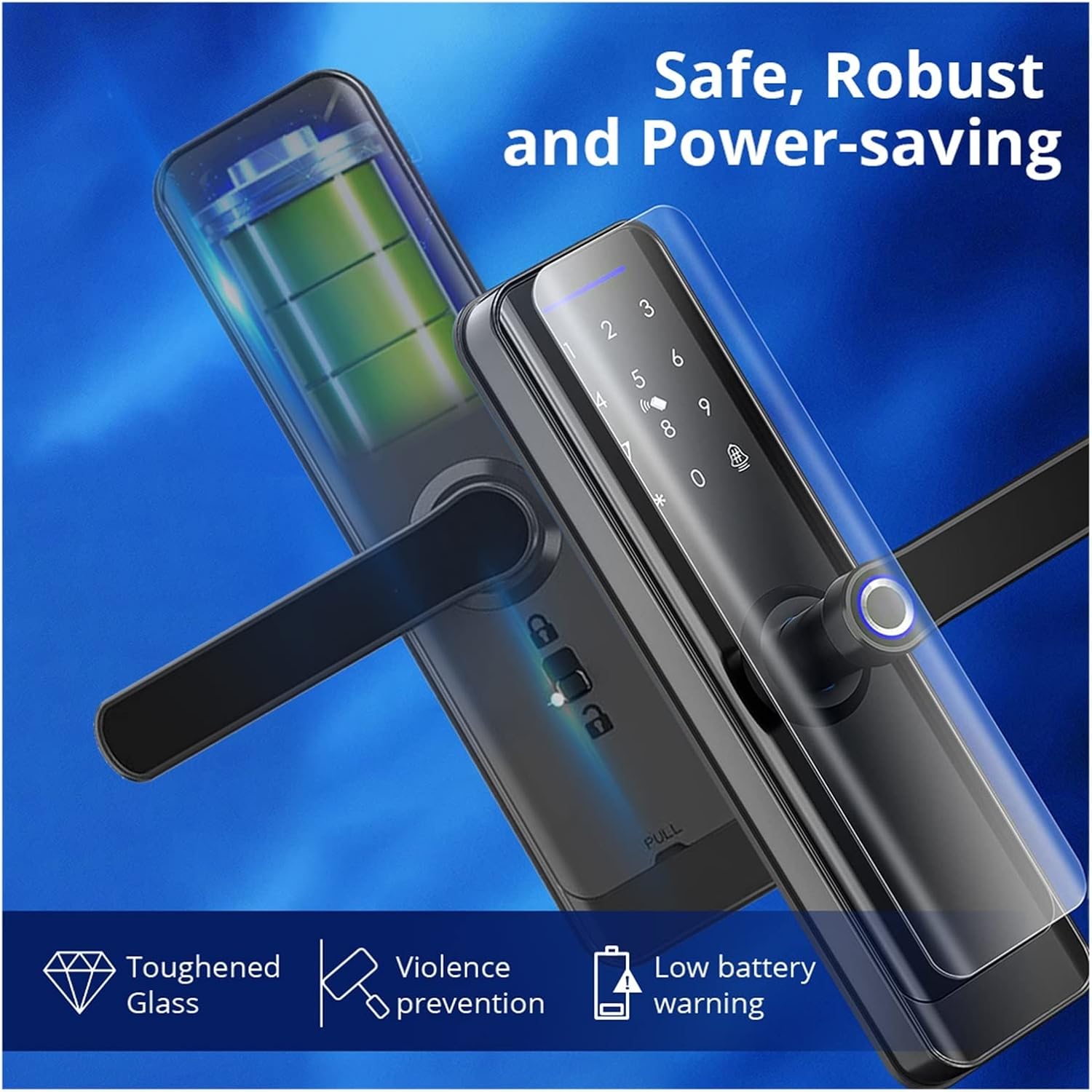
Figure 7: Safety and power-saving features of the lock.
8. Support and Warranty
For any questions, technical assistance, or warranty inquiries regarding your UJNIKM Smart WiFi Biometric Fingerprint Digital Door Lock, please contact the seller or manufacturer directly. Refer to your purchase documentation for specific contact details and warranty terms.