
1. Setup
1.1 Battery Installation
The OMOTON KB066 Bluetooth Keyboard requires two (2) AAA batteries (not included). To install the batteries:
- Locate the battery compartment on the back of the keyboard.
- Slide open the battery compartment cover.
- Insert two AAA batteries, ensuring correct polarity (+/-).
- Close the battery compartment cover securely.

1.2 Powering On/Off
To power on the keyboard, locate the ON/OFF switch on the back of the device and slide it to the 'ON' position. To power off, slide the switch to the 'OFF' position. Powering off when not in use helps conserve battery life.
1.3 Bluetooth Pairing
Follow these steps to pair your OMOTON KB066 Bluetooth Keyboard with your iPad or other iOS device:
- Ensure the keyboard is powered on.
- Press the 'Connect' button located on the back of the keyboard. The Bluetooth indicator light on the keyboard will begin to flash, indicating it is in pairing mode.
- On your iPad or iOS device, go to Settings > Bluetooth.
- Turn on Bluetooth. Your device will search for available Bluetooth devices.
- Select 'Bluetooth Keyboard' from the list of 'Other Devices'.
- A pairing request will appear on your screen with a numerical code. Type this code on your OMOTON keyboard and press the 'Enter' key.
- Once successfully paired, the Bluetooth indicator light on the keyboard will stop flashing and remain solid for a few seconds before turning off, and your device will show 'Bluetooth Keyboard' as 'Connected'.

2. Operating Instructions
2.1 Compatibility
The OMOTON KB066 Bluetooth Keyboard is primarily compatible with iOS & iPadOS (version 14.5 or above). It supports various iPad models, including iPad A16 11th/10th Generation, iPad 10.2 (9th/8th/7th Generation), iPad Pro 13/12.9/11 inch, iPad Air 13/11 inch, iPad Air 10.9 inch (5th/4th Gen), and iPad mini 6/5. Note that function keys may not be fully compatible with other operating systems.

2.2 QWERTY Layout and Hotkeys
The keyboard features a standard QWERTY layout for familiar typing. It also includes customized hotkeys for enhanced productivity, especially with iOS/iPadOS. These hotkeys allow quick access to functions such as volume control, music playback control, and screen brightness adjustment, without needing to interact directly with your device's screen.

2.3 Typing Experience
The keyboard is designed with comfortable keys and a stable scissor mechanism, providing a smooth and precise typing experience. This design aims to reduce typing fatigue and improve accuracy during extended use.

3. Maintenance
3.1 Battery Life and Conservation
The OMOTON KB066 keyboard is designed for energy efficiency. With two AAA batteries, it can last up to 6 months between changes, thanks to its energy-saving design and automatic sleep mode. To further conserve battery life, ensure the keyboard is switched off when not in use for extended periods.
3.2 Cleaning
To clean your keyboard, gently wipe the surface with a soft, dry, lint-free cloth. For stubborn dirt, slightly dampen the cloth with water or a mild cleaning solution. Avoid using harsh chemicals or abrasive materials, as these can damage the keyboard's finish or internal components. Ensure no liquid enters the keyboard.
4. Troubleshooting
4.1 Connection Issues
- Keyboard not connecting: Ensure the keyboard is powered on and the 'Connect' button has been pressed to activate pairing mode. Check that Bluetooth is enabled on your iPad/iOS device and that the keyboard appears in the list of discoverable devices.
- Intermittent connection: Ensure the keyboard is within the 10-meter operating range of your device. Avoid obstacles that might interfere with the Bluetooth signal.
4.2 Keys Not Responding
- No keys responding: Check the battery level. Replace the AAA batteries if they are low or depleted.
- Specific keys not responding: Try cleaning around the affected keys to remove any debris. If the issue persists, try re-pairing the keyboard with your device.
4.3 General Tips
- Perform a power cycle: Turn off both your keyboard and your iPad/iOS device, then turn them back on and attempt to re-pair.
- Ensure your iPad/iOS device's software is up to date.
5. Specifications
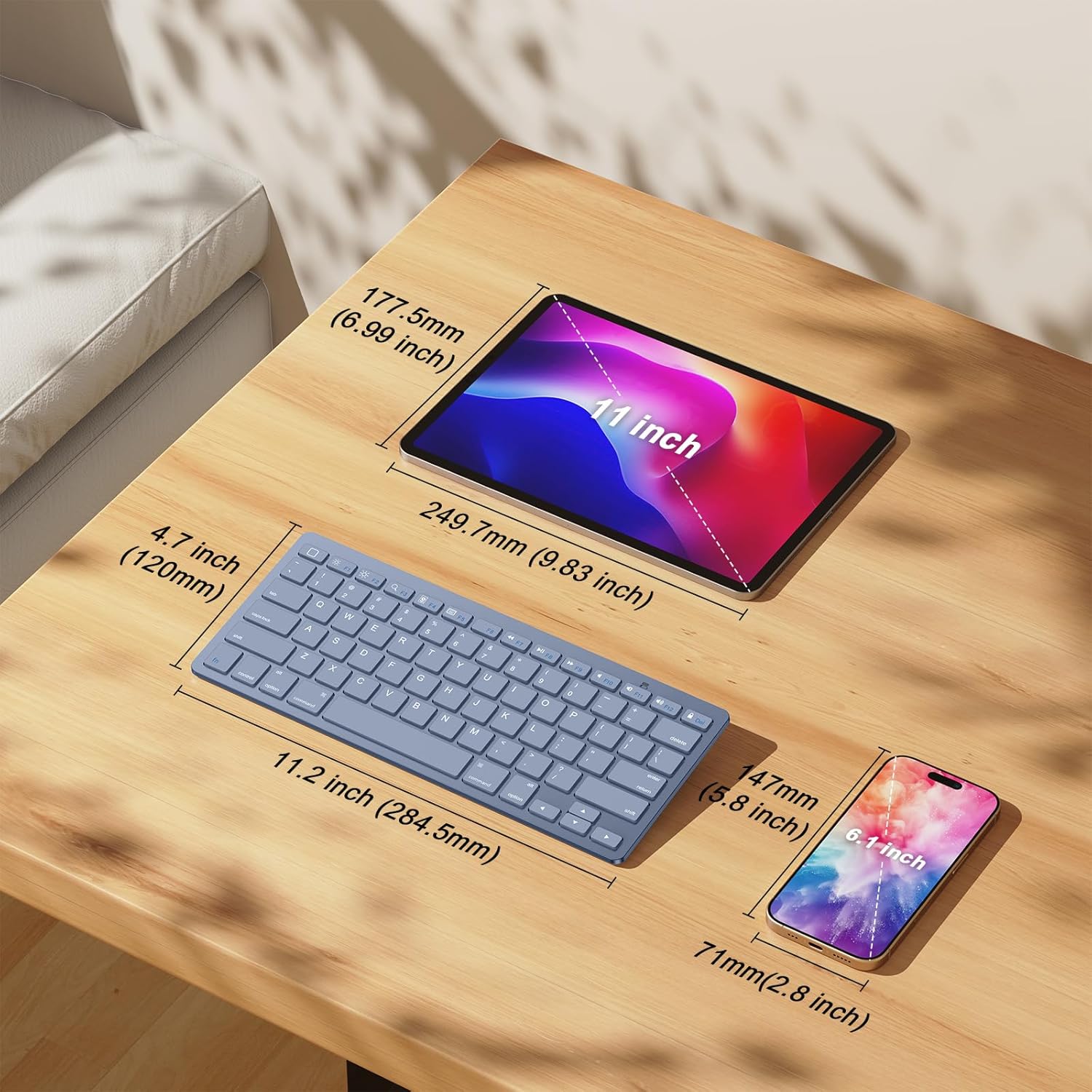
| Feature | Detail |
|---|---|
| Model | KB066 |
| Brand | OMOTON |
| Connectivity Technology | Bluetooth |
| Compatible Devices | iPad (iOS & iPadOS 14.5 or above) |
| Keyboard Layout | QWERTY |
| Special Feature | Hotkeys and Media Keys |
| Color | Blue |
| Material | Plastic |
| Power Source | Battery Powered (2 x AAA batteries, NOT included) |
| Item Weight | 10.8 ounces |
| Package Dimensions | 11.46 x 4.96 x 1.02 inches |
6. Warranty and Support
OMOTON provides friendly customer service for the KB066 Bluetooth Keyboard. For any questions, concerns, or support needs regarding your product, please refer to the contact information provided with your purchase or visit the official OMOTON website for assistance.


