
Garmin OTR620
Contents
Garmin Dezl OTR620 GPS Truck Navigator User Manual
Model: OTR620
1. Introduction
The Garmin Dezl OTR620 GPS Truck Navigator is designed for professional truck drivers to optimize their journeys. This device features a 6-inch high-resolution touchscreen for clear readability and efficient navigation. It provides custom truck routing based on vehicle size and load, helping drivers avoid restricted roads, low bridges, and other potential hazards. The Dezl OTR620 also offers community-driven insights on truck-friendly locations, real-time driver alerts, and seamless smartphone connectivity for enhanced safety and efficiency on the road.
2. What's in the Box
Upon unboxing your Garmin Dezl OTR620, please verify that all the following components are included:
- 1x Garmin Dezl OTR620 GPS Navigation System (6-inch Large Display Screen)
- 1x Car Charger
- 1x USB Data Cable
- 1x 32GB MicroSD Card
- 1x Diginerds LCD Screen Cleaning Kit
- 1x Sandisk Micro SDHC Ultra 32GB Memory Card With SD Adapter

Figure 2.1: The Garmin Dezl OTR620 GPS unit along with its bundled accessories, including the car charger, USB cable, microSD card, and screen cleaning kit.
3. Setup Guide
3.1 Mounting the Device
- Choose a Location: Select a mounting location on your dashboard or windshield that does not obstruct your view of the road and is easily accessible.
- Clean the Surface: Ensure the chosen surface is clean and dry before attaching the suction cup mount.
- Attach the Mount: Press the suction cup firmly against the surface and flip the lever down to secure it.
- Connect the Device: Slide the Dezl OTR620 onto the mount until it clicks into place.
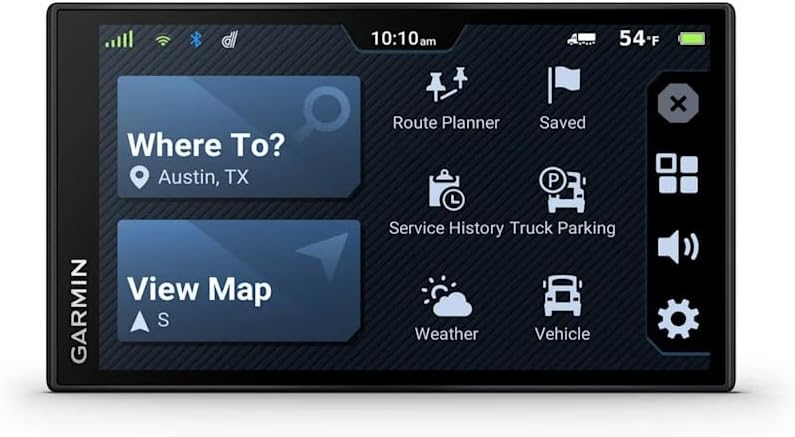
Figure 3.1: The main menu screen of the Garmin Dezl OTR620, showing various options like "Where To?", "View Map", "Route Planner", and "Truck Parking".
3.2 Powering On and Initial Configuration
- Connect Power: Plug the car charger into your vehicle's 12V power outlet and connect the other end to the Dezl OTR620. The device will automatically power on.
- Language Selection: Follow the on-screen prompts to select your preferred language.
- Vehicle Profile Setup: Input your truck's dimensions (height, weight, length, width) and load type (e.g., hazardous materials) to enable custom truck routing. This is crucial for avoiding restricted roads.
- Wi-Fi Connection: Connect the device to a Wi-Fi network to download the latest map updates and software. Navigate to Settings > Wireless Networks > Wi-Fi and select your network.
4. Operating Instructions
4.1 Basic Navigation
- Entering a Destination: From the main menu, touch Where To?. You can search by address, Points of Interest (POIs), or recent destinations.
- Starting a Route: After selecting your destination, review the route details and touch Go! to begin navigation.
- Following Directions: The device will provide turn-by-turn voice prompts and on-screen directions. Lane assist and junction view features will help you navigate complex intersections.

Figure 4.1: A detailed map view on the Garmin Dezl OTR620, illustrating route planning with clear road markings and estimated arrival time.
4.2 Custom Truck Routing
The Dezl OTR620 uses your vehicle profile to generate routes suitable for your truck. It automatically avoids roads with height, weight, or hazardous material restrictions. Ensure your vehicle profile is accurate for optimal routing.
4.3 Driver Alerts and Warnings
The device provides alerts for various road conditions and potential hazards:
- Sharp Curves: Notifies you of upcoming sharp turns.
- Steep Grades: Warns about significant inclines or declines.
- Speed Changes: Alerts you to changes in speed limits.
- Wind Speed Alerts: Provides warnings for strong winds, crucial for large vehicles.
- PrePass Notifications: Alerts for upcoming U.S. weigh stations and bypass decisions (requires PrePass subscription, not included).
4.4 Community-Driven Insights
Access ratings and reviews for truck-friendly POIs, including parking, loading docks, and rest areas, shared by other truckers. This feature helps you find reliable stops and services.

Figure 4.2: The community parking feature on the Dezl OTR620, displaying ratings and details about available truck parking locations.
4.5 Smart Connectivity (Dezl App)
Pair your Dezl OTR620 with your smartphone via the Dezl app for additional features:
- Hands-Free Calling: Make and receive calls directly through the navigator.
- Smart Notifications: Receive text messages and other alerts on your device screen.
- Live Traffic & Weather: Get real-time updates to plan your route effectively.
5. Maintenance
5.1 Cleaning the Device
- Use the provided Diginerds LCD Screen Cleaning Kit to gently wipe the touchscreen and device exterior.
- Avoid using abrasive cleaners or solvents, as they can damage the screen or casing.
- Ensure the device is powered off and disconnected from power before cleaning.
5.2 Software and Map Updates
The Dezl OTR620 features built-in Wi-Fi for convenient updates. Regularly check for and install updates to ensure you have the most current maps and software features.
- Connect your device to a Wi-Fi network.
- From the main menu, navigate to Settings > Updates.
- Follow the on-screen instructions to download and install available updates.
6. Troubleshooting
| Problem | Possible Cause | Solution |
|---|---|---|
| Device does not power on. | No power, faulty cable, or drained battery. | Ensure car charger is properly connected and vehicle's 12V outlet is working. Charge the device for at least 30 minutes. Try a different USB cable or charger. |
| GPS signal lost or inaccurate. | Obstructed view of sky, device interference, or outdated software. | Move to an open area with a clear view of the sky. Ensure no electronic devices are interfering. Perform a software update. |
| Touchscreen unresponsive. | Software glitch or physical damage. | Perform a soft reset (hold power button for 10 seconds). If problem persists, contact Garmin support. |
| Incorrect truck routing. | Incorrect vehicle profile or outdated maps. | Verify your truck's dimensions and load type in the vehicle profile settings. Update maps via Wi-Fi. |
7. Specifications
| Feature | Detail |
|---|---|
| Model Name | dēzl OTR620 |
| Item Model Number | 010-02923-00 |
| Display Size | 6 Inches |
| Resolution | 480 x 272 pixels |
| Item Weight | 1.56 pounds |
| Product Dimensions | 0.7 x 6 x 3.4 inches |
| Connectivity Technology | Wi-Fi |
| Map Type | North America |
| Special Feature | Touchscreen, Custom Truck Routing |
| Mounting Type | Dashboard Mount |
| Vehicle Service Type | Truck |
8. Warranty and Support
For warranty information and technical support, please refer to the official Garmin website or contact Garmin customer service directly. Details regarding product registration, software updates, and extended warranty options can be found on their support pages.
Garmin Official Website: www.garmin.com
Documents and downloads
Ask a question about this manual
Ask about setup, troubleshooting, compatibility, parts, safety, or missing instructions. Manuals+ will review the question and use this page’s manual context to help answer it.