
Introduction
The Mackie Thump210XT is a compact 10-inch 1400W powered loudspeaker designed for mobile PA systems, DJ performances, and various live sound applications. It integrates advanced features such as Bluetooth connectivity, Feedback Eliminator, and Music Ducking mode, all within a durable and lightweight enclosure. This manual provides essential information for the proper setup, operation, and maintenance of your Thump210XT loudspeaker.
Key Features
- 10-inch 1400W Powered Loudspeaker: Delivers powerful and clear audio output.
- Integrated Feedback Eliminator: Automatically reduces microphone feedback.
- Music Ducking Mode: Automatically lowers music volume when a microphone signal is detected for clear announcements.
- Bluetooth Connectivity: Enables wireless audio streaming and system control via the Thump Connect 2 app.
- Versatile Inputs: Features two combo TRS/XLR input jacks and an 1/8" stereo auxiliary input.
- Application-Specific Voicing Modes: Includes presets for Music, Live, Club, and Monitor use, along with Indoor/Outdoor settings.
- Class-D Amplification: Efficient and powerful amplification for optimal performance.
- Durable and Portable Design: Lightweight construction with integrated handles for easy transport and setup.
Setup
1. Unpacking
Carefully remove the loudspeaker from its packaging. Inspect the unit for any signs of damage. Retain the original packaging for future transport or storage.
2. Placement
The Thump210XT offers flexible placement options:
- Floor Standing: Place the loudspeaker on a stable, flat surface.
- Pole Mount: Utilize the standard pole mount for elevated positioning.
- Monitor Wedge: Position the speaker on its side for use as a floor monitor.
- M10 Flypoints: For suspended installations, use the integrated M10 flypoints with appropriate rigging hardware (professional installation recommended).

Image: Mackie Thump210XT loudspeaker mounted on a stand, demonstrating elevated placement.

Image: A person carrying the Mackie Thump210XT loudspeaker using its integrated side handle, highlighting its portability.
3. Power Connection
Connect the supplied IEC power cable to the power input on the rear panel of the loudspeaker and then to a suitable AC power outlet.
4. Audio Connections
The Thump210XT features a 2-channel mixer on its rear panel:
- Inputs 1 & 2 (XLR/TRS Combo): Connect microphones, instruments, or line-level devices using XLR or 1/4-inch TRS cables.
- 1/8" Stereo Line In: Connect smartphones, tablets, or other portable audio players.
- XLR Thru Output: Use this output to link multiple Thump210XT speakers or send the mixed signal to another sound system.

Image: Detailed diagram of the Mackie Thump210XT rear control panel, showing all inputs, outputs, and controls.
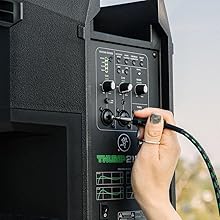
Image: A person connecting an XLR cable to one of the input jacks on the rear panel of the Thump210XT loudspeaker.
Operating Instructions
1. Power On/Off
Locate the power switch on the rear panel. Flip the switch to the 'ON' position to power on the loudspeaker. Flip it to 'OFF' to power down.
2. Input Gain Adjustment
Adjust the 'GAIN' knobs for Input 1 and Input 2 to set the appropriate input level for your connected devices. Ensure the 'SIG/OL' indicator does not consistently light up red, which indicates signal overload.
3. Voicing Modes
Select an appropriate voicing mode for your application using the 'VOICING MODES' button. Options typically include Music, Live, Club, and Monitor. Additionally, select 'INDOOR' or 'OUTDOOR' mode for environmental optimization.

Image: Close-up view of the Voicing Modes and Outdoor Mode buttons on the control panel, indicating available sound profiles.
4. Bluetooth Pairing and Linking
- Press the 'PAIR' button on the loudspeaker to enter Bluetooth pairing mode.
- On your device, search for and select 'Thump210XT' to connect.
- To link two Thump210XT speakers for stereo or dual zone operation, press the 'LINK' button on both speakers after pairing.
- For advanced control, download the Thump Connect 2 app on your smartphone or tablet.

Image: Close-up of the Bluetooth PAIR and LINK buttons on the control panel, used for connecting devices and other speakers.

Image: Screenshot of the Thump Connect 2 mobile app, showing wireless control options for the loudspeaker.
5. Feedback Eliminator
Activate the 'FEEDBACK ELIMINATOR' button to automatically detect and suppress microphone feedback, ensuring clear vocal performance.
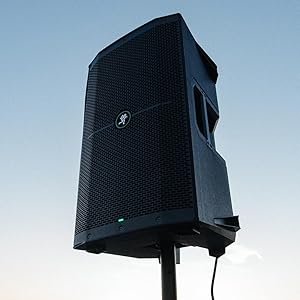
Image: Close-up of the Feedback Eliminator button on the control panel, used to prevent audio feedback.
6. Music Ducking
Press the 'MUSIC DUCKING' button to enable this feature. When activated, the music volume will automatically decrease when you speak into a connected microphone, making announcements clearer.
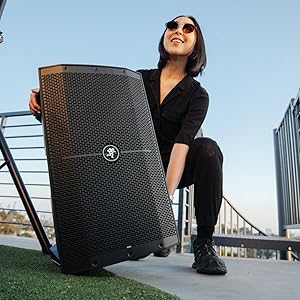
Image: Close-up of the Music Ducking button on the control panel, which automatically lowers music for announcements.
7. Main Volume Control
Adjust the 'MAIN VOLUME' knob to control the overall output level of the loudspeaker.
Maintenance
- Cleaning: Use a dry, soft cloth to clean the exterior of the loudspeaker. Avoid using abrasive cleaners or solvents.
- Storage: When not in use, store the loudspeaker in a cool, dry place, preferably in its original packaging or a protective cover, to prevent dust and damage.
- Inspection: Periodically check all cables and connections for wear or damage.
Troubleshooting
- No Sound: Ensure the loudspeaker is powered on, all cables are securely connected, and input gain/main volume are set appropriately. Check the audio source for proper operation.
- Distorted Sound: Reduce the input gain of the source device or the loudspeaker if the 'SIG/OL' indicator is frequently red. Ensure the audio source is not overdriven.
- Bluetooth Connection Issues: Ensure the loudspeaker is in pairing mode and within range of your device. Disconnect and reconnect if necessary. Check for interference from other wireless devices.
- Feedback: Activate the Feedback Eliminator. Adjust microphone placement and gain levels to minimize feedback.
Specifications
| Model Name | Thump210XT |
| Speaker Size | 10 Inches |
| Speaker Maximum Output Power | 1400 Watts |
| Input Voltage | 240 Volts (AC) |
| Frequency Response | 52 Hz |
| Connectivity Technology | Auxiliary, Bluetooth, XLR |
| Audio Output Mode | Stereo |
| Mounting Type | Floor Standing |
| Material | Plastic/Composite |
| Color | Black |
| Product Dimensions | 12.8"D x 13"W x 22.4"H |
| Item Weight | 29.9 Pounds |
| Water Resistance Level | Not Water Resistant |
| Control Method | Touch |
| UPC | 810128261395 |
| Item Model Number | 2057306-00 |
What's in the Box
The Mackie Thump210XT package includes:
- Mackie Thump210XT Powered Loudspeaker
- IEC Power Cable
- Quick Start Guide
Warranty and Support
The Mackie Thump210XT comes with a Limited Warranty. For detailed warranty information and support, please refer to the official Mackie website or contact their customer service.
Optional protection plans are available for purchase:
- 2-Year Protection Plan
- 3-Year Protection Plan
- Complete Protect: A monthly plan covering eligible past and future purchases.