
Introduction
This manual provides essential information for the setup, operation, and maintenance of your DEERTiME E9 Android 14 Tablet. The E9 tablet features a 10.1-inch HD touchscreen, an octa-core processor, 22GB RAM, 128GB internal storage (expandable up to 1TB), and an 8000mAh battery. It operates on Android 14 and supports Widevine L1 for secure HD streaming.
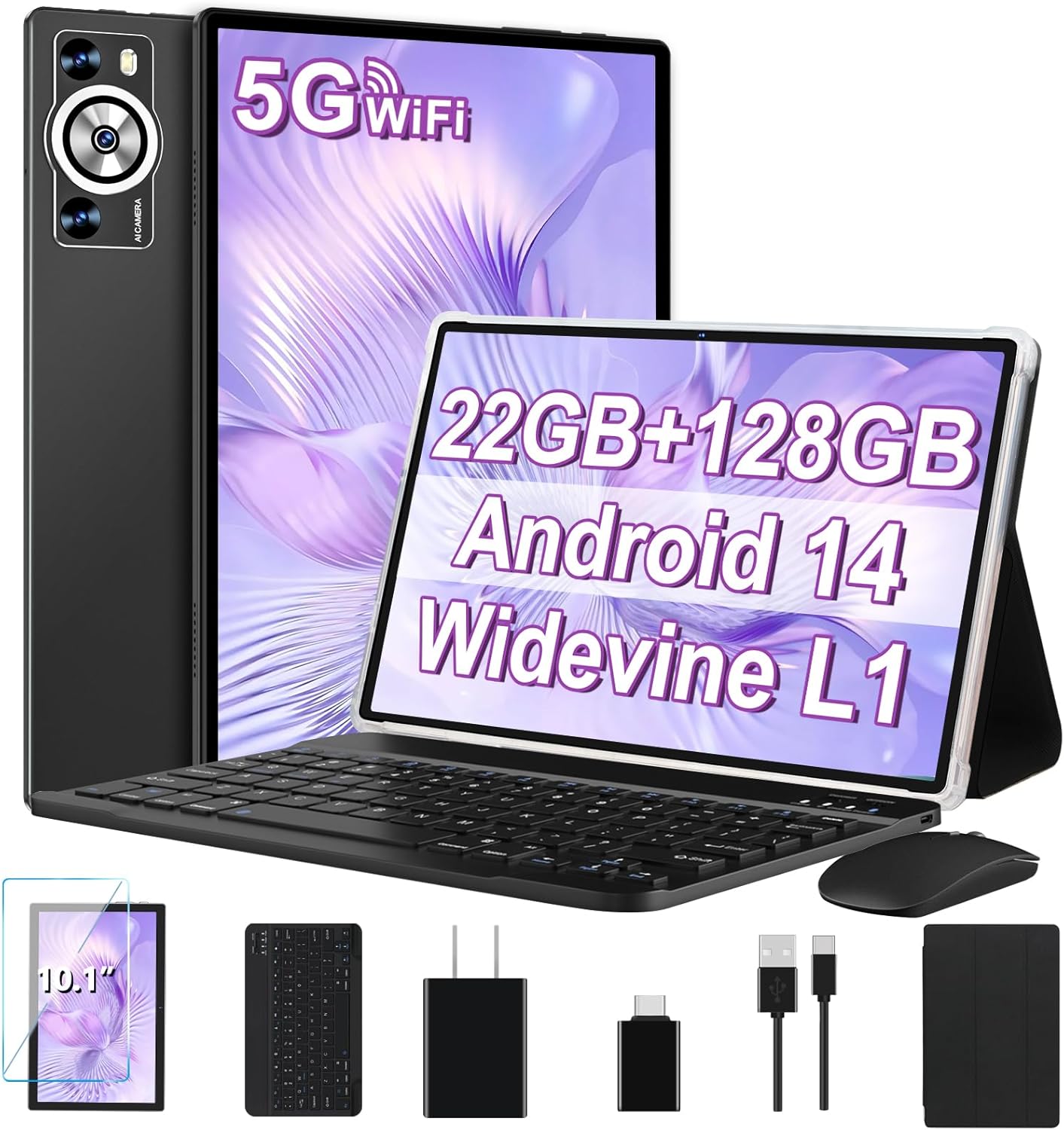
Image: The DEERTiME E9 tablet displayed with its accompanying keyboard, mouse, protective case, screen protector, charger, and cables.
1. Setup
1.1 Unboxing and Package Contents
Carefully remove all items from the packaging. Verify that all components are present:
- DEERTiME E9 Tablet
- Bluetooth Keyboard
- Wireless Mouse
- Protective Case
- Screen Protector
- Type-C Cable
- 5V/2A Charger
- USB to Type-C Adapter
- User Manual

Image: A visual representation of the tablet and all accessories included in the box, such as the keyboard, mouse, case, and charger.
1.2 Initial Charging
Before first use, fully charge the tablet using the provided Type-C cable and 5V/2A charger. The charging port is located on the side of the tablet. A full charge typically takes several hours.
1.3 Power On/Off
- Power On: Press and hold the Power button until the screen illuminates.
- Power Off: Press and hold the Power button, then select 'Power off' from the on-screen options.
- Restart: Press and hold the Power button, then select 'Restart' from the on-screen options.
1.4 Initial Android Setup
Upon first power-on, follow the on-screen prompts to complete the Android 14 setup wizard. This includes selecting your language, connecting to Wi-Fi, setting up your Google account, and configuring basic security settings.
1.5 Connecting Accessories (Keyboard & Mouse)
The included keyboard and mouse connect via Bluetooth.
- Ensure the keyboard and mouse are powered on and in pairing mode (refer to their individual instructions if needed).
- On your tablet, go to Settings > Connected devices > Bluetooth.
- Toggle Bluetooth on. The tablet will scan for available devices.
- Select the keyboard and mouse from the list of available devices to pair them. Follow any on-screen prompts to confirm pairing.
2. Operating Your Tablet
2.1 Android 14 Interface
Your DEERTiME E9 tablet runs on Android 14, offering an intuitive and customizable user experience. Navigate using touch gestures: swipe to unlock, tap to open apps, pinch to zoom, and swipe down from the top for notifications and quick settings.
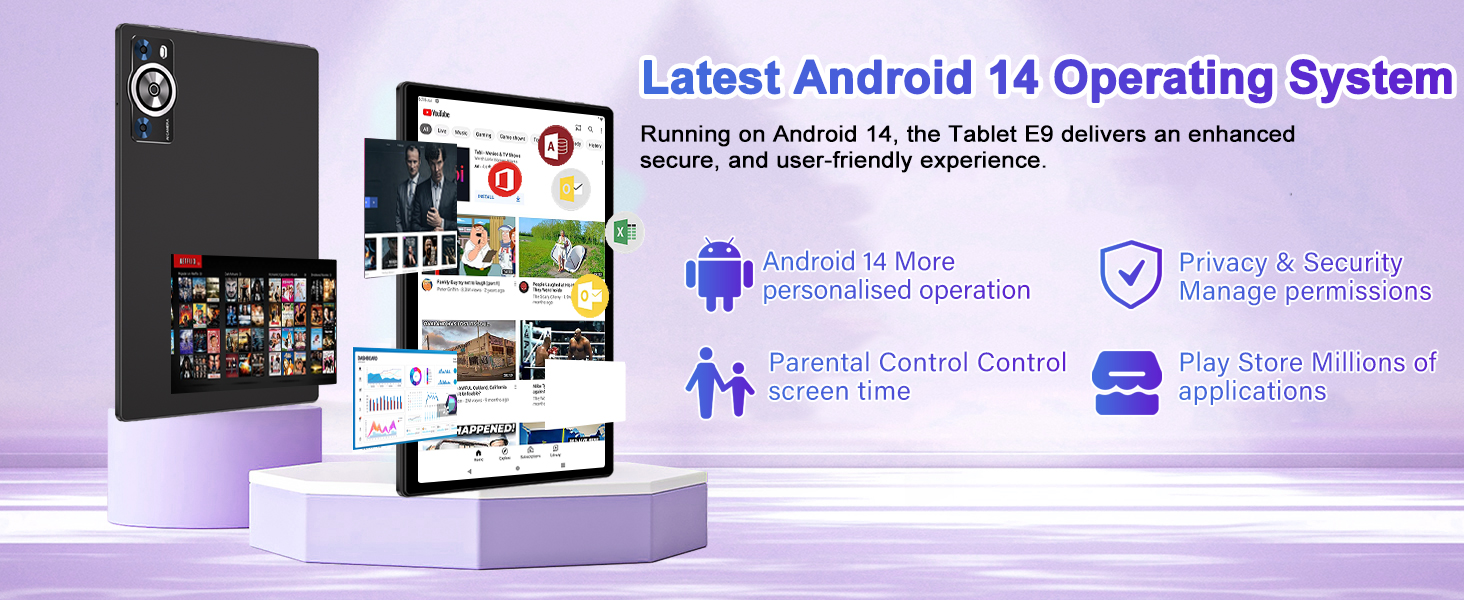
Image: A visual representation of the Android 14 operating system interface, highlighting features like personalized operation, privacy & security management, parental controls, and access to millions of applications.
2.2 Wi-Fi Connectivity
The tablet supports dual-band Wi-Fi (2.4G and 5G) for fast and stable internet access.
- Go to Settings > Network & internet > Internet.
- Toggle Wi-Fi on.
- Select your desired Wi-Fi network from the list and enter the password if prompted.
2.3 Bluetooth 5.0
Connect Bluetooth devices such as headphones, speakers, or the included keyboard and mouse.
- Go to Settings > Connected devices > Bluetooth.
- Toggle Bluetooth on.
- Select the device you wish to pair from the list.
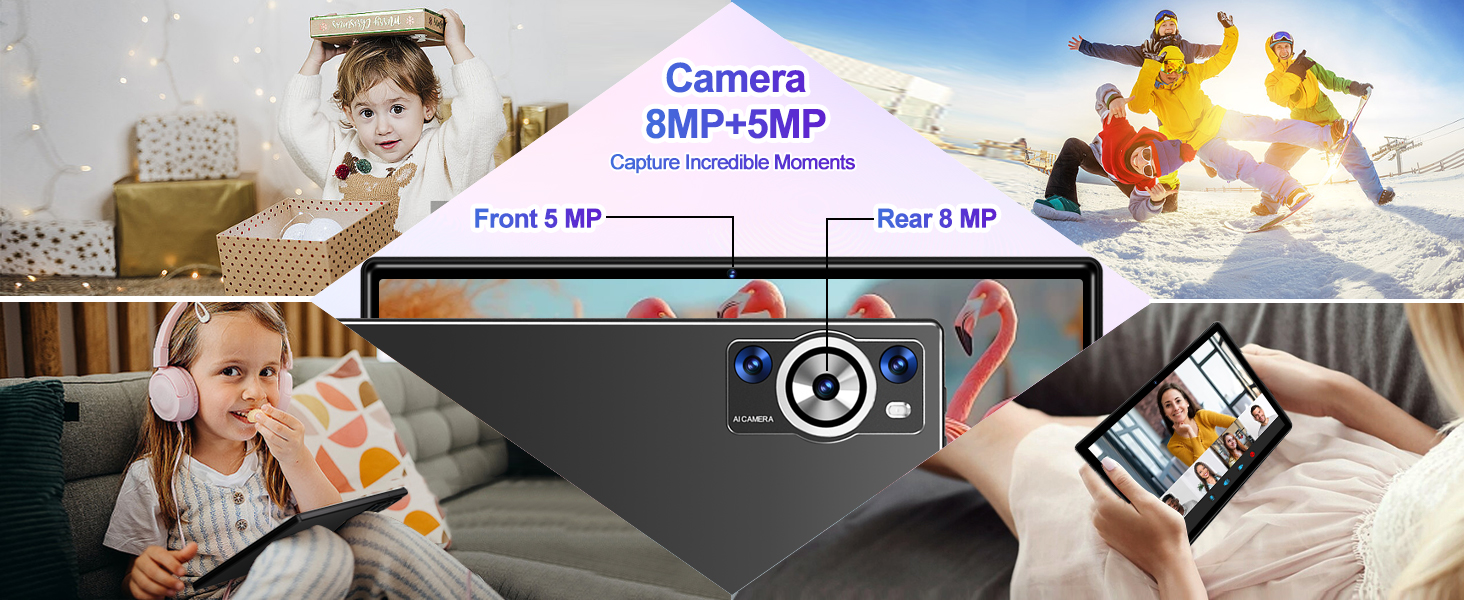
Image: The DEERTiME E9 tablet connected to a keyboard and mouse, illustrating its 5G+2.4G WiFi and Bluetooth 5.0 capabilities for faster speeds and wider range.
2.4 Display Features
The 10.1-inch IPS display with 1280x800 resolution provides clear visuals. It supports Widevine L1, enabling secure streaming of HD content from platforms like Netflix, Hulu, and Amazon Prime Video.
Image: The DEERTiME E9 tablet showcasing its Widevine L1 DRM support, allowing for seamless streaming of HD content without geographic restrictions.
2.5 Camera Usage
The tablet is equipped with an 8MP rear camera and a 5MP front camera for photos and video calls.
- Open the Camera app.
- Tap the shutter button to take a photo.
- Switch between front and rear cameras using the camera icon.
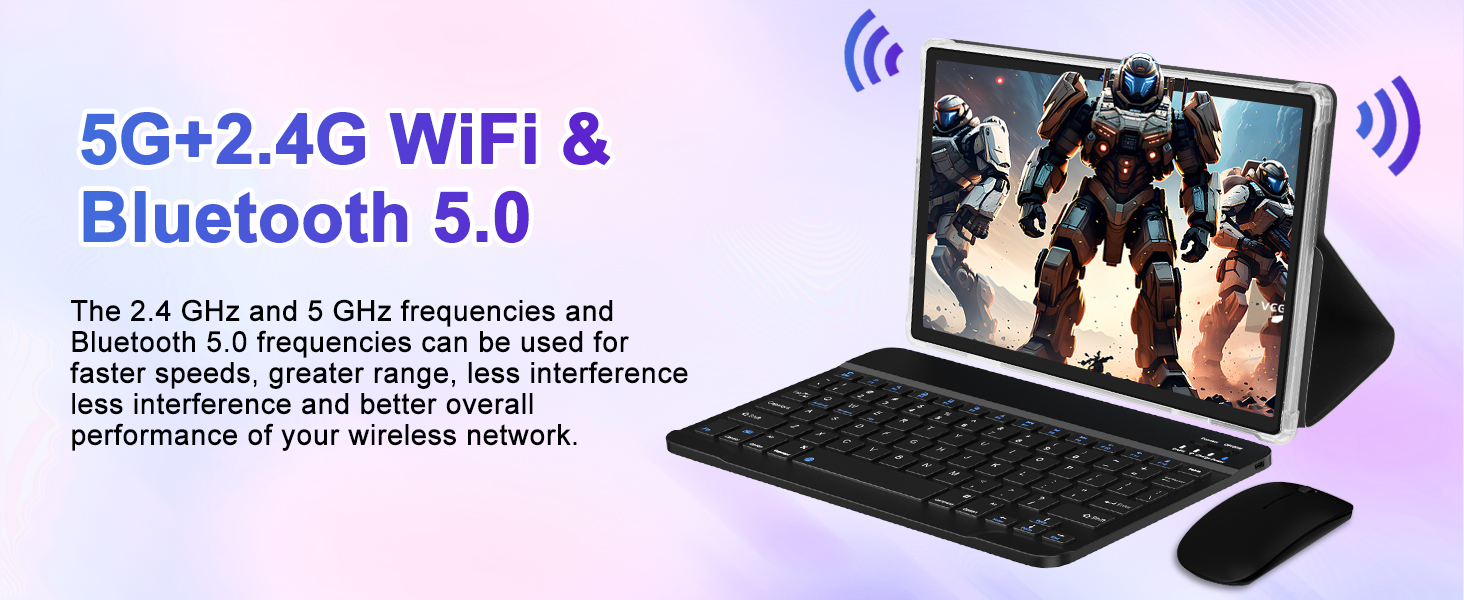
Image: A collage demonstrating the tablet's 8MP rear and 5MP front cameras in use for capturing moments and video calls.
2.6 Face Unlock
For convenient and secure access, set up Face Unlock.
- Go to Settings > Security & privacy > Face unlock.
- Follow the on-screen instructions to register your face.

Image: Illustrations showing the face unlock feature in action, providing instant access to the tablet.
2.7 Split-Screen Multitasking
Run two apps simultaneously using split-screen mode:
- Open the first app.
- Swipe up from the bottom of the screen and hold to access recent apps.
- Tap the app icon at the top of the first app's card, then select Split top.
- Choose the second app from your recent apps or app drawer to fill the other half of the screen.
2.8 Screen Casting
Mirror your tablet's display to a compatible TV or monitor.
- Ensure your TV/monitor supports screen casting (e.g., Chromecast built-in, Miracast).
- On your tablet, swipe down from the top to open Quick Settings.
- Look for a 'Cast' or 'Screen Mirroring' icon and tap it.
- Select your TV/monitor from the list of available devices.

Image: The DEERTiME E9 tablet connected to a television via screen casting, allowing content to be viewed on a larger display.
3. Performance and Storage
3.1 Processor and Memory
The DEERTiME E9 is powered by an octa-core processor with a clock speed of 2.0GHz, ensuring smooth performance for various applications. It features 22GB of RAM (6GB physical + 16GB virtual) and 128GB of internal storage.

Image: A diagram highlighting the tablet's Unisoc Octa Core processor operating at 2.0 GHz, indicating high performance for entertainment and daily tasks.
3.2 Expandable Storage
The internal 128GB storage can be expanded up to 1TB using a microSD card (not included), providing ample space for apps, media, and documents.
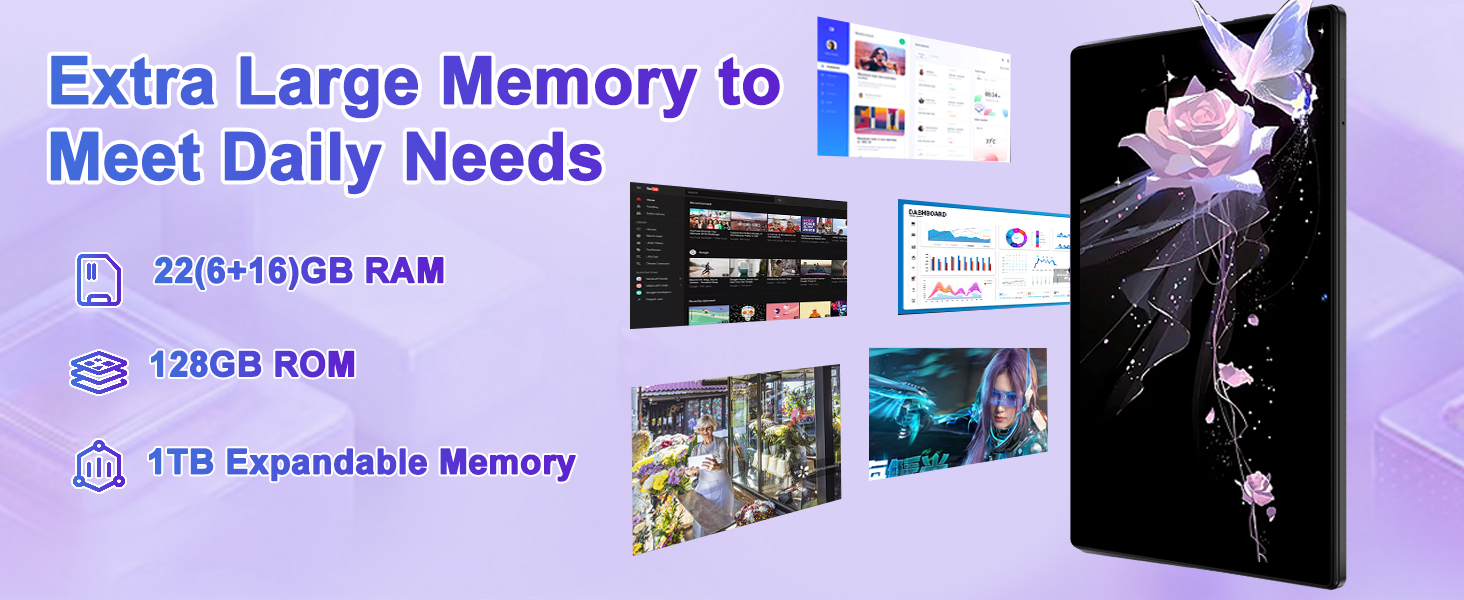
Image: A visual breakdown of the tablet's memory, showing 22GB RAM, 128GB ROM, and the capability for 1TB expandable memory to meet daily storage needs.
4. Battery Management
The tablet is equipped with an 8000mAh battery, designed for extended usage. Average battery life is approximately 8 hours, depending on usage patterns.
4.1 Extending Battery Life
- Reduce screen brightness.
- Disable Wi-Fi and Bluetooth when not in use.
- Close unused applications running in the background.
- Limit background data usage for apps.
- Use power-saving modes available in Android settings.

Image: A graphic detailing the estimated usage times for the 8000mAh battery, including 5 hours for gaming, 8 hours for video, 8.5 hours for web surfing, 8.5 hours for e-books, and 8 hours for music.
5. Maintenance
5.1 Cleaning the Device
- Use a soft, lint-free cloth to clean the screen and body.
- Avoid using harsh chemicals or abrasive materials.
- Do not spray cleaners directly onto the tablet.
5.2 Software Updates
Regularly check for and install software updates to ensure optimal performance, security, and access to new features.
- Go to Settings > System > System update.
- Follow the on-screen instructions to check for and install updates.
5.3 Storage Optimization
To maintain performance, periodically manage your tablet's storage:
- Delete unnecessary apps and files.
- Clear cache data for apps in Settings > Apps.
- Transfer large files to cloud storage or an external microSD card.
6. Troubleshooting
| Issue | Possible Solution |
|---|---|
| Tablet does not power on | Ensure the tablet is charged. Press and hold the Power button for 10-15 seconds to force a restart. |
| Screen is unresponsive | Restart the tablet. If the issue persists, perform a factory reset (data will be lost). |
| Wi-Fi connection issues | Restart your router and the tablet. Forget the network in Wi-Fi settings and reconnect. Ensure you are within range. |
| Slow performance | Close unused apps. Clear app caches. Check for system updates. Consider a factory reset if performance remains poor. |
| Battery drains quickly | Reduce screen brightness. Disable unnecessary features like GPS, Bluetooth, and Wi-Fi when not in use. Check battery usage in settings to identify power-hungry apps. |
| Accessories (keyboard/mouse) not connecting | Ensure accessories are charged and in pairing mode. Unpair and re-pair them via Bluetooth settings. |
6.1 Factory Reset
A factory reset will erase all data from your tablet and restore it to its original factory settings. Back up important data before proceeding.
- Go to Settings > System > Reset options.
- Select Erase all data (factory reset).
- Confirm your decision and follow the on-screen prompts.
7. Specifications
| Feature | Detail |
|---|---|
| Brand | DEERTiME |
| Model Name | E9 |
| Operating System | Android 14 |
| Screen Size | 10.1 Inches |
| Screen Resolution | 1280 x 800 Pixels |
| Processor | Octa-Core, 2 GHz |
| RAM | 22GB (6GB physical + 16GB virtual) |
| Internal Storage | 128 GB |
| Expandable Storage | Up to 1TB via MicroSD |
| Rear Camera | 8 MP |
| Front Camera | 5 MP |
| Battery Capacity | 8000mAh |
| Average Battery Life | 8 Hours |
| Wireless Type | 802.11ac (Dual-band 2.4G/5G Wi-Fi) |
| Bluetooth | Bluetooth 5.0 |
| Audio | Dual Speakers, 3.5mm Headphone Jack |
| Dimensions (LxWxH) | 9.6 x 0.4 x 6.3 inches |
| Item Weight | 1.2 pounds |
| Special Features | Widevine L1 Support, Face Unlock, Split-Screen, Screen Casting |
8. Warranty Information
Your DEERTiME E9 tablet is covered by a standard manufacturer's warranty. Please refer to the warranty card included in your package for specific terms, conditions, and duration. Keep your proof of purchase for warranty claims.
9. Customer Support
If you encounter any issues not covered in this manual or require further assistance, please contact DEERTiME customer support. Refer to the contact information provided on the product packaging or the official DEERTiME website for support channels.