
1. Product Overview
The Honor MagicPad2 is a high-performance AI tablet designed for a versatile user experience. It features a large, vibrant display and robust internal components, making it suitable for both productivity and entertainment.

Figure 1.1: Front view of the Honor MagicPad2 AI Tablet, showcasing its large display.
Key Features:
- Display: 12.3-inch OLED, 3000x1920 pixels, 1.07 billion colors, DCI-P3 wide color gamut, 144Hz refresh rate.
- Operating System: Android 14 with MagicOS 8.0.1.
- Processor: Snapdragon 8s Gen 3 Mobile Platform.
- Memory & Storage: 12GB RAM and 256GB internal storage.
- Cameras: 13MP rear camera (Fno2.0 AF) and 9MP front camera (Fno2.2 FF).
- Battery: 10050 mAh capacity.
- Connectivity: WIFI 6 (802.11 a/b/g/n/ac/ax, 2x2 MIMO) and Bluetooth v5.3.
2. Setup Guide
2.1 Unboxing Your Device
Carefully open the product packaging and ensure all components are present. The standard package includes:
- Honor MagicPad2 Tablet
- Type-C Cable
Inspect the tablet for any visible damage before proceeding with setup.
2.2 Initial Power On
- Press and hold the power button, located on the side of the tablet, until the Honor logo appears on the screen.
- Follow the on-screen prompts to complete the initial setup, which includes selecting your language, connecting to a Wi-Fi network, and signing in with your Google account.
2.3 Charging the Device
Before first use, it is recommended to fully charge the tablet. Use the provided Type-C cable and a compatible power adapter (not included) to charge the device.
- Connect the Type-C cable to the charging port on the tablet.
- Connect the other end of the cable to a power adapter and plug it into a wall outlet.
- The charging indicator will appear on the screen. A full charge typically takes several hours.
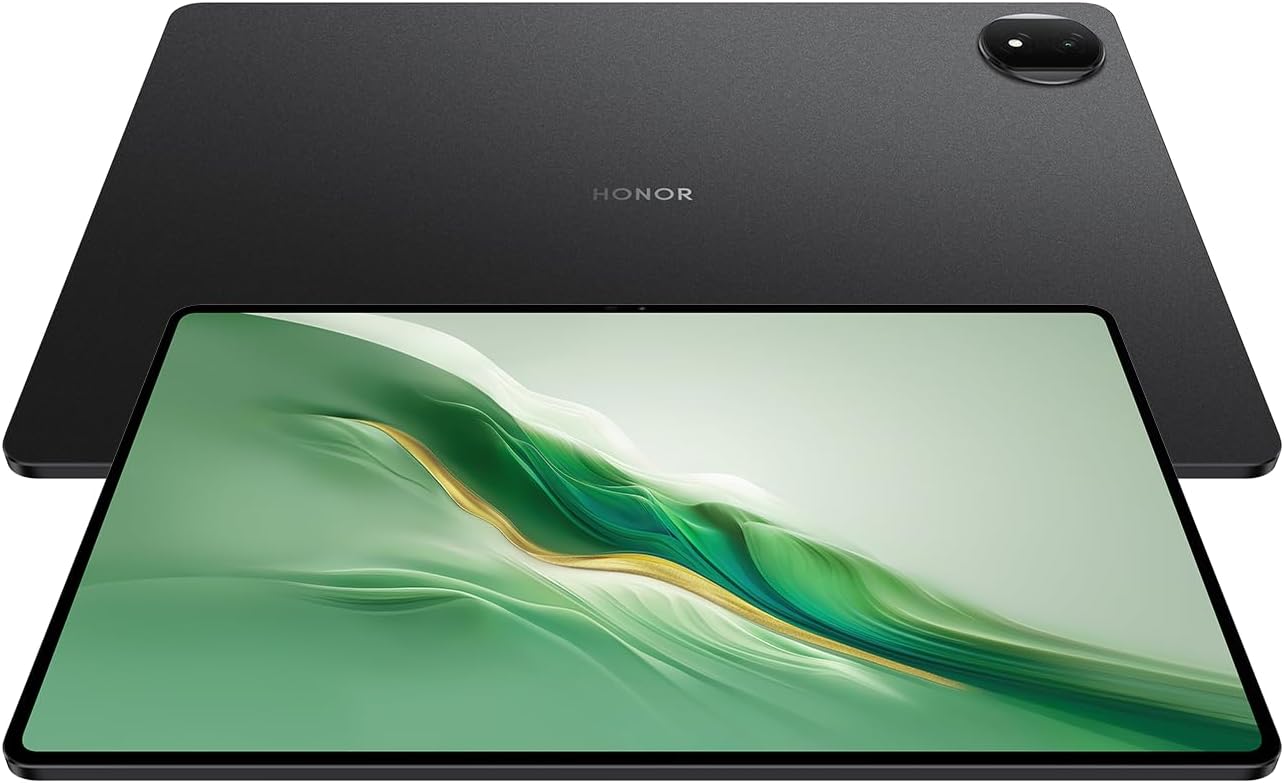
Figure 2.1: Side view of the Honor MagicPad2, showing the Type-C port and button placement.
3. Operating Your Device
3.1 Basic Navigation
The Honor MagicPad2 runs on Android 14 with MagicOS 8.0.1, offering an intuitive user interface. Use touch gestures for navigation:
- Tap: To select an item or open an application.
- Swipe: To scroll through screens, menus, or content.
- Pinch-to-zoom: To zoom in or out on images or web pages.
- Long press: To access contextual menus or move icons.
3.2 Display Settings
The 12.3-inch OLED display offers a resolution of 3000 x 1920 pixels with a 144Hz refresh rate. To optimize your viewing experience:
- Navigate to Settings > Display & brightness to adjust brightness, color mode (e.g., Normal, Vivid), and eye comfort features.
- The 144Hz refresh rate provides smooth visuals, especially for scrolling and gaming.
3.3 Camera Usage
The tablet is equipped with a 13MP rear camera and a 9MP front camera.
- Open the Camera application from the home screen or app drawer.
- Select between the front and rear cameras using the camera switch icon.
- Tap the shutter button to capture photos or videos.

Figure 3.1: Rear view of the Honor MagicPad2, highlighting the camera module.
3.4 Connectivity
The MagicPad2 supports advanced wireless connectivity:
- Wi-Fi: Connect to Wi-Fi 6 (802.11ax) networks for high-speed internet access. Go to Settings > Wi-Fi to manage connections.
- Bluetooth: Pair with Bluetooth v5.3 devices such as headphones, speakers, or keyboards. Access Bluetooth settings via Settings > Bluetooth.
3.5 Storage and Performance
With 256GB of storage and 12GB of RAM, powered by the Snapdragon 8s Gen 3 Mobile Platform, the tablet offers ample space and smooth performance for multitasking and demanding applications.
- To check storage usage, go to Settings > Storage.
- Regularly clear cached data and close unused applications to maintain optimal performance.
4. Maintenance
4.1 Cleaning Your Tablet
To keep your Honor MagicPad2 in optimal condition:
- Use a soft, lint-free cloth to wipe the screen and body.
- For stubborn smudges, slightly dampen the cloth with water or a screen-cleaning solution.
- Avoid using harsh chemicals, abrasive materials, or excessive moisture.
4.2 Battery Care
The 10050 mAh battery is designed for extended use. To prolong battery life:
- Avoid extreme temperatures.
- Do not leave the tablet fully charged or fully discharged for long periods.
- Use the original or certified charging accessories.
4.3 Software Updates
Regularly check for software updates to ensure your tablet has the latest features, security patches, and performance improvements.
- Go to Settings > System & updates > Software update.
- Follow the on-screen instructions to download and install any available updates. Ensure your tablet has sufficient battery and a stable Wi-Fi connection during the update process.
5. Troubleshooting
This section addresses common issues you might encounter with your Honor MagicPad2.
| Problem | Possible Cause | Solution |
|---|---|---|
| Tablet does not power on. | Low battery; software crash. | Charge the tablet for at least 30 minutes. If still unresponsive, press and hold the power button for 10-15 seconds to force a restart. |
| Wi-Fi connection issues. | Incorrect password; router issue; tablet Wi-Fi disabled. | Ensure Wi-Fi is enabled. Re-enter the Wi-Fi password. Restart your Wi-Fi router. Forget the network and reconnect. |
| Screen is unresponsive or frozen. | Application crash; system error. | Press and hold the power button for 10-15 seconds to force a restart. Close background applications. |
| Battery drains quickly. | High screen brightness; many background apps; intensive usage. | Reduce screen brightness. Close unused applications. Disable unnecessary features like Bluetooth or GPS when not in use. Check battery usage in settings to identify power-hungry apps. |
6. Technical Specifications
Detailed specifications for the Honor MagicPad2 AI Tablet:
| Feature | Specification |
|---|---|
| Model Name | MagicPad2 (WI-FI) |
| Item Model Number | ROD2-W09 |
| Operating System | Android 14 (MagicOS 8.0.1) |
| Screen Size | 12.3 Inches |
| Screen Resolution | 3000 x 1920 Pixels (OLED) |
| Processor Brand | Qualcomm (Snapdragon 8s Gen 3) |
| RAM | 12 GB |
| Flash Memory Size | 256 GB |
| Rear Webcam Resolution | 13 MP |
| Front Webcam Resolution | 9 MP |
| Wireless Type | 802.11ac (Wi-Fi 6) |
| Bluetooth | v5.3 |
| Battery Capacity | 10050 mAh |
| Average Battery Life | 12 Hours |
| Item Weight | 1.22 pounds |
| Product Dimensions | 10.81 x 7.11 x 0.23 inches |
| Color | Black/Grey |
7. Warranty and Support
7.1 Product Warranty
The Honor MagicPad2 comes with a standard manufacturer's warranty. For specific terms, conditions, and duration of the warranty, please refer to the warranty card included with your product or visit the official Honor website.
7.2 Customer Support
For technical assistance, troubleshooting beyond this manual, or service inquiries, please contact Honor customer support. You can find contact information and additional resources on the official Honor website:
Visit Honor Global Support Website
Please have your product model number (ROD2-W09) and serial number ready when contacting support.


