
ORICO IT48N-C
ORICO 4 Bay M.2 NVMe SSD Docking Station User Manual
Model: IT48N-C
1. Product Overview
The ORICO 4 Bay M.2 NVMe to USB C Hard Drive Docking Station (Model IT48N-C) is a high-performance solution designed for efficient data management, including high-speed data transfer and offline cloning of M.2 NVMe SSDs. This docking station supports up to four M.2 NVMe SSDs simultaneously, offering a 40Gbps USB4.0 interface for rapid data operations. It is ideal for users requiring fast backups, drive duplication, and expanded storage capabilities.

Figure 1: ORICO 4 Bay M.2 NVMe SSD Docking Station
2. Key Features
- One-Button Offline Cloning: Effortlessly duplicate M.2 NVMe SSDs without a PC connection. Supports 1-to-3 cloning.
- 40Gbps High-Speed Transmission: Equipped with a USB4.0 port, offering up to 20Gbps read/write speed per disk for single disk transfers, and optimized speeds for multiple disks.
- Faster Backup: Capable of copying 1TB of data in approximately 60 minutes, significantly faster than SATA-based solutions.
- Dual Independent Cooling System: Features aluminum alloy heatsinks, thermal silicone pads, a built-in cooling fan, and a full aluminum chassis for optimal thermal management.
- Broad Compatibility: Supports M-Key NVMe SSDs (2230, 2242, 2260, 2280 sizes) up to 16TB capacity per bay. Compatible with Windows, macOS, Linux, and Android.
- SSD Protective Cases: Includes aluminum protective cases for each SSD to safeguard against wear, overheating, and accidental damage.
3. Package Contents
Please verify that all items are present in the package:
- 1 x M.2 Docking Station (IT48N-C)
- 4 x Aluminum Heat Sink Cases
- 4 x Metal Cooling Vests
- 1 x USB-C to USB-C Data Cable (1m)
- 1 x USB-C to USB-A Data Cable (1m)
- 4 x Silicone Thermal Pads
- 4 x Fasteners
- 1 x Power Adapter
- 1 x User Manual

Figure 2: Included Accessories and Components
4. Setup and Installation
4.1 SSD Installation Steps
- Prepare the SSD Case: Slide the button on the aluminum heat sink case to the right and push out the SSD tray from the bottom.
- Install Cooling Components: Paste the silicone thermal pad onto your M.2 NVMe SSD. Then, place the metal cooling vest onto the SSD, ensuring proper contact for heat dissipation. Insert the fixed knob for fixation.
- Insert SSD into Tray: Push the SSD tray, with the installed SSD and cooling components, back into the aluminum heat sink case until it clicks securely.
- Insert Case into Dock: Press the lock button on the docking station and insert the assembled heat sink enclosure into an available slot. Ensure it is firmly seated.

Figure 3: Step-by-step SSD Installation
4.2 Connecting the Docking Station
- Connect the power adapter to the docking station and plug it into a power outlet.
- For PC mode operation, connect the docking station to your computer using the provided USB-C to USB-C or USB-C to USB-A cable.
5. Operating Instructions
5.1 Offline Cloning Procedure
The offline cloning function allows you to duplicate an M.2 NVMe SSD without connecting to a computer. Ensure the target disk capacity exceeds the source disk capacity.
- Prepare for Cloning: Connect the power supply to the docking station. Do not connect the data cable to a host computer. Insert the source M.2 NVMe SSD into the designated source slot (usually marked 'A' or 'Source'). Insert the target M.2 NVMe SSD(s) into the target slot(s) (usually marked 'B' or 'Target').
- Select Clone Mode: Toggle the switch on the docking station to the "CLONE" position.
- Initiate Cloning: Press and hold the "START" button for 5 seconds. The indicator light for 25% progress will illuminate and then release. The 25% indicator light will start to flash, indicating the cloning process has begun. Other indicator lights will be off initially.
- Monitor Progress: During cloning, progress indicators (25%, 50%, 75%, 100%) will sequentially activate. Full illumination of all four indicators signifies the completion of the cloning process.
- Completion: Upon completion, deactivate the power switch, then disconnect the power supply, and finally safely remove the cloned hard drives.
Important Note: Both source and target drives must be M-Key NVMe compatible. M+B Key or B Key SATA M.2 SSDs are not supported for cloning with this device.
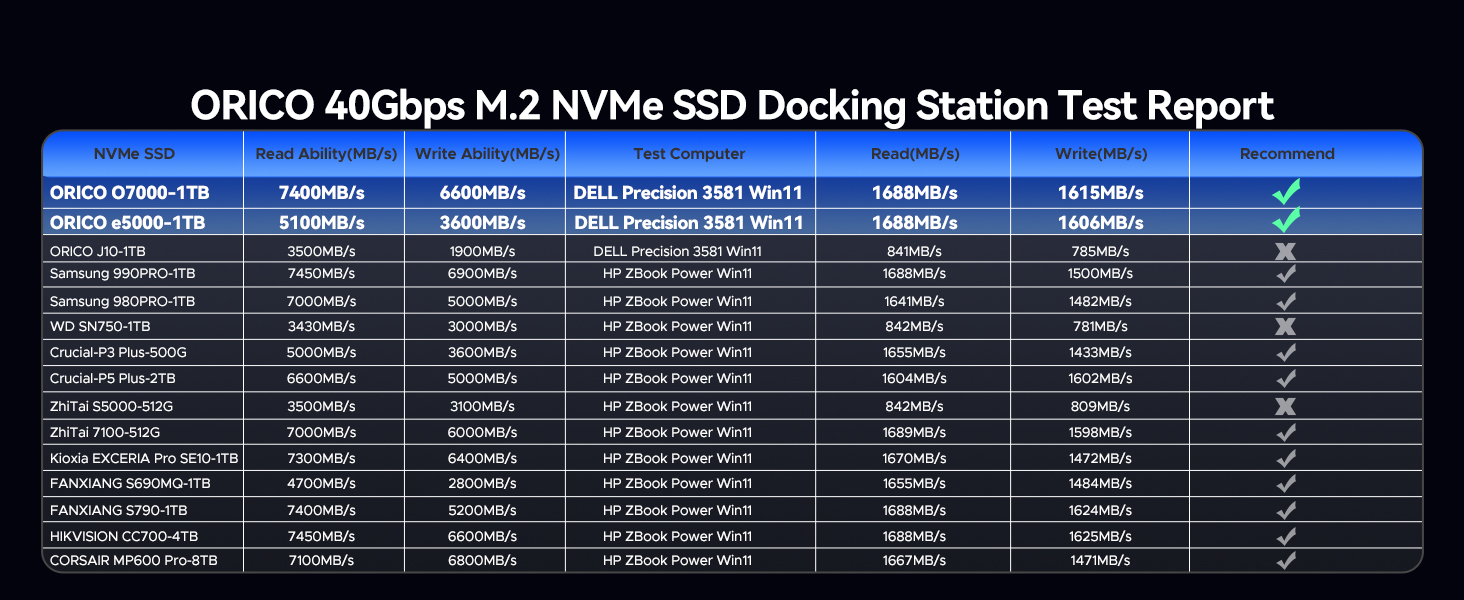
Figure 4: Offline Cloning Steps
5.2 Data Transfer (PC Mode)
To use the docking station as an external SSD enclosure for data transfer with a computer:
- Ensure the docking station is powered on.
- Connect the docking station to your computer using the provided USB-C to USB-C or USB-C to USB-A cable.
- The SSDs inserted in the docking station will appear as external drives on your computer. You can now transfer files to and from the SSDs.
The docking station supports high-speed data transfer:
- Single Disk Transfer: Up to 20Gbps read/write speed.
- Two Disks Simultaneously: Up to 20Gbps read/write speed per disk.
- Four Disks Simultaneously: Up to 10Gbps read/write speed per disk.

Figure 5: Data Transfer Speeds
6. Compatibility
The ORICO 4 Bay M.2 NVMe SSD Docking Station offers wide compatibility:
- SSD Type: Supports M-Key NVMe/PCIe M.2 SSDs only. Does not support M+B Key or B Key SATA M.2 SSDs.
- SSD Sizes: Compatible with 2230, 2242, 2260, and 2280 form factors.
- Maximum Capacity: Supports up to 16TB per bay, for a total of 64TB with four drives.
- Operating Systems: Compatible with Windows, macOS, Linux, and Android.
- Devices: Can be connected to PCs, laptops, TVs, routers, and gaming consoles like PS5.

Figure 6: Supported SSD Types and Operating Systems
7. Heat Dissipation and Protection
The docking station is engineered with multiple layers of heat dissipation to ensure stable performance and prolong SSD lifespan:
- Aluminum Heat Sink Cases: Each SSD is housed in an individual aluminum heat sink case.
- Metal Cooling Vests & Thermal Pads: Internal metal cooling vests and silicone thermal pads enhance heat transfer from the SSD.
- Built-in Cooling Fan: An integrated high-speed fan actively dissipates heat from the main unit.
- Full Aluminum Chassis: The main docking station body is constructed from aluminum alloy with convection vents, providing excellent passive cooling.
The aluminum protective cases also safeguard the SSD gold fingers from wear due to frequent insertion and removal, prevent overheating burns, and protect against accidental damage.

Figure 7: Advanced Cooling System
8. Specifications
| Feature | Detail |
|---|---|
| Model Number | IT48N-C |
| Brand | ORICO |
| Interface | USB4.0 (40Gbps) |
| Supported SSD Type | M-Key NVMe/PCIe M.2 SSDs |
| Supported SSD Sizes | 2230, 2242, 2260, 2280 |
| Max Capacity per Bay | 16TB |
| Total USB Ports | 4 (for SSD bays) |
| Offline Clone | 1-to-3 Supported |
| Cooling System | Aluminum heatsinks, thermal pads, cooling fan, aluminum chassis |
| Dimensions | 7 x 3 x 1 inches (approximate package dimensions) |
| Item Weight | 3 ounces (approximate) |
| Manufacturer | SHENZHEN ORICO TECHNOLOGIES CO.,LTD |
| Country of Origin | China |
9. Troubleshooting
- Offline Cloning Fails:
- Ensure the data cable is disconnected from the computer during offline cloning.
- Verify that both source and target SSDs are M-Key NVMe type. M+B Key or B Key SATA M.2 SSDs are not compatible for cloning with this device.
- Confirm that the target disk capacity is equal to or greater than the source disk capacity.
- Press and hold the START button for the required 5 seconds until the 25% indicator light flashes.
- SSDs Not Recognized in PC Mode:
- Ensure the docking station is properly powered on.
- Check the USB data cable connection between the docking station and your computer. Try a different USB port or cable.
- Verify that the SSDs are correctly seated in their respective slots within the aluminum cases.
- For new SSDs, they may need to be initialized and formatted in Disk Management (Windows) or Disk Utility (macOS) before they appear.
- Slow Transfer Speeds:
- Ensure your computer's USB port supports USB4.0 or at least USB 3.2 Gen 2x2 (20Gbps) for optimal performance. Lower speed ports will limit throughput.
- Verify that the SSDs themselves are high-speed NVMe drives. Older or slower SSDs will not achieve maximum speeds.
- Check for background processes on your computer that might be consuming bandwidth or CPU resources.
- Overheating Concerns:
- Ensure the aluminum heat sink cases, metal cooling vests, and thermal pads are correctly installed on each SSD.
- Verify that the cooling fan in the docking station is operating.
- Ensure adequate airflow around the docking station. Avoid placing it in enclosed spaces.
- While the device has robust cooling, prolonged heavy workloads can generate heat. This is normal for high-performance NVMe SSDs.
10. Warranty and Support
ORICO products typically come with a one-year limited warranty from the date of purchase. This warranty covers defects in materials and workmanship under normal use.
For technical support, warranty claims, or further assistance, please contact ORICO customer service through their official website or the retailer from whom you purchased the product. Please have your product model number (IT48N-C) and proof of purchase ready when contacting support.
Manufacturer: SHENZHEN ORICO TECHNOLOGIES CO.,LTD
Ask a question about this manual
Ask about setup, troubleshooting, compatibility, parts, safety, or missing instructions. Manuals+ will review the question and use this page’s manual context to help answer it.