
FocuWay OV07
FocuWay Portable Apple CarPlay Screen OV07 User Manual
Model: OV07
1. Product Overview
The FocuWay OV07 is a portable touch screen designed to enhance your in-car entertainment and navigation experience. It supports wireless Apple CarPlay and Android Auto, allowing seamless integration with your smartphone for music, navigation, messaging, and hands-free calls. Featuring voice control, screen mirroring, and multiple audio output options, this device offers a versatile solution for modern vehicle connectivity.

Image: The FocuWay OV07 portable screen displaying navigation and music interfaces, with a hand interacting with the touchscreen.
2. Package Contents
Verify that all items listed below are included in your product package:
- FocuWay Car Stereo (OV07 Unit)
- Cigarette Socket Cable (Power Cable)
- 3.5mm AUX Audio Cable
- Bottom Bracket (Mounting Base)
- User Manual
- Install Accessories

Image: A visual representation of all components included in the FocuWay OV07 product package.
3. Setup and Installation
Follow these steps to set up your FocuWay OV07 unit in your vehicle:
- Choose a Mounting Location: Select a flat surface on your dashboard that is at least 8 x 8 inches (20CM x 20CM) to ensure stable placement. The unit requires a flat console for proper installation.
- Attach the Bottom Bracket: Securely attach the bottom bracket to the chosen flat surface. Ensure it is stable and does not obstruct your view or vehicle controls.
- Mount the OV07 Unit: Place the FocuWay OV07 unit onto the bottom bracket. The unit is designed for easy rotation and removal, allowing you to adjust the viewing angle.
- Connect Power: Plug the cigarette socket cable into your vehicle's cigarette lighter port and connect the other end to the OV07 unit. The unit will power on automatically when the vehicle starts.
- Adjust Viewing Angle: Use the adjustable knob on the unit to find the perfect viewing angle for a clear and distraction-free driving experience.
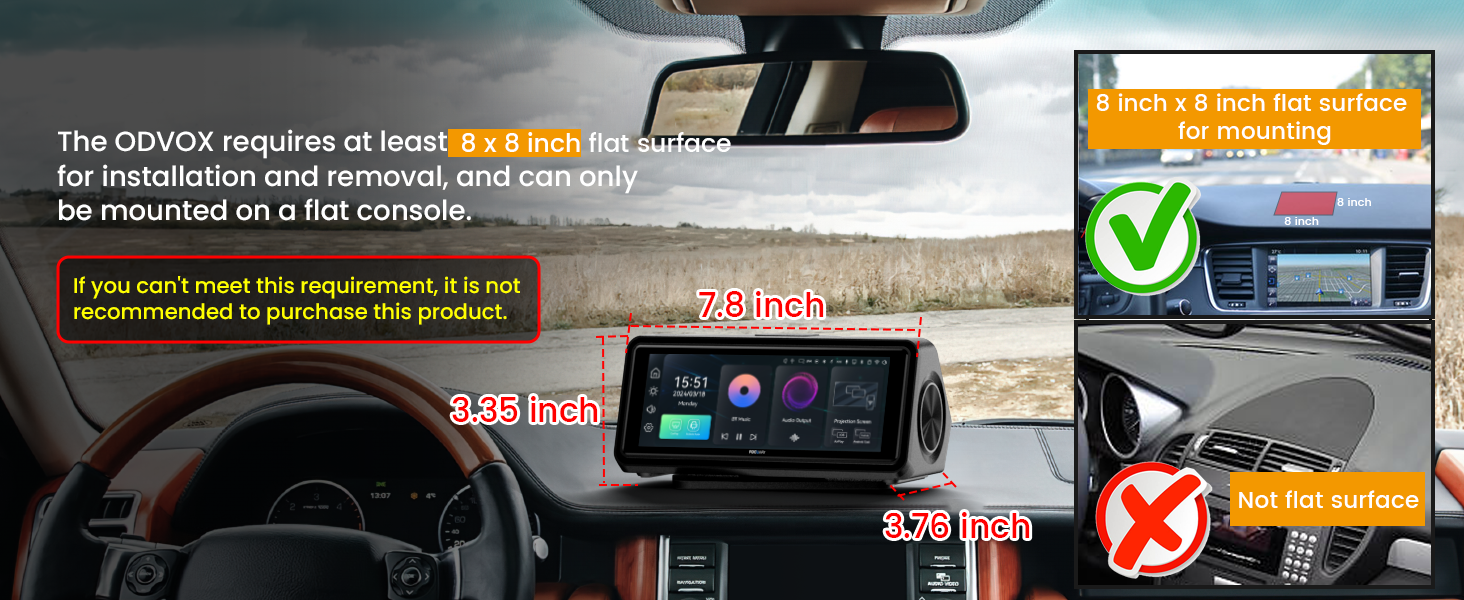
Image: An illustration demonstrating the minimum flat surface area required on a car dashboard for proper installation of the OV07 unit.
4. Operating Instructions
4.1. Wireless CarPlay / Android Auto Connection
The OV07 supports wireless Apple CarPlay and Android Auto for seamless smartphone integration.
- Choose CarPlay/Android Auto Mode: On the OV07 screen, select the desired mode (CarPlay or Android Auto).
- Enable Bluetooth & Wi-Fi: On your smartphone, ensure Bluetooth and Wi-Fi are enabled.
- Search for Device: In your phone's Bluetooth settings, search for the FocuWay device (e.g., "FOCUWAY-XXXX").
- Pair Devices: Select the FocuWay device and confirm the pairing request on both your phone and the OV07 screen.
- Allow Permissions: Grant necessary permissions on your phone for contacts, messages, etc., if prompted.
- Connection Successful: Once paired, CarPlay or Android Auto will launch automatically on the OV07 screen.

Image: A visual guide illustrating the one-step wireless connection process for Apple CarPlay and Android Auto with the OV07 unit.

Image: A step-by-step visual instruction set for establishing a wireless Apple CarPlay connection with an iPhone.
4.2. Voice Control
The OV07 integrates voice control for Siri and Google Assistant, allowing hands-free operation.
- Once connected to CarPlay or Android Auto, activate your phone's voice assistant (Siri or Google Assistant) through the OV07 screen.
- Use voice commands for navigation, playing music, making calls, sending messages, and more.

Image: The OV07 unit in a car, demonstrating voice control functionality for navigation and phone calls.
4.3. Screen Mirroring (AirPlay & Miracast)
Mirror your smartphone's screen wirelessly to the OV07 for video and music playback.
- For iOS devices, use AirPlay. For Android devices, use Miracast (also referred to as Android Cast).
- Ensure your phone and the OV07 are connected to the same Wi-Fi network or directly via Wi-Fi Direct.
- Initiate screen mirroring from your phone's settings.

Image: The OV07 screen displaying mirrored content from both iOS (AirPlay) and Android (Android Cast) devices.
4.4. Audio Output Options
The OV07 offers multiple ways to output audio:
- Built-in Speakers: The unit has customized built-in speakers for direct audio output.
- AUX Cable: Connect the included 3.5mm AUX cable from the OV07 to your car's AUX input for a direct, interference-free audio connection.
- FM Transmitter: Transmit audio wirelessly to your car's FM radio by tuning both the OV07 and your car radio to the same FM frequency (87-108MHz).
- Bluetooth: Connect the OV07 to your car's existing Bluetooth system to play audio through your car's speakers.

Image: The OV07 unit highlighting its built-in stereo speaker and illustrating the three methods for connecting audio to a car's speaker system: FM Transmit, Bluetooth, and AUX connection.
5. Product Features
- 6.86-inch Touch Screen: Features a 1280x480 resolution, 2.5D curved glass, fully laminated anti-glare screen, and 60Hz refresh rate for clear display even in strong sunlight. Brightness is adjustable.
- Portable and Detachable Design: Engineered for effortless removal, allowing the unit to be easily transported and used in various settings such as picnics, family barbecues, or camping trips when powered by a power bank.
- Universal Compatibility: Designed to fit 99% of vehicles, requiring only a 20CM flat surface for placement. It operates by plugging into the dashboard's cigarette lighter, leaving the car's original radio intact.
- Enhanced Safety with Reverse Camera Support: Compatible with an HD backup camera (sold separately, ASIN: B0D8VYLC7X). When reversing, the rear camera input seamlessly displays images on the screen, aiding in safer parking.
- Online OTA Updates: Supports Over-The-Air (OTA) updates to ensure compatibility with the latest smartphone system updates.

Image: The OV07 unit highlighting its portable design with easy rotation and removal, along with key screen features like 2.5D Curved Glass, 60Hz Refresh Rate, IPS Smooth Touch Screen, and Adjustable Brightness.

Image: A collage demonstrating the versatility of the OV07 unit, showing its use not only in a car but also during camping, family barbecues, picnics, and home parties.

Image: The OV07 unit positioned above various car types (sedan, pickup, SUV, van, bus, truck), indicating its 5V-28V compatibility, and also showing support for a Full HD 1080P reverse camera.
6. Maintenance
To ensure the longevity and optimal performance of your FocuWay OV07, follow these maintenance guidelines:
- Cleaning: Use a soft, lint-free cloth to clean the screen and exterior. For stubborn smudges, slightly dampen the cloth with water or a screen-safe cleaner. Avoid abrasive materials or harsh chemicals.
- Temperature: The ABS housing is designed to withstand temperatures from -4°F to 150°F (-20°C to 65°C). Avoid exposing the unit to extreme temperatures outside this range for prolonged periods.
- Storage: When not in use for extended periods, store the unit in a cool, dry place away from direct sunlight.
- Handling: Handle the unit with care. Avoid dropping it or subjecting it to strong impacts.
7. Troubleshooting
This section addresses common issues you might encounter with your FocuWay OV07.
| Problem | Possible Cause | Solution |
|---|---|---|
| Unit does not power on. | No power from cigarette lighter; cable not connected properly. | Ensure the cigarette lighter port is functional. Check all cable connections are secure. |
| Wireless CarPlay/Android Auto connection fails or is unstable. | Bluetooth/Wi-Fi issues; incorrect pairing steps; interference. | Restart both the OV07 and your smartphone. Forget the device in your phone's Bluetooth settings and re-pair. Ensure no other devices are interfering with the connection. Follow the connection steps precisely. |
| No audio or poor audio quality. | Incorrect audio output setting; loose AUX cable; FM interference. | Check the selected audio output mode (built-in speaker, AUX, FM, Bluetooth). Ensure AUX cable is fully inserted. If using FM, try a different frequency to avoid interference. Ensure Bluetooth is properly connected to your car's system. |
| Screen mirroring not working. | Incorrect mirroring protocol; Wi-Fi connection issues. | Ensure you are using AirPlay for iOS or Miracast for Android. Verify both devices are on the same Wi-Fi network or connected via Wi-Fi Direct. |
| Touchscreen unresponsive or laggy. | Software glitch; excessive heat. | Restart the unit. Ensure the unit is not overheating. If issues persist, check for available OTA updates. |
Image: A visual troubleshooting guide specifically for resolving wireless Apple CarPlay connection failures with an iPhone.
8. Specifications
| Feature | Detail |
|---|---|
| Model | OV07 |
| Display Size | 6.86 Inches |
| Resolution | 1280 x 480 |
| Connectivity Technology | Auxiliary, Bluetooth, Wi-Fi |
| Controller Type | Android, iOS |
| Compatible Devices | iPhone, Smartphone |
| Connector Type | USB Type-C (for power input) |
| Audio Output Mode | HiFi Stereo |
| Surround Sound Channel Configuration | 2 |
| Product Dimensions | 4 x 7.8 x 3.4 inches |
| Item Weight | 2.44 pounds |
| Power Input | 5V-28V (via cigarette lighter) |
| Operating Temperature | -4°F to 150°F (-20°C to 65°C) |
9. Warranty and Customer Support
FocuWay is committed to providing reliable products and excellent customer service.
- Warranty: The FocuWay OV07 comes with a 1-year manufacturer's warranty.
- Return Policy: A 30-day hassle-free return and exchange policy is available.
- Customer Service: For any inquiries or assistance, 24/7 customer service is available. You can expect timely support via email.
For support, please refer to the contact information provided in your product packaging or visit the official FocuWay website.
Ask a question about this manual
Ask about setup, troubleshooting, compatibility, parts, safety, or missing instructions. Manuals+ will review the question and use this page’s manual context to help answer it.