1. Introduction
The EPOMAKER x Aula F65 is a compact 65% layout mechanical keyboard designed for gaming and general use, featuring 67 keys. It incorporates a gasket mount structure for enhanced typing feel and sound. This keyboard offers versatile connectivity options, vibrant RGB backlighting, and hot-swappable switch sockets for customization.

Image 1.1: Top-down view of the EPOMAKER x Aula F65 Wireless Mechanical Keyboard, showcasing its 65% layout with light blue and black keycaps on a white frame.

Image 1.2: The F65 keyboard with callouts for its key features including 65% layout, BT5.0/2.4G/Wired connectivity, hot-swappable switches, RGB backlit, gasket structure, 4000mAh battery, pre-lubed linear switches, and PBT keycaps. Dimensions are also shown.
2. Package Contents
Please verify that all items are present in the package:
- EPOMAKER x Aula F65 Mechanical Keyboard
- Keycap Puller
- USB Cable (USB-C to USB-A)
- User Manual (this document)
- Mechanical Switches (additional/replacement)
3. Setup and Connectivity
The F65 keyboard supports three primary connection modes: Bluetooth, 2.4GHz wireless, and wired USB-C. Ensure the keyboard is charged before initial use.
3.1 Charging the Keyboard
Connect the provided USB-C cable to the keyboard's USB-C port and the other end to a powered USB port on your computer or a wall adapter. The RGB lighting will indicate charging status.
3.2 Connectivity Modes
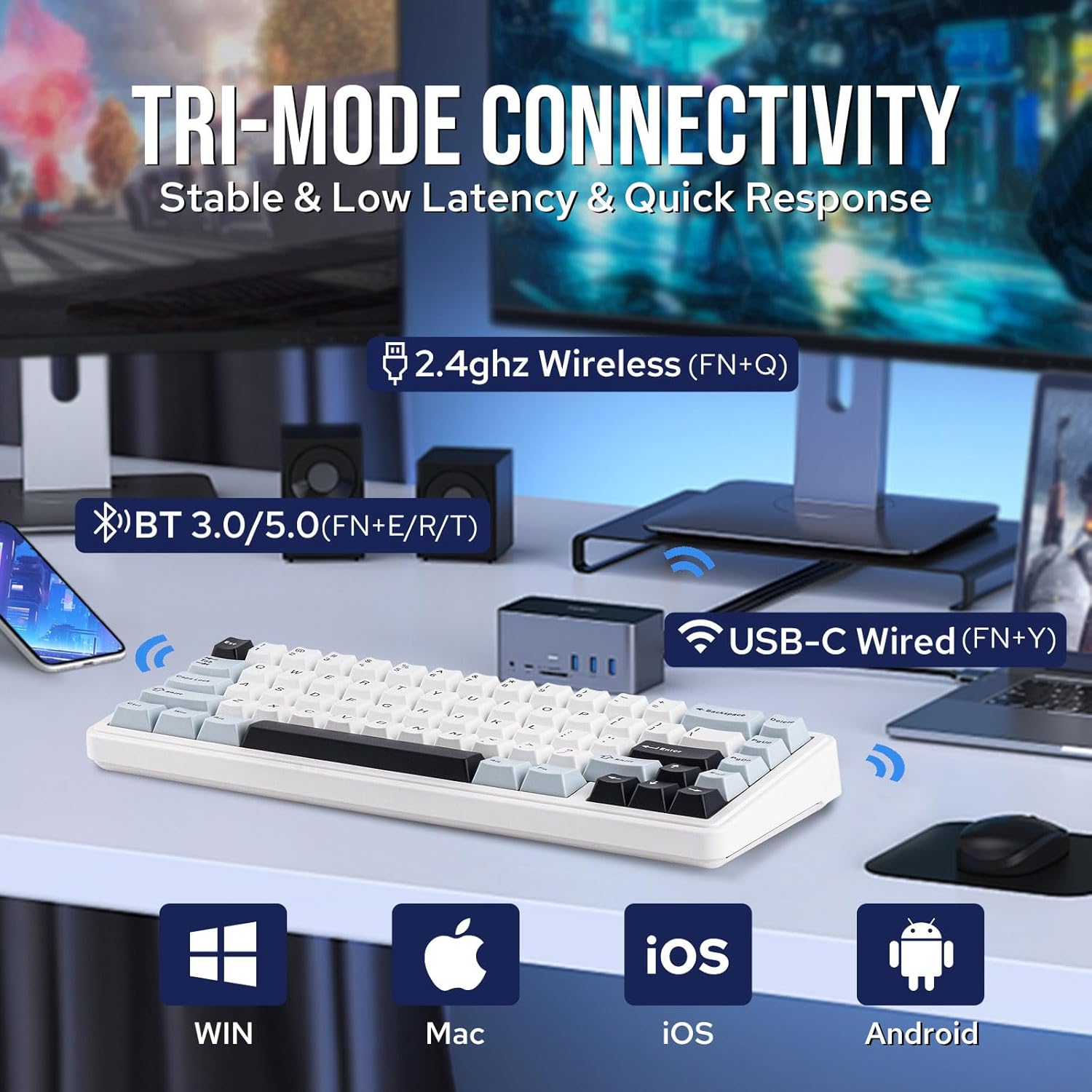
Image 3.1: Diagram illustrating the three connectivity modes: 2.4GHz Wireless (FN+Q), Bluetooth 3.0/5.0 (FN+E/R/T), and USB-C Wired (FN+Y), along with compatibility icons for Windows, Mac, iOS, and Android.

Image 3.2: An illustration showing the EPOMAKER x Aula F65 keyboard connected to a smartphone via Bluetooth, a desktop PC via 2.4GHz wireless dongle, and a laptop via USB-C cable, demonstrating its multi-device compatibility.
- Wired Mode (USB-C):
- Connect the USB-C cable to the keyboard and your computer.
- Press FN + Y to switch to wired mode. The keyboard will be recognized automatically by your system.
- 2.4GHz Wireless Mode:
- Insert the 2.4GHz USB receiver into an available USB port on your computer.
- Press FN + Q to activate 2.4GHz wireless mode. The keyboard should connect automatically.
- Bluetooth Mode:
The keyboard supports up to three Bluetooth devices.
- Press FN + E, FN + R, or FN + T to select a Bluetooth channel (BT1, BT2, BT3).
- Hold the selected FN + E/R/T key combination for 3-5 seconds until the indicator light flashes rapidly, indicating pairing mode.
- On your device (computer, tablet, smartphone), search for Bluetooth devices and select "EPOMAKER F65" to pair.
- Once paired, the indicator light will stop flashing.
4. Operating Instructions
4.1 RGB Lighting Customization
The F65 features vibrant RGB backlighting with multiple effects and colors.

Image 4.1: The F65 keyboard illuminated with RGB backlighting, showing key combinations for toggling backlight color (FN + TAB) and backlight effect (FN + \|).

Image 4.2: Close-up of the F65 keyboard's side, highlighting the RGB sidelight and showing key combinations to toggle sidelight effect (FN + Right Shift) and sidelight color (FN + /?).
- To toggle backlight color: Press FN + TAB.
- To toggle backlight effect: Press FN + \|.
- To toggle sidelight effect: Press FN + Right Shift.
- To toggle sidelight color: Press FN + /?.
4.2 Hot-Swappable Switches
The F65 features hot-swappable sockets, allowing you to change mechanical switches without soldering. It is compatible with 3-pin and 5-pin mechanical switches.

Image 4.3: A hand using a switch puller to remove a mechanical switch from the F65 keyboard, illustrating the hot-swappable PCB feature. Insets show a pre-lubed linear switch, hot-swap socket, and lubed & tuned stabilizer.

Image 4.4: A detailed view of the hot-swappable PCB, showing compatibility with 3/5 pin mechanical switches, pre-lubed linear switches, lubed & tuned stabilizers, hot-swap sockets, and south-facing LEDs.
- Using the provided keycap puller, gently remove the keycap from the switch you wish to replace.
- Using the provided switch puller, carefully grip the switch from its top and bottom clips and pull it straight up.
- Align the pins of the new switch with the holes on the PCB. Ensure the pins are straight to avoid bending.
- Gently push the new switch down until it clicks into place.
- Re-attach the keycap.
4.3 Battery Management
The F65 keyboard is equipped with a 4000mAh battery for extended usage.

Image 4.5: An image highlighting the 4000mAh battery capacity of the F65 keyboard, showing estimated usage times: 18 hours with RGB, 270 hours without RGB, and 7.5 hours for full charging. Icons for fast charging, durability, and long-lasting are also present.
- The keyboard can last approximately 18 hours with RGB lighting on, and up to 270 hours with RGB off.
- A full charge takes approximately 7.5 hours.
- Connect the USB-C cable to charge the keyboard when the battery is low.
5. Maintenance
5.1 Cleaning the Keyboard
- Use a soft, lint-free cloth to wipe down the keycaps and frame.
- For deeper cleaning, use the provided keycap puller to remove keycaps and clean dust or debris from the plate using compressed air or a small brush.
- Avoid using harsh chemicals or abrasive materials.
5.2 Switch and Keycap Care
- When removing switches, ensure the switch puller is properly aligned to avoid damaging the switch housing or PCB socket.
- Store spare keycaps and switches in a clean, dry place.
6. Troubleshooting
6.1 Connectivity Issues
- Keyboard not connecting in 2.4GHz mode: Ensure the USB receiver is securely plugged in and the keyboard is set to 2.4GHz mode (FN+Q). Try a different USB port.
- Bluetooth pairing failure: Ensure the keyboard is in pairing mode (FN+E/R/T held for 3-5 seconds). Delete previous pairings on your device and try again. Ensure your device's Bluetooth is enabled.
- Wired mode not working: Check the USB-C cable connection at both ends. Try a different USB port or cable. Ensure the keyboard is set to wired mode (FN+Y).
6.2 RGB Lighting Not Functioning
- Ensure the keyboard battery has sufficient charge.
- Try cycling through RGB effects and colors using the FN key combinations (FN+TAB, FN+\|).
6.3 Keys Not Responding
- If a specific key is not responding, try removing and re-inserting the switch for that key.
- Ensure the switch is fully seated in the hot-swap socket.
- If multiple keys are not responding, try switching connectivity modes or restarting the keyboard and your device.
7. Specifications

Image 7.1: The F65 keyboard with detailed dimensions: 12.8 inches / 32.5 cm length, 4.6 inches / 11.6 cm width, and height ranging from 1.2 inches / 3 cm to 1.7 inches / 4.4 cm. The weight is indicated as 0.8kg.
| Feature | Detail |
|---|---|
| Model | F65 |
| Layout | 65% (67 Keys) |
| Connectivity | Bluetooth (3.0/5.0), 2.4GHz Wireless, USB-C Wired |
| Hot-Swappable | Yes (3/5-pin switches) |
| Backlighting | RGB (16.8 million colors) |
| Battery Capacity | 4000mAh |
| Polling Rate | 1000Hz |
| Keycap Material | PBT |
| Mounting Style | Gasket Mount |
| Product Dimensions | 12.8 x 4.6 x 1.7 inches (32.5 x 11.6 x 4.4 cm) |
| Item Weight | 2.24 pounds (1.02 kg) |
| Compatible Devices | Gaming Console, Laptop, PC, Smartphone, Tablet |

Image 7.2: An illustration demonstrating the anti-ghosting and low-latency capabilities of the F65 keyboard across its connectivity modes: Bluetooth (18ms), 2.4G (7ms), and Wired (3ms).
8. Warranty and Support
For warranty information and technical support, please refer to the official EPOMAKER website or contact their customer service directly. Keep your purchase receipt for warranty claims.


