
1. Product Overview
The AOCHUAN Smart AI XPro is a 3-axis gimbal stabilizer designed for smartphones, offering advanced stabilization and intelligent tracking capabilities. This package includes the Smart AI XPro gimbal, a B10 storage bag, and an E10 extension rod, providing a complete solution for capturing smooth, professional-quality video content.
Key features include an AI sensor for face tracking without additional apps or Bluetooth, advanced 7.0 anti-shake technology, and a zoom slider for effortless control. The accompanying B10 storage bag provides ample, organized space with an adjustable shoulder strap for convenient transport. The E10 extension rod offers five adjustable lengths for versatile shooting angles.
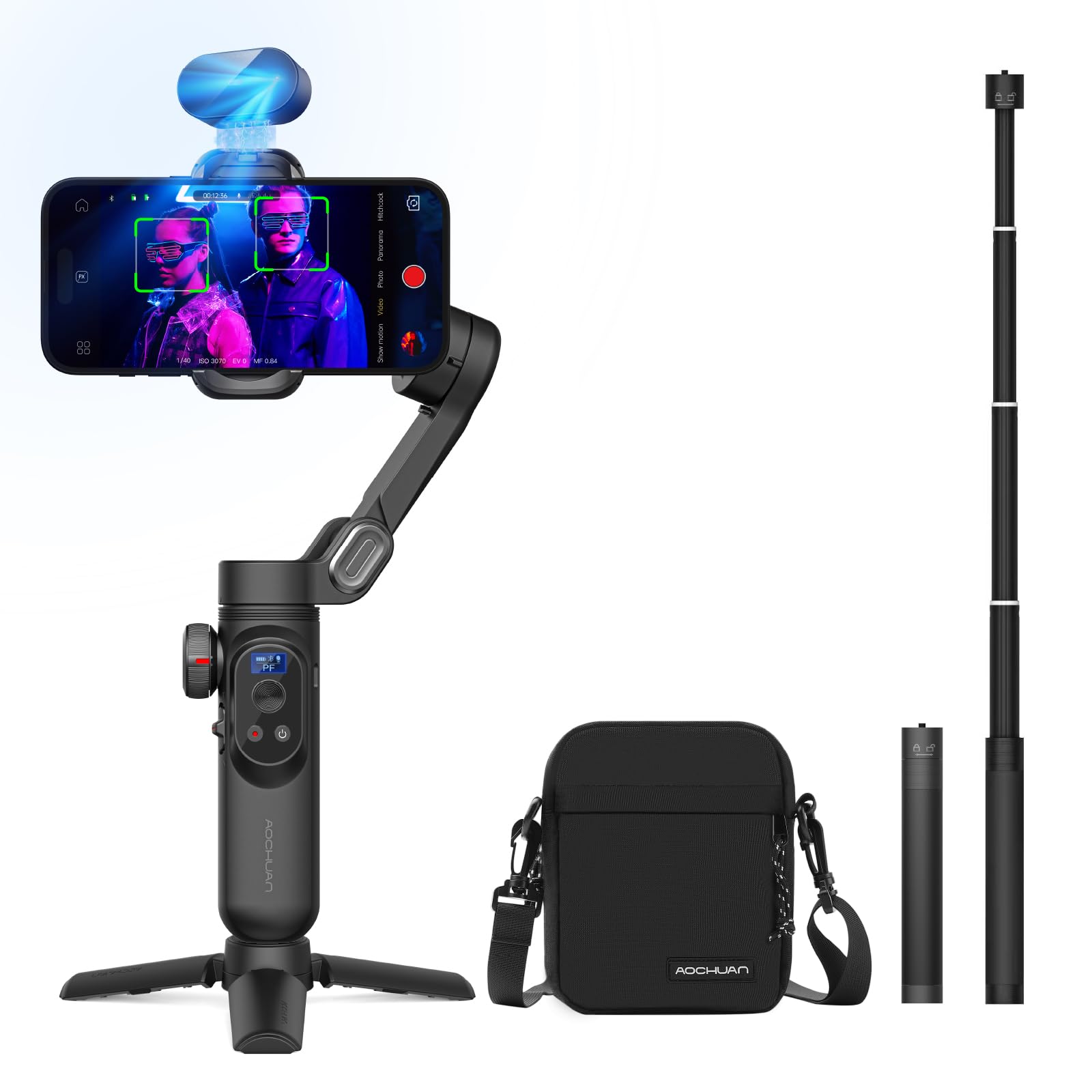
Image 1.1: The AOCHUAN Smart AI XPro 3-Axis Gimbal Stabilizer with a smartphone mounted.
2. Setup Guide
2.1 Unboxing and Initial Inspection
Carefully unpack all components. Verify that the package contains the gimbal, AI vision sensor, B10 storage bag, E10 extension rod, charging cable, and user manual. Inspect all items for any signs of damage.
2.2 Charging the Gimbal
Before first use, fully charge the gimbal using the provided USB-C cable and a compatible power adapter (not included). The charging indicator light will typically change color or turn off once fully charged.
2.3 Mounting Your Smartphone
- Extend the phone clamp on the gimbal.
- Place your smartphone securely into the clamp, ensuring it is centered.
- Ensure the phone is firmly held and does not wobble.
2.4 Attaching the Magnetic AI Vision Sensor
The AI Vision Sensor attaches magnetically to the top of the smartphone clamp. Ensure it is securely seated for optimal performance.

Image 2.1: The Magnetic AI Vision Sensor providing intelligent tracking and stabilization.
2.5 Balancing the Gimbal
Proper balancing is crucial for optimal performance and battery life. After mounting your phone, adjust the gimbal arms until the phone remains level when the gimbal is powered off. This reduces strain on the motors.
2.6 Using the E10 Extension Rod
The E10 extension rod can be attached to the bottom of the gimbal for extended reach. It features a 1/4-inch screw interface for universal compatibility. To extend, twist and pull each section. To retract, push each section back in and twist to lock.

Image 2.2: The E10 Universal Extendable Extension Rod with its 1/4 screw interface.

Image 2.3: The E10 extension rod offers various adjustable lengths for flexible shooting.
3. Operating Instructions
3.1 Powering On/Off
Press and hold the power button for a few seconds to turn the gimbal on or off. The indicator lights will illuminate when powered on.
3.2 Gimbal Modes and Stabilization
The Smart AI XPro features advanced 7.0 anti-shake technology for smooth footage. Different modes (e.g., Pan Follow, Tilt Follow, All Lock) can be cycled through using the mode button, allowing for various creative shots.
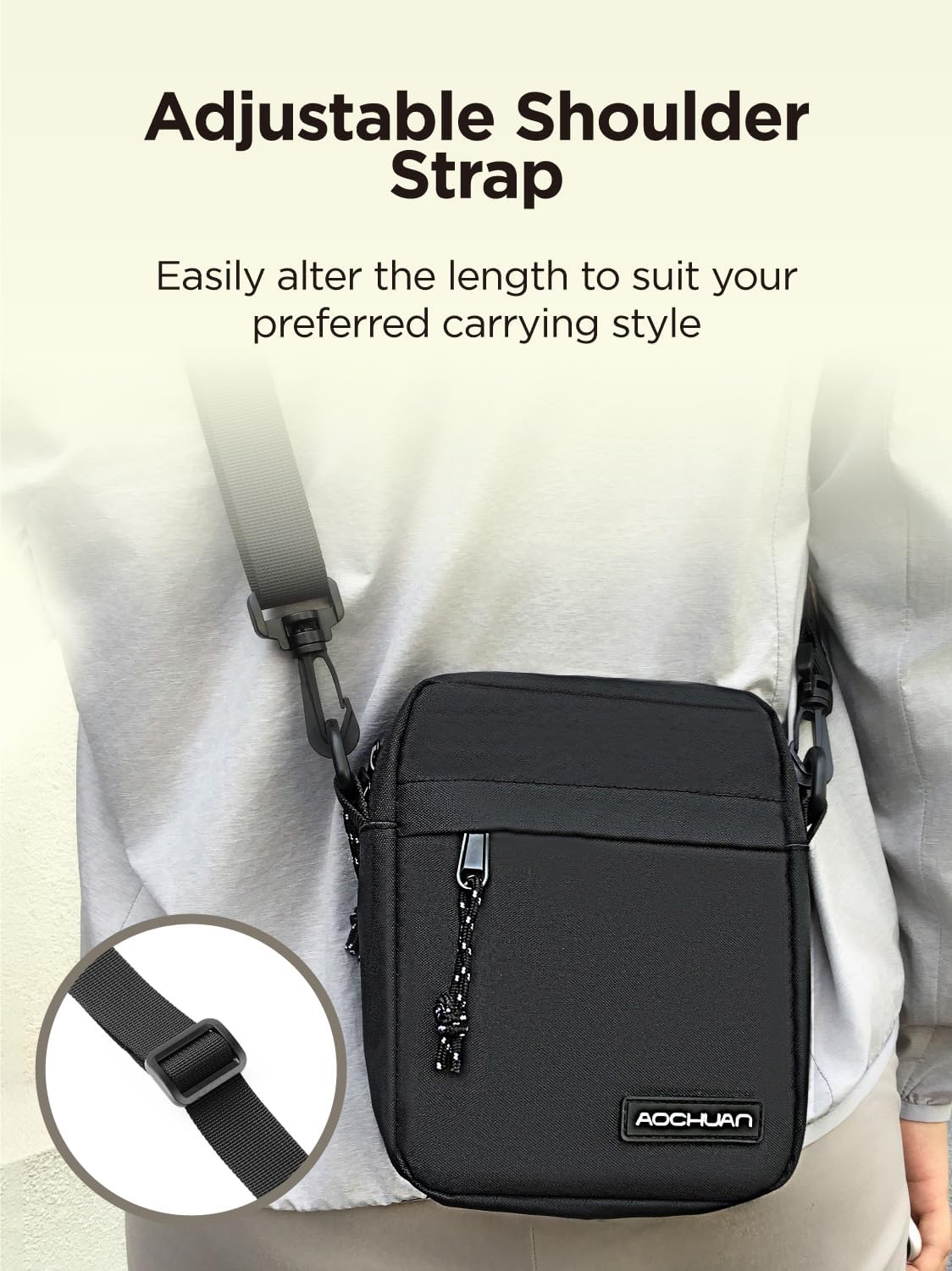
Image 3.1: Demonstrating 3-Axis Stabilization for flawless, shake-free videos.
3.3 AI Face Tracking
The integrated AI sensor automatically detects and tracks human faces, keeping your subject in focus and centered. This feature operates independently, requiring no external applications or Bluetooth connections.
3.4 AI Gesture Control
Operate the gimbal using simple hand gestures for convenient control:
- Turn on/off face tracking: Use a specific hand gesture (refer to the gimbal's quick start guide for exact gestures).
- Toggle photo/video: Use a specific hand gesture.
- Switch between landscape and portrait: Use a specific hand gesture.

Image 3.2: AI Gesture Control for convenient operation of the gimbal.
3.5 Zoom Slider
Utilize the integrated zoom slider on the gimbal to control your smartphone's zoom function directly, allowing for dynamic close-up shots without needing to touch the phone screen.
4. Maintenance
4.1 Cleaning
Wipe the gimbal and accessories with a soft, dry cloth. Avoid using harsh chemicals or abrasive materials that could damage the surface or electronic components.
4.2 Storage
When not in use, store the gimbal and its accessories in the provided B10 storage bag. This protects the equipment from dust, scratches, and impacts. The bag features adjustable dividers to keep items organized.

Image 4.1: The B10 Storage Bag offering durable and large capacity for all accessories.

Image 4.2: The B10 Storage Bag features an adjustable shoulder strap for comfortable carrying.
Image 4.3: Dimensions of the compact and lightweight B10 Storage Bag.
4.3 Battery Care
To prolong battery life, avoid fully discharging the gimbal frequently. If storing for an extended period, charge the battery to approximately 50-60%.
5. Troubleshooting
5.1 Gimbal Not Powering On
- Ensure the gimbal is fully charged.
- Press and hold the power button for the required duration (typically 2-3 seconds).
5.2 Unstable Footage / Gimbal Vibrating
- Verify that the smartphone is properly balanced on the gimbal.
- Ensure the phone is securely clamped and not loose.
- Check for any obstructions preventing free movement of the gimbal axes.
5.3 AI Tracking Not Working
- Ensure the AI Vision Sensor is correctly attached and facing the subject.
- Verify sufficient lighting for the sensor to detect faces.
- Ensure no obstructions are blocking the sensor's view.
6. Specifications
| Feature | Detail |
|---|---|
| Brand | AOCHUAN |
| Model | Smart AI XPro |
| Stabilization | 3-Axis |
| AI Tracking | Magnetic AI Vision Sensor (App-free) |
| Compatible Devices | Cellphone |
| Extension Rod Length | Adjustable (e.g., 18cm to 73cm) |
| Storage Bag Dimensions | Approx. 18cm x 16cm x 4cm |
| Color | Black |
7. Warranty and Support
For warranty information and technical support, please refer to the official AOCHUAN website or contact their customer service directly. Keep your proof of purchase for warranty claims.