
1. Introduction
Thank you for choosing the awatrue Wireless Headset. This manual provides detailed instructions on how to set up, operate, maintain, and troubleshoot your new headset. Designed for comfort and clarity, this headset features AI noise-cancelling technology and dual connectivity options, making it ideal for remote work, call centers, and online meetings.

Image 1.1: The awatrue Wireless Headset in pink, shown with its charging base and a USB dongle.
2. What's in the Box
- awatrue Wireless Headset
- Charging Base
- USB Dongle (2.4GHz)
- USB-C Charging Cable
- User Manual (this document)
3. Product Overview
The awatrue Wireless Headset is designed for versatile use, offering both 2.4GHz wireless and Bluetooth connectivity. It features an adjustable microphone with AI noise cancellation for clear communication and comfortable earcups for extended wear.

Image 3.1: Key comfort features of the headset, including soft earcups, durable headband, flexible fit, and user-friendly design.
Headset Components
- Adjustable Headband: For a comfortable and secure fit.
- Earcup Controls: Buttons for volume, power, and call management.
- AI Noise-Cancelling Microphone: Rotatable boom microphone for clear voice pickup.
- USB-C Charging Port: Located on the earcup for direct charging.
- Charging Contacts: On the earcup for use with the charging base.
4. Setup
4.1 Charging the Headset
Before first use, fully charge the headset. The headset can be charged using the included charging base or directly via the USB-C cable.
- Using the Charging Base: Place the headset onto the charging base, ensuring the charging contacts align. The indicator light on the base will show charging status.
- Using USB-C Cable: Connect the USB-C cable to the headset's charging port and the other end to a USB power source (e.g., computer USB port, wall adapter).
A full charge takes approximately 1.5 to 2 hours, providing up to 30 hours of talking time.

Image 4.1: The headset can be charged using the dedicated charging base or directly via a USB-C cable.
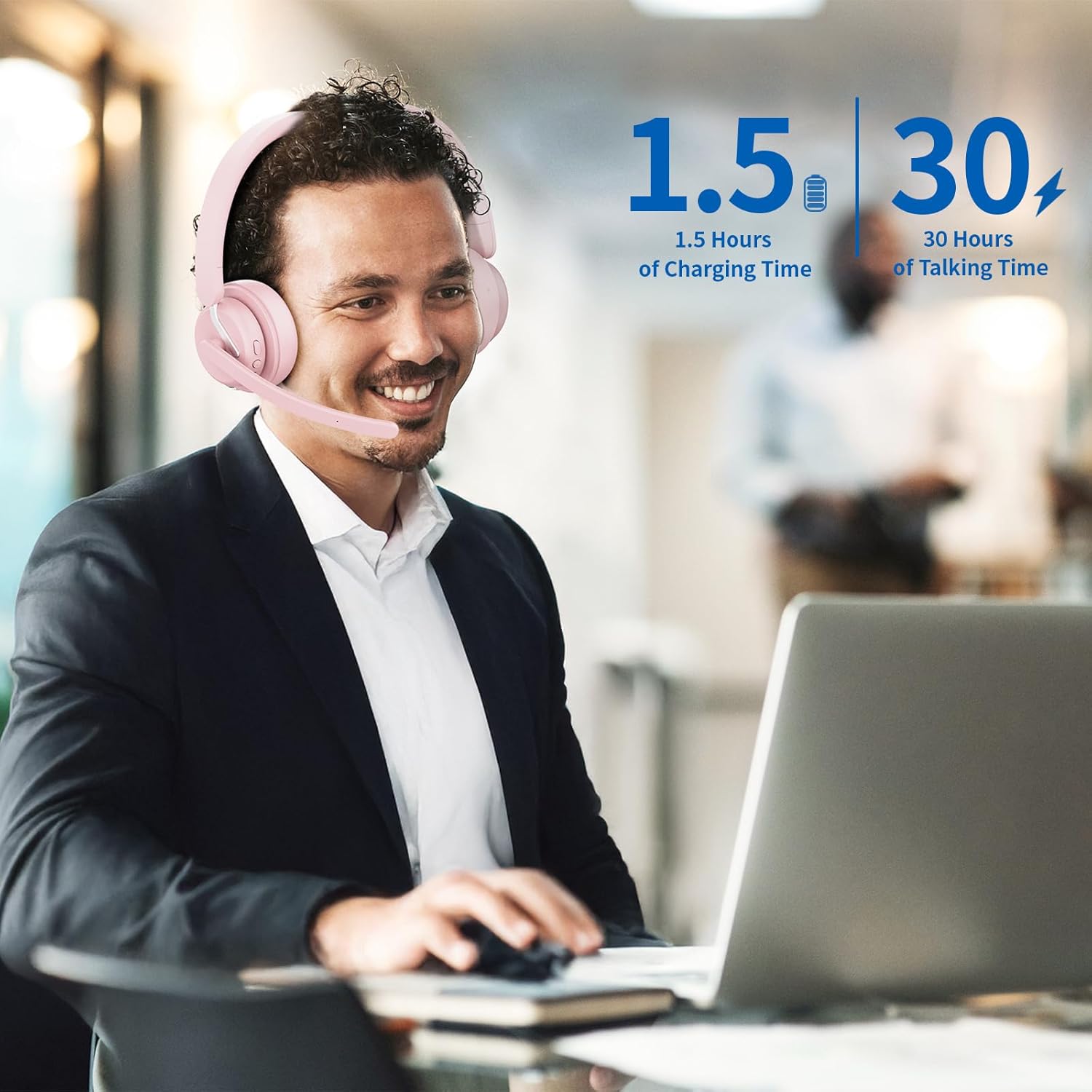
Image 4.2: Visual representation of the headset's charging and talking time capabilities.
4.2 Connecting the Headset
The headset supports dual connection, allowing simultaneous connection to a computer via the 2.4GHz USB dongle and a mobile device via Bluetooth.
4.2.1 2.4GHz Wireless Connection (via USB Dongle)
- Insert the USB dongle into an available USB port on your computer.
- Power on the headset. It will automatically attempt to connect to the dongle.
- Once connected, the indicator light on the headset will stabilize, and your computer should recognize the headset as an audio device.
4.2.2 Bluetooth Connection
- With the headset powered on, press and hold the Bluetooth pairing button (refer to headset diagram for location) until the indicator light flashes, indicating pairing mode.
- On your mobile device, go to Bluetooth settings and search for new devices.
- Select "awatrue EH11-P" (or similar name) from the list of available devices to pair.
- Once paired, the indicator light on the headset will stabilize.

Image 4.3: The headset supports dual connection for seamless switching between computer and phone.

Image 4.4: Visual representation of the headset's dual connection capability with both 2.4G wireless and Bluetooth.
5. Operating Instructions
5.1 Power On/Off
- Power On: Press and hold the Power button for 3 seconds.
- Power Off: Press and hold the Power button for 5 seconds.
5.2 Call Management
- Answer/End Call: Press the Multi-function button once.
- Reject Call: Press and hold the Multi-function button for 2 seconds.
- AI Noise-Cancelling Microphone: The integrated microphone uses AI to reduce background noise, ensuring clear voice transmission.

Image 5.1: The AI noise cancellation feature provides clear audio for calls in various environments.

Image 5.2: The AI Noise Technology ensures crystal clear calls by minimizing ambient noise.
5.3 Microphone Mute Control
The microphone boom features a mute function that can be activated by its position.
- To Mute: Rotate the mic boom to the upright position (away from your mouth).
- To Unmute: Rotate the mic boom down towards your mouth.
Note: This mute feature is primarily active during a call.

Image 5.3: The microphone boom can be rotated upwards to mute and downwards to unmute during calls.
5.4 Volume Control
- Volume Up: Press the '+' button.
- Volume Down: Press the '-' button.
5.5 Wide Compatibility
The headset is compatible with various communication platforms and operating systems, ensuring seamless integration into your workflow.

Image 5.4: The headset offers wide compatibility with popular communication and conferencing platforms.
6. Maintenance
6.1 Cleaning
- Wipe the headset and charging base with a soft, dry cloth.
- Do not use abrasive cleaners or solvents.
- Keep charging contacts clean and free of dust.
6.2 Storage
- Store the headset in a cool, dry place away from direct sunlight and extreme temperatures.
- If storing for an extended period, ensure the headset is partially charged (around 50%) to preserve battery health.
6.3 Battery Care
- Avoid fully discharging the battery frequently.
- Charge the headset regularly, even if not in constant use, to maintain battery longevity.
7. Troubleshooting
If you encounter issues with your awatrue Wireless Headset, please refer to the following common problems and solutions:
| Problem | Possible Cause | Solution |
|---|---|---|
| No sound from headset / Microphone not working | Headset not connected; Muted; Incorrect audio output/input selected on device. | Ensure headset is powered on and connected (2.4GHz dongle inserted, Bluetooth paired). Check mic boom position (unmuted). Verify audio settings on your computer/device. Rebooting your laptop may resolve temporary issues. |
| Headset constantly stops working / Disconnects | Low battery; Out of range; Interference; Software glitch. | Ensure headset is fully charged. Stay within the operating range (33 meters). Minimize interference from other wireless devices. Try restarting the headset and your connected device. |
| Cannot pair via Bluetooth | Headset not in pairing mode; Device Bluetooth off; Already connected to another device. | Ensure headset is in pairing mode (flashing indicator). Turn Bluetooth on your device. Disconnect from any other paired devices. |
| Charging issues | Cable/base not connected properly; Faulty cable/port. | Ensure charging cable/base is securely connected. Try a different USB port or power adapter. Clean charging contacts on headset and base. |
8. Specifications
| Feature | Specification |
|---|---|
| Model Name | EH11-P PK |
| Connectivity Technology | Wireless (2.4GHz USB Dongle, Bluetooth) |
| Wireless Communication Technology | Bluetooth 5.0 |
| Bluetooth Range | 33 Meters |
| Noise Control | AI Noise Cancellation |
| Frequency Response | 20 KHz |
| Sensitivity | 95 dB |
| Impedance | 32 Ohm |
| Audio Driver Size | 40 Millimeters |
| Charging Time | 2 Hours (approx.) |
| Talking Time | 30 Hours (approx.) |
| Item Weight | 8 Ounces |
| Material | Plastic |
| Color | Pink |
| Manufacturer | awatrue |
9. Warranty and Support
For warranty information and customer support, please refer to the product packaging or contact awatrue customer service directly. Contact details are typically available on the manufacturer's official website or through the retailer where the product was purchased.